Send feedback or a testimonial
Before you start
- You need to be signed in. The feedback controls don’t appear when you’re signed out.
Steps
Select Feedback
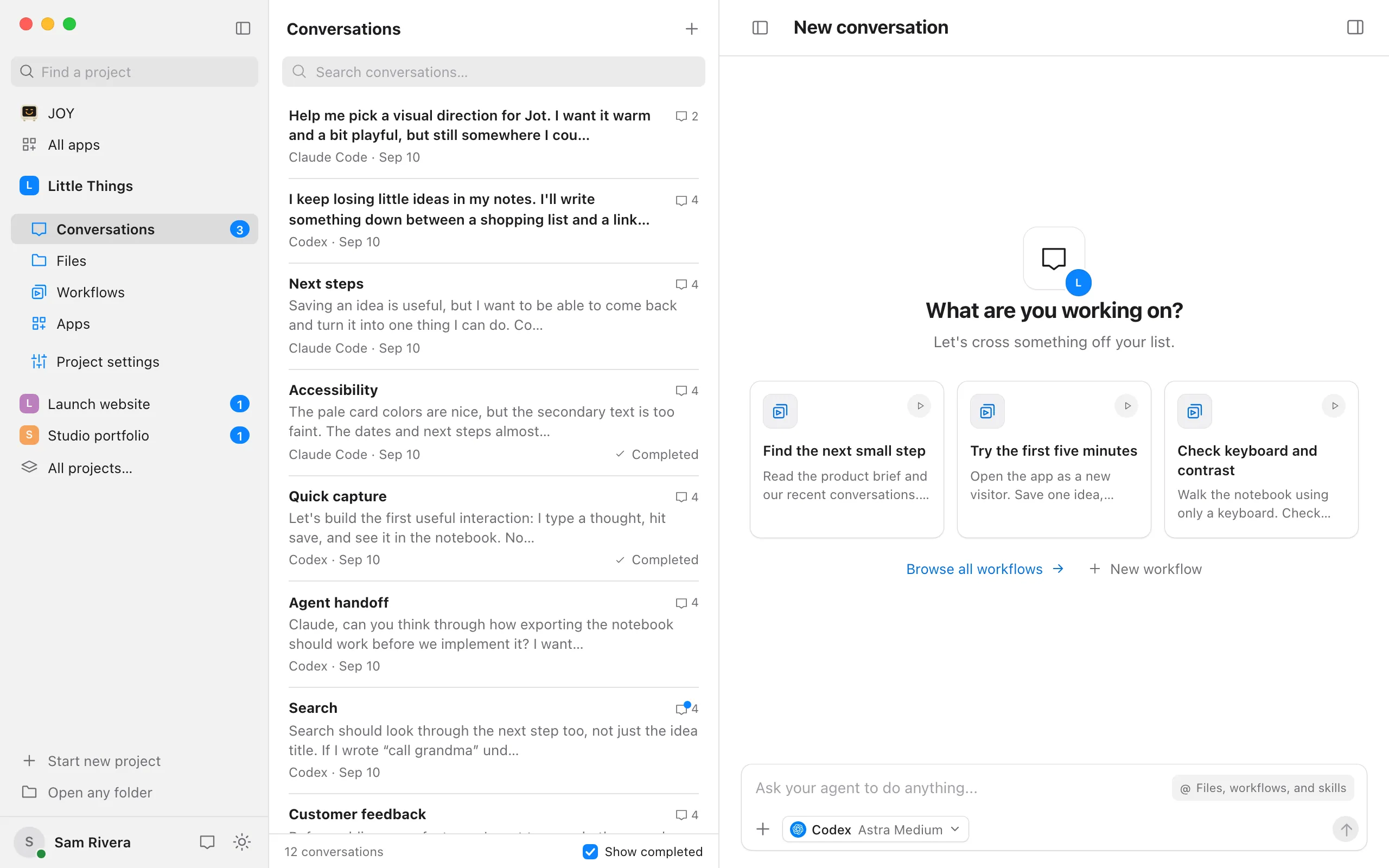
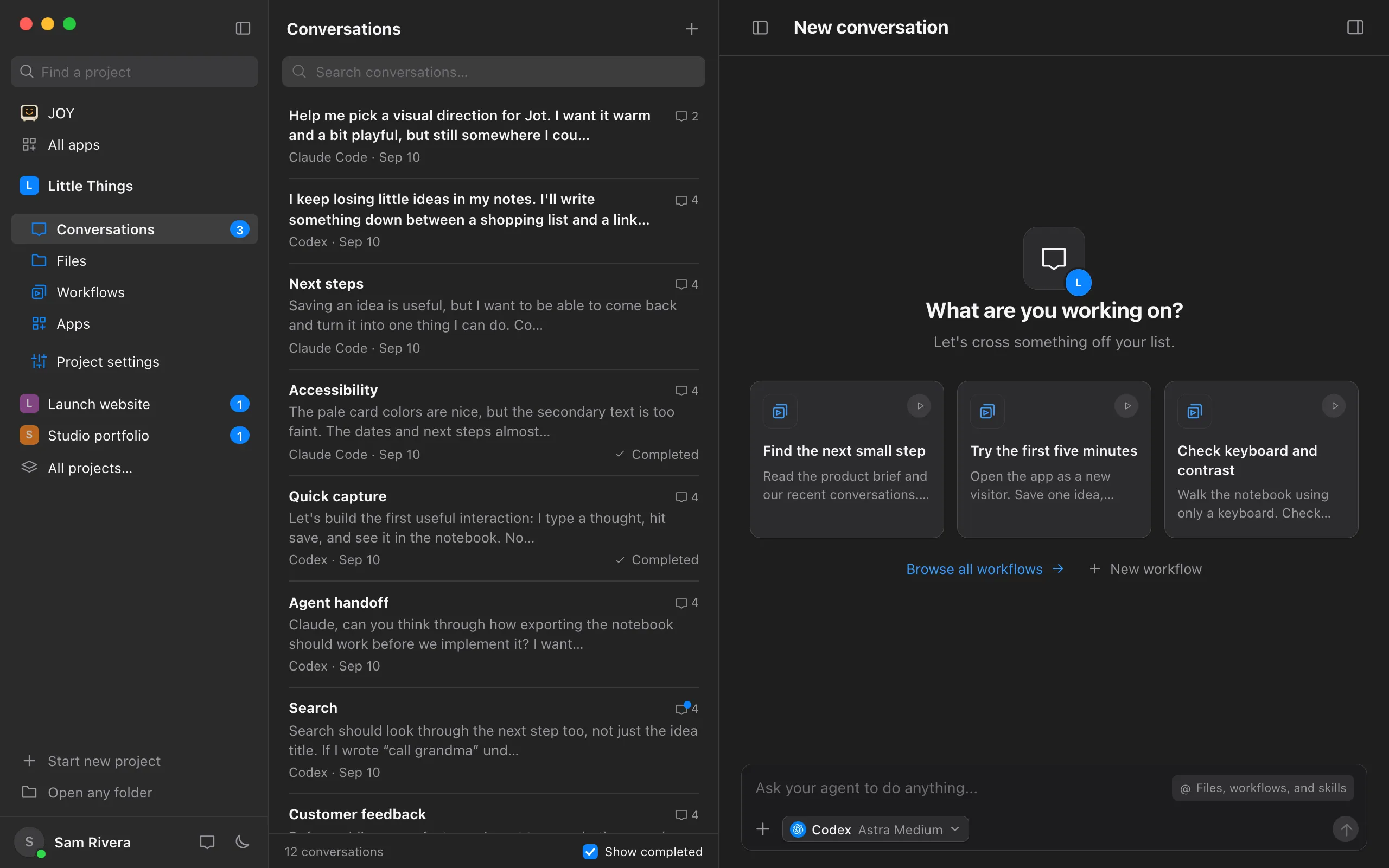
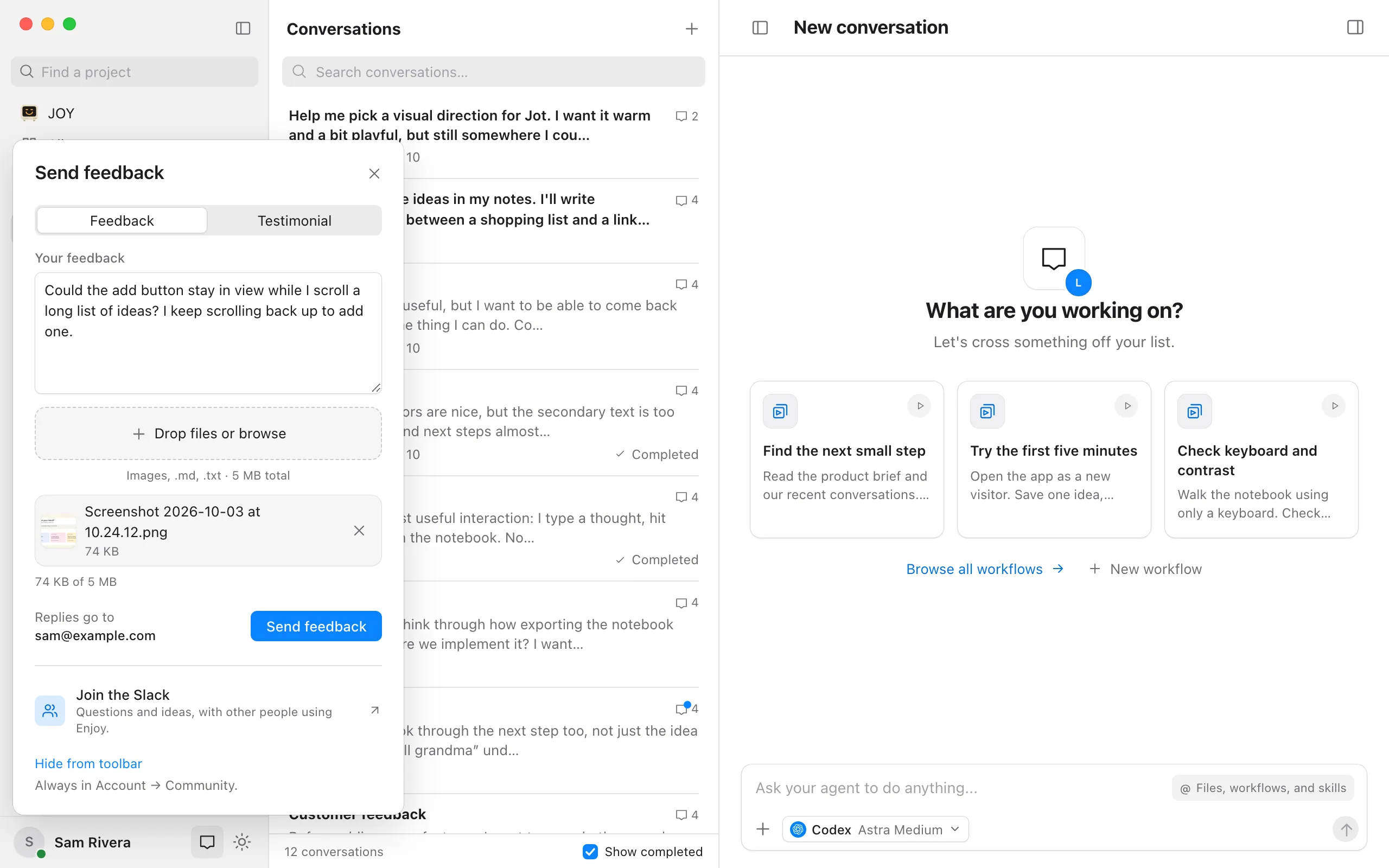
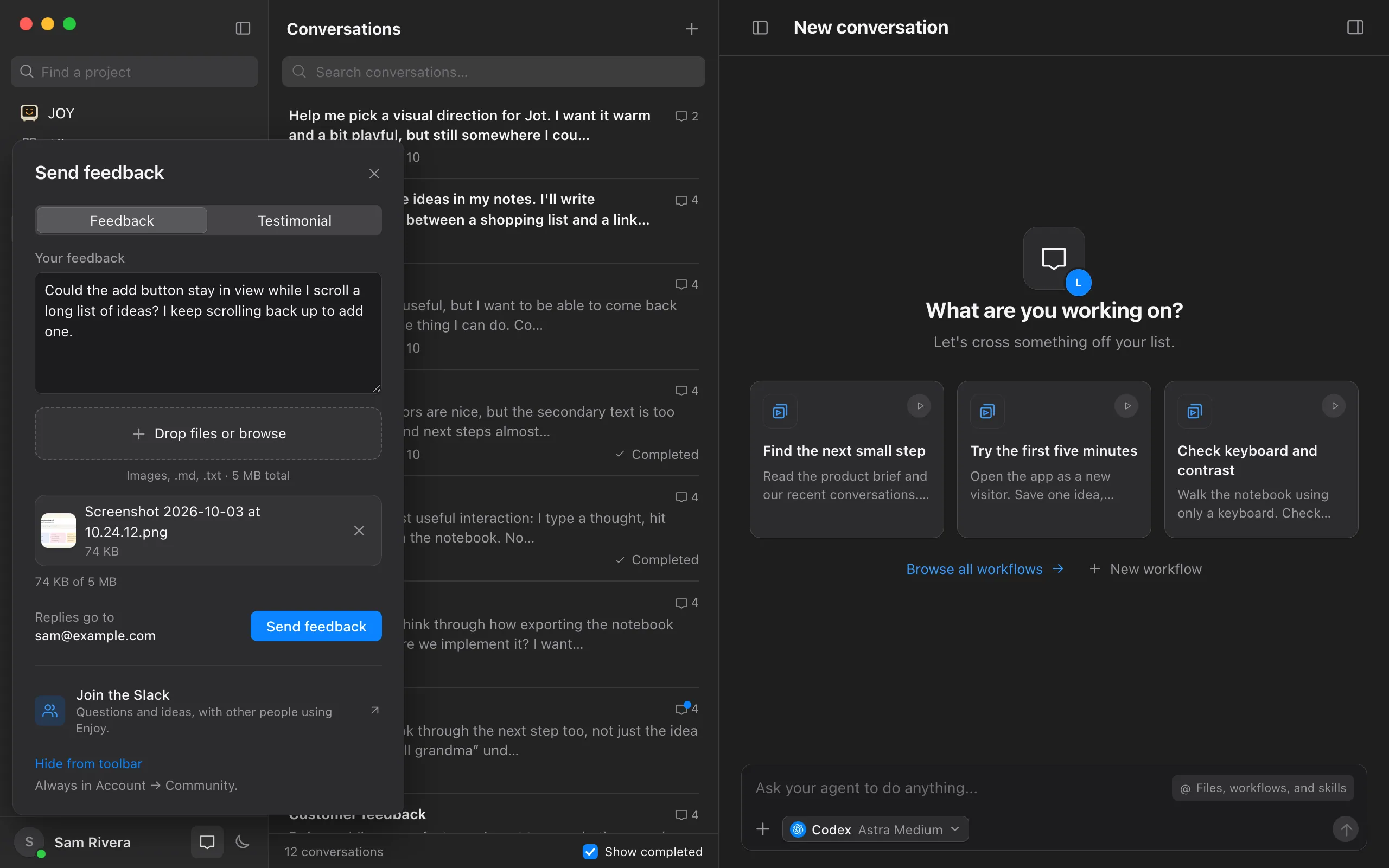
It’s the speech-bubble button at the bottom of the sidebar, beside the Appearance button. Until you first open it, a note above it says Tell us what to improve., and selecting the note opens the form too. You can also open Your account and select Send feedback under Community.
Write your note
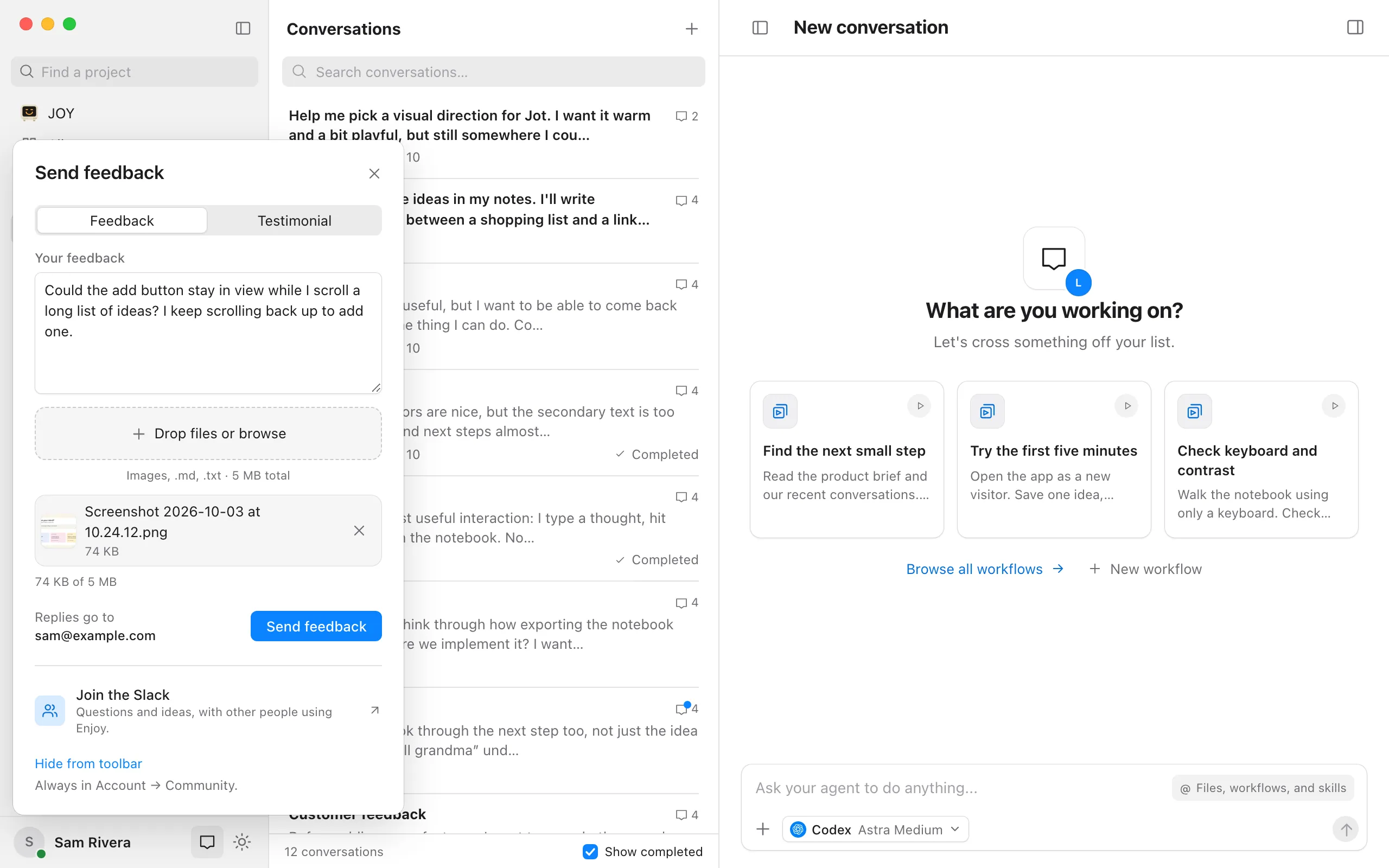
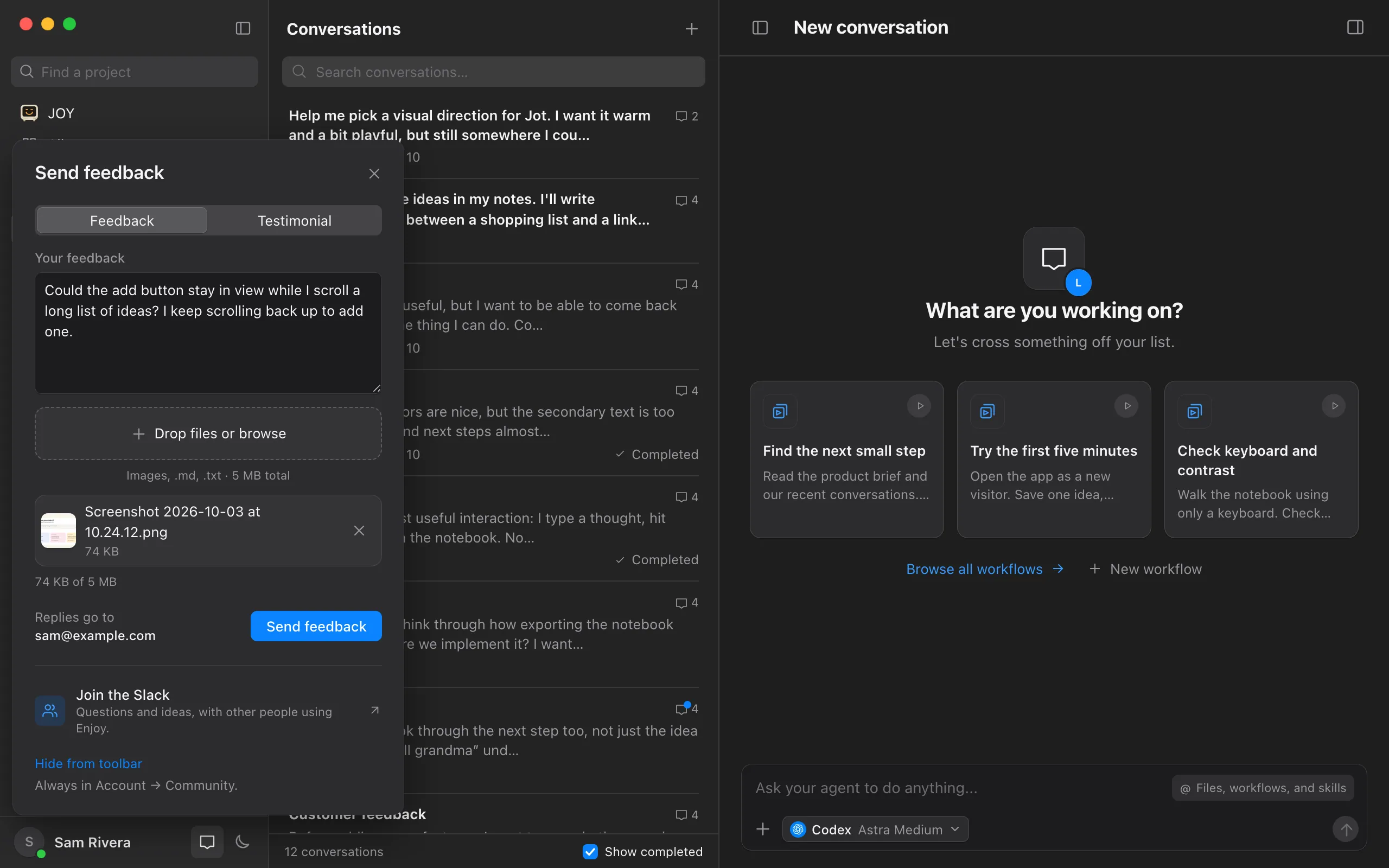
On the Feedback tab, type it in Your feedback. A note can be up to 4,000 characters.
Attach files if they help
Select Drop files or browse, or drop files onto it. You can add images and .md or .txt files, up to 5 MB in total.
Select Send feedback
Enjoy shows Thanks for the feedback! and the email address the team will reply to if they follow up. Select Done.
Good to know
- Replies go to your Enjoy account’s email, shown beside Send feedback as Replies go to. From the computer app, Enjoy also sends its version and your system with the note. It doesn’t attach your projects or conversations.
- To send Enjoy’s log, check Include app logs in the computer app before you send. The log is a file where Enjoy notes when it starts and quits, problems it runs into, and crash details, which helps the team understand a crash. Select Preview to read it first; it can include the names of files and folders on your computer. It’s attached as enjoy-logs.txt, counts toward the 5 MB limit, and is left out unless you check the box for each note.
- If you close the form before sending, your note is still there when you open it again, until you quit or reload Enjoy, or switch accounts.
- To send a testimonial, select the Testimonial tab. Type what you love about Enjoy, your Public name, and optionally your Role or company. Check the box that gives Enjoy permission to publish it on the Enjoy website, then select Send testimonial. Your email won’t be published, and the team reviews testimonials before anything appears.
- Changing a testimonial’s text, name, or role clears the permission box, so check it again before sending. Testimonials can’t include attachments.
- For questions and ideas, select Join the Slack at the bottom of the form to talk with other people using Enjoy. See Join the Enjoy Slack community.
- To hide the Feedback button, select Hide from toolbar at the bottom of the form. Feedback is always in Your account under Community. To bring the button back, check Show feedback in toolbar there.
- For a problem you need help with, email support instead. See Contact support.
If something goes wrong
Couldn’t send your feedback. Your note is still here. Please try again.
The note didn’t reach Enjoy. Check your connection and select Try again. Your note and attachments are kept.
Attachments can total up to 5 MB. Choose smaller files or remove one.
Remove a file with the button beside it, or attach a smaller screenshot. The form shows how much of the 5 MB you’re using.
Choose images, .md or .txt files with valid filenames.
That file type can’t be attached. Take a screenshot or save your text as a .txt or .md file instead.
Couldn’t include app logs.
Enjoy couldn’t read its log, and the message says why. Your note wasn’t sent. Uncheck Include app logs to send it without the log, or see What to include when you ask for help to find the log yourself.
Attachments and app logs can total up to 5 MB. Remove a file or leave out the logs.
Your files and the log together are over the limit. Remove a file, or uncheck Include app logs.
You’ve sent a few notes recently. Please try again in an hour.
There’s a limit on how many notes one account can send each hour. Wait and send it later. Your note stays in the form.