Join the Enjoy Slack community
Steps
Open your account
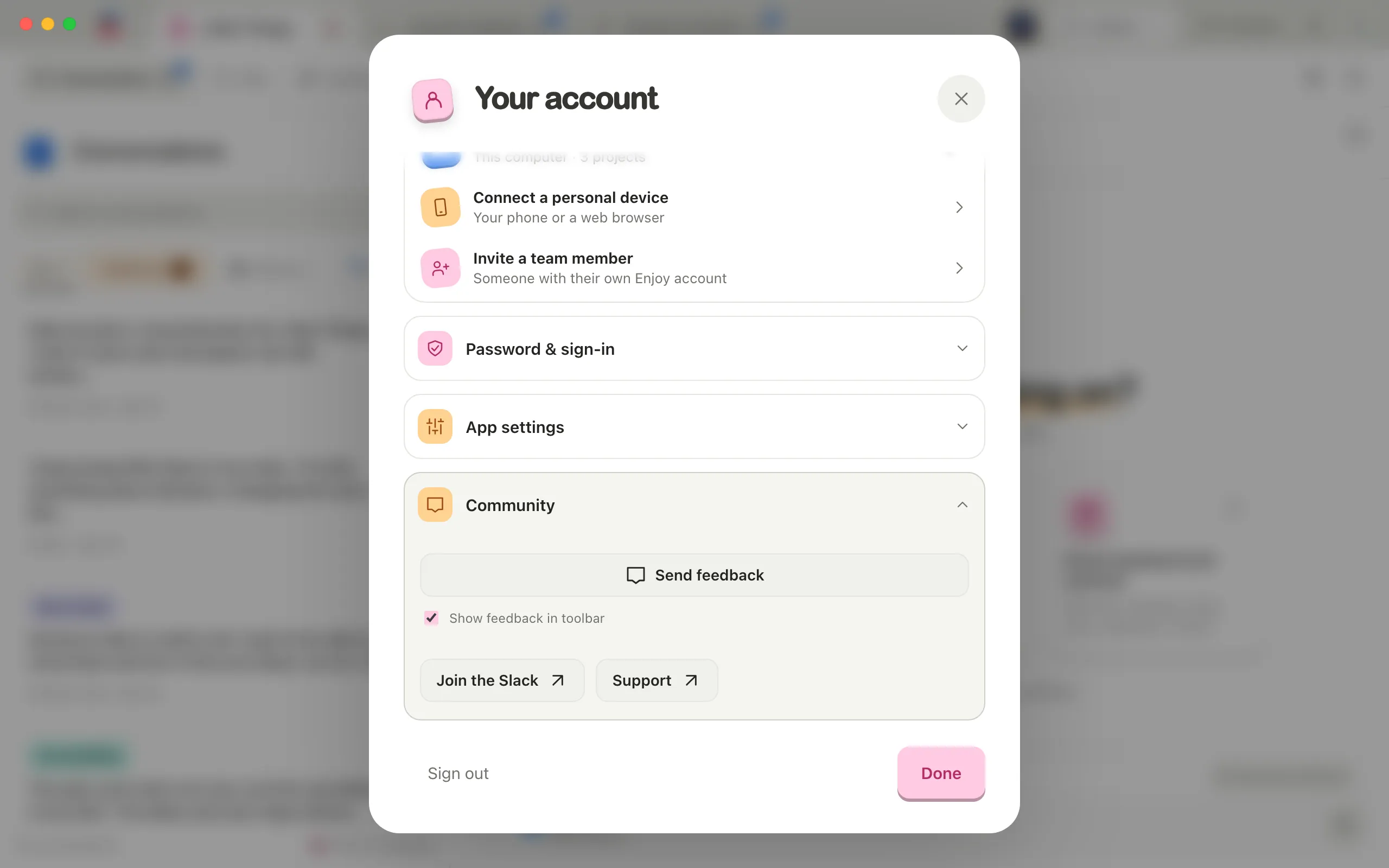
Select the circle with your initial in the top-right corner of Enjoy. The Your account window opens.
Select Join the Slack
It’s in the Community section near the bottom. The Slack invitation opens in your web browser.
Join the workspace
Follow Slack’s steps to sign in or create a Slack account and join.
Good to know
- The Send feedback form has the same invitation at its bottom: select Join the Slack.
- In the computer app, the Welcome to Enjoy. window that greets you in your first project has the same invitation. Select Join our Slack next to Questions?.
- The community link is also in the footer of every page on enjoy.dev, under Manual: Slack community. In this manual, it’s under Service as well.
- The Slack is for questions, ideas, and conversations with other people using Enjoy. For help with your account, billing, or a problem you’re stuck on, email support. See Contact support.
- Don’t post passwords, sign-in codes, or private project details in public channels.
If something goes wrong
Could not open this link. Try again or copy its address.
Enjoy couldn’t open your web browser. Try once more. You can also open the community link at the bottom of the enjoy.dev home page.