Switch between agent accounts
Saved accounts stay signed in side by side, so you can switch without signing out. It helps when you have separate personal and work plans, or when one account reaches its limit. Having more than one account is allowed; see Will having more than one Claude or Codex account get me banned?.
Before you start
- Use the Enjoy app on your computer to add accounts. You can also switch between saved accounts from the iPhone app.
- Saved accounts work with Claude Code, Codex, and Grok Build. To change Antigravity’s or Muse Code’s account, see Change an agent’s account by signing out. OpenCode has no account to change.
Steps
Open the agent settings
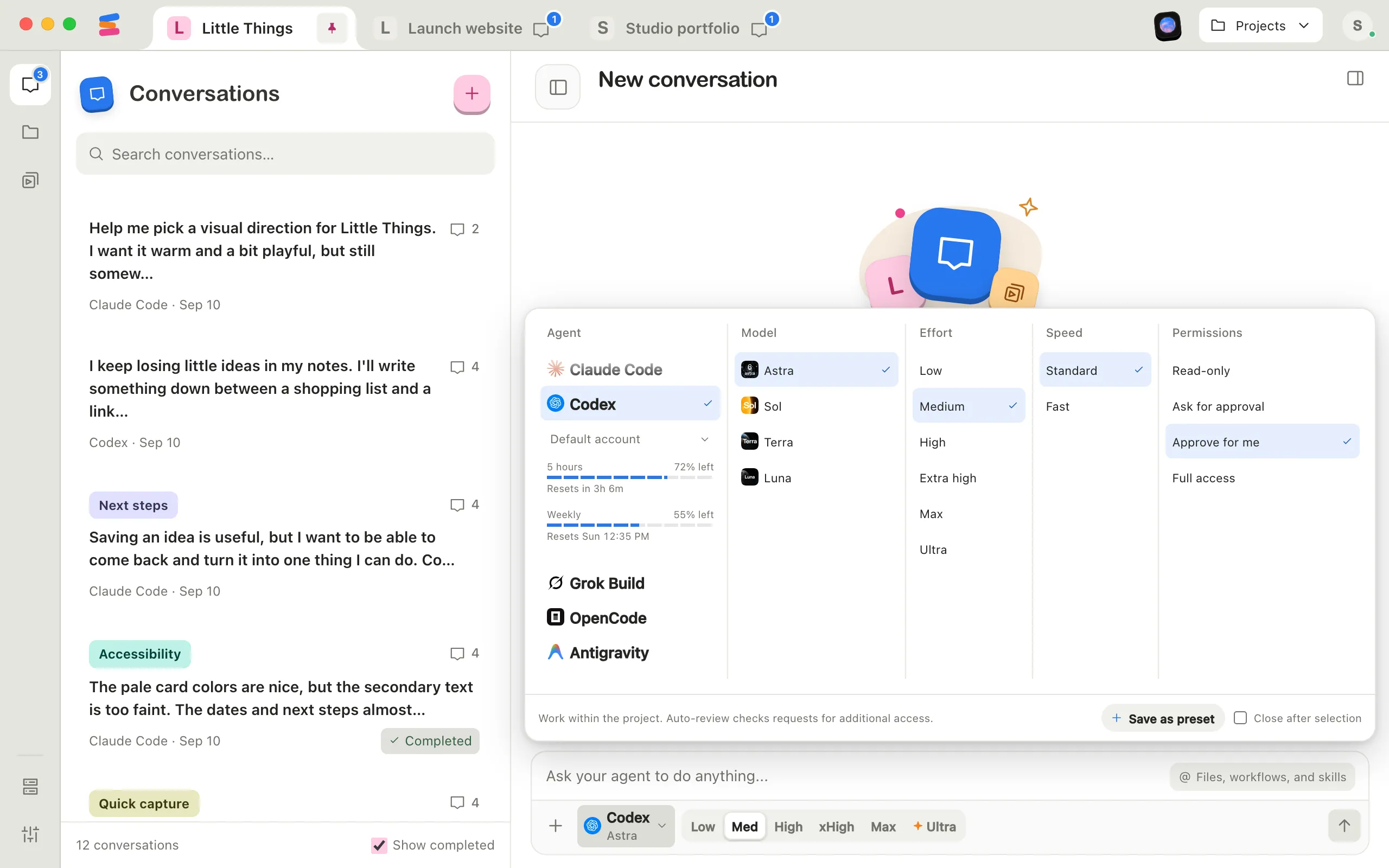
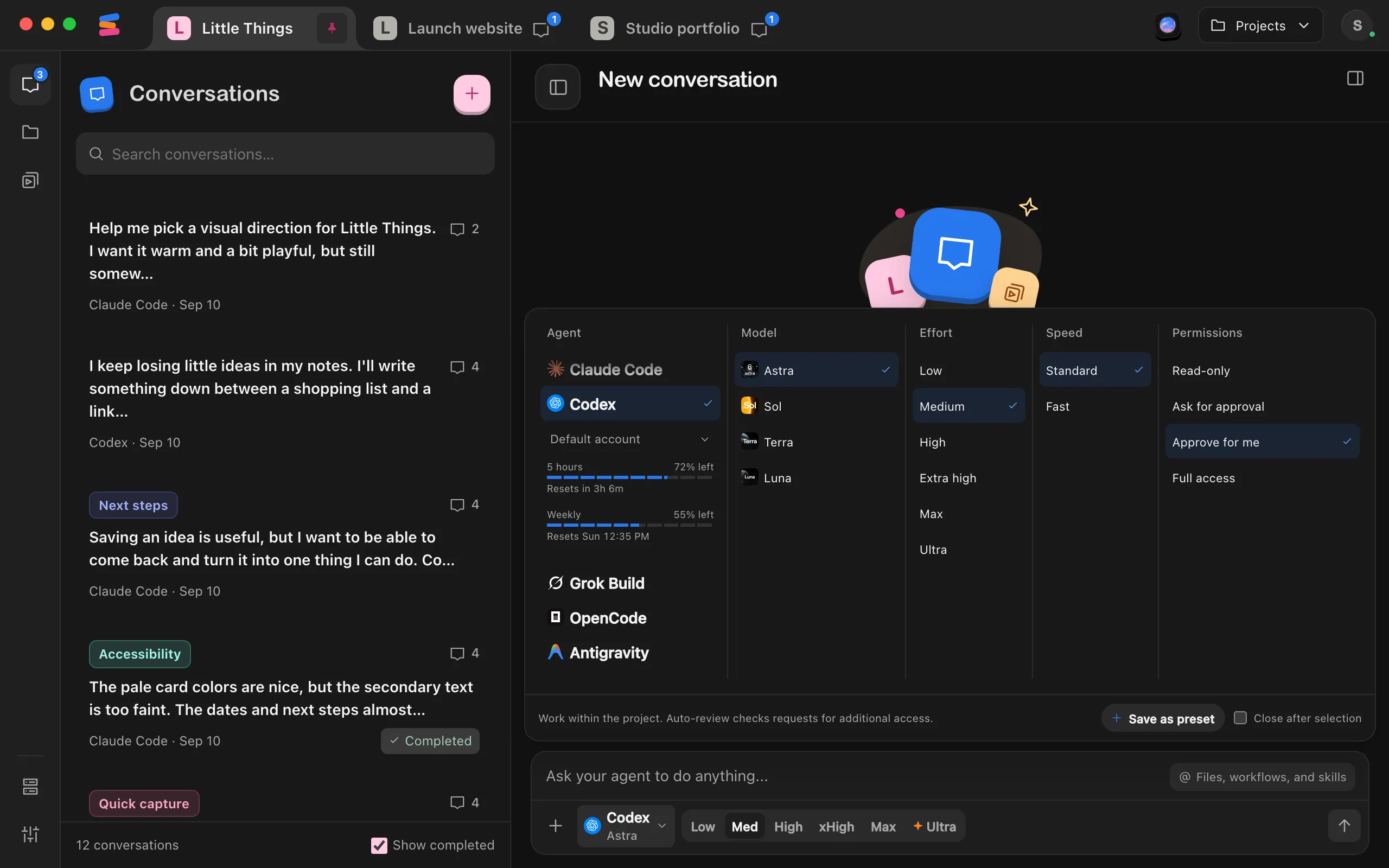
At the bottom of the message box, select the agent button.
Select the account under the agent’s name
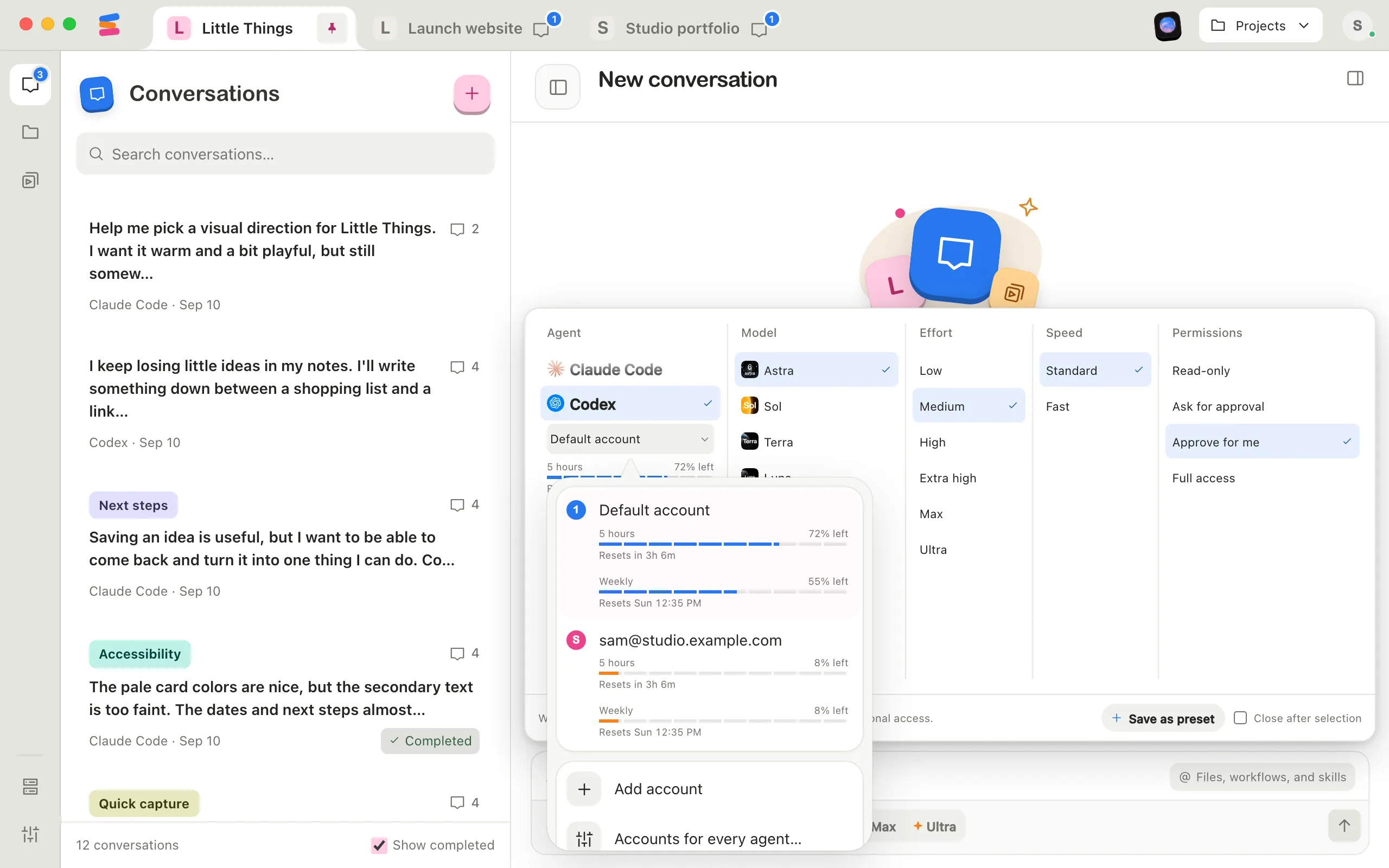
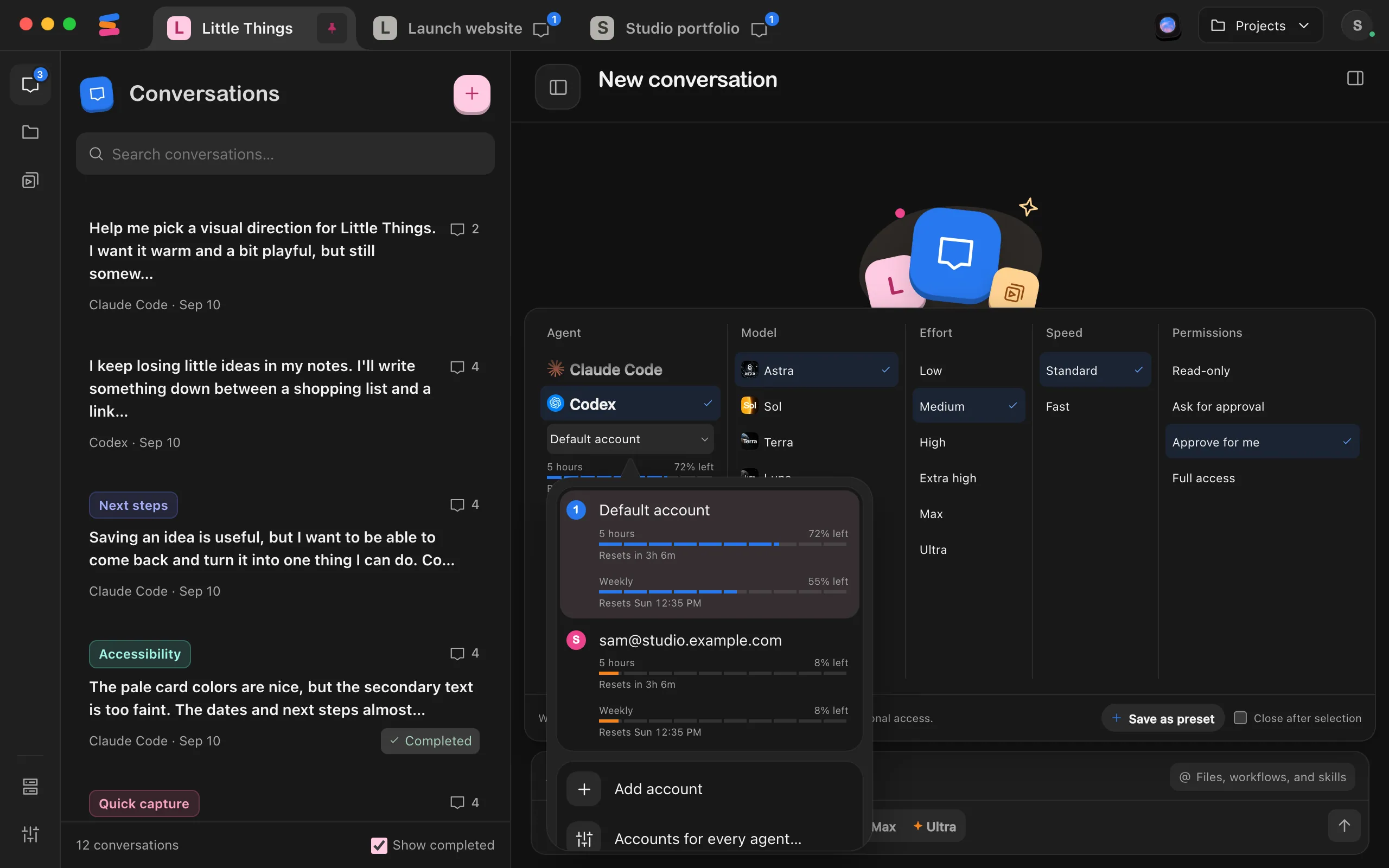
It shows the account’s email, or a name such as Default account. A menu lists your saved accounts.
Choose Add account
Your browser opens right away. In Enjoy, a window such as Add a Codex account waits while you sign in.
Sign in with the other account in your browser
Your other accounts stay signed in. When you finish, Enjoy saves the new account and switches this project to it.
Switch whenever you like
Open the same menu and choose an account. On your computer, each signed-in account shows its usage bars so you can compare what’s left before switching. The one this project uses is highlighted.
Good to know
- In a project inside WSL, saved accounts are kept in the project’s Linux distribution, for every project there, separately from the ones on Windows. While you add one, the window says where, such as Enjoy saves it in Ubuntu-22.04, for your projects there. Developer Mode isn’t needed there.
- One account is the sign-in the agent also uses in your terminal; point to it in the menu to see. In a project inside WSL, that’s the terminal of its distribution. It’s called Default account until Enjoy learns its email, and it can’t be removed.
- Enjoy shows each account’s email once the agent reports it. Work plans can also show the organization or plan name, and a Codex account that uses an API key shows API key. Until then, accounts are numbered, such as Account 2.
- Grok Build doesn’t tell Enjoy which account is signed in, so its accounts stay numbered. When you add one, make sure you sign in with a different account.
- An account marked Sign in with a lock is signed out. Choosing it switches to it and opens sign-in. If you don’t finish, Enjoy switches back to the account you were using.
- Usage loads when you open the account menu on your computer. Each bar shows when it resets. Point to Usage unavailable for the reason a check failed. See Check how much usage you have left.
- A switch applies to this project. Work that’s already running finishes on its account, and messages you send while it works join it there. Your next messages after that use the new one. While Enjoy checks the new account, a conversation can show Connecting to and the agent’s name.
- Until that work finishes, its Working status names the account it’s on, such as on sam@example.com. To move it now, select Move to and the new account, on your computer or iPhone. The work stops and continues on the new account, with the agent’s own history of the conversation. Helper agents it started stop too, and the agent can start them again.
- A conversation waiting for usage, or stopped at a usage limit, on the old account offers Move to and the new account too, before its other buttons. Select it to continue on the new account right away. See What to do when an agent runs out of usage.
- Other projects keep their own accounts. See Use a different account in each project.
- An agent’s accounts share its settings and instructions. Codex and Grok Build accounts also share conversations, so a conversation usually carries on where it left off after you switch. When the new account can’t open it, such as one in a different organization, the agent continues from the conversation’s messages in Enjoy.
- Claude Code accounts don’t share conversations directly. When a conversation continues on another Claude Code account, Enjoy first copies Claude’s history of it to that account, so Claude carries on where it left off. Each account keeps its own notes about your projects and its own plans from Plan mode. If you switch before you approve a plan, ask Claude to write the plan again.
- iPhone app: select the button in the message box that shows the model and effort, then select the agent’s name at the top of Model. Under Account, choose one of the accounts saved on your computer. A signed-out account says Sign in on your desktop. Only the computer’s owner can switch accounts, not people it’s shared with.
- Accounts for every agent… at the bottom of the menu opens Project settings, where you can set the account for each agent at once.
- To remove an account, point to it in the menu, select the × in its corner, then select Remove. Enjoy signs that account out, and your conversations stay. For a Claude Code account, Enjoy first copies Claude’s history of its conversations to the default account, so they carry on there. The account’s notes about your projects are deleted with it. Projects that used it switch to the account you picked most recently, or to the default account.
If something goes wrong
The account is already added
Enjoy found that account in your list already. Choose a different account in your browser and try again.
Sign-in didn’t finish
The message ends with Your other accounts are still signed in. Nothing changed. Select Try again to open a fresh sign-in page.
This agent uses a key or managed sign-in
A key for that agent is set up on your computer, often in your terminal settings. It overrides every account, so saved accounts can’t separate them. Change the account where the key was set up.
The agent is still working with this account
You tried to remove an account that’s in use. Let the work finish, or stop it, then remove the account.
Enjoy couldn’t copy the conversation history
The message says Enjoy couldn’t copy Claude Code’s conversation history between your accounts. This can happen when a conversation continues on another account, or when you remove an account. Make sure your computer has free disk space, then try again. If it happened while removing an account, the account wasn’t removed.
There’s no account menu, only Change account
Saved accounts aren’t available on this computer for that agent. This happens on Windows when Developer Mode is off, except in projects inside WSL, and when a key is set up for the agent. Use Change account instead. See Change an agent’s account by signing out.