Fix problems signing in to Enjoy
This guide is about signing in to your Enjoy account. If an AI agent such as Claude or Codex won’t sign in, see Fix an agent that won’t sign in.
Steps
Use the same way you signed up
If you created your account with Google, select Continue with Google instead of typing a password.
Check your email and password
Type them again carefully. The error message ends with the server Enjoy contacted, such as
(server: https://app.enjoy.dev). That part is there to help support, not a sign of a separate problem.Reset a forgotten password
Select Forgot password? and follow the email. See Reset a forgotten password.
Wait after many tries
After too many attempts, Enjoy asks you to wait. Give it a few minutes before trying again.
Check your connection
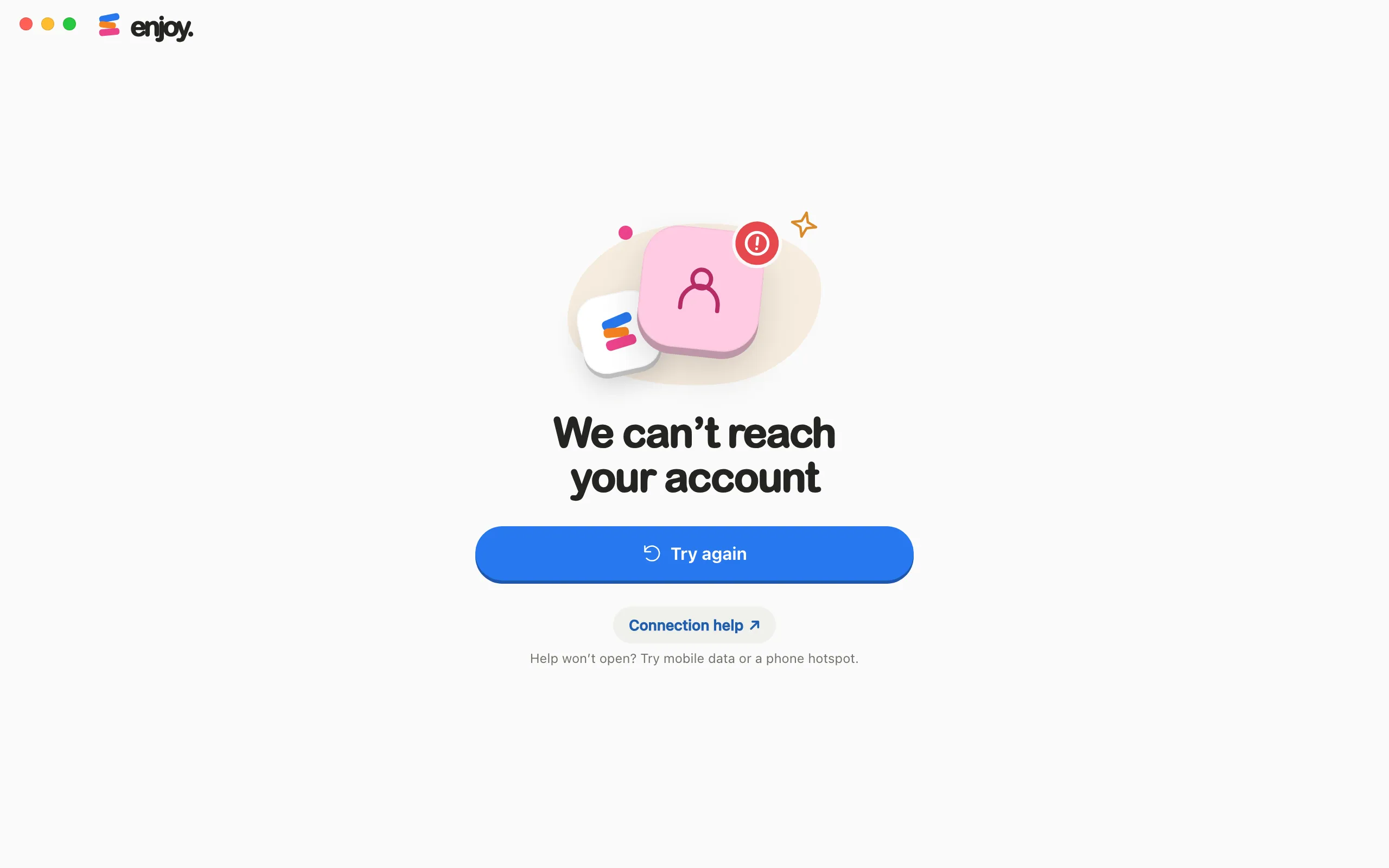
If Enjoy shows We can’t reach your account, select Try again. If that doesn’t help, select Connection help. See Fix connection problems.
Good to know
- Continue with Google only appears when Google sign-in is available.
- While the computer app shows We can’t reach your account, it also tries again by itself every 30 seconds and whenever you come back to its window.
- If you sign in and Enjoy shows Try everything for 7 days. or Restore Unlimited instead of your projects, the sign-in worked, but this account doesn’t have an active plan. Check that it’s the account you subscribed with. To try another one, select Sign out. See The Unlimited plan and free trial.
If something goes wrong
Unable to sign in. Check your email and password.
The email or password doesn’t match an account. Try the other way to sign in, or reset your password.
Too many attempts. Please try again shortly.
Enjoy pauses sign-in after several tries in a short time. Wait a few minutes, then sign in once, carefully.
Too many requests
Enjoy shows this screen with Please wait a moment before trying again. Wait, then select Try again. It shows Checking your account… while it retries.
Account service is unavailable. Please try again shortly.
Enjoy’s account service didn’t answer. Wait a few minutes and try again.
Unable to create this account. Try signing in if you already have an account.
An account with that email may already exist. Select I have an account and sign in, or reset your password.
Google sign-in expired. Please try again.
Google sign-in has to finish within five minutes, and sometimes less in the web app. Start again and finish in the browser sooner.
Google sign-in could not be completed.
If the message goes on to say you already have an email/password account, Google isn’t connected to that account yet. Sign in with your password, then open Your account, select Password & sign-in, and select Connect Google. See Add Google sign-in to your account.
Google sign-in cancelled.
You selected Cancel while Enjoy was waiting for Google. Select Continue with Google to start again.
Unable to open your browser. Restart Enjoy and try again.
The computer app couldn’t open your web browser for Google. Quit Enjoy, open it again, and select Continue with Google.