Install Enjoy on your computer
Enjoy runs on your computer, where your projects and agents live. Phones and tablets can’t run it, but they can connect to it later through the iPhone app or the web app.
Before you start
- A Mac with macOS 13 or later. Both Apple silicon and Intel Macs work.
- Or a Windows PC with a 64-bit (x64) processor.
- Or a Linux computer with a 64-bit (x64) processor.
Steps
Open the download page
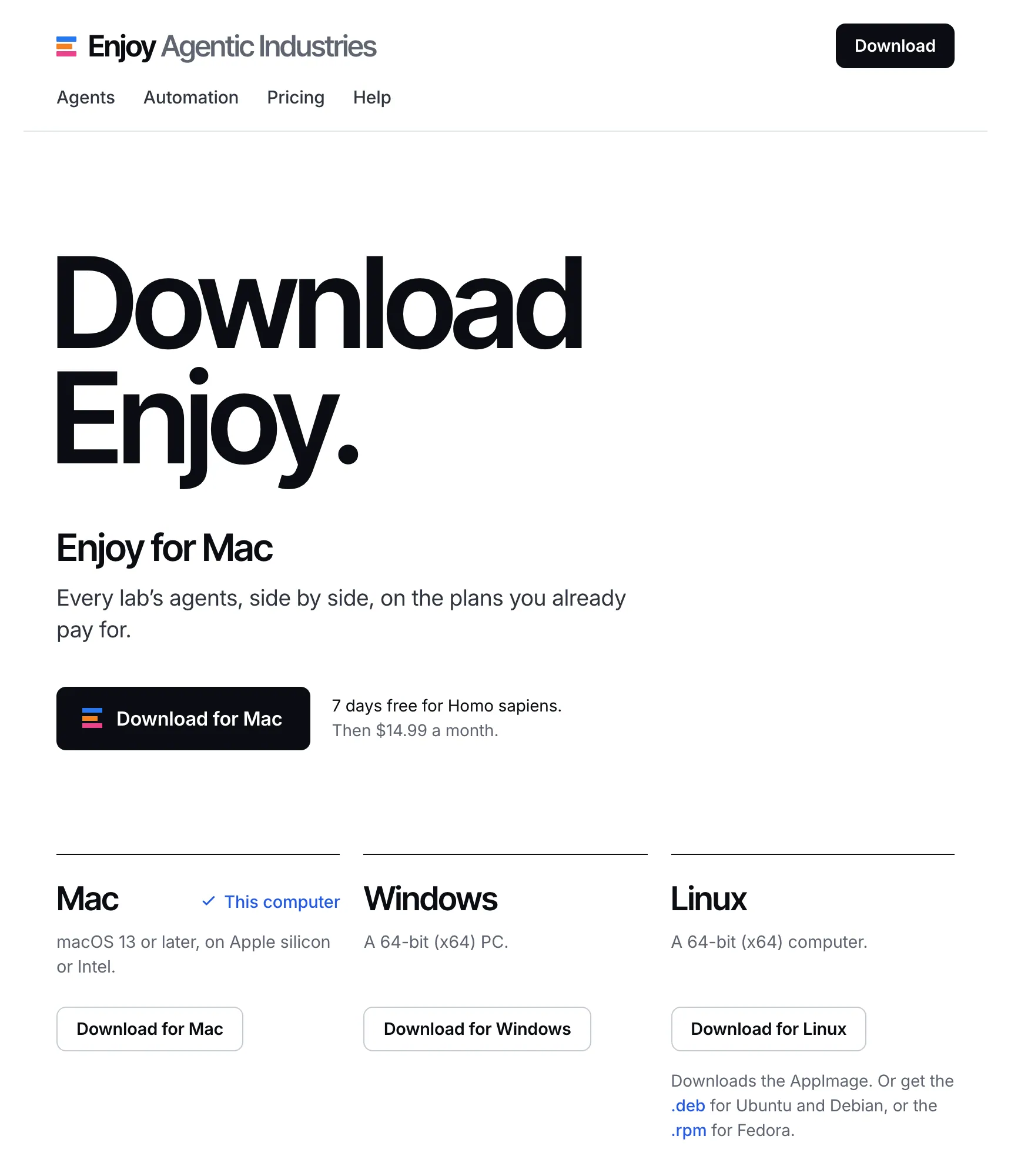
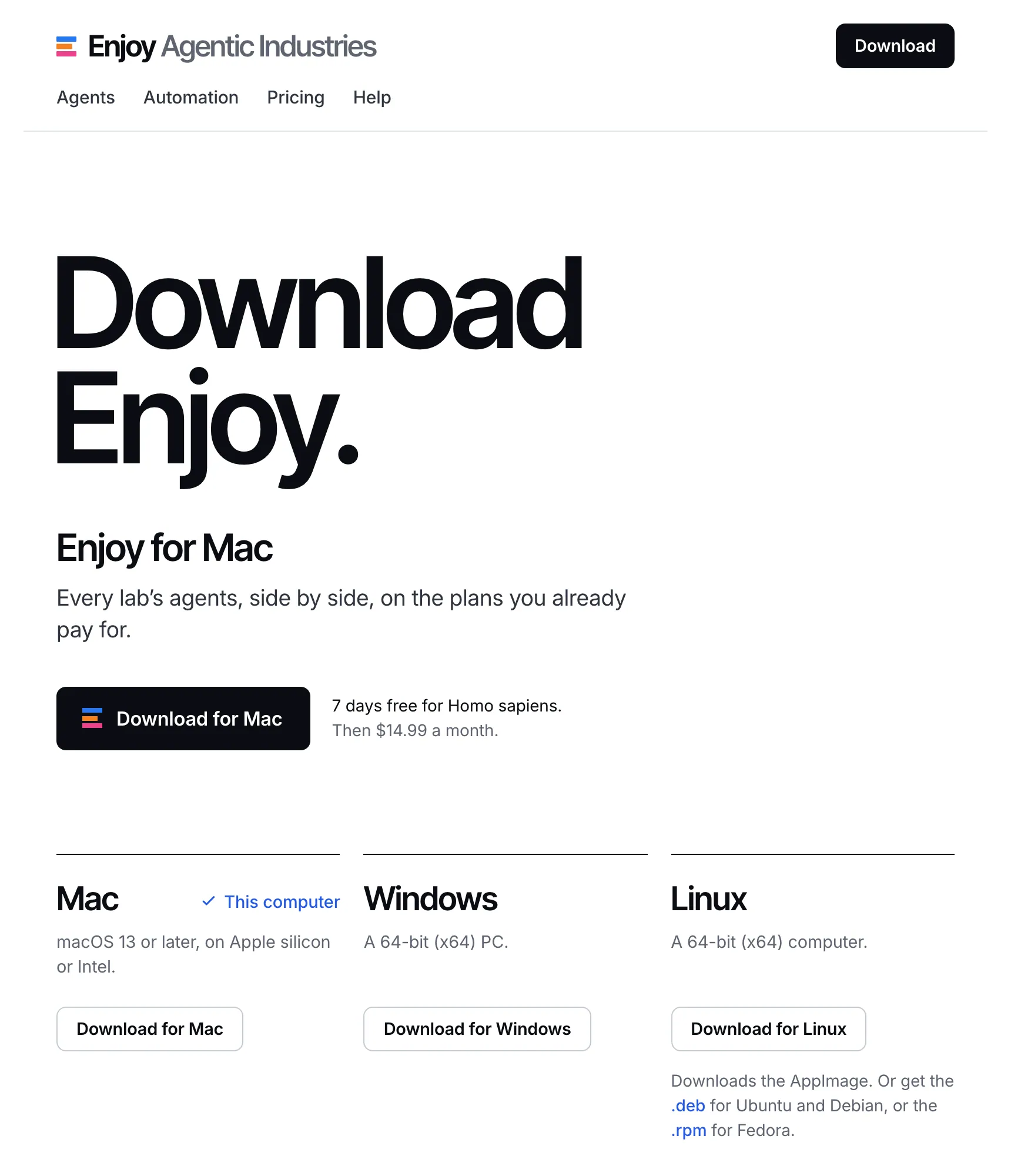
In a web browser on your computer, go to the download page. It lists Mac, Windows, and Linux, with your computer first, marked This computer.
Download Enjoy for your computer
Select Download for Mac, Download for Windows, or Download for Linux. On Linux, that button downloads the AppImage. The .deb and .rpm links under it download packages for Ubuntu or Debian, and for Fedora.
Install it
On a Mac, open the downloaded disk image and drag Enjoy into your Applications folder. On Windows, run the downloaded installer and follow its steps. On Linux, see the commands under Good to know.
Open Enjoy
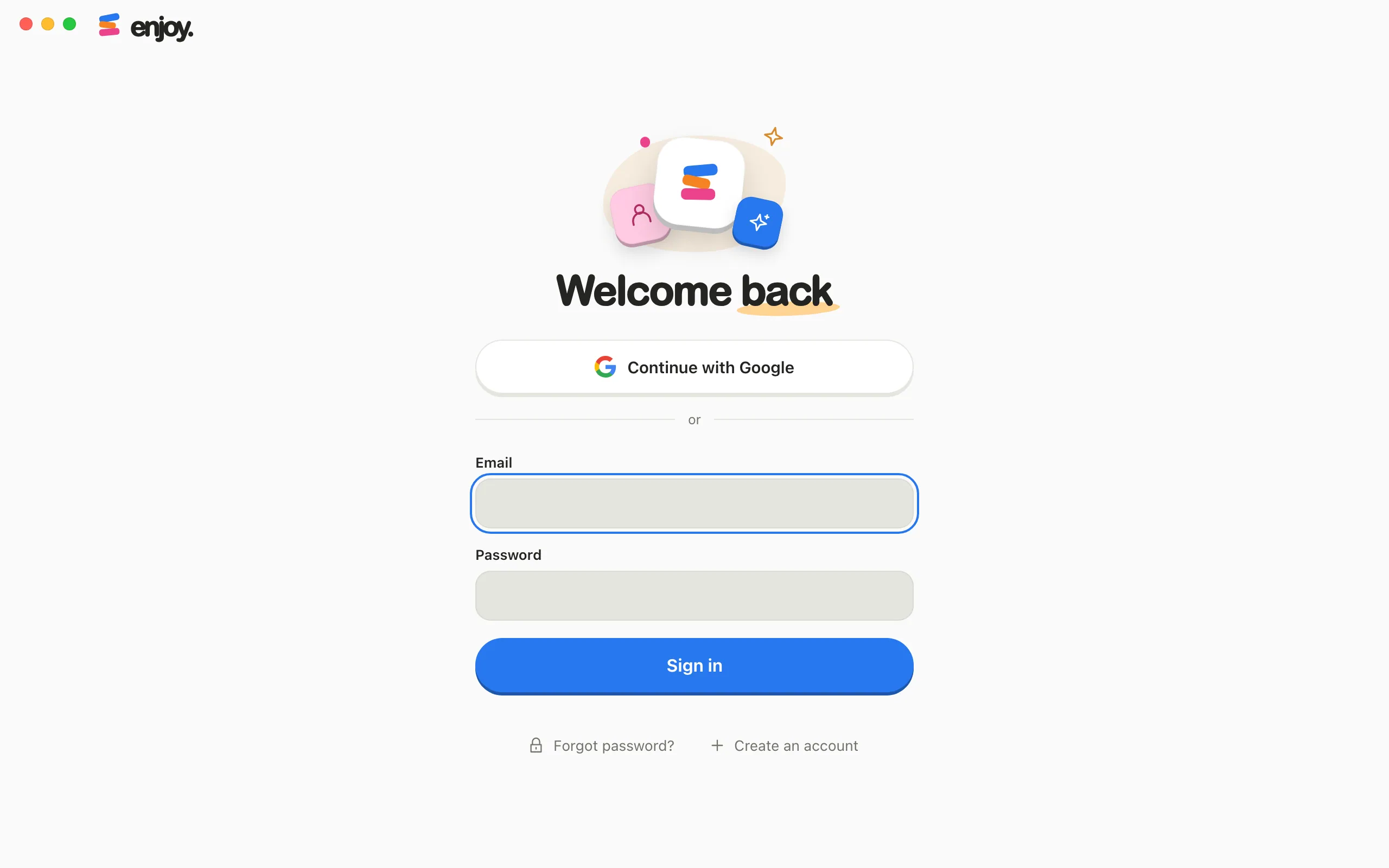
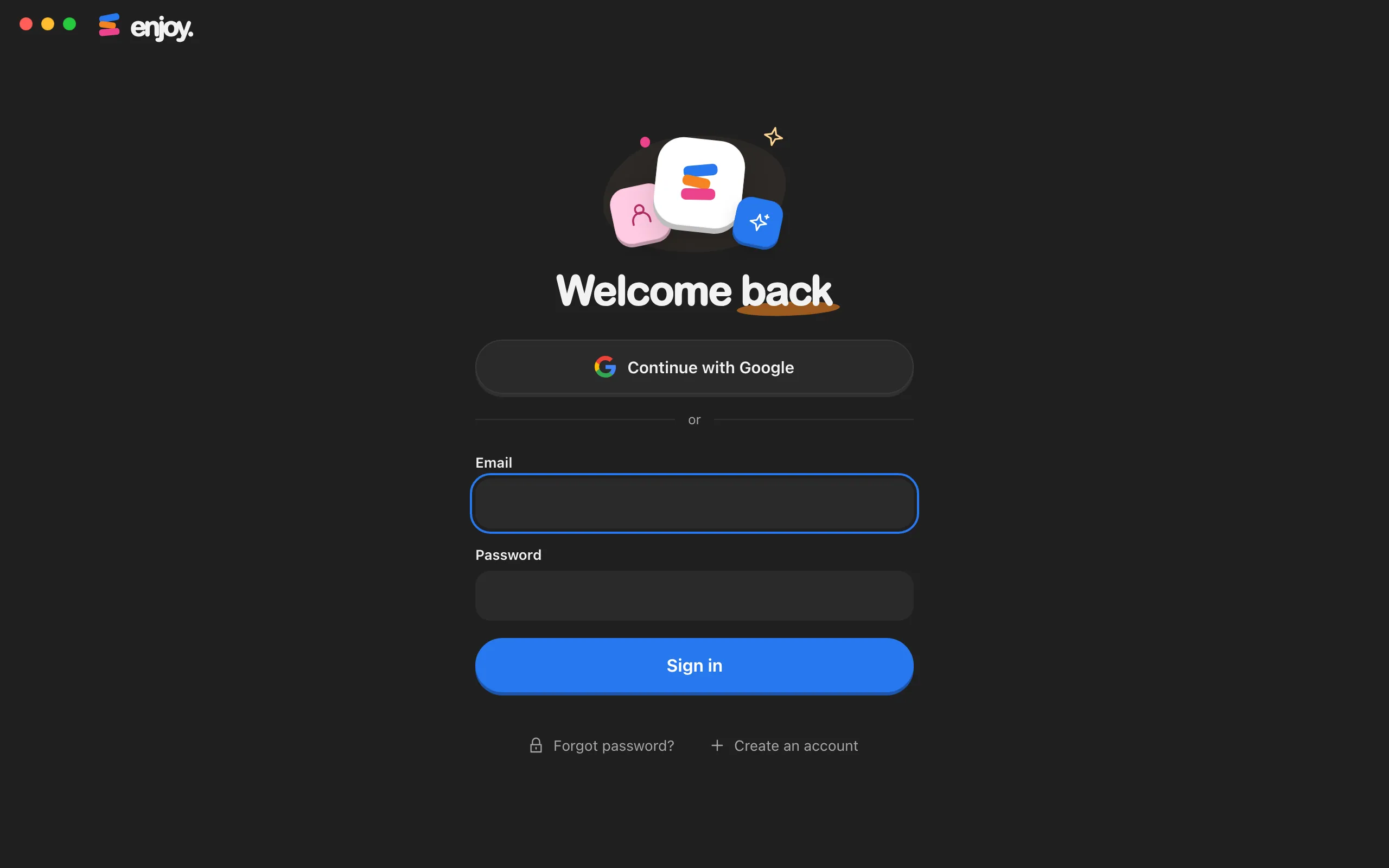
Open it from Applications on a Mac, from the Start menu on Windows, or from your applications list or the AppImage file on Linux. Enjoy shows Opening your workspace…, then a sign-in screen titled Welcome back. Continue with Create your account and start your free trial.
Good to know
-
The first time you open Enjoy on a Mac, your Mac asks if you’re sure you want to open an app downloaded from the internet. Confirm to continue.
-
The Windows installer is signed by Shape Labs Inc., which Windows shows as the verified publisher.
-
On Linux, install from a terminal in the folder where you saved the download:
# AppImage: make it runnable, then open it chmod +x Enjoy-Linux-x64.AppImage ./Enjoy-Linux-x64.AppImage # Ubuntu or Debian sudo apt install ./Enjoy-Linux-x64.deb # Fedora sudo dnf install ./Enjoy-Linux-x64.rpm -
Enjoy updates itself on a Mac, on Windows, and when you use the Linux AppImage. When a new version is ready, it offers Restart to update. Restarting stops any agents that are working. If you installed the .deb or .rpm package, download the latest package from enjoy.dev to update. See Update Enjoy.
-
The Unlimited plan includes one computer. If your account already has one, Enjoy shows You already have a computer and asks what this one should do: connect to your other computer, be added as another computer for an extra monthly charge, or replace your other computer. See Add another computer to your plan.
If something goes wrong
Enjoy won’t update on a Mac
Updates can’t install if Enjoy is opened from your Downloads folder or from the disk image. Quit Enjoy, move it into Applications, and open it from there.
The AppImage doesn’t open on Linux
Make sure you ran chmod +x on the file. The AppImage also needs FUSE 2, xdg-utils, and desktop-file-utils. If any of them is missing, install it with your distribution’s package manager, then try again. The .deb and .rpm packages install what they need on their own.
You opened the download page on a phone or tablet
Phones and tablets can’t run Enjoy itself, so on a phone the page puts the web app first. The web app and the iPhone app connect to Enjoy on a computer, so install Enjoy on your Mac, Windows, or Linux computer first. The page lists the computer it detects first, marked This computer. To download for a different computer, use the button under that computer’s name.