Create your account and start your free trial
You need an Enjoy account and an active Unlimited plan to use Enjoy on your computer. There’s no free plan, but new subscribers get the first 7 days free. These steps start in the computer app. You can also start on the website first, as described under Good to know.
Before you start
- Enjoy is installed and open on your computer. See Install Enjoy on your computer.
- A payment card for checkout. You pay nothing during the 7 free days.
Steps
Open Enjoy
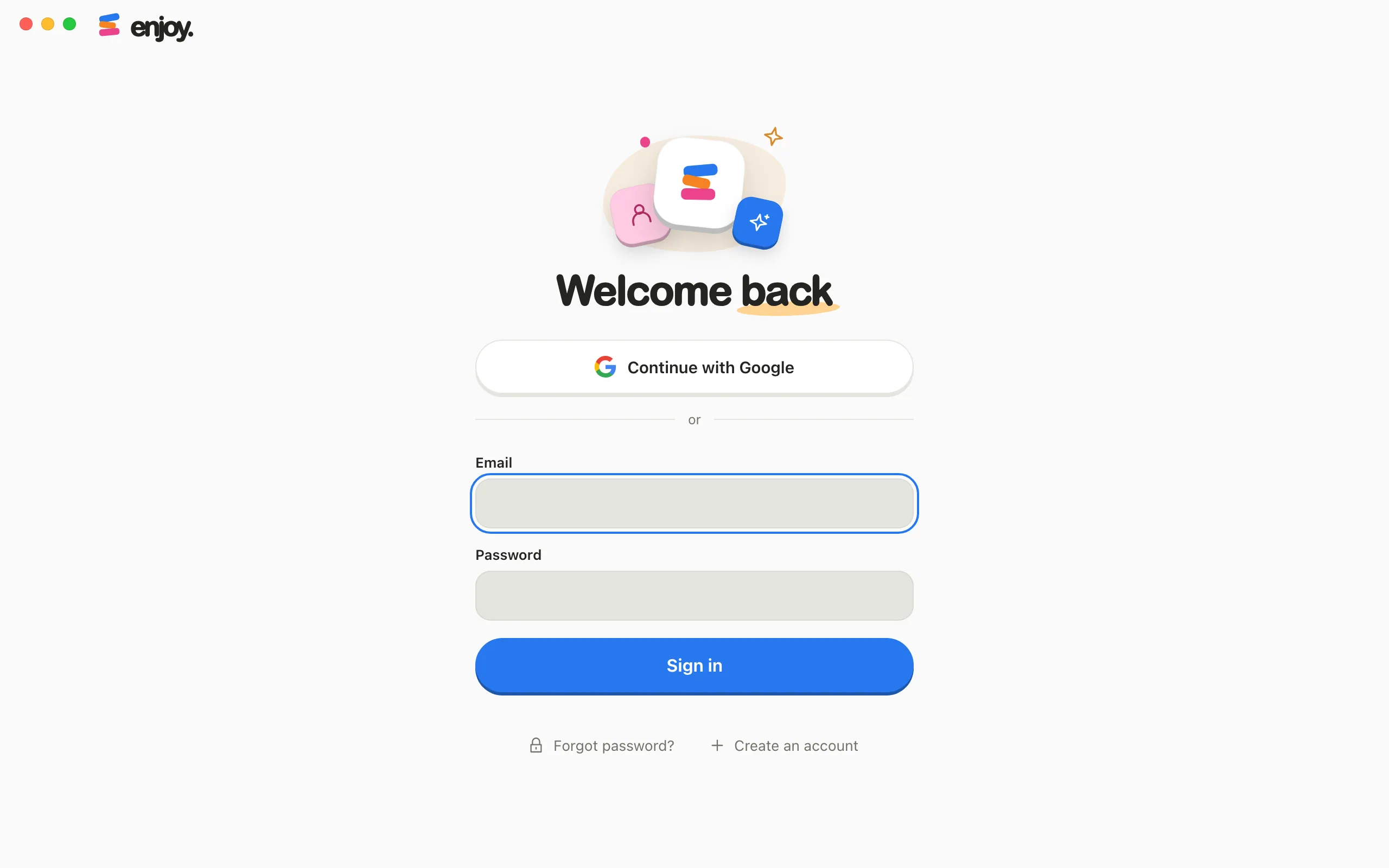
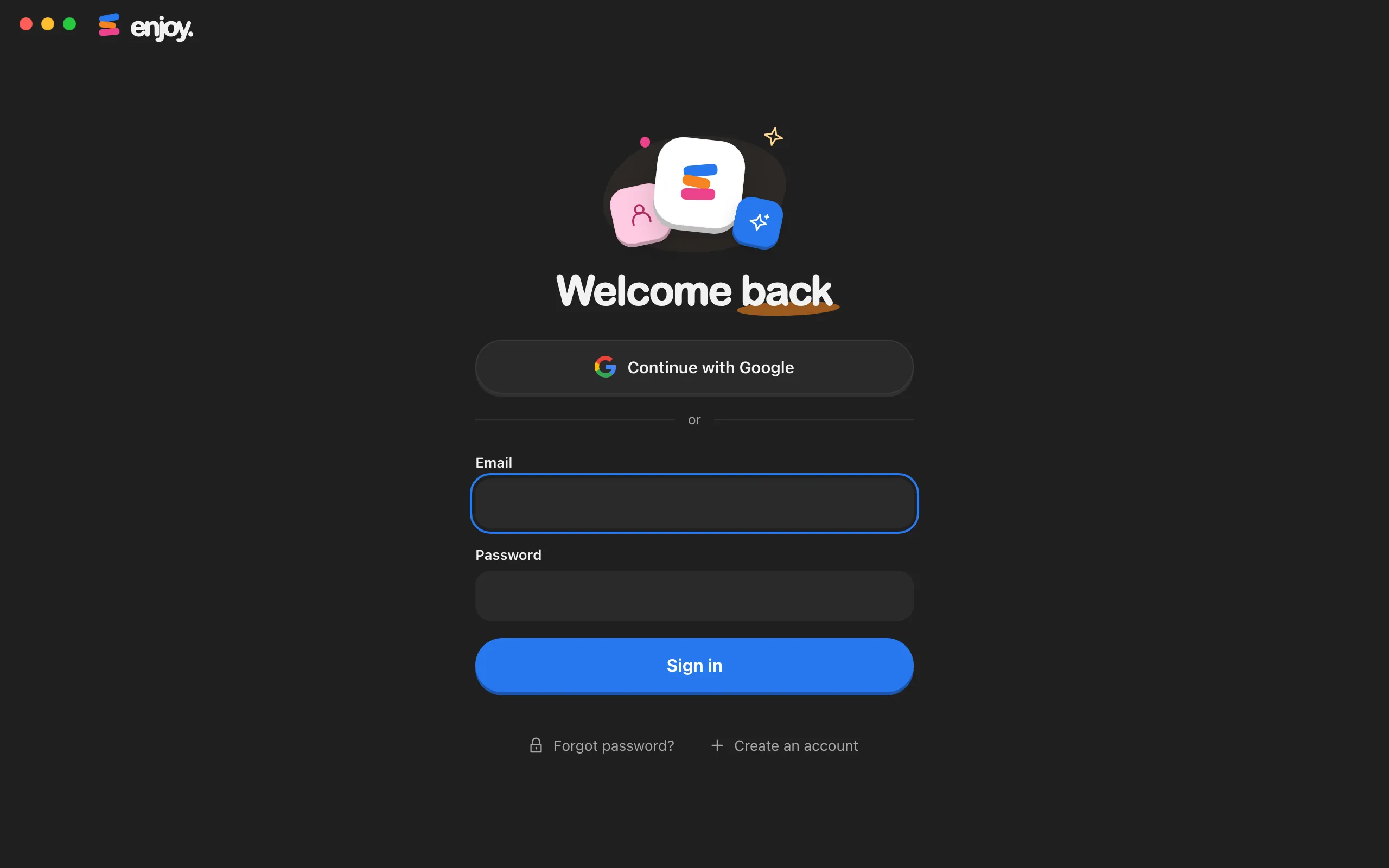
The first screen is titled Welcome back and is set up for signing in.
Select Create an account
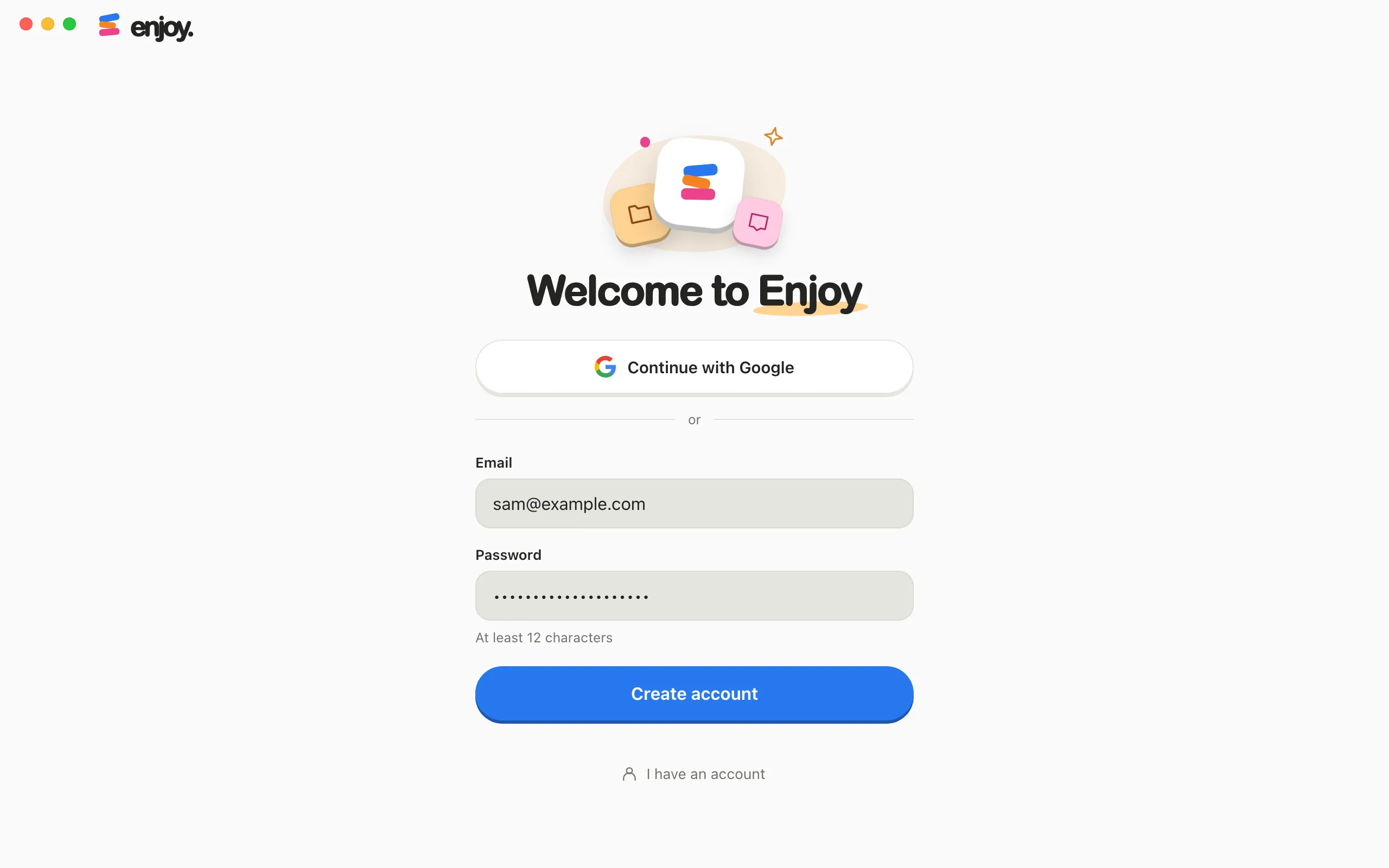
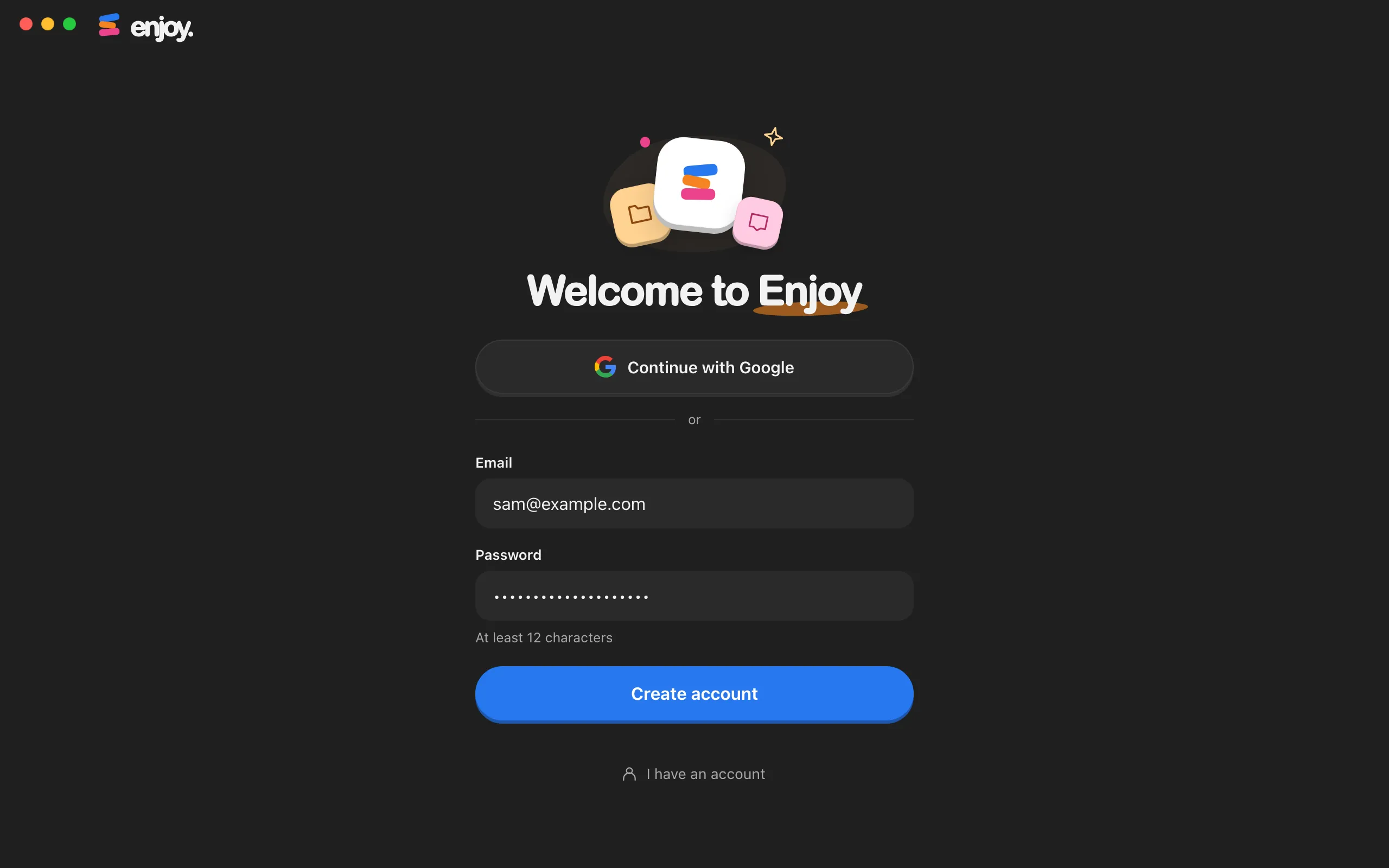
The title changes to Welcome to Enjoy.
Create the account
Select Continue with Google and finish in the browser window that opens. Or type your email and a password of at least 12 characters, then select Create account.
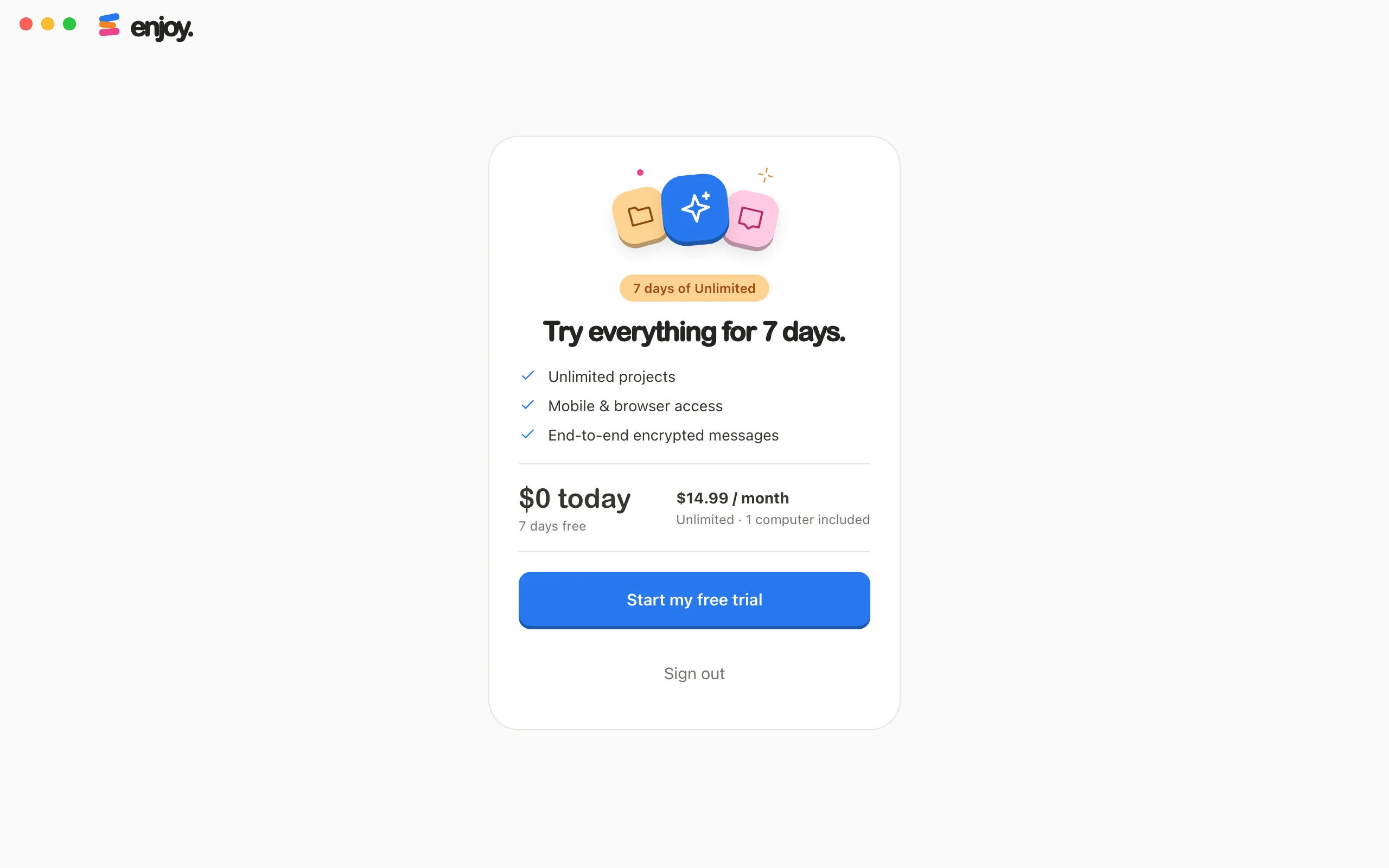
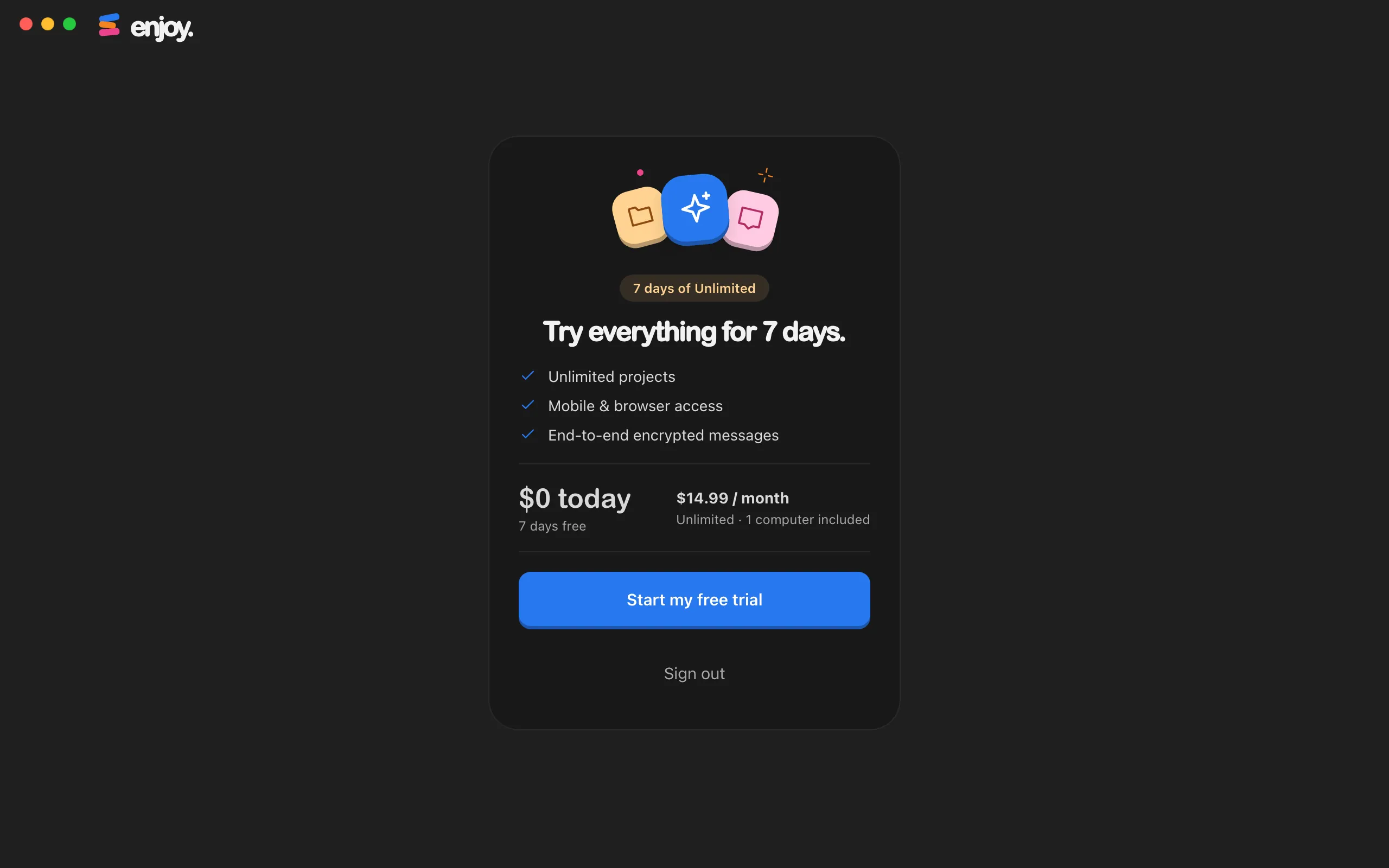
Select Start my free trial
The card is titled Try everything for 7 days. and shows what you pay today and the monthly price after the trial.
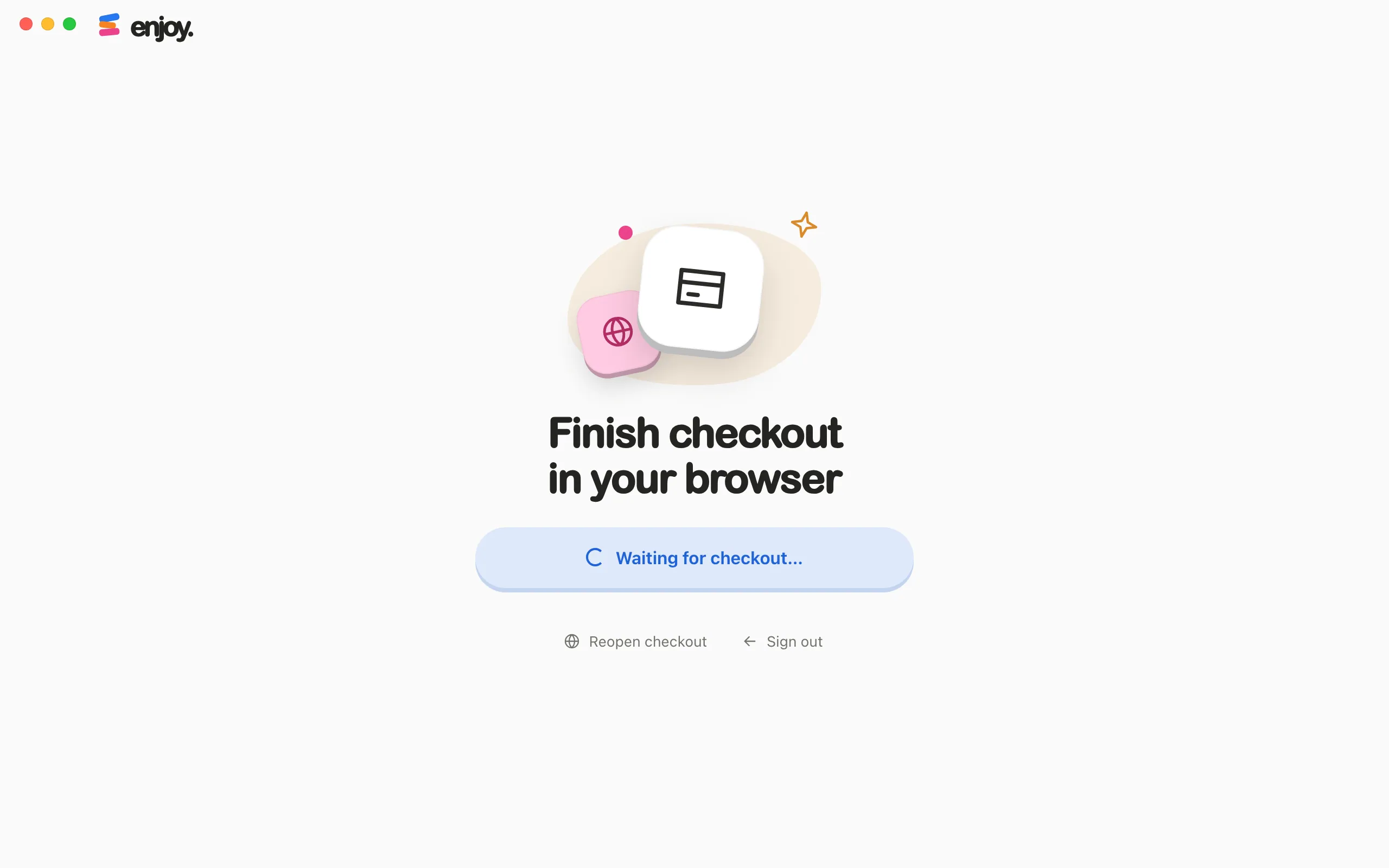
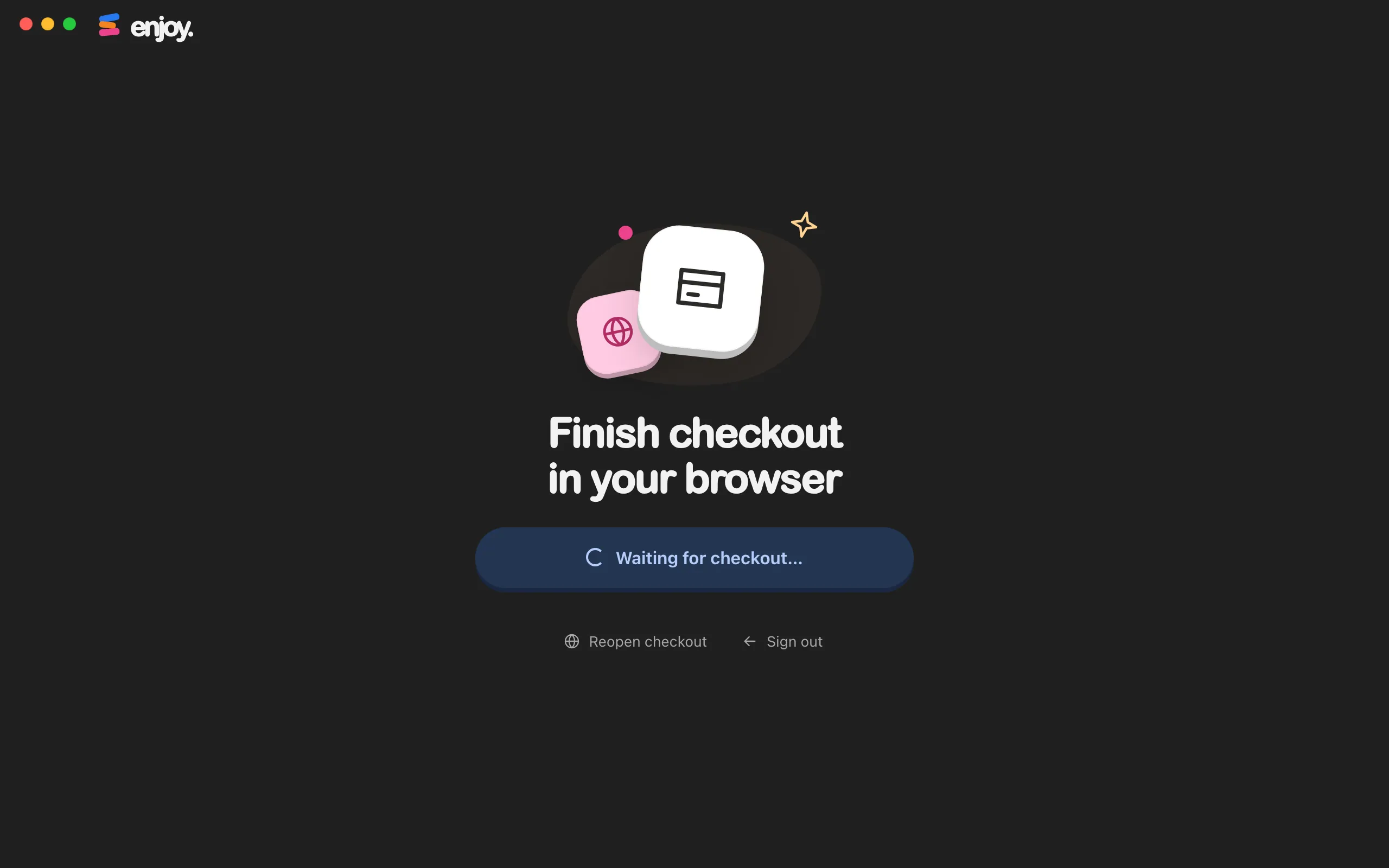
Finish checkout in your browser
Your browser opens a secure checkout page from Stripe. Enter your card details there. While you do, Enjoy shows Finish checkout in your browser. If you close the page by mistake, select Reopen checkout.
Select Continue to Enjoy
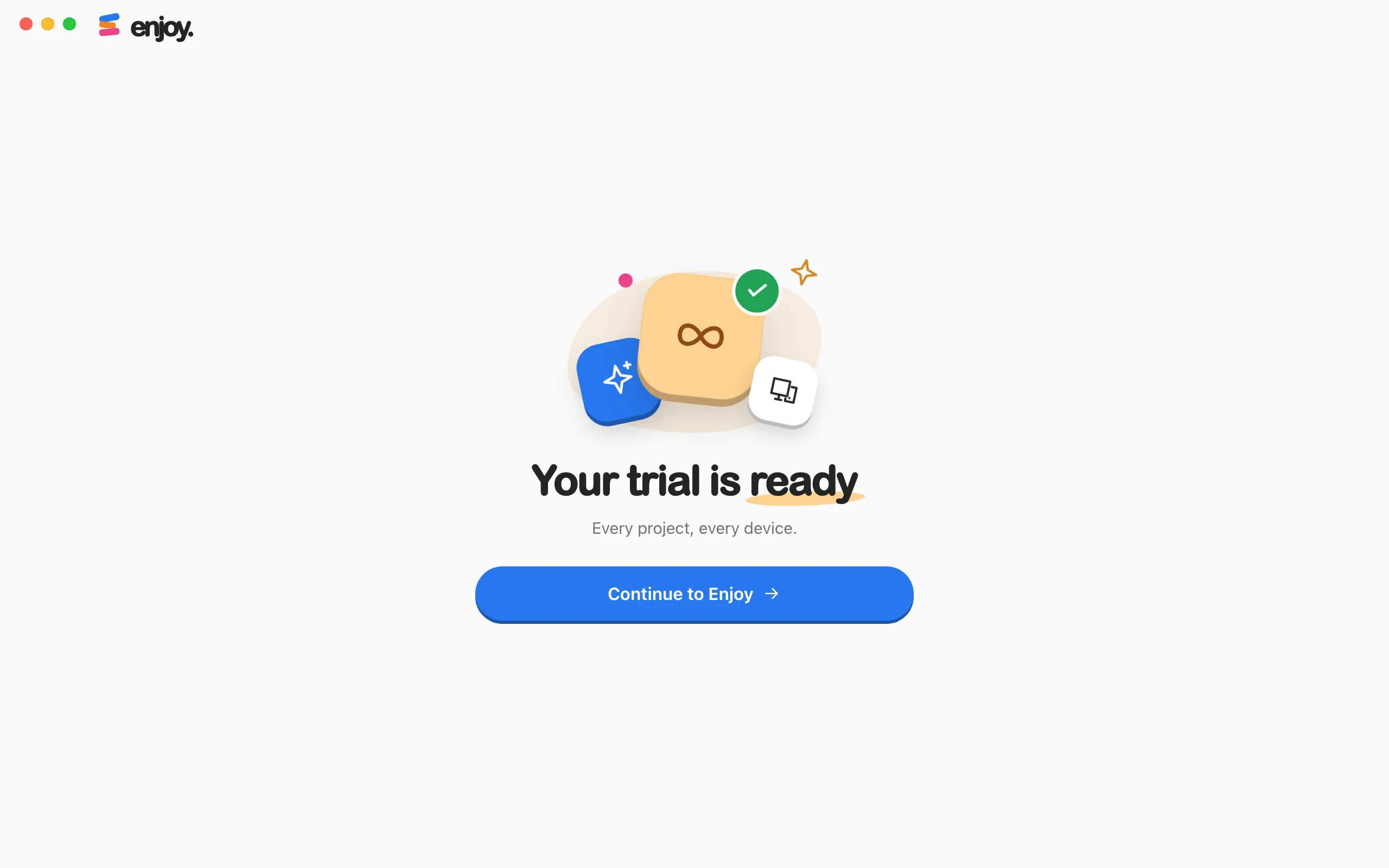
When Enjoy confirms the trial, it shows Your trial is ready. Next, Enjoy helps you set up your first AI agent.
Good to know
- You can start on the website instead. Select Start free trial on enjoy.dev. The page that opens lists what Unlimited includes beside the form. Select Continue with Google, or type your email and select Start free trial, and finish checkout. If you used your email, Enjoy then asks you to create a password: type the six-digit code it emails you into Code from your email (the code expires in 10 minutes) and a new password of at least 12 characters, then select Create password. The last page offers Download Enjoy for your computer. Then open Enjoy and sign in with the same account.
- You can cancel anytime during your free trial and you won’t be charged. Otherwise, after the 7 days, Unlimited continues as a monthly subscription on the card you entered. See Manage or cancel your subscription and pricing.
- The free trial is for accounts that haven’t subscribed before. If yours has, Enjoy shows Restore Unlimited with Continue to checkout instead. Checkout then starts the subscription right away, and Enjoy shows You’re on Unlimited when it’s confirmed.
- Some people who start on the website see no card needed on Start free trial. Their checkout doesn’t ask for a card. To keep Unlimited after the 7 days, add one from your account before the trial ends; otherwise the trial simply ends and nothing is charged. See Manage or cancel your subscription.
- If you have a promotion code, you can enter it on the checkout page.
- The Unlimited plan covers one computer, plus your phone and browsers that connect to it. See The Unlimited plan and free trial.
- The trial and checkout screens have Sign out, in case you signed in with the wrong account.
If something goes wrong
“Unable to create this account. Try signing in if you already have an account.”
That email may already have an Enjoy account, for example from the website. Select I have an account and sign in. If you don’t remember the password, select Forgot password? on the sign-in screen. See Reset a forgotten password.
“Unable to sign in. Check your email and password.”
Check for typos, or select Continue with Google if you created the account with Google.
“Too many attempts. Please try again shortly.”
Wait a few minutes, then try again.
Enjoy still says Waiting for checkout after you paid
Enjoy checks every few seconds and whenever you return to its window. Switch back to Enjoy and wait a moment. If you closed checkout before finishing, select Reopen checkout.
“We can’t reach your account” or “We couldn’t check your plan”
Enjoy can’t reach its account service from your network. Select Try again. If it keeps happening, see Trouble connecting to Enjoy.