Open a file in another app
Before you start
- Use the computer app, with a project that’s on that computer. These options aren’t in the web app or the iPhone app.
Steps
Open the item’s menu
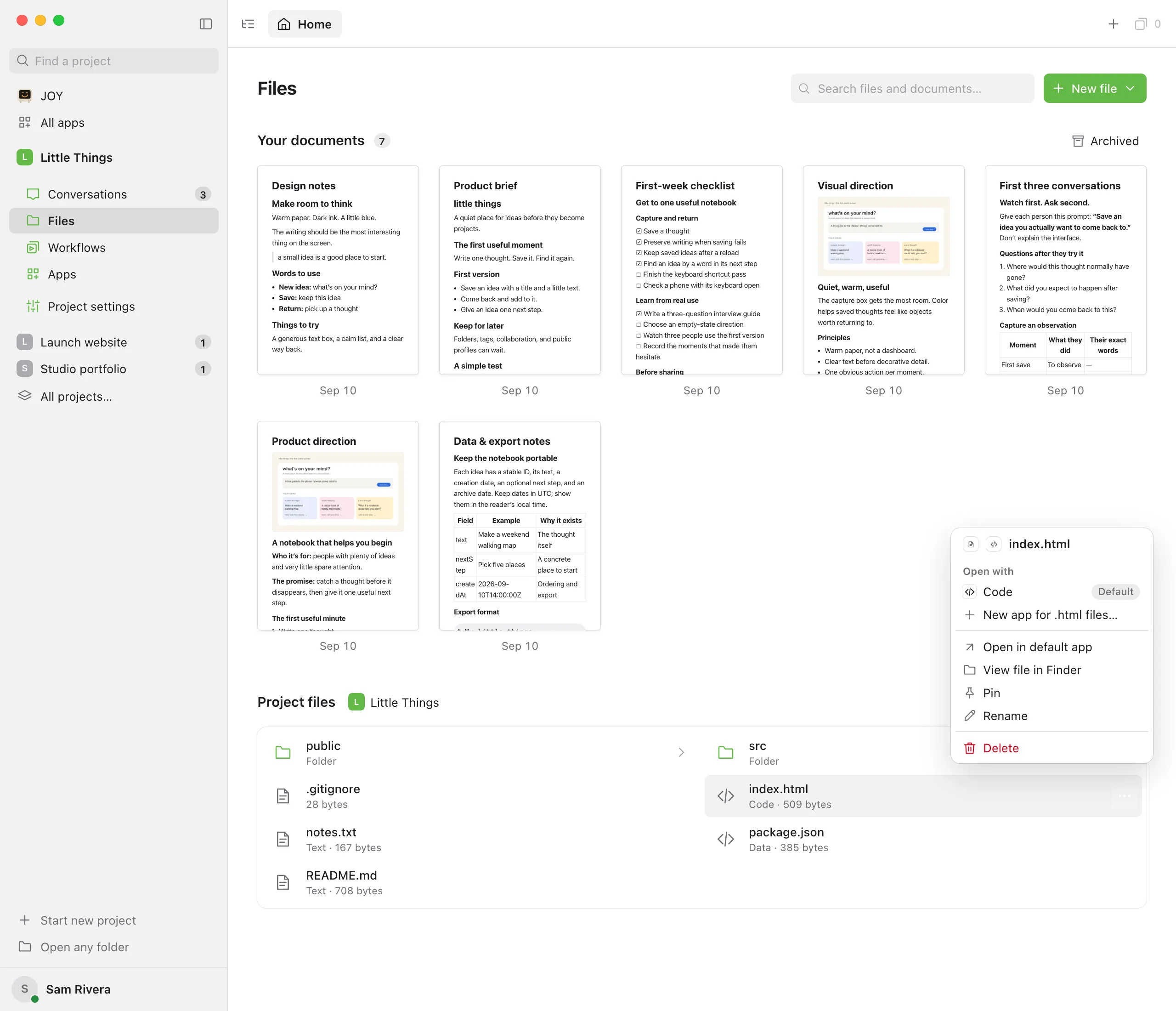
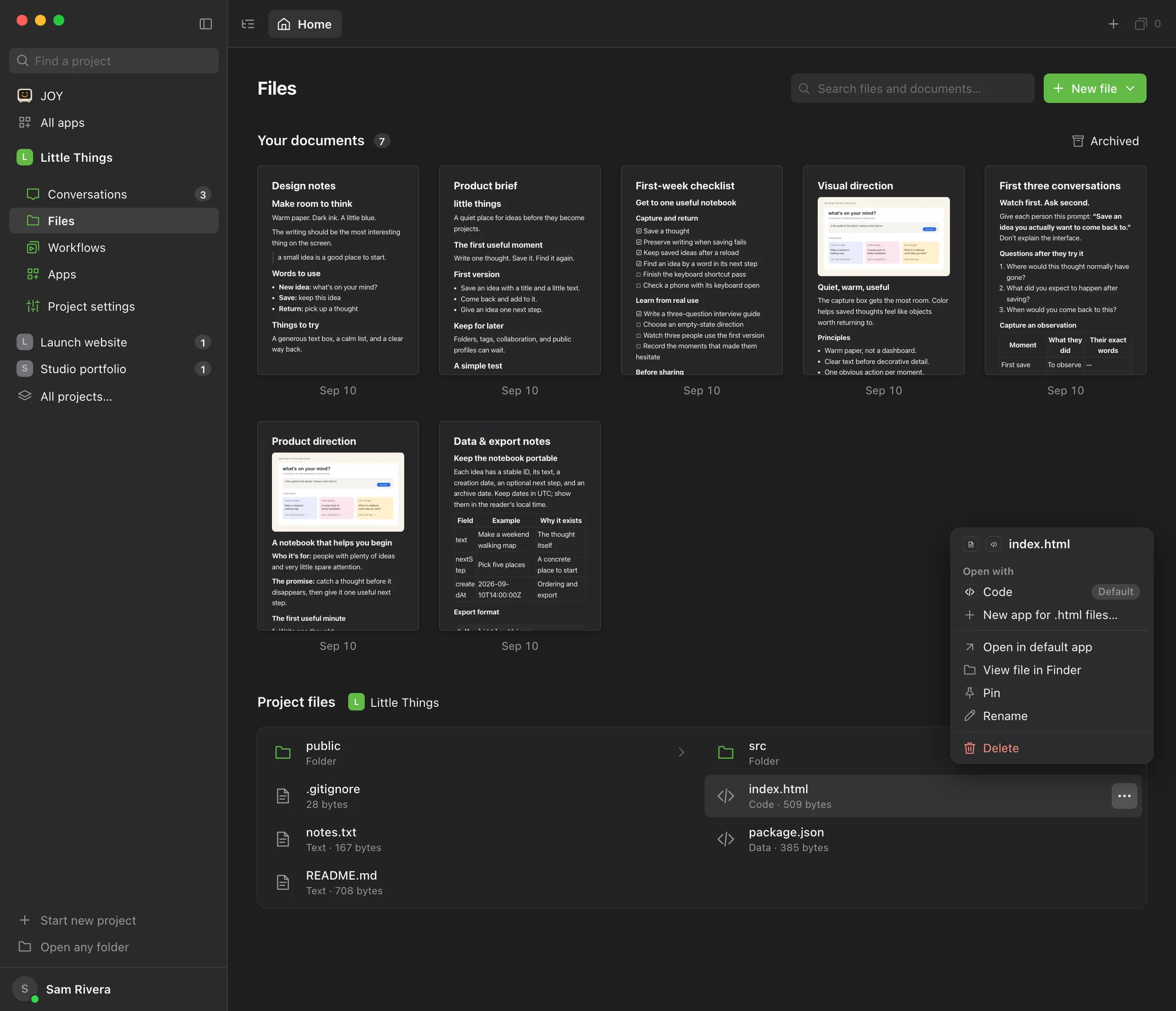
In Files, right-click the project file or document, or point to it and select the … button. For an open document, you can use Document actions at its top right.
Choose Open in default app
The file opens in the app your computer uses for that kind of file, such as a text editor or an image viewer.
Or show where the file is
For a project file, choose View file in Finder on a Mac, View file in File Explorer on Windows, or View file in file manager on Linux. A window opens with the file selected.
Good to know
- Enjoy saves your unsaved changes before it hands the file to another app.
- Changes you save in the other app show up in Enjoy. If you’re also editing the file in Enjoy, see What happens when a file changes while you edit it.
- An open document also shows its file name in the bar at the bottom, such as
docs/Launch plan.md. Select it to open the document in your default app. Point to it to see where the file is on your computer. - Documents are kept with the project’s conversations and workflows, which by default is outside your project folder. See Choose where a project’s conversations are stored.
- When Enjoy can’t show a file, because it’s too large or not text, select Open externally to open it in another app.
- To edit a file in a different app inside Enjoy instead, such as one your project’s agents made, see Open a file with a different editor.
If something goes wrong
“Save this file’s changes before opening it in another app.”
Enjoy couldn’t save your edits first, often because of a conflict. For a document, the message says “this document’s changes”. Resolve the conflict, then try again. See What happens when a file changes while you edit it.
“Unable to open the file in your default app”
For a document, the message reads “Unable to open the document in your default app”. Your computer may not have an app set up for this kind of file. Choose one in your computer’s settings. For a project file, you can also use View file in Finder (or File Explorer) and open the file from there.
The options are missing from the menu
You’re in the web app or the iPhone app, or you’re using another computer’s project from the computer app. Open the file on the computer the project is on.