Select several conversations at once
Selecting several conversations is a quick way to tidy the list, such as marking finished tasks completed together.
Steps
Open a conversation
Select it in the conversation list.
Add more conversations
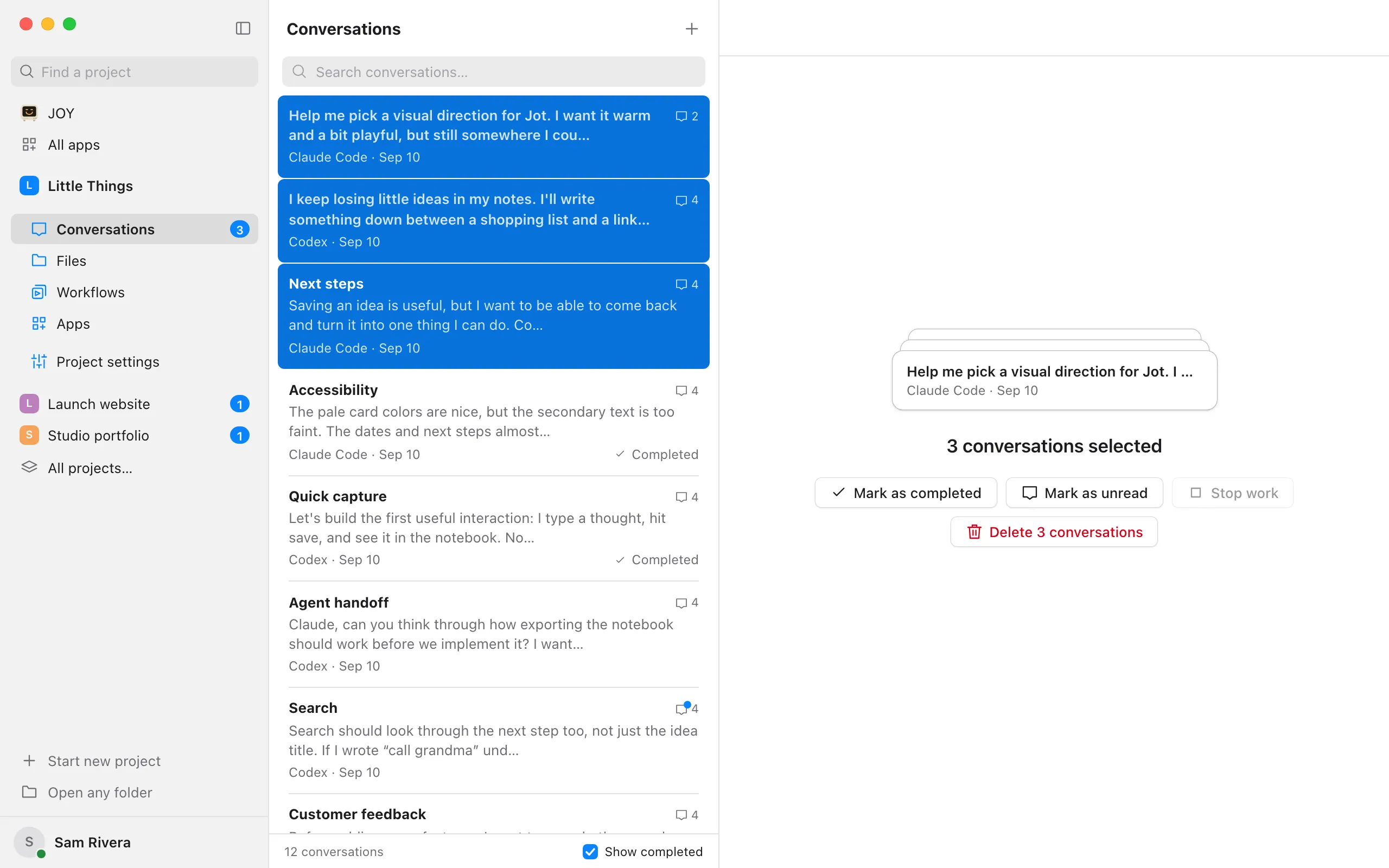
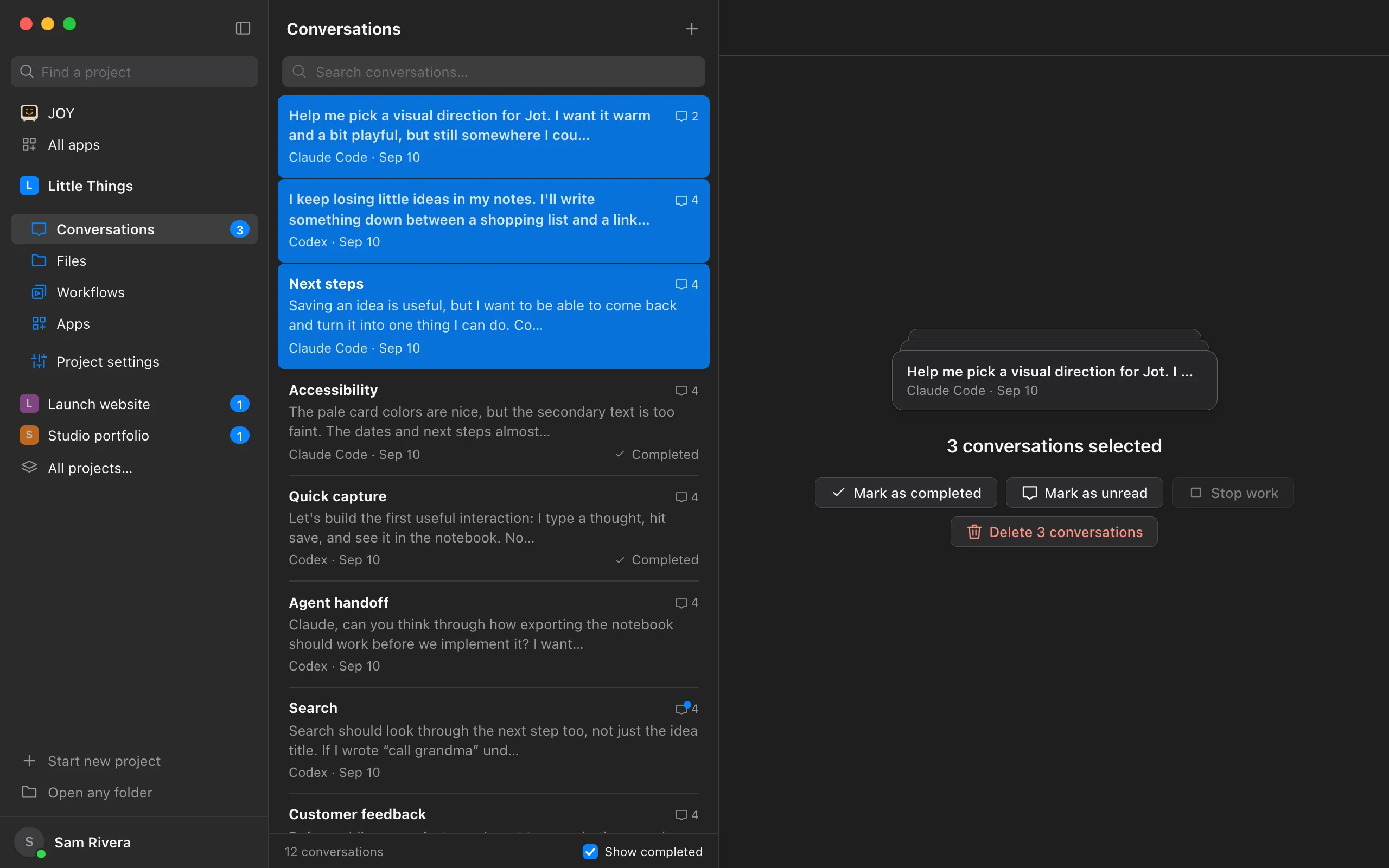
Hold ⌘ (Ctrl on Windows and Linux) and click each conversation to add it, or click a selected one to remove it. To select every conversation between the open one and another, hold Shift and click the other. Beside the list, Enjoy shows how many are selected and what they’re doing.
Choose an action
Beside the list, select Mark as completed, Mark as read or Mark as unread, Stop work, or Delete (which names how many, such as Delete 3 conversations). You can also right-click one of the selected conversations and choose from its menu.
Good to know
- Mark as completed leaves out conversations whose agent is still working or that have queued messages. Pointing to it shows how many it leaves out and why.
- After completing, the bottom of the list says how many were completed. Select Undo there to reopen them.
- If all the selected conversations are completed, the action is Mark as uncompleted instead. If none has unread replies, it’s Mark as unread instead of Mark as read.
- Delete asks you to confirm, because it can’t be undone. As when deleting one conversation, their agents and the websites or other processes they started are stopped. See Delete a conversation.
- Right-click a conversation that isn’t selected to choose the same actions for it alone.
- After clicking in the list, ⌘A (Ctrl+A on Windows and Linux) selects every conversation in it, Esc lets go of the selection, and Delete or Backspace deletes the selection after asking.
- Selecting all takes in the conversations the list has loaded. Scroll to the end of the list first to include older ones.
- Clicking a conversation without holding ⌘, Ctrl, or Shift opens it and ends the selection.
- In the iPhone app, conversations are selected one at a time: touch and hold a conversation in the list for its actions.
If something goes wrong
The actions are unavailable
You have View only access to this shared project. Ask the project’s owner to make the changes, or to give you Can work access. See Change what a teammate can access.
“Couldn’t complete 1 of 3 conversations”
The others were completed; the rest of the message says why that one wasn’t. Try it again, or open it to see what’s holding it up. The same goes for the other actions.