Run one of your agent's skills
A skill is a set of instructions your agent keeps for a kind of task, such as reviewing a design or writing release notes. Claude Code, Codex, and Muse Code can each have their own, made by you, by the project, or by a plugin. Choosing one in Enjoy runs it the way typing its name in the agent’s own app would.
Before you start
- The conversation uses Claude Code, Codex, or Muse Code. Other agents don’t run skills from Enjoy.
- The skill is installed where the agent finds it. Claude Code reads the project’s
.claude/skillsand.claude/commandsfolders, your own skills and commands, and plugins. Codex reads the project’s.agents/skillsfolder, your own skills, and the skills that come with it. Muse Code reads the project’s.agents/skillsand.claude/skillsfolders, your own skills, plugins, and the skills that come with it.
Steps
Type /
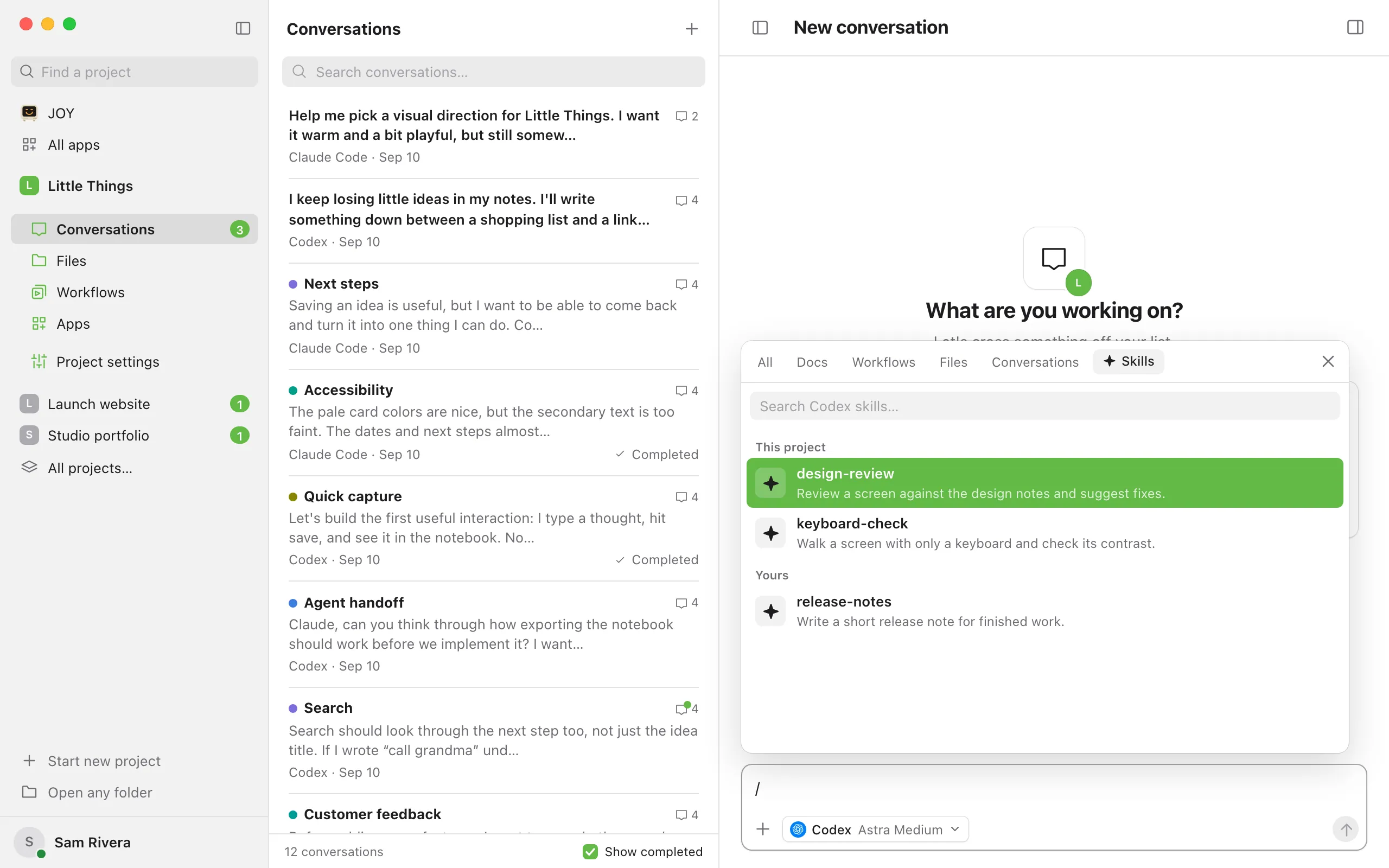
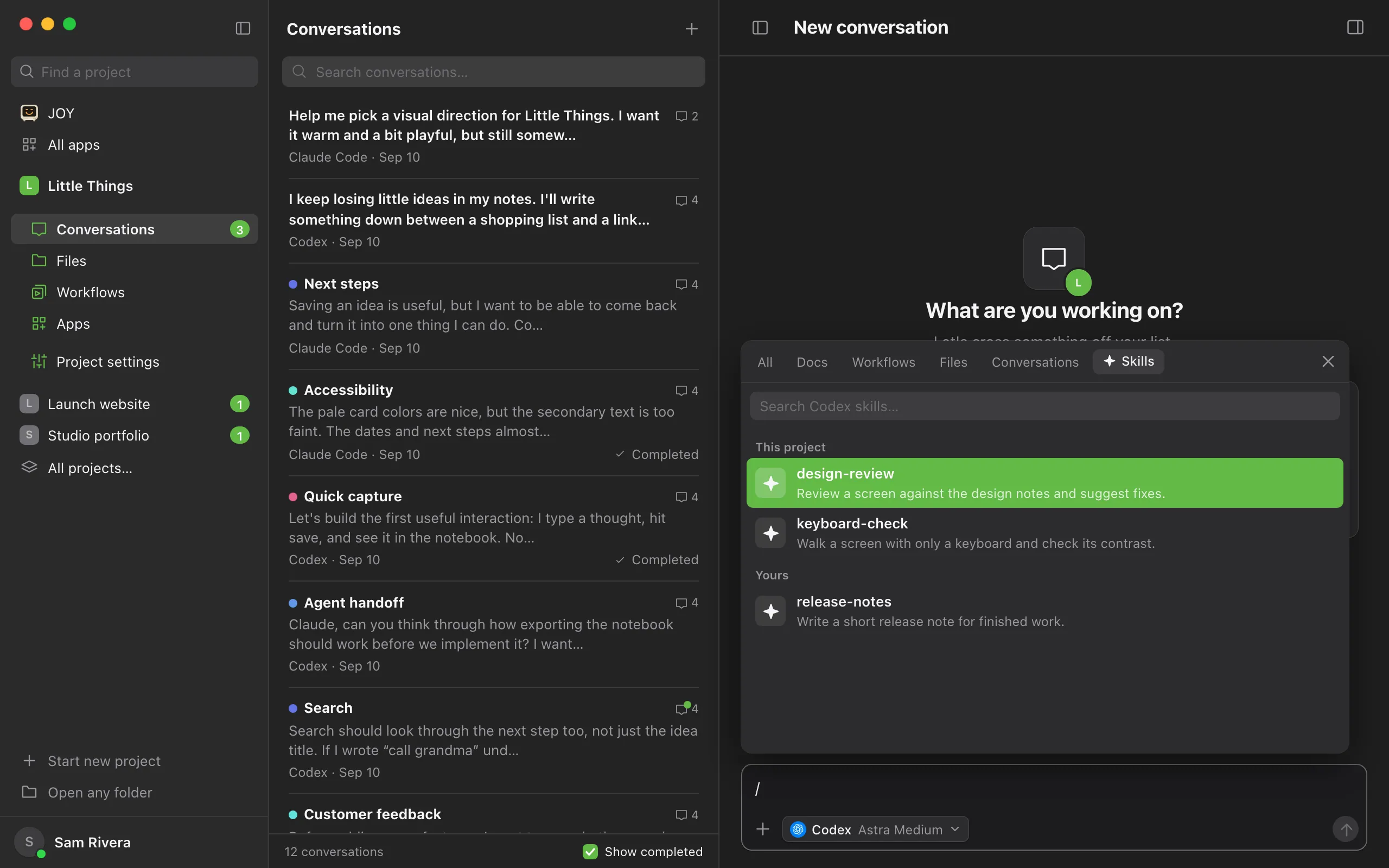
In the message box, type / at the start of a line or after a space. The picker opens on the Skills tab with the skills of the agent you’ve chosen for this message. You can also type @ and select Skills.
Search for the skill
Keep typing after the / to narrow the list by name or description. Without a search, the list is grouped into This project, Yours, Plugins, and the skills included with the agent.
Choose the skill
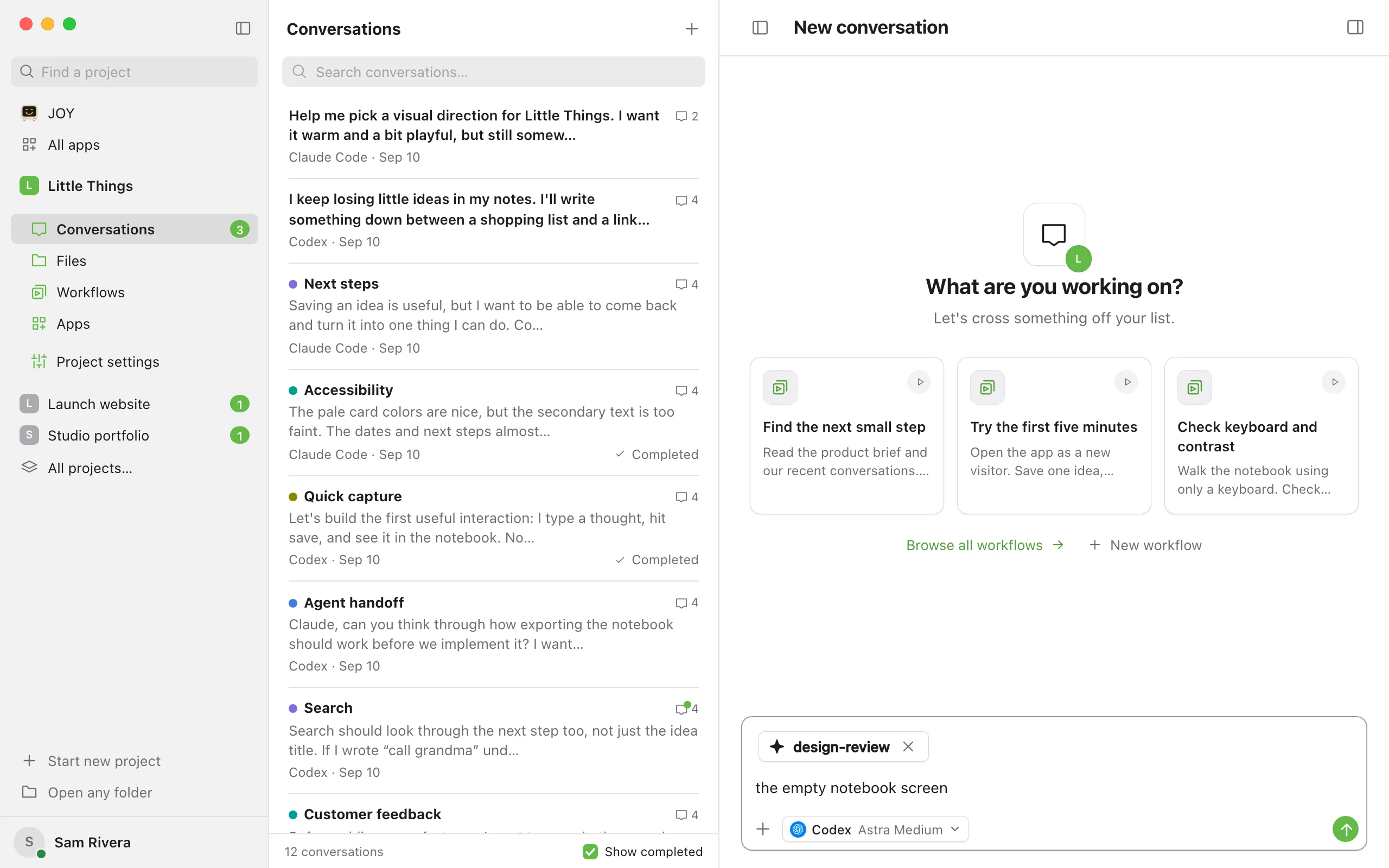
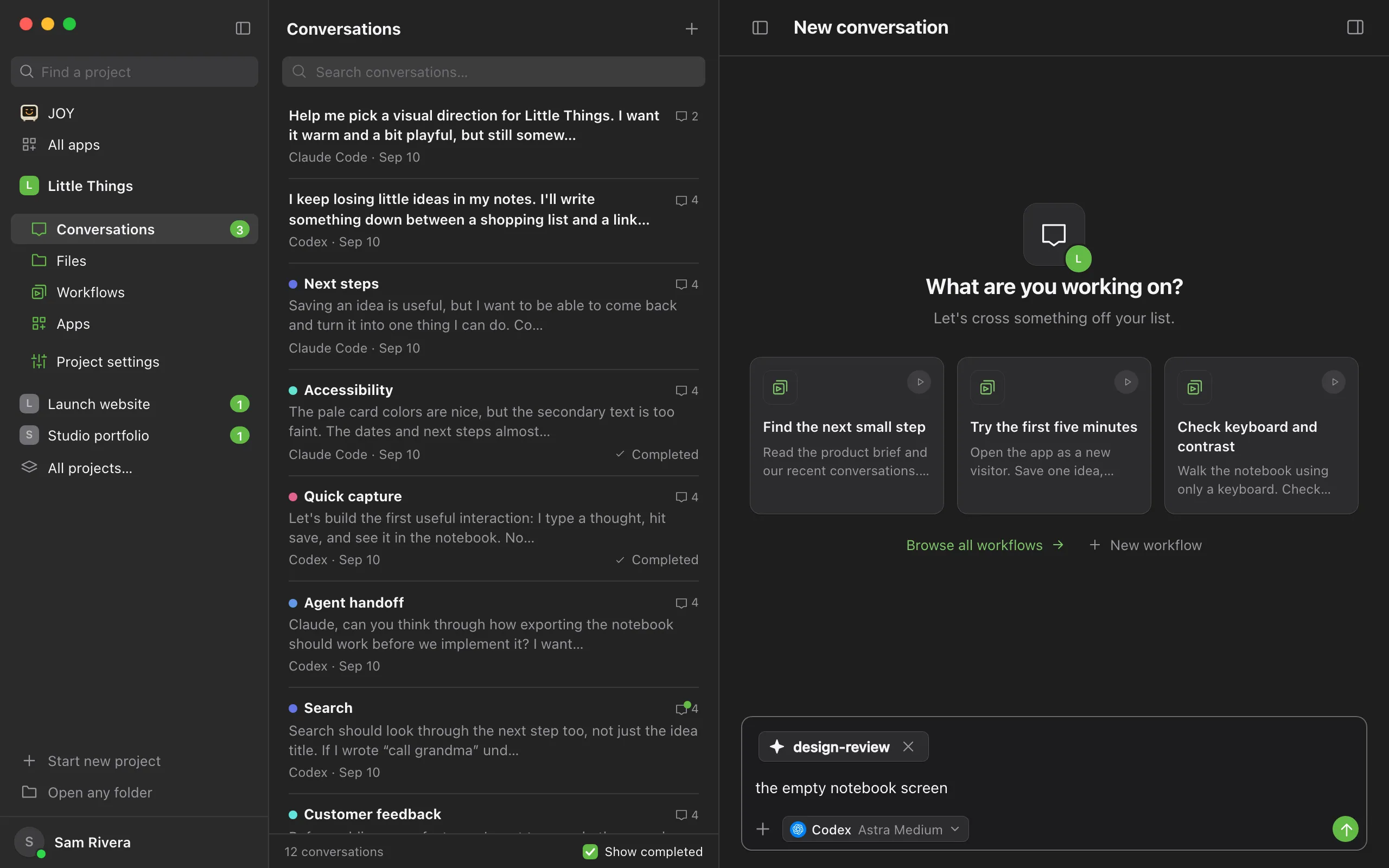
Select it, or move to it with the up and down arrow keys and press Enter or Tab. A chip with its name appears above the message box, and what you typed after the / is removed.
Write what the skill should work on, and send
The agent runs the skill and reads your message as its instructions. Your sent message shows the skill’s name above your words.
Good to know
- A message runs one skill. Choosing another replaces the first. To remove it, select the × on its chip, or press Backspace in an empty message box.
- The All tab of the @ picker lists skills too, after docs, conversations, workflows, and files.
- Typing / reads the agent’s skills again, so a skill you just added appears without restarting anything.
- Claude Code’s own commands, such as /clear and /model, and the skills built into Claude Code aren’t listed, because they would change the session Enjoy keeps for the conversation.
- Codex skills you’ve turned off in Codex aren’t listed.
- Muse Code lists a plugin’s skill by its own name. When another skill already has that name, it’s listed as the plugin’s name and the skill’s, such as
acme:deploy. - If you send a message that runs a skill while the agent is working, it waits until the agent finishes, then runs in a turn of its own. See Send follow-ups while the agent works.
- Text you type that starts with / without choosing a skill still reaches the agent as an ordinary message. See What AI providers see.
If something goes wrong
The chip says “Not in” an agent
You switched the message to an agent that doesn’t have that skill, and the message can’t be sent with it. Remove the chip, or switch back to the agent that has the skill.
The skills don’t load
The picker shows why the agent couldn’t list its skills. Select Try again. If it keeps happening, check that the agent is installed and signed in. See Sign in to an agent.
A skill you added isn’t listed
Check that it’s in a folder the agent reads, listed in Before you start, then type / again to read the list again.