Find words in a conversation
Steps
Open find
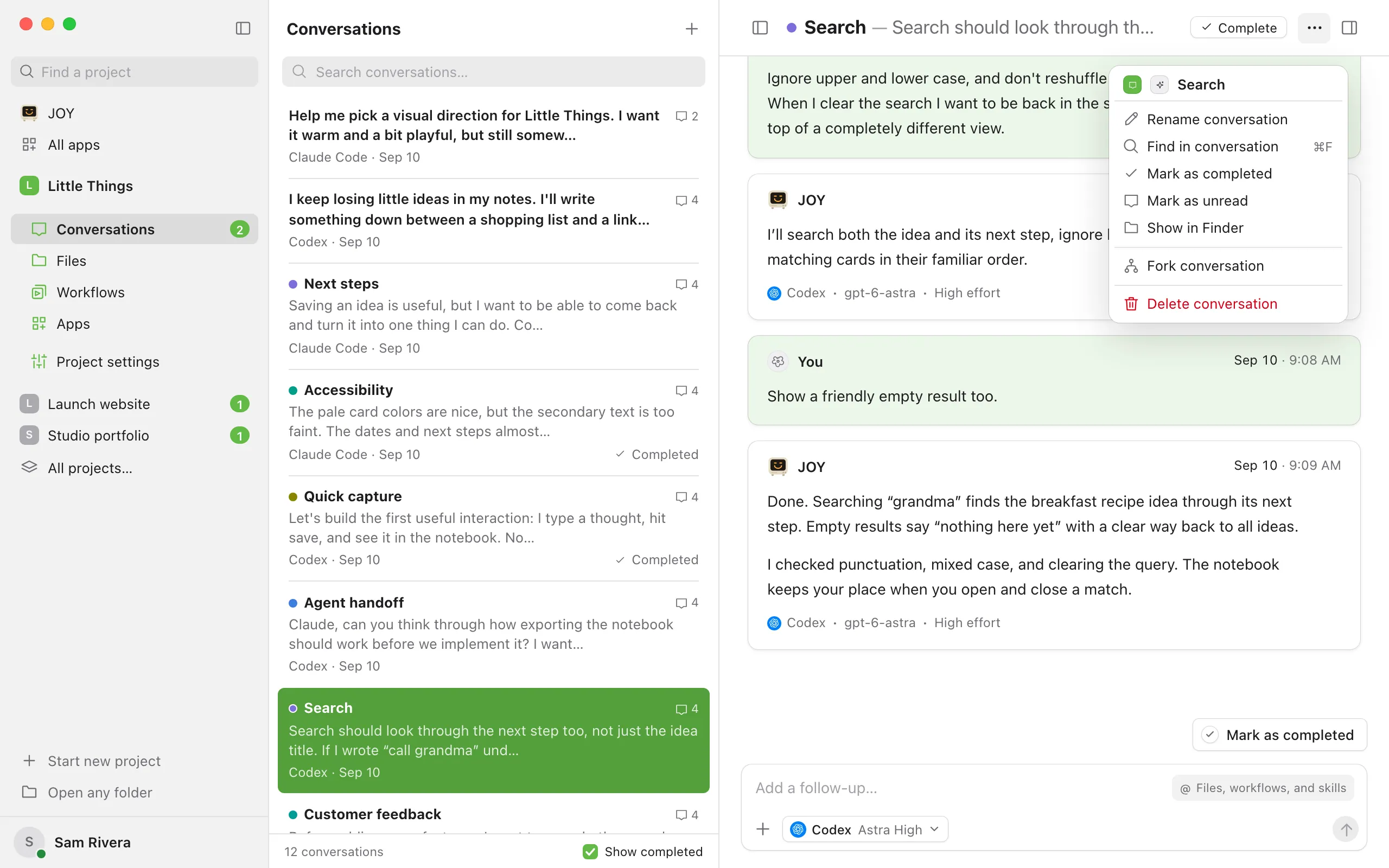
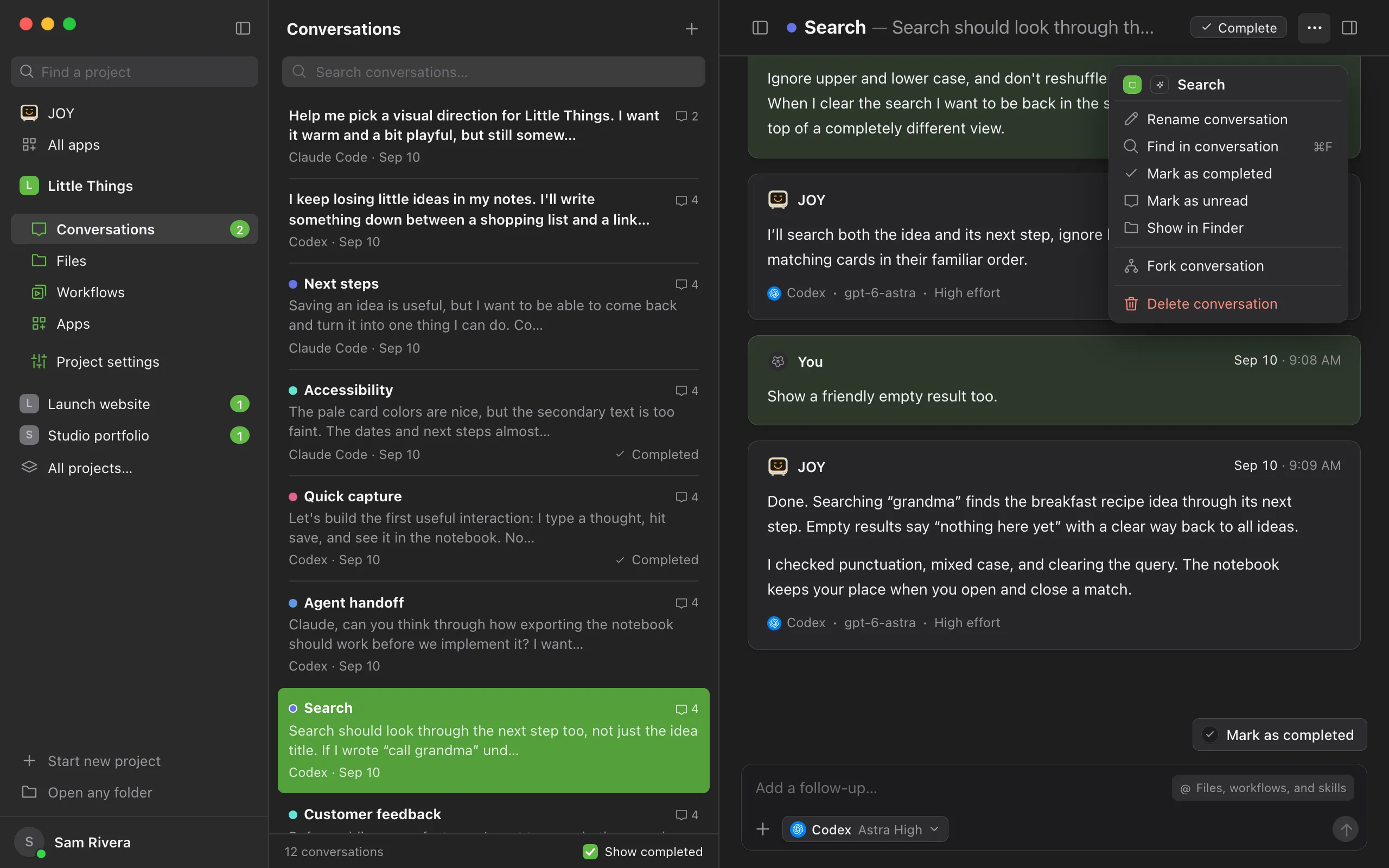
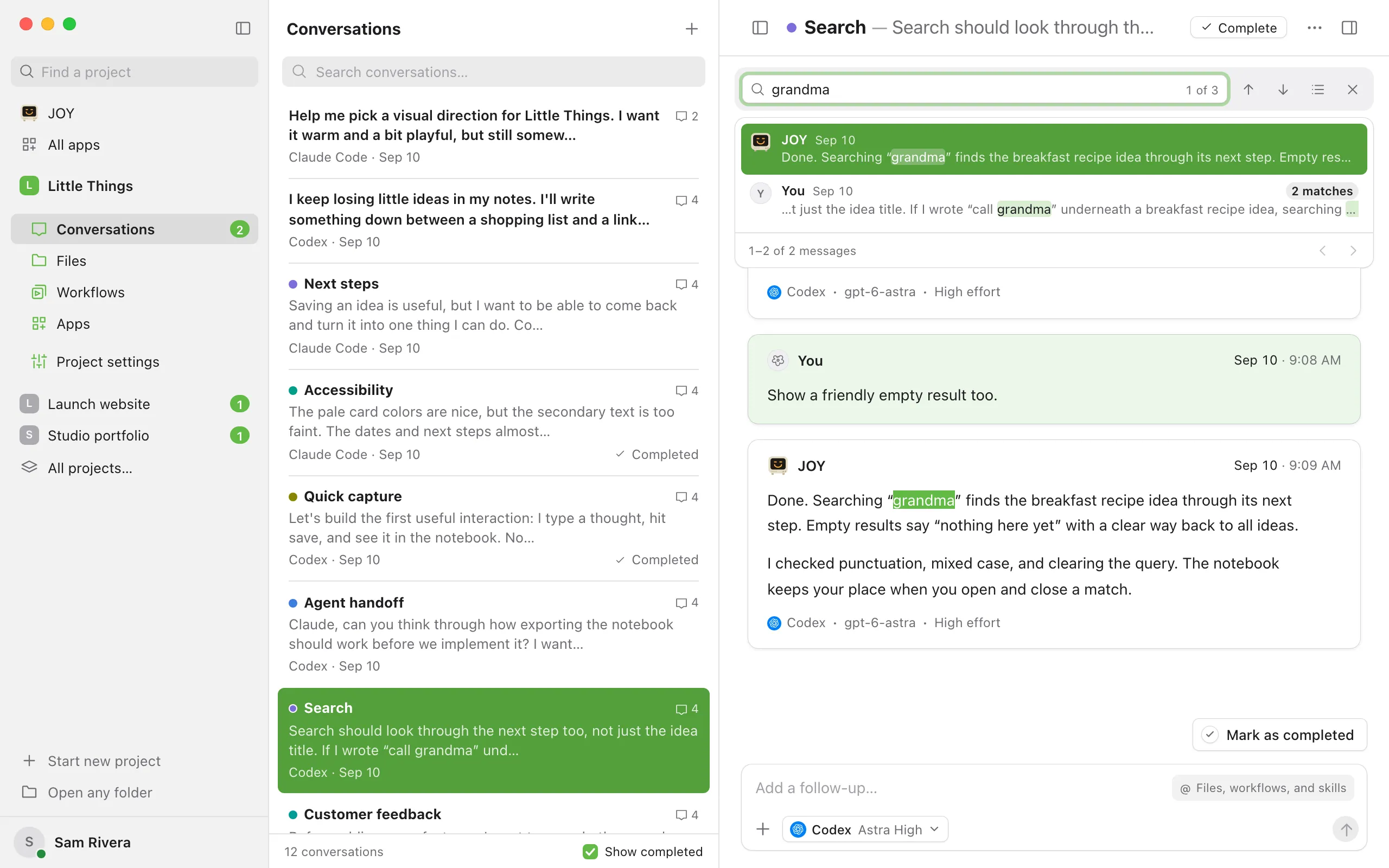
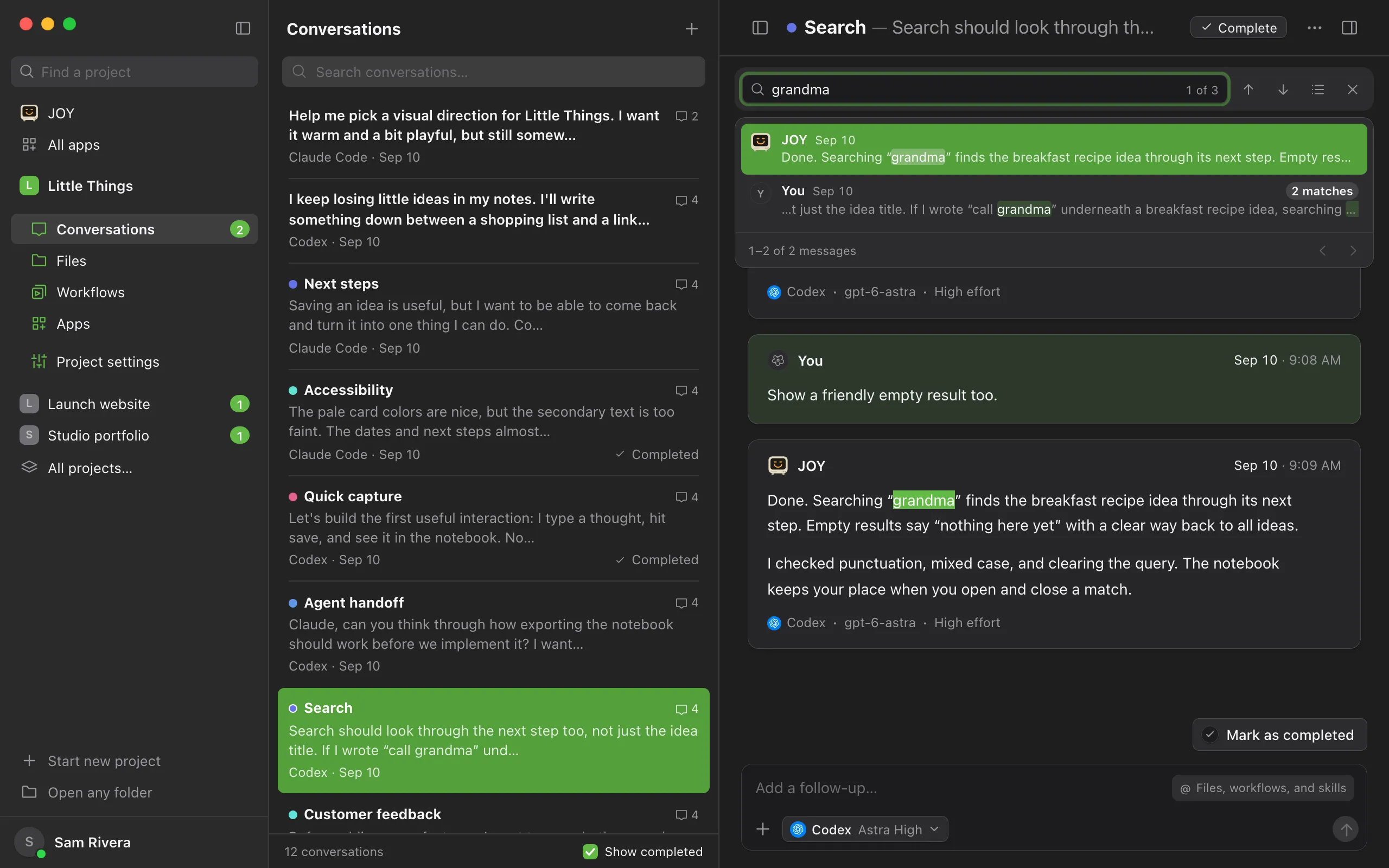
With the conversation open, press ⌘F on a Mac, or Ctrl+F on Windows and Linux. You can also select the ⋯ button (Conversation actions) and choose Find in conversation.
Type what you’re looking for
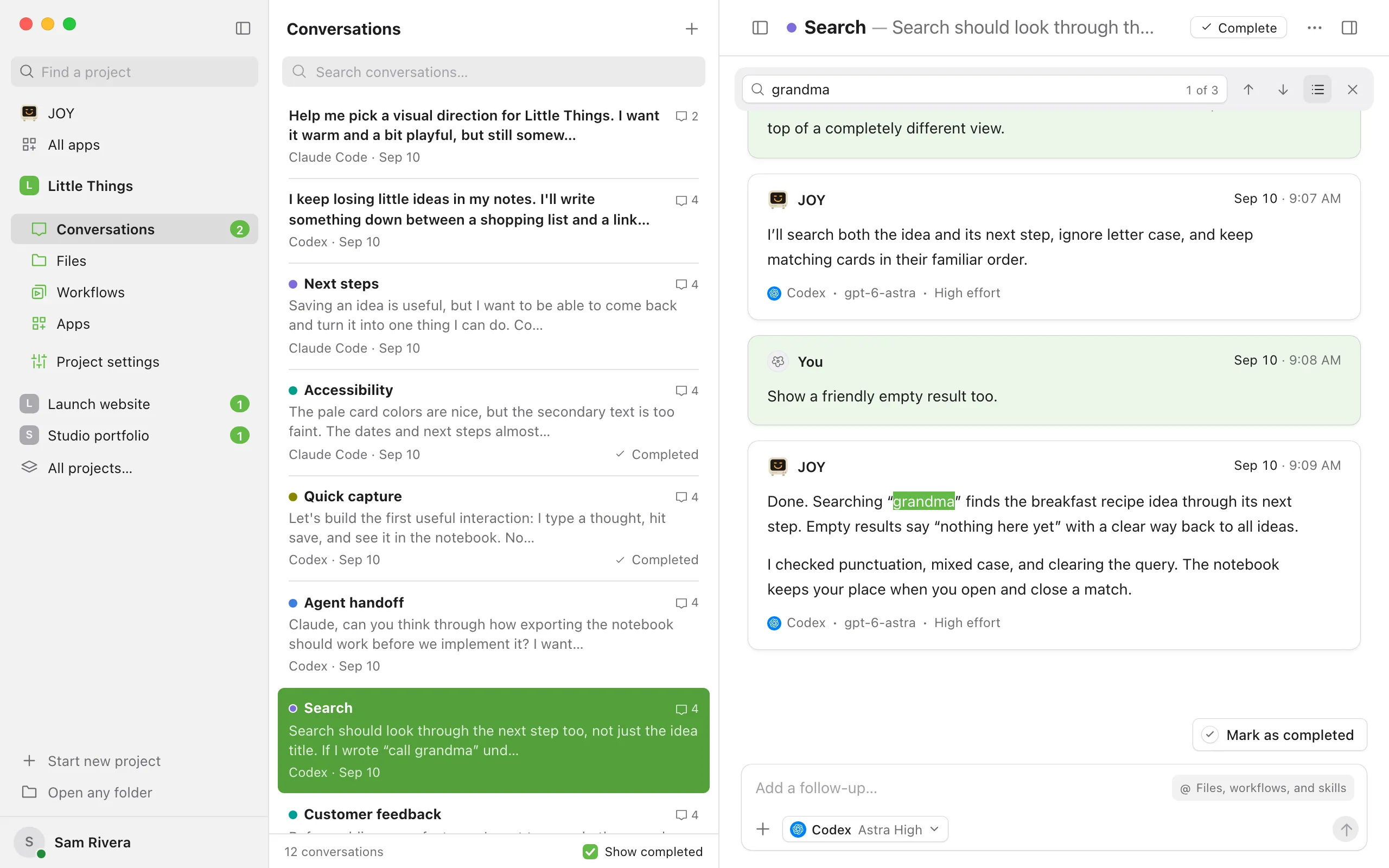
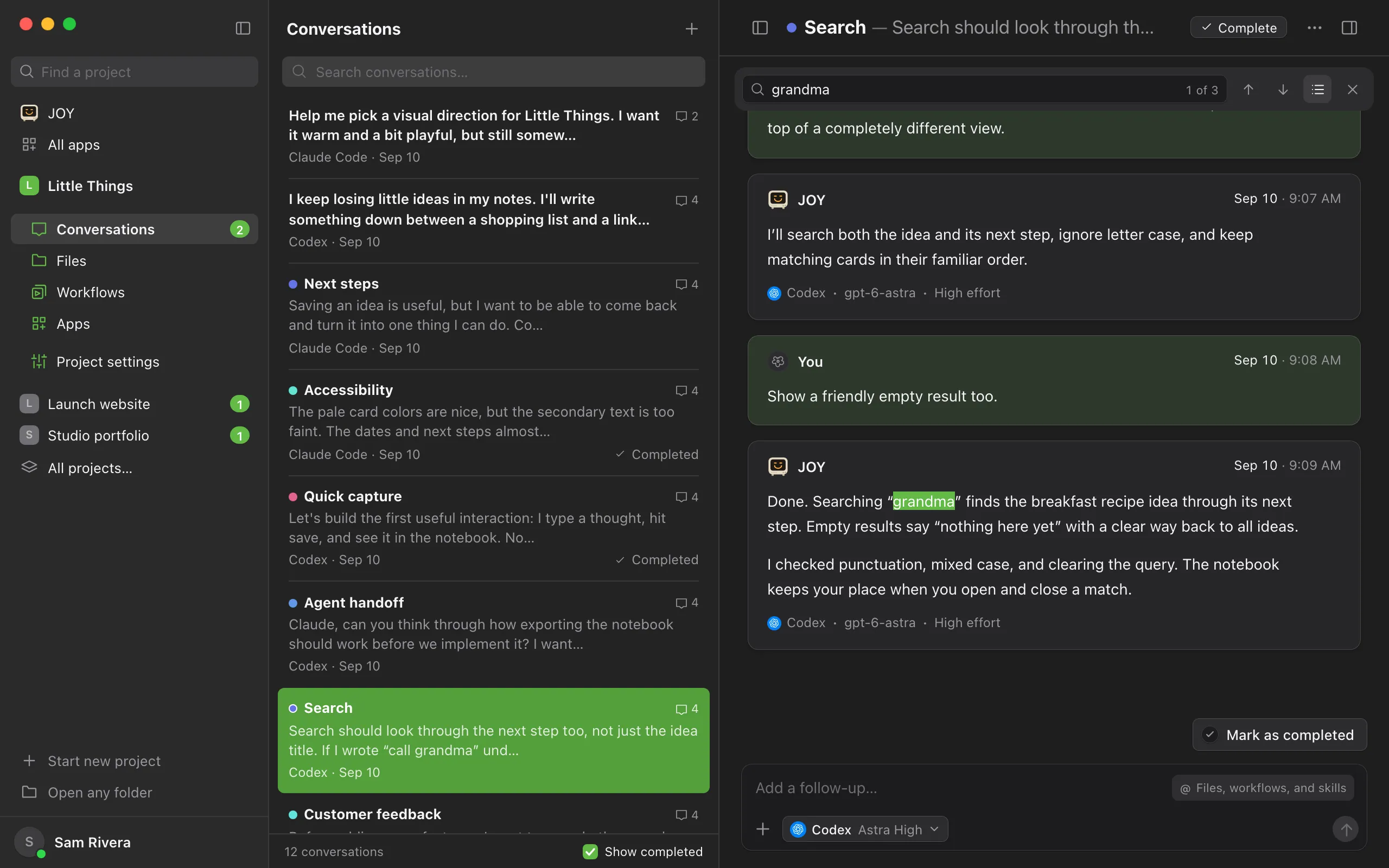
Every match is highlighted, and the count shows where you are, such as 2 of 7. Find starts at the newest match.
Move between matches
Press Enter for the next older match, and Shift+Enter for the next newer one. You can also use the arrow buttons beside the field.
See all matching messages
Select the list button (Matching messages) to see each message that matches, with who wrote it and when. Select one to jump to it.
Close find
Press Escape, or select the X.
Good to know
- Find ignores capital letters, and spaces in your search match any spacing in the text.
- It searches the whole conversation, including older messages that aren’t loaded yet. Enjoy loads them when you move to a match.
- ⌘G on a Mac, or Ctrl+G on Windows and Linux, also moves to the next older match. Add Shift to go the other way.
- The list of matching messages shows four at a time. Use the arrows at its bottom to see more. On short windows, the list starts closed so you can see the conversation.
- To search across all conversations instead, use the search box at the top of the conversation list. See Find a conversation.
- Find in a conversation isn’t available in the iPhone app.
If something goes wrong
“No matches”
Nothing in this conversation matches what you typed. Check the spelling, or try fewer words.
⌘F searches the conversation list instead
No conversation is open. Open one first, then press the shortcut again.