Use Compact view for conversations and messages
The conversation list and the messages in a conversation each have their own setting, so you can make one compact and keep the other roomy.
Steps
Open Appearance
Select the sun or moon button in the top bar, to the left of the circle with your initial.
Pick a conversation list style
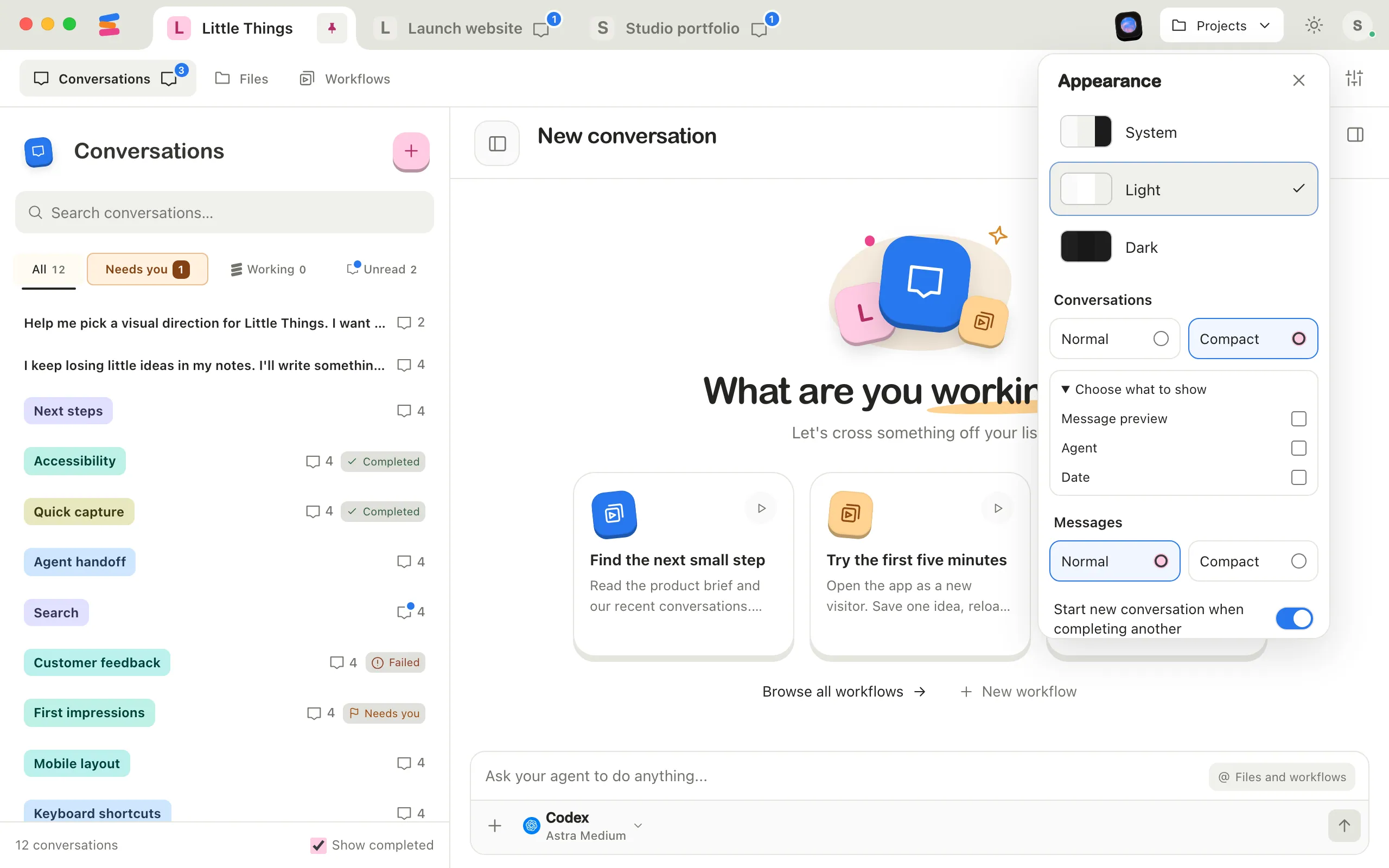
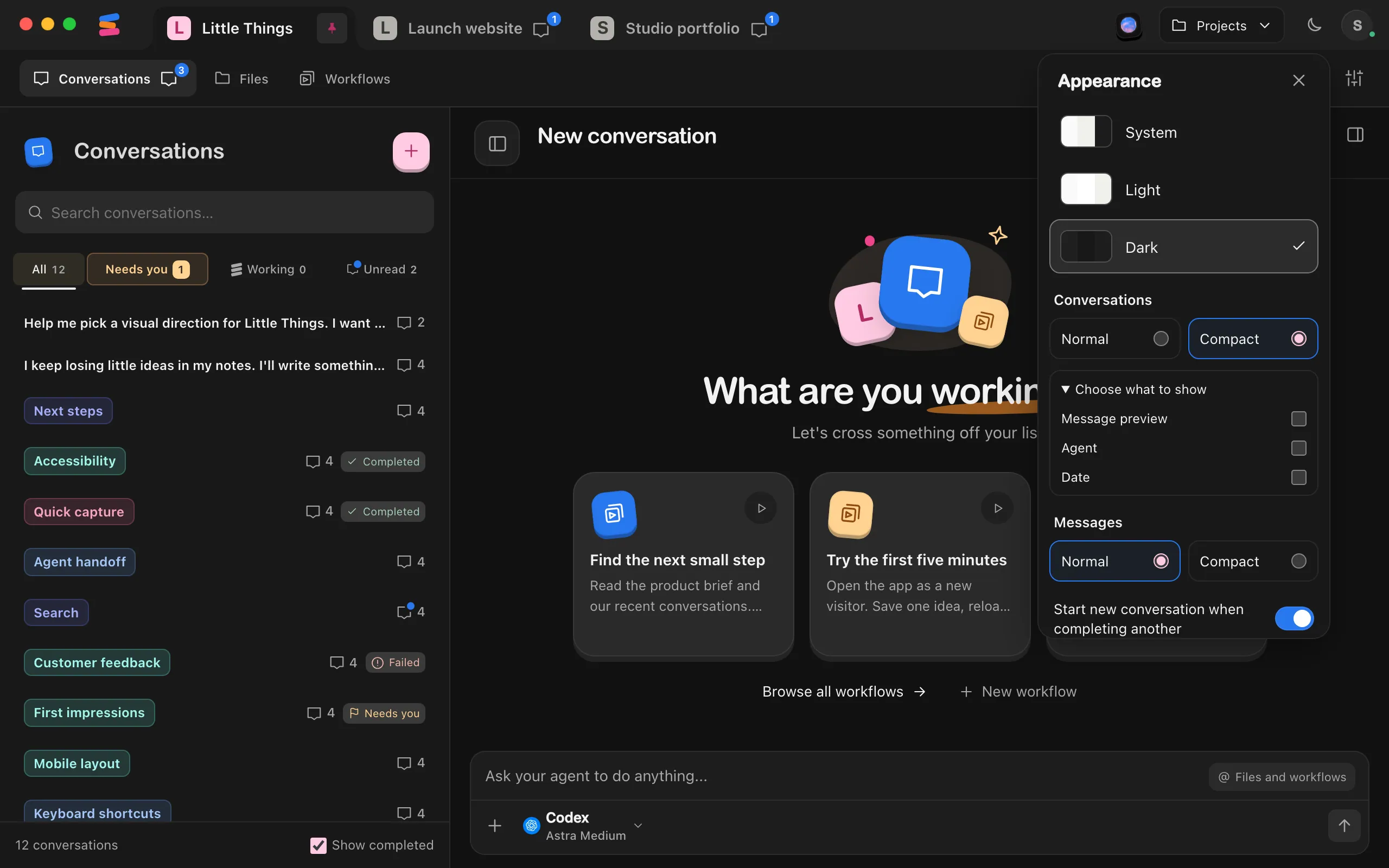
Under Conversations, select Compact for tighter rows, or Normal for the roomier list.
Choose what to show
Select Choose what to show, then check or uncheck Message preview, Agent, and Date. These control the extra lines under each conversation’s name in the list.
Pick a message style
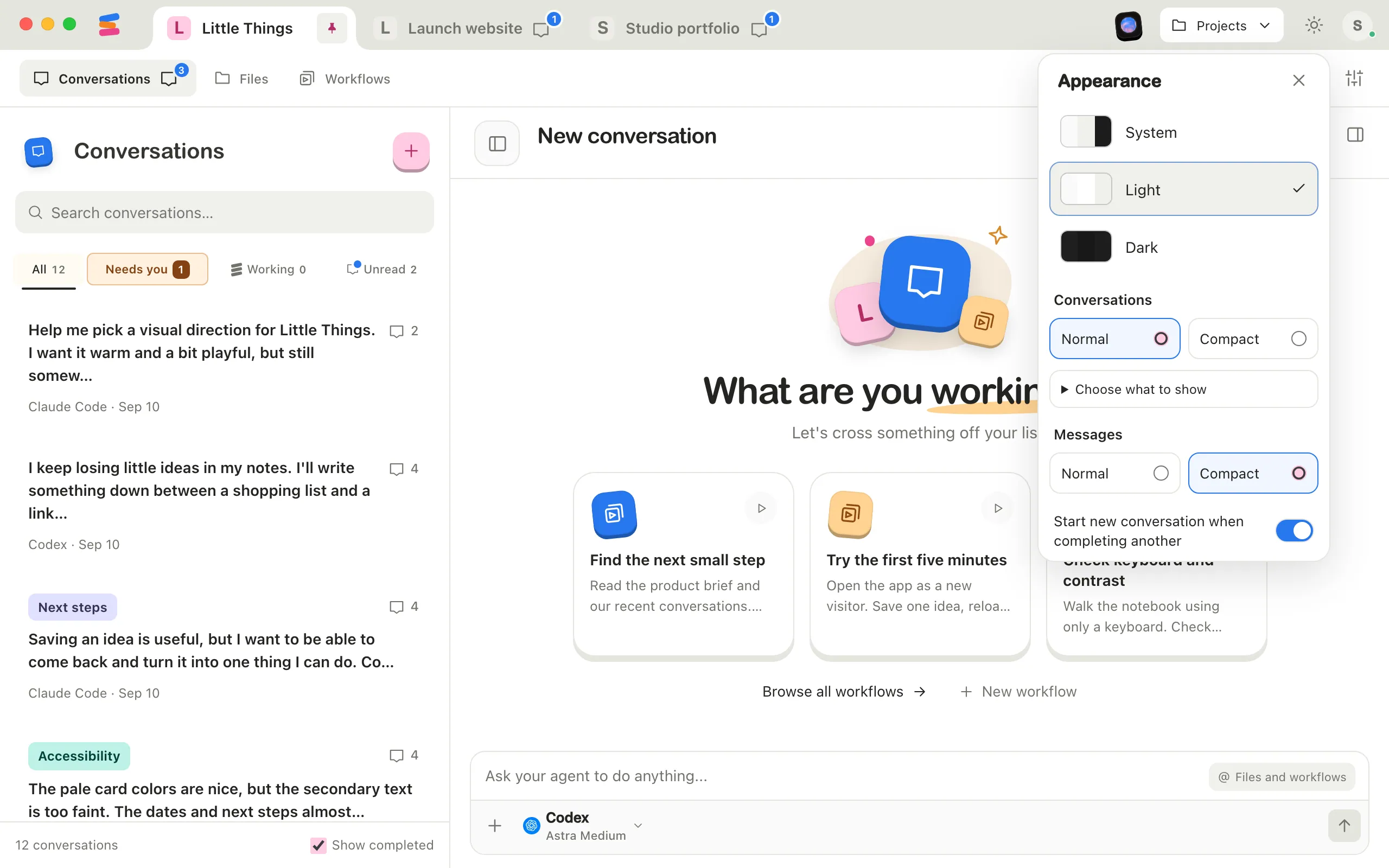
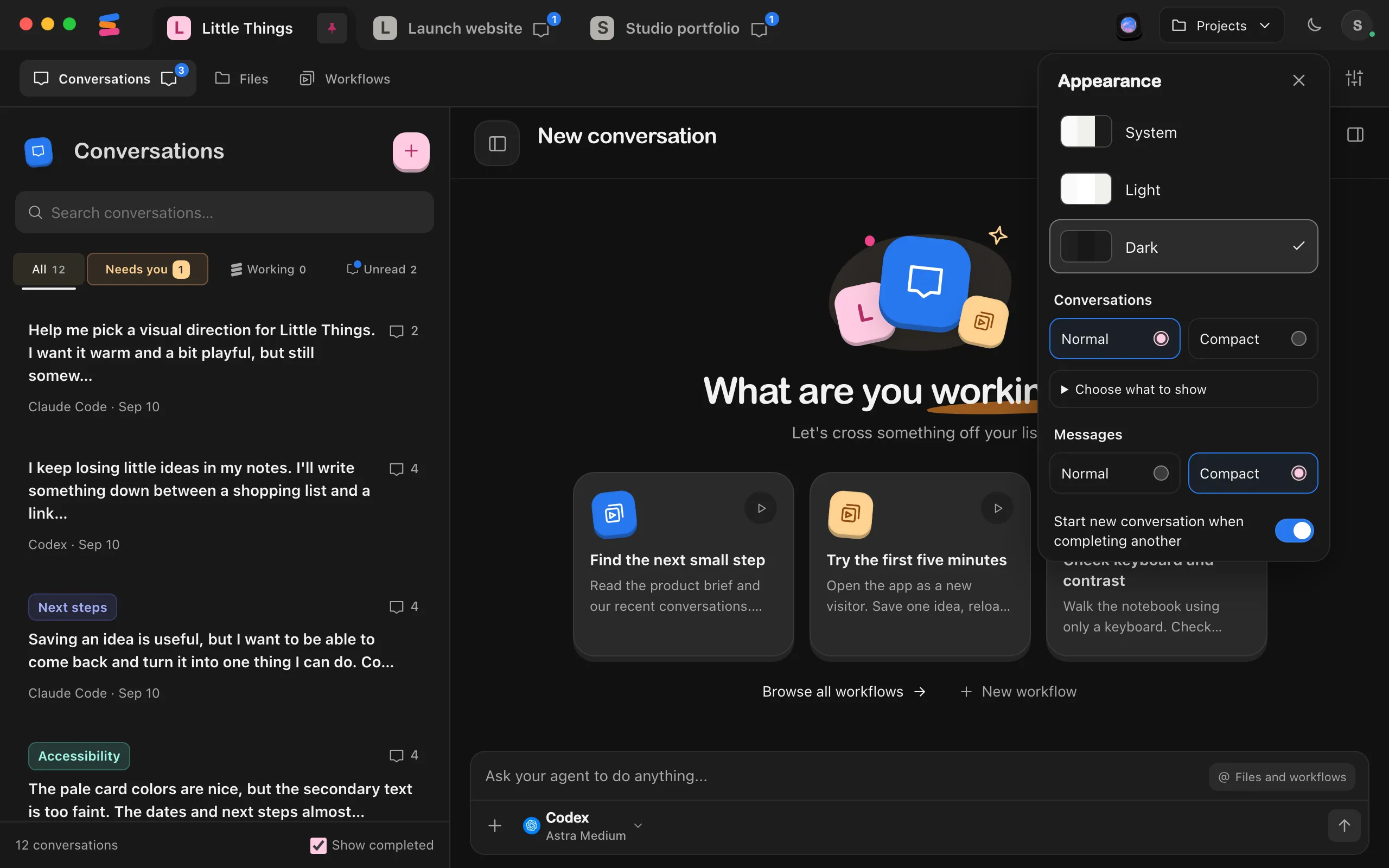
Under Messages, select Compact to fit more messages on screen. Each message gets one line at the top with who sent it and when, and your own messages sit on a light shade of the project’s color. Select Normal to go back to message boxes.
Good to know
- Selecting Compact under Conversations turns off Message preview, Agent, and Date. Selecting Normal turns them all back on. You can change each one afterward.
- Your choices are saved on this device. Each computer and browser keeps its own, and every project uses the same setting.
- In Compact messages, the agent that wrote a reply, its model and how long it worked show on the reply’s top line. Point at a message to show Copy and Fork from here where its time was.
- Compact messages only change conversations. Docs, questions from agents, and the box you type in keep their usual look.
- To hide the whole conversation list while you work, see Hide the conversation list.