Copy a message
Steps
Good to know
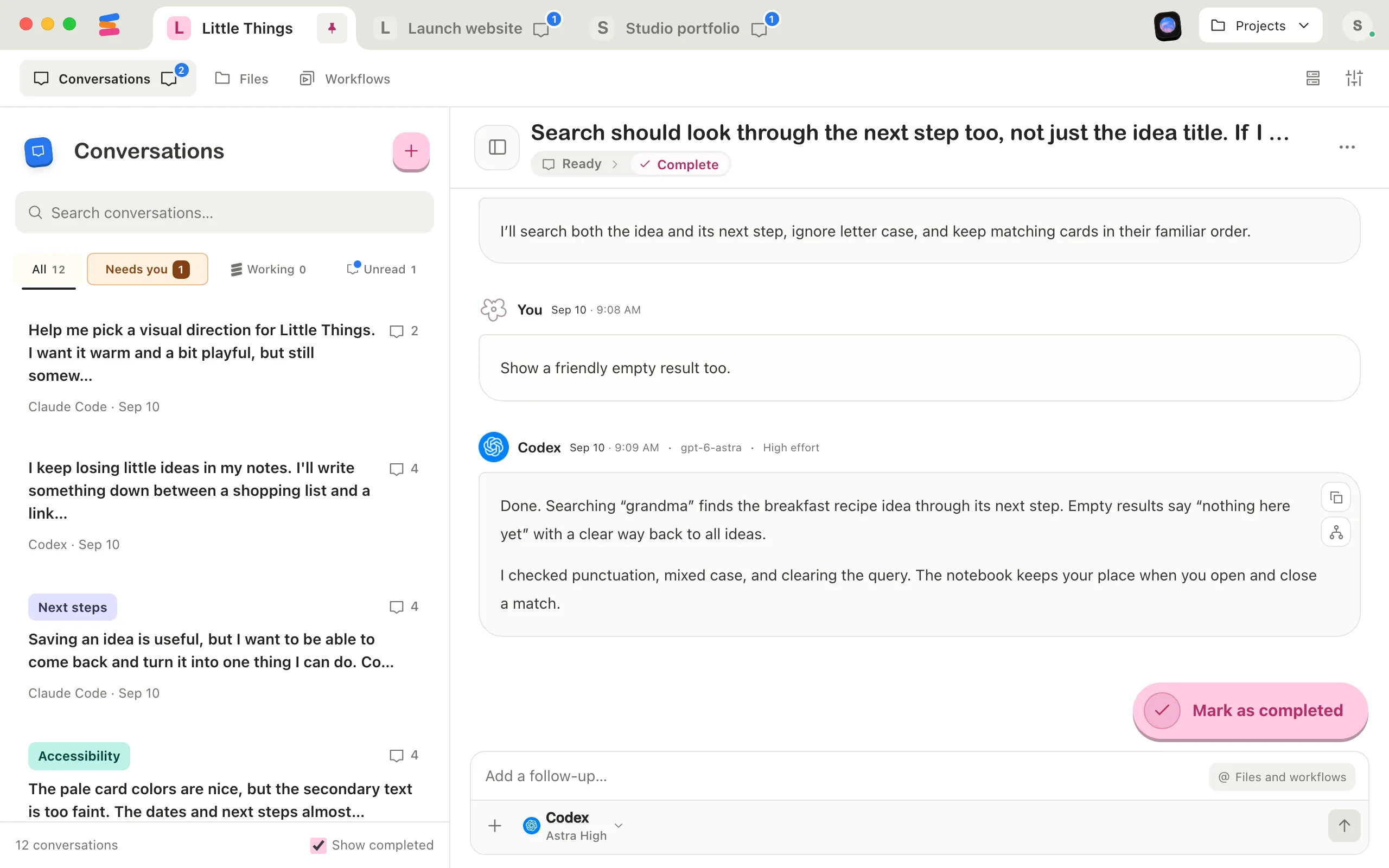
- The button copies the whole message as it was written. Agent replies use Markdown, a simple way to mark formatting, so the formatting comes along as symbols, such as
**around bold words or#before headings. - In your own messages, mentions are copied as Markdown links, and attachments as their names in brackets, such as [screenshot.png]. Attachments added as files, rather than as images, also add a line with their saved location.
- Messages without any text, such as the first message of a workflow run, don’t have a copy button. Neither do pending messages marked Waiting to send or Waiting for agent.
- Code blocks have their own copy button. Point to a code block to show it in the block’s corner. It copies just the code, without the rest of the message.
- If the clipboard won’t take the text, the button shows a warning sign instead of a check mark. Select the text and copy it yourself.
- To copy part of a message, select the text you want and press ⌘C on a Mac, or Ctrl+C on Windows and Linux.
- The button under the copy button, Fork from here, starts a new conversation with the messages up to that one. See Fork a conversation.
- In the iPhone app, touch and hold a message and choose Copy. To copy part of it, choose Select text and select what you want. Code blocks in replies also offer Copy code when you touch and hold them.