Update an agent
Agent companies release new versions often, sometimes with new models. Updating an agent here is separate from updating Enjoy itself, which is covered in Update Enjoy.
Before you start
- Use the Enjoy app on your computer.
Steps
Open the agent settings
At the bottom of the message box, select the agent button.
Look beside the selected agent’s name
When an update is out, a download icon and the new version number appear there. Point to it to read Update with the agent’s name and version. If the agent is working, the tip ends with when finished.
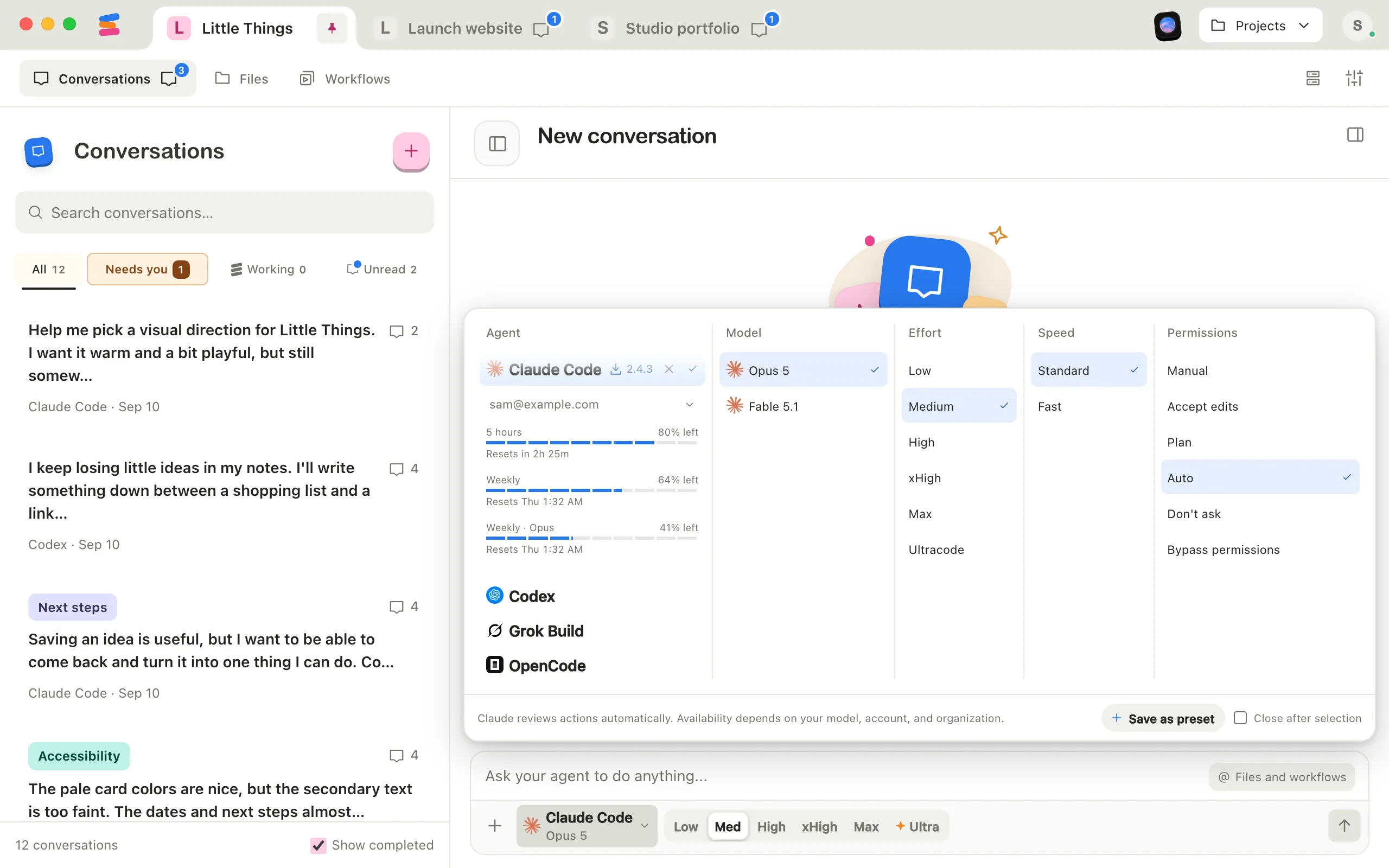
Select the version number
Enjoy starts the update. If the agent is working, the update waits for it to finish: a clock shows, and pointing to it reads Waiting for this agent to finish…. A spinning circle then shows while the update installs.
Keep working
When the update is done, the version number disappears and the model list refreshes.
To skip a version, select the × beside the version number instead. Enjoy shows the prompt again when a newer version comes out.
Good to know
- Updates show for the agent that’s selected. To update another agent, select it in the Agent column first. That also switches your next message to it, so switch back afterward if you want.
- When you open the agent settings, Enjoy checks the agent’s published releases for a new version, at most once every six hours.
- Enjoy updates the agent with its company’s own installer or update command.
- If your computer has more than one copy of an agent, for example one from npm and one from the company’s installer, Enjoy runs the newest copy that works. A note above the message box says so for the agent you’ve selected. Select Remove to uninstall the older copy with the tool that installed it, such as npm or Homebrew, or Keep both to hide the note until another copy appears.
- In a project inside WSL, Enjoy checks and updates the copy in the project’s Linux distribution, with the agent’s own updater or its official Linux installer there. The copies note names the distribution, such as Codex is installed twice in Ubuntu-22.04. A copy npm installed there is removed by npm there. A copy no tool installed is deleted for good, since the distribution has no Recycle Bin: select Delete and its version, then Delete for good to confirm. The line under the buttons names the file, such as Deletes /home/you/bin/codex in Ubuntu-22.04. It won’t go to the Recycle Bin.
- Skipped versions are remembered on this computer, for every project.
- Enjoy installs, signs in, and updates one agent at a time.
If something goes wrong
The version number turns red
The update didn’t finish, and the download icon becomes a retry arrow. Point to it to read why. When the installer explains what went wrong, Enjoy shows the end of its message. Select the arrow to retry.
Removing the older copy didn’t work
The note shows the message from the tool that tried to remove it, for example a permissions error from npm. Select Try again, or select Show in Finder (Show in File Explorer on Windows) to find the copy and remove it yourself.
Removing a copy says it needs sudo
In a project inside WSL, a copy that another Linux user, such as root, installed with npm can’t be removed by Enjoy. The message names the owner and the command to run, such as sudo npm uninstall -g and the package. Run it in your distribution’s terminal, then select Try again.
The update fails in a project inside WSL
The message names the distribution, as in Enjoy can’t update Codex in Ubuntu-22.04. Update it the way you installed it. If it says the distribution can’t reach a server that Windows reaches, see Fix problems with a project in WSL.
The update was interrupted
Something stopped the update partway. Select the version number again to retry.
Couldn’t get the latest release
Enjoy couldn’t reach the agent’s release information. Check your internet connection, then select the version number again.