Update Enjoy
Enjoy checks for updates about 15 seconds after it opens, every six hours, and whenever you come back to its window. It downloads a new version in the background, then asks before restarting.
Steps
Check now if you like
Choose File, then Check for updates…. A small panel shows Checking for updates…, then Enjoy is up to date. or Downloading update… with a percentage. On Windows, open the menu with the three-line button in the top-left corner of Enjoy. On Linux, File is in the menu bar of the Enjoy window.
Wait for the ready message
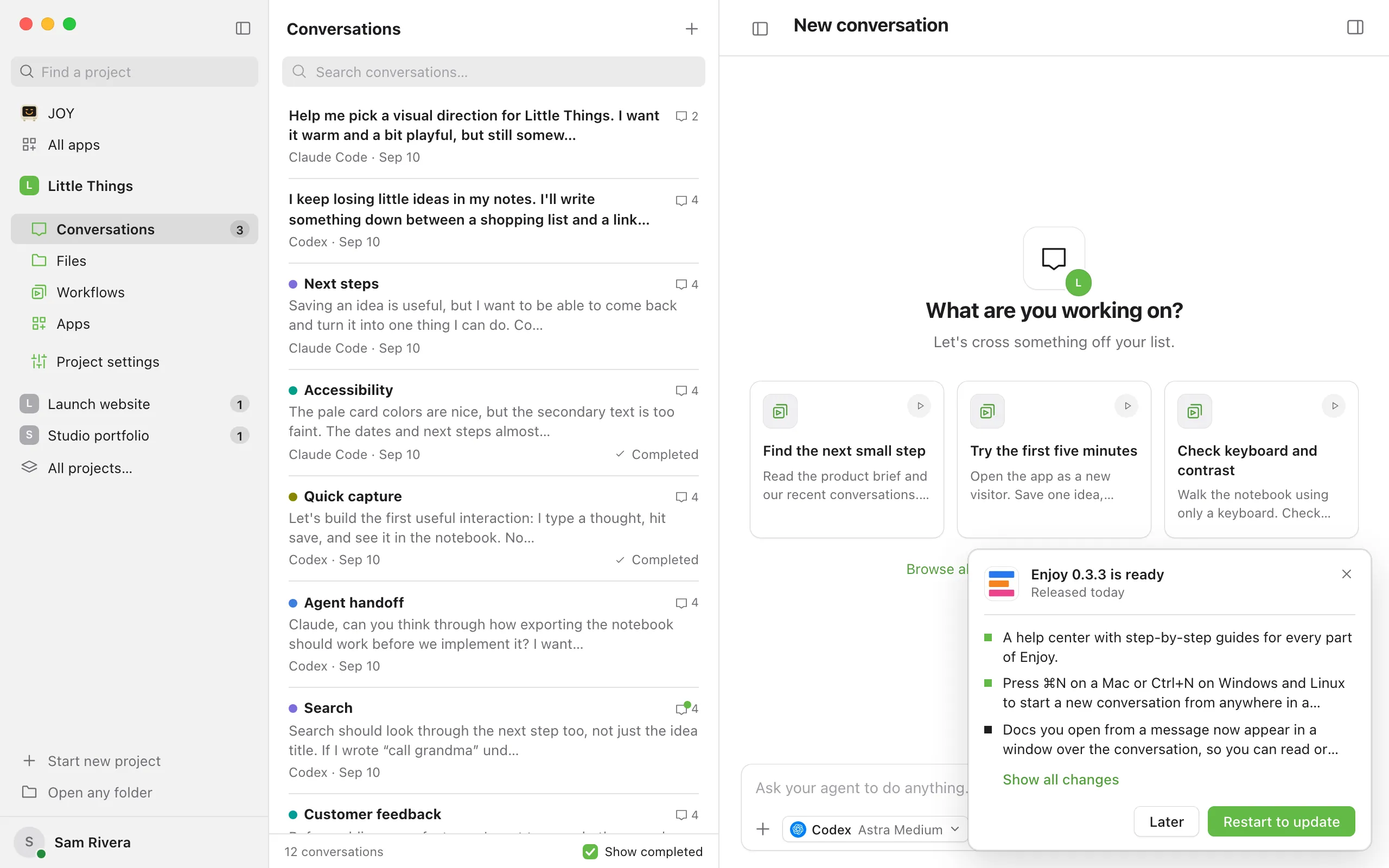
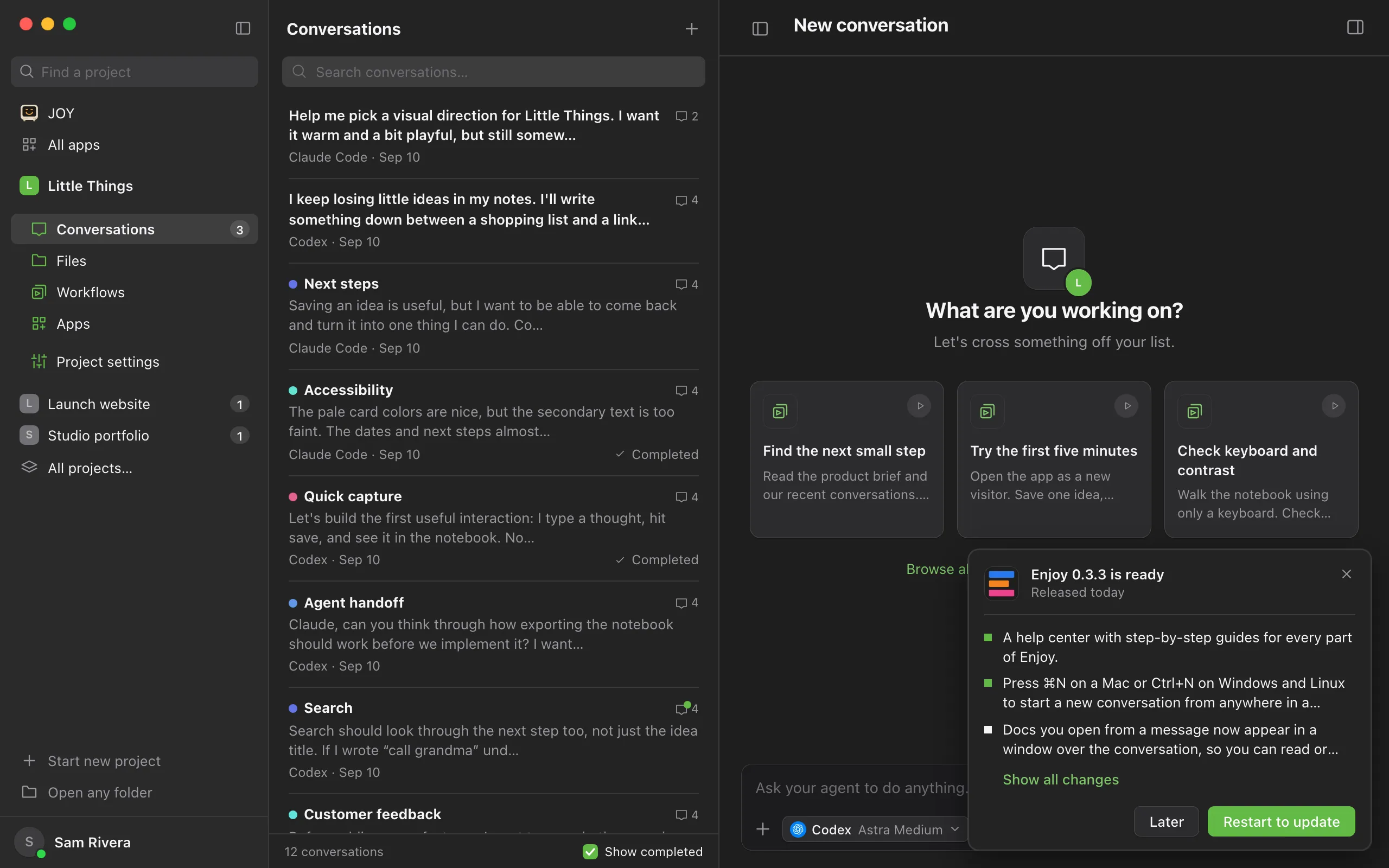
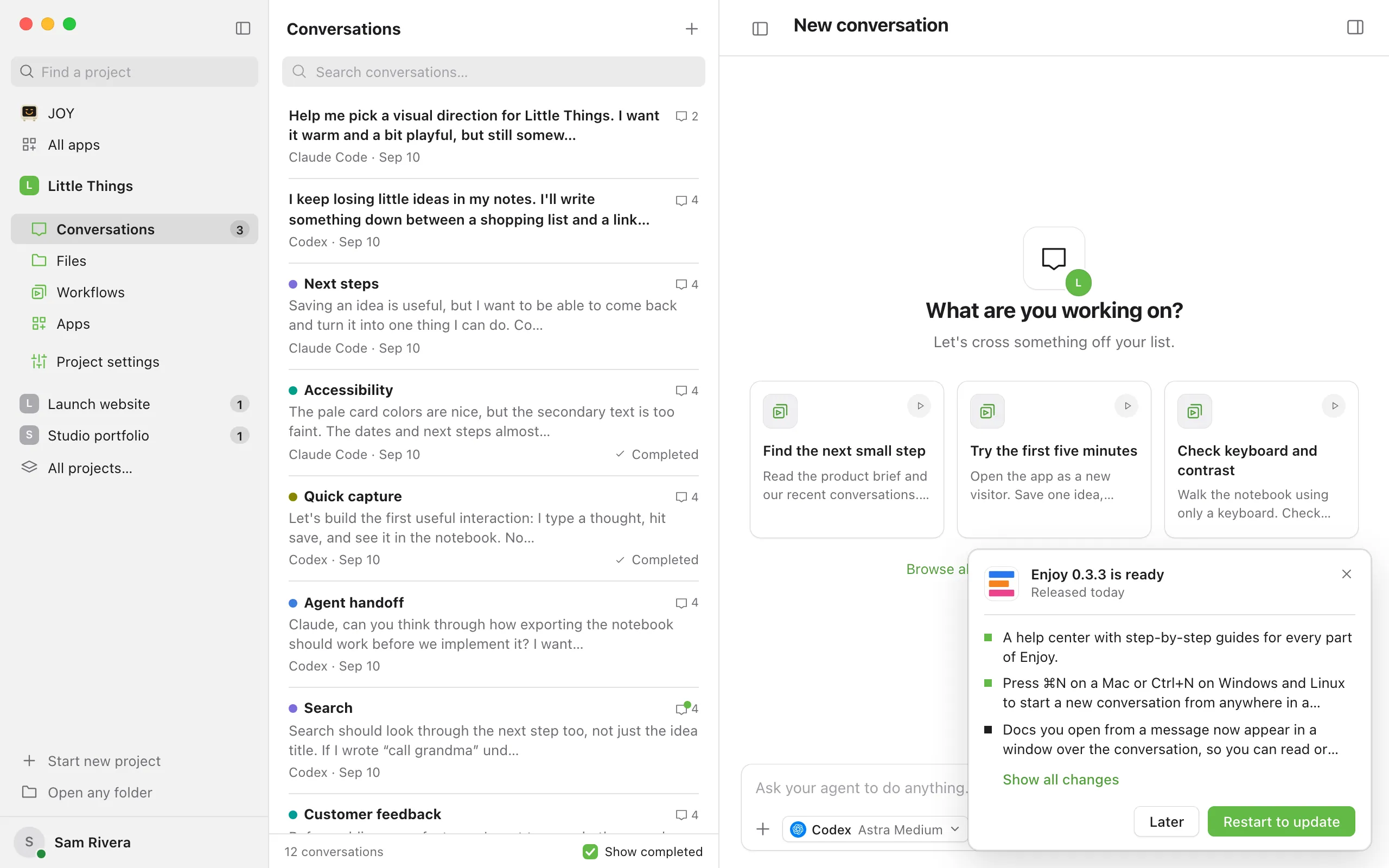
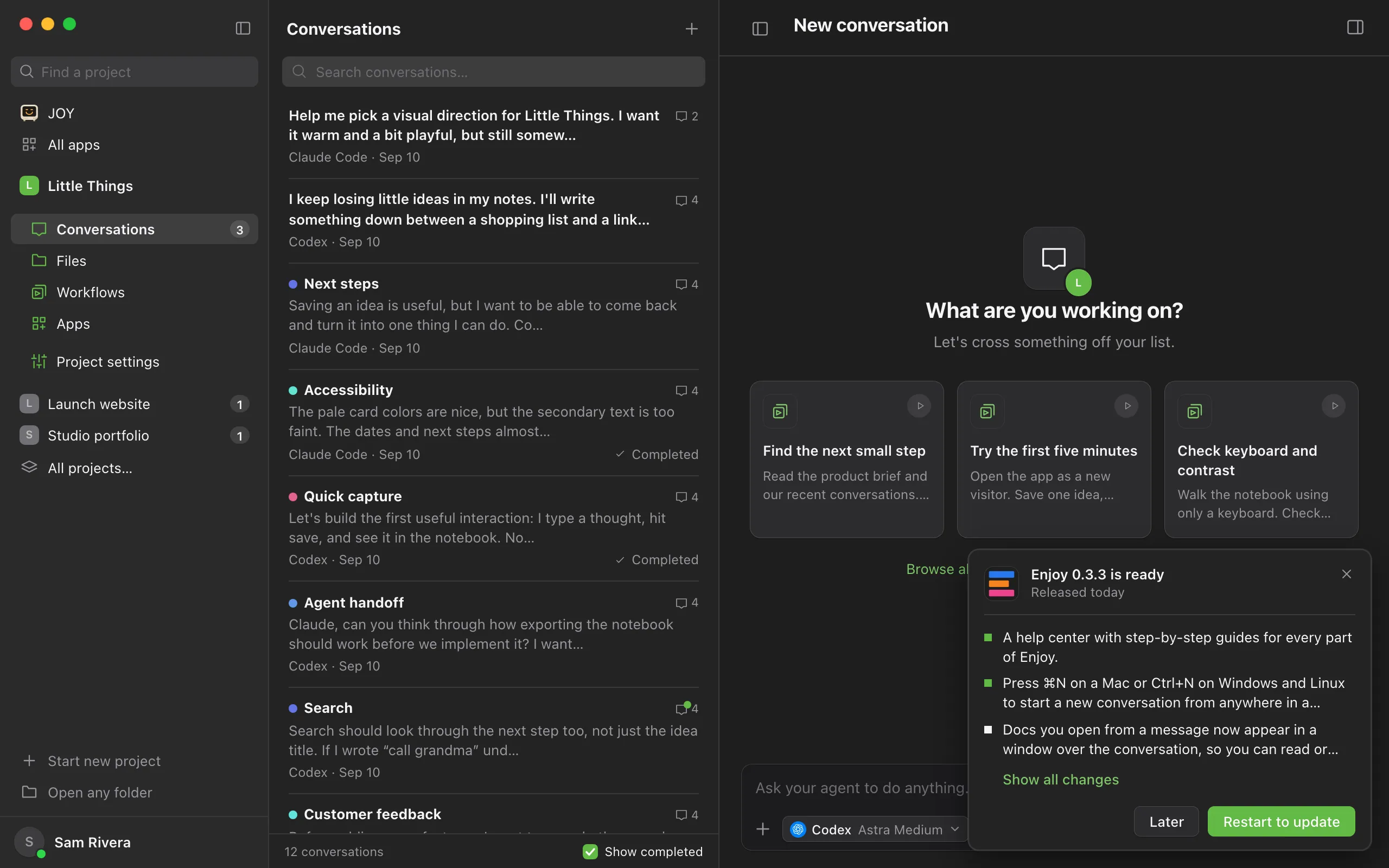
When the download finishes, a panel in the corner says Enjoy and the new version number, then is ready, with the update’s first few changes. If agents are working, it also warns Restarting stops your working agents.
Read what’s new if you like
If the update has more than three changes, select Show all changes to read every one of them in the panel. Show fewer shrinks it again.
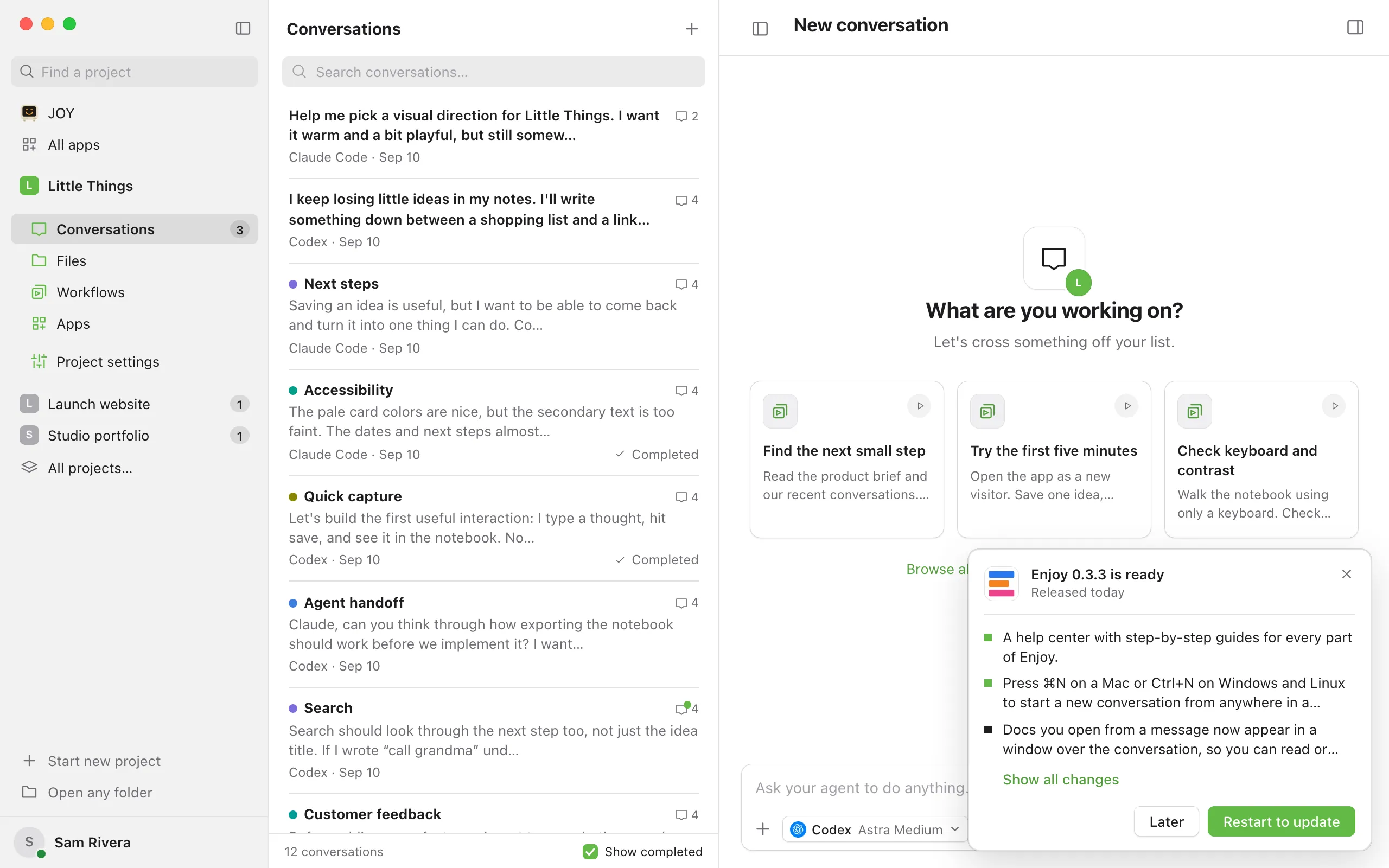
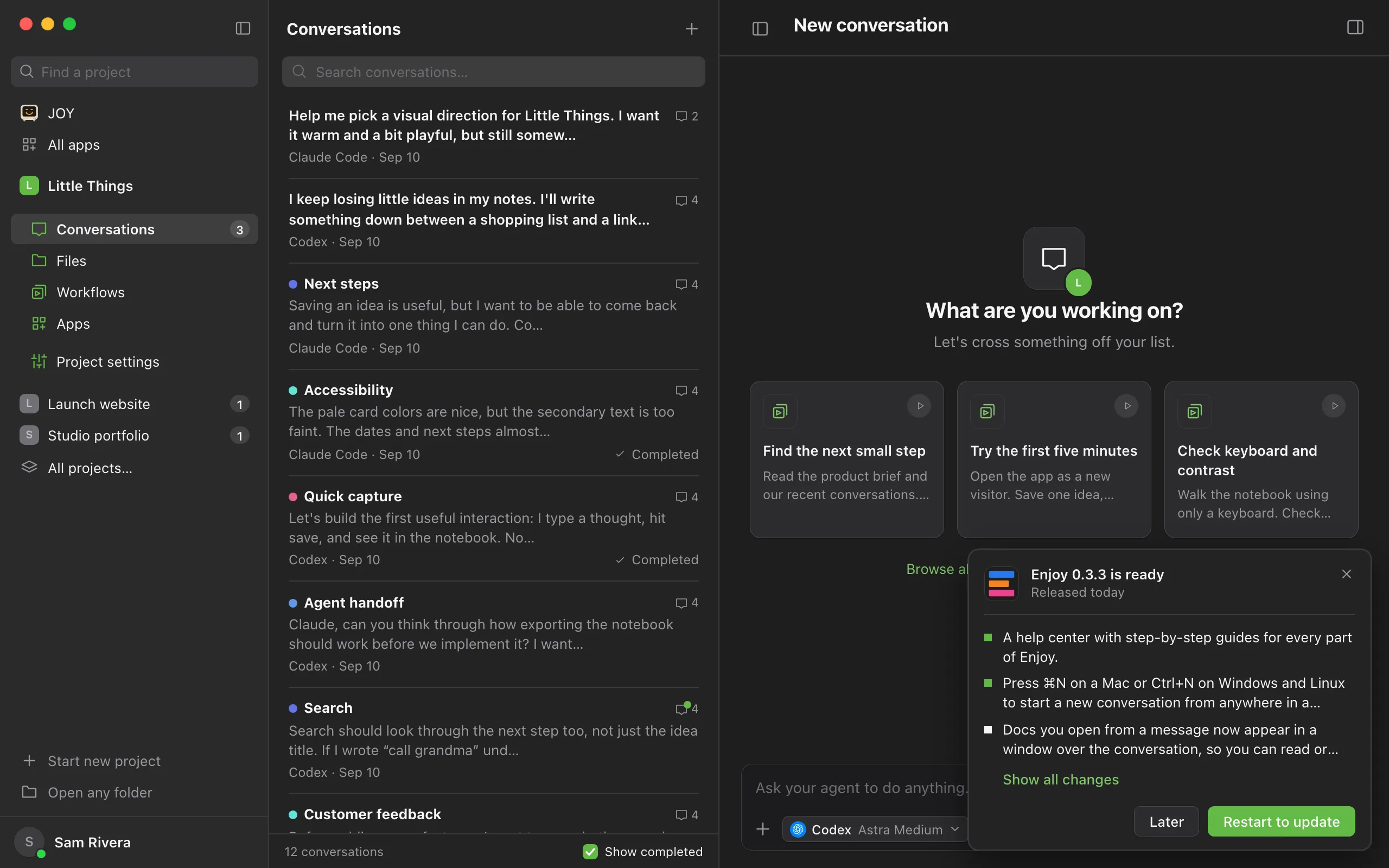
Select Restart to update
Enjoy stops agents that are working, shows Installing update and restarting…, and opens again on the new version.
Good to know
- After the restart, Enjoy updated successfully appears for five seconds with Show release notes.
- To install later, select Later or close the panel. When you’re ready, choose Check for updates… and the panel comes back.
- Restarting stops agents that are working. If an agent is in the middle of a task, let it finish first.
- Enjoy checks each update’s signature before installing it.
- If you installed Enjoy on Linux with a .deb or .rpm package, it doesn’t update itself. The panel says To update this Linux installation, download the latest .deb or .rpm from enjoy.dev. The AppImage updates like the Mac and Windows apps.
- Your AI agents have their own updates. See Update an agent.
Update from a web browser
When something in the web app needs a newer Enjoy on your computer, its message says so, such as Update Enjoy on Sam’s MacBook Pro to see Sweet Crumbs here. If the computer can update from there, the message also offers Update and the computer’s name.
- Select Update and the computer’s name. If agents are working, the message warns Restarting stops your working agents. first.
- Watch it update. The computer downloads the update if it hasn’t yet, installs it and restarts Enjoy. The message and the line under your name at the bottom of the sidebar show Updating, Installing update… and Restarting….
- Carry on. When the computer is back, what needed the update loads.
Only your own devices with full access to every project can update a computer this way. Others see Update it on the computer, or from a device with full access. If the computer has the latest release already, the message says so. The iPhone app doesn’t offer this yet.
If something goes wrong
Couldn’t download an update. Check your connection and try again.
Enjoy couldn’t check for the update or finish downloading it. Check your internet connection, then select Try again.
Couldn’t install the update.
The panel shows What went wrong and steps to fix it. See Fix an update that won’t install.
Update installed. Restart Enjoy to finish.
The update is in place, but Enjoy couldn’t restart itself. Select Restart to update again, or quit Enjoy and open it again.