Remove someone from your computer
People are removed in the Enjoy computer app, on the computer you shared.
Steps
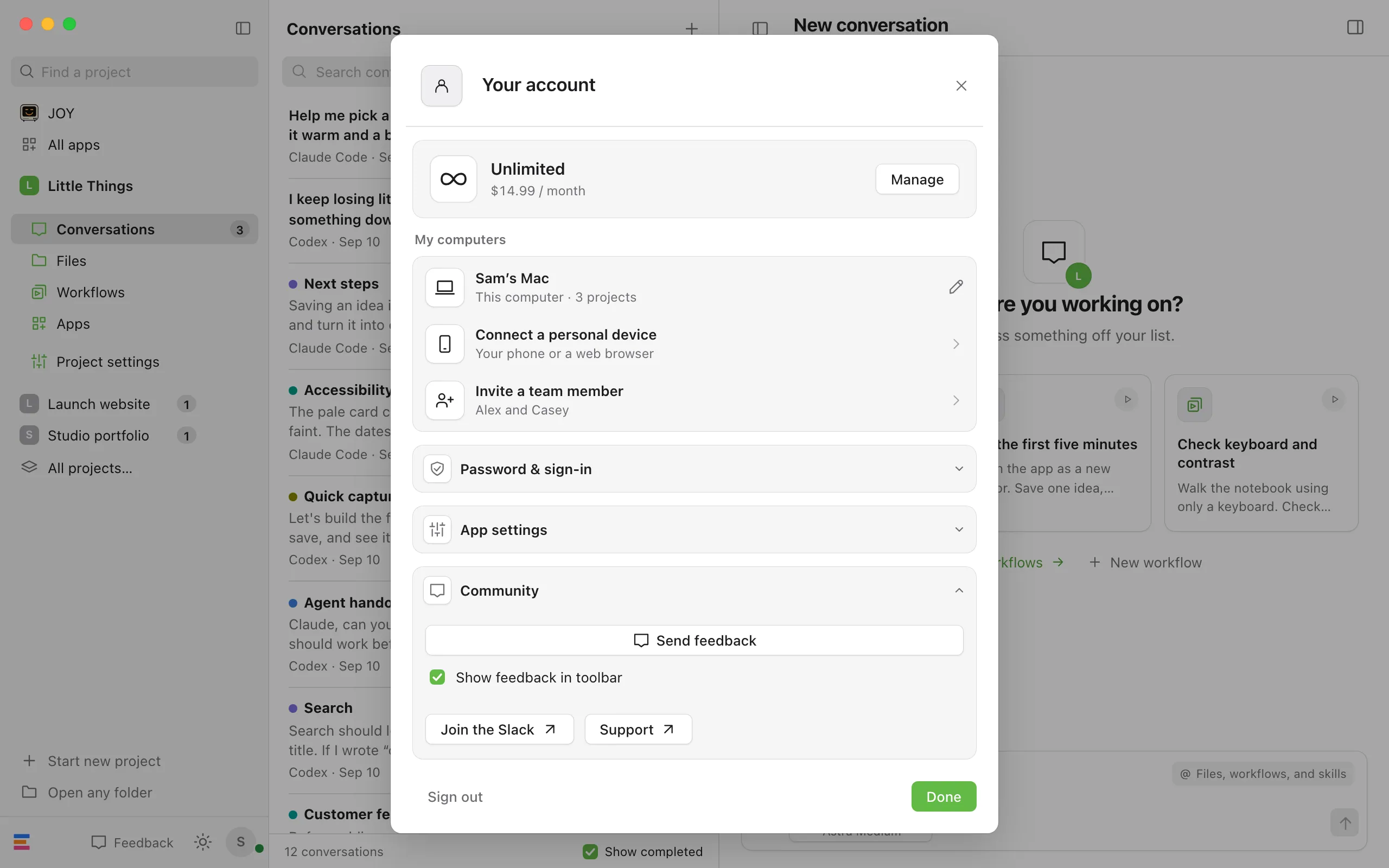
Open your account
Select the circle with your initial in the top-right corner of Enjoy.
Open My computers
Under My computers, select your computer’s name.
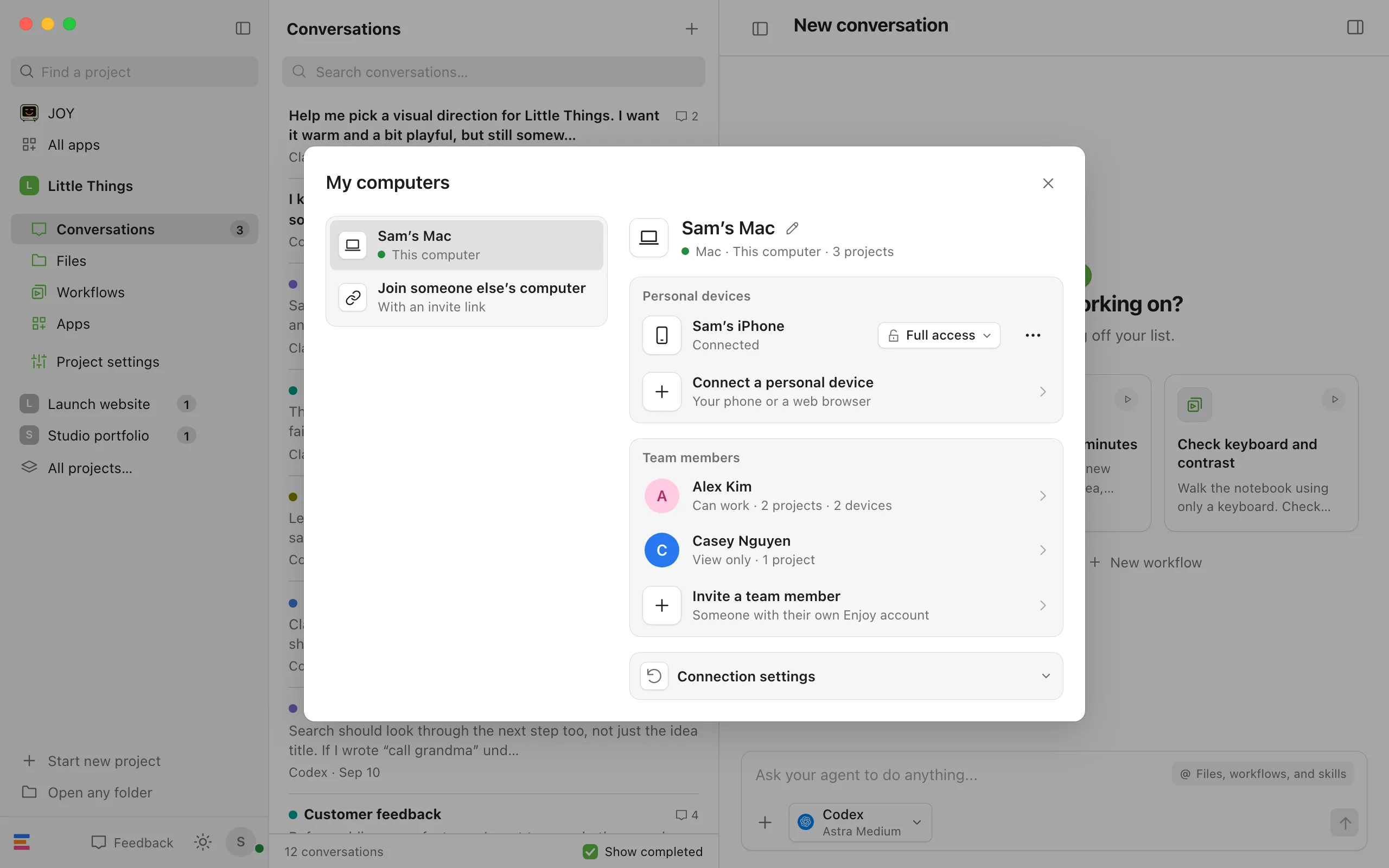
Open the People window
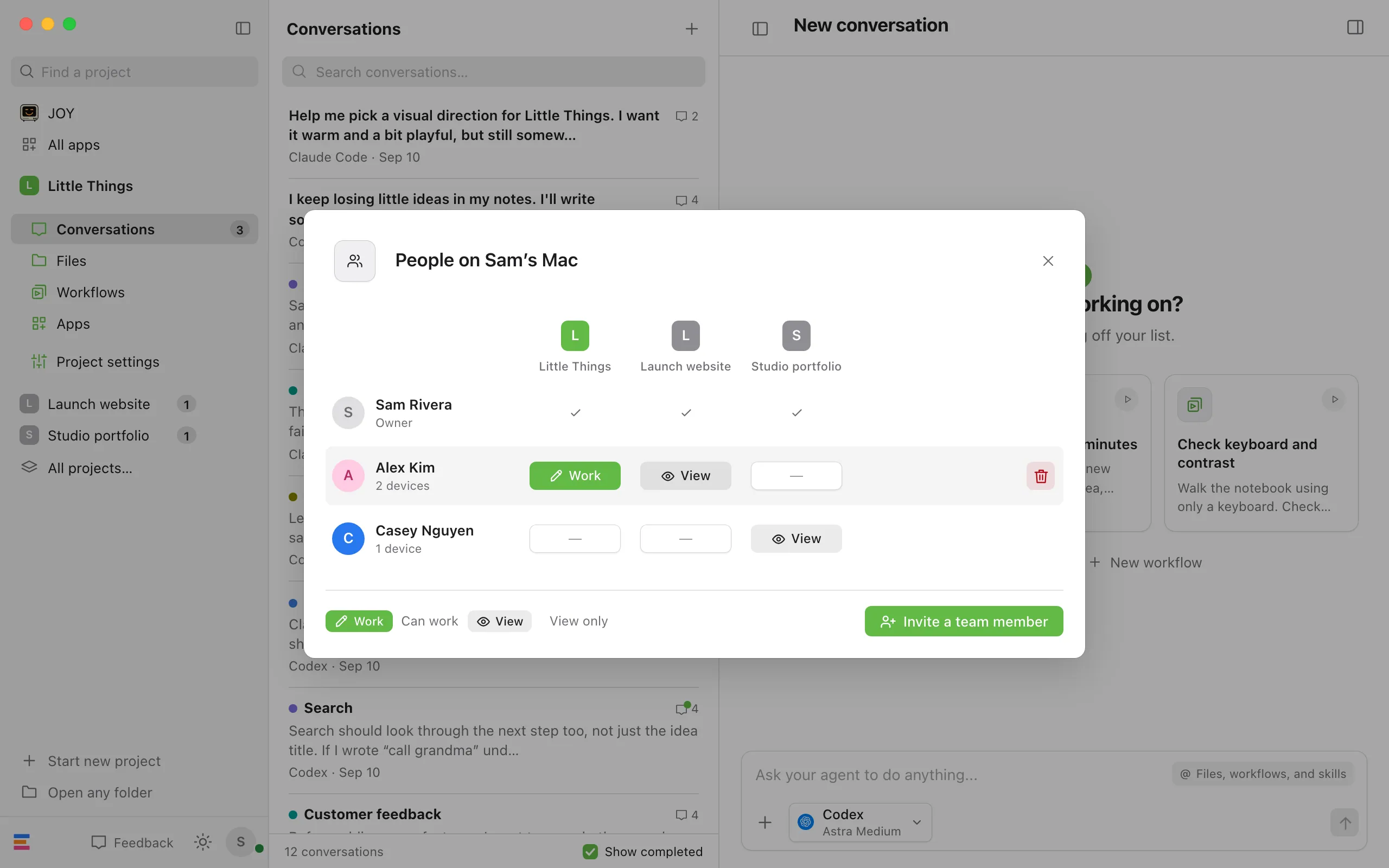
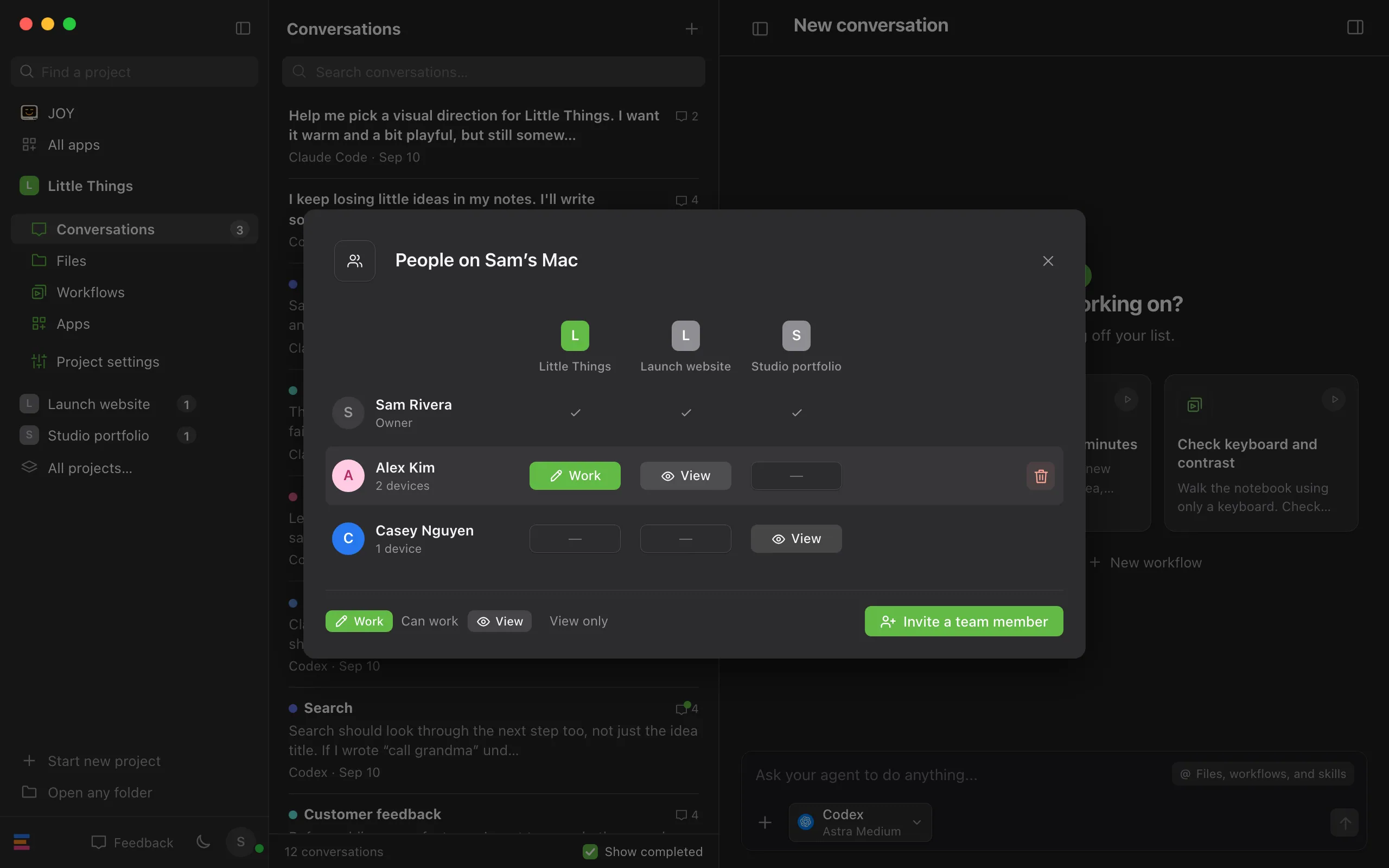
Under Team members, select the person. A window opens, titled People on followed by your computer’s name.
Select the trash button
Point at their row, and a trash button appears at the end of it.
Confirm
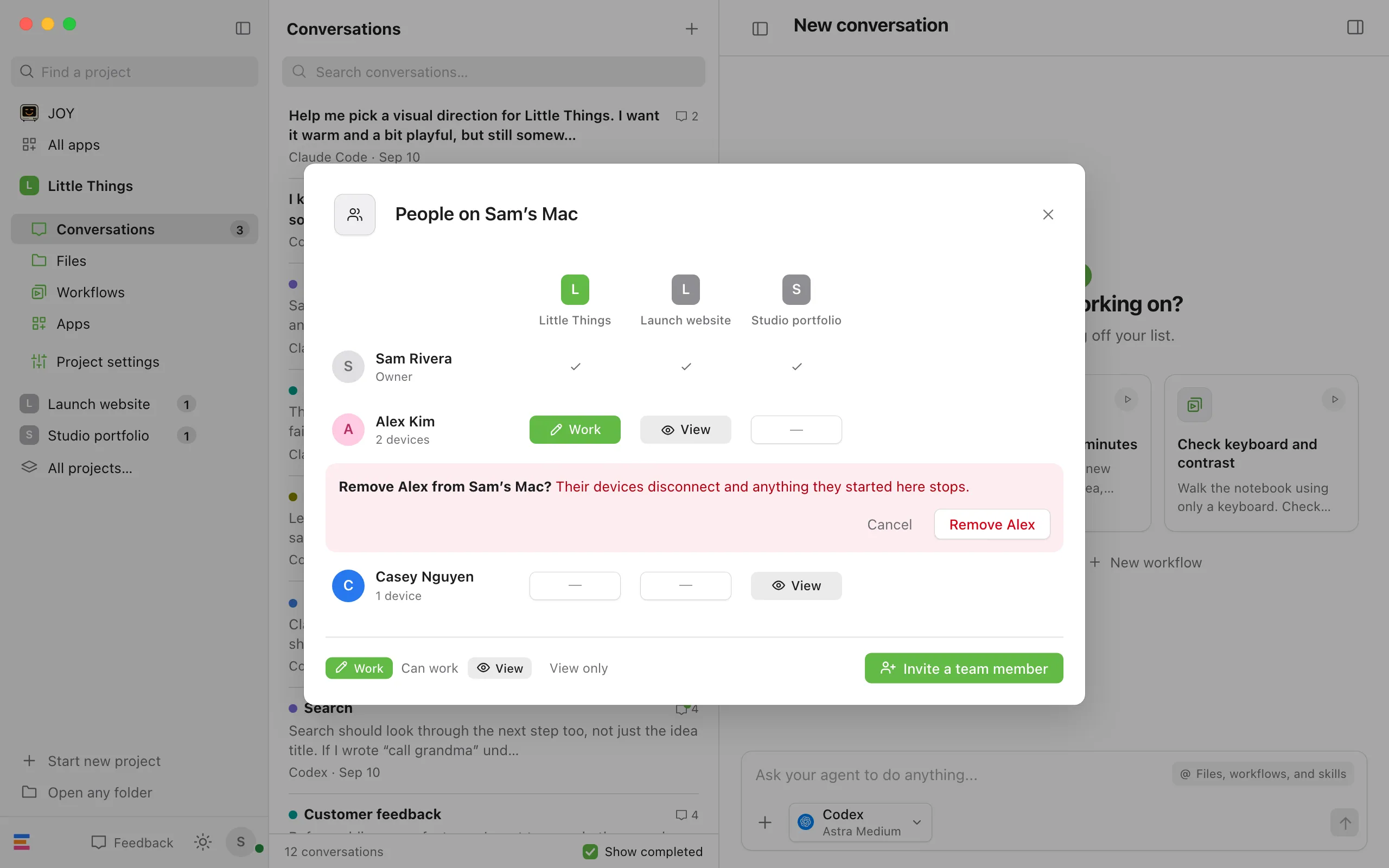
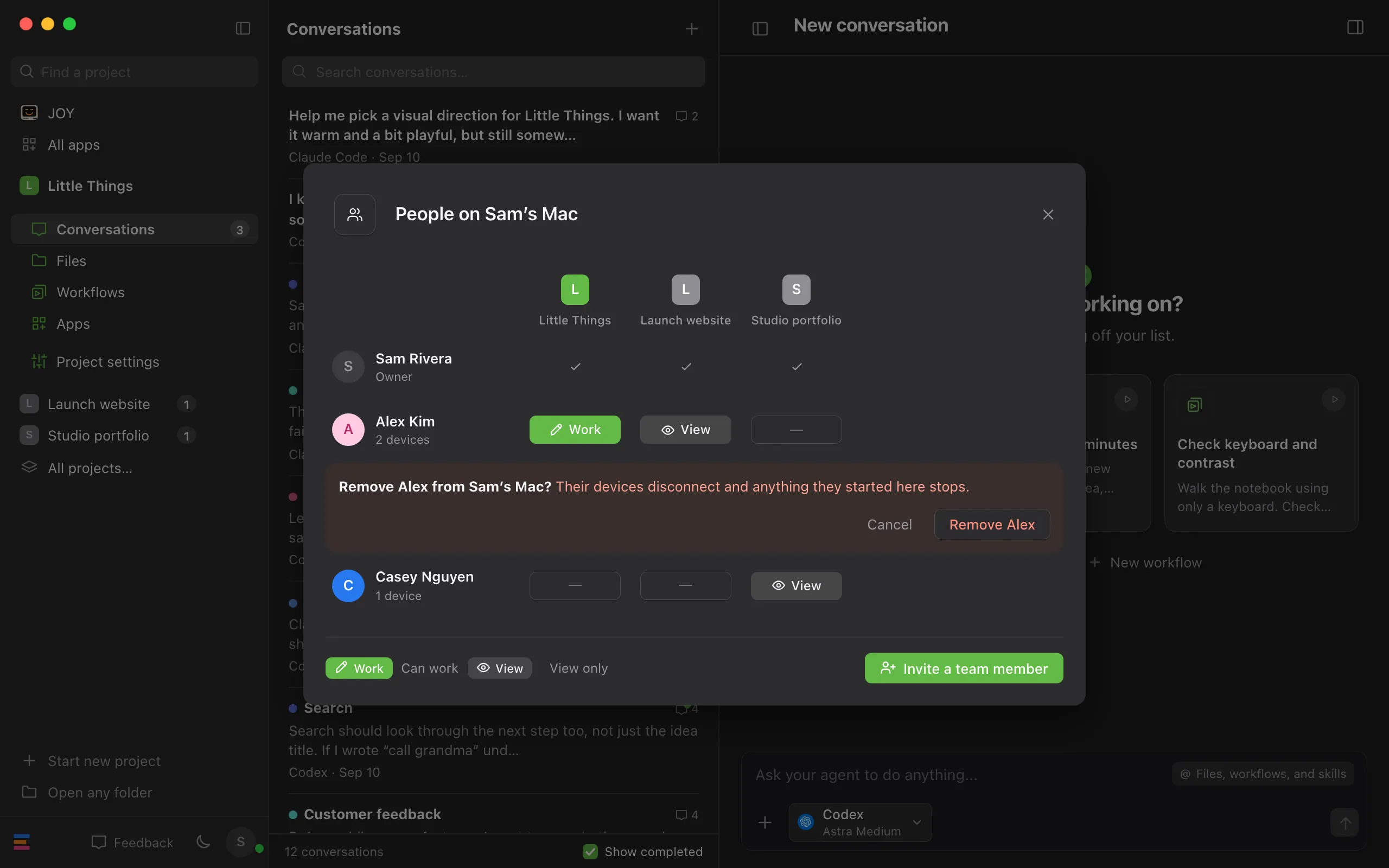
Enjoy asks whether to remove them and explains that their devices disconnect and anything they started here stops. Select Remove followed by their first name, such as Remove Alex.
Good to know
- Removing someone disconnects all their devices, including ones they added themselves, and stops anything they started that’s still running. Their conversations stay in your projects.
- They see Access to this computer has ended. Ask its owner for a new invitation. To let them back in, send a new invite.
- To take away one project but keep the person, change that project’s cell to no access. If they’re connected at the time, they see a note that you stopped sharing it, with Remove from your projects. See Change what a teammate can access.
- To disconnect one of their devices but keep the person, select the device count under their name, such as 2 devices, then select Disconnect beside the device. Disconnecting their only device removes them, so Enjoy asks first.
- To cancel an invite nobody has used yet, find its row in the People window, marked Invited, hasn’t joined yet, point at it, and select the × that appears at the end. The link stops working.
- If nobody has joined your computer yet, there’s no one to select under Team members. To cancel the open invite then, open your account, choose Invite a team member under My computers, and select New link in the window that shows the open link. The old link stops working. Close the window if you don’t want a new one.
- Removing your computer from your account, replacing it, or resetting its remote access also removes everyone on it.