Add your other devices to a shared computer
This works for someone who has already joined a computer shared with them. Each device gets its own approval from the owner on the computer that runs the projects. You do not need a new invite link.
Before you start
- You’ve joined the shared computer on at least one device. See Join someone else’s computer.
- The owner needs Enjoy open on the computer you want to connect to.
Steps
Sign in on the new device
Use the same Enjoy account you joined with.
Choose the shared computer
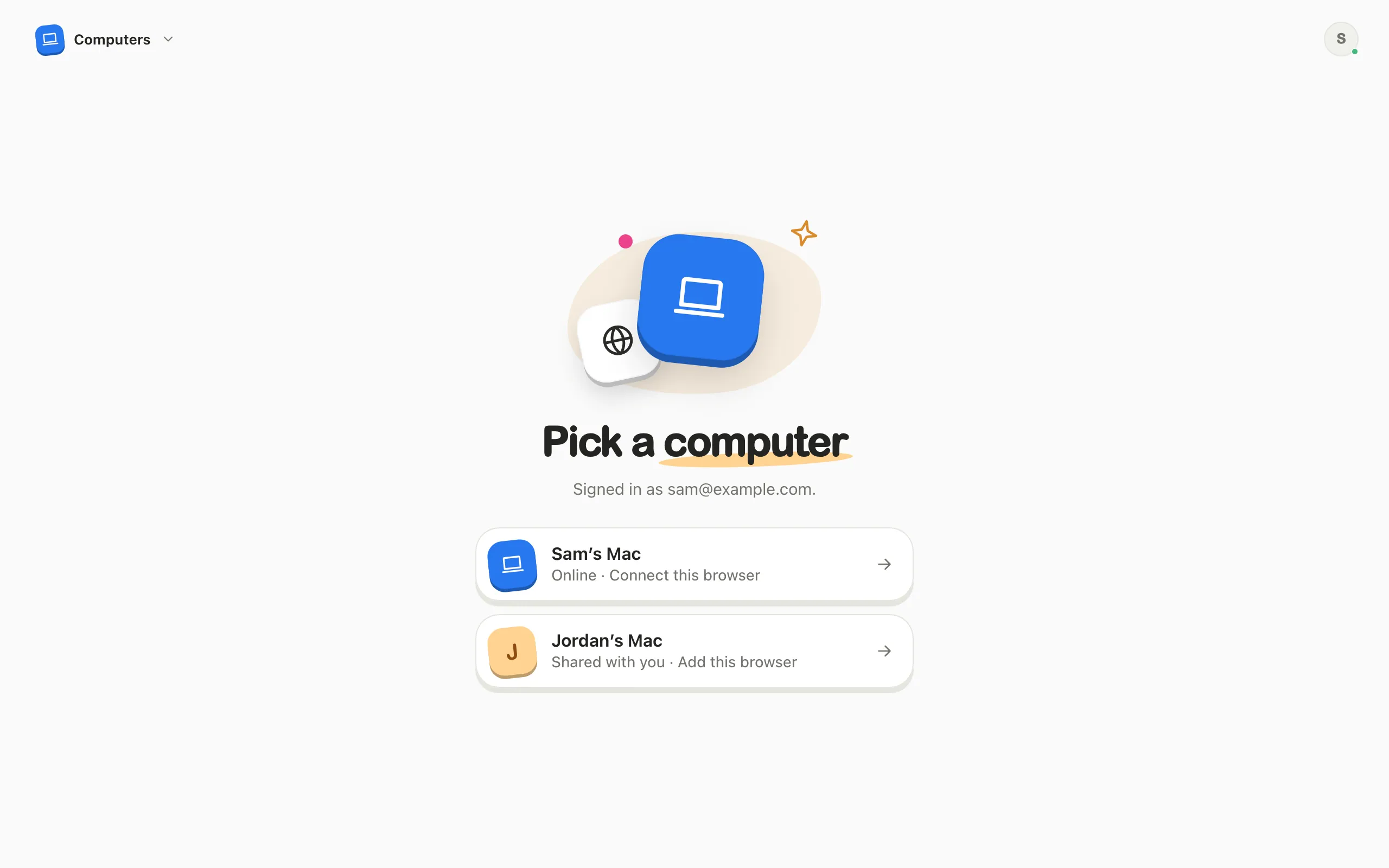
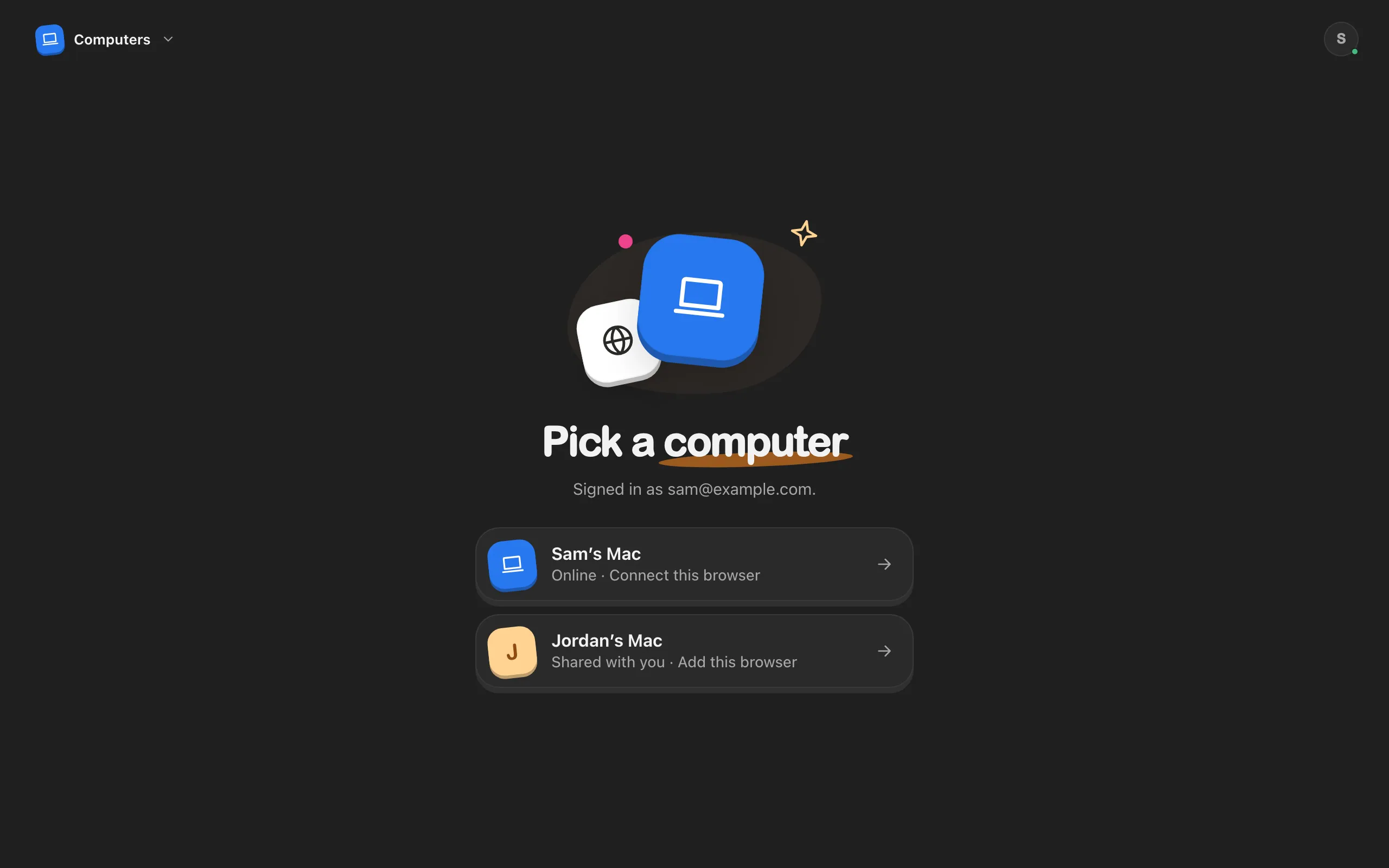
In a browser at app.enjoy.dev, select it under Pick a computer, where it’s marked Shared with you · Add this browser. In the computer app, open the computer menu in the top-left corner and choose it. In the iPhone app, find it on the Computers screen or in Settings under Shared with you, then select Add this iPhone.
Look at the code
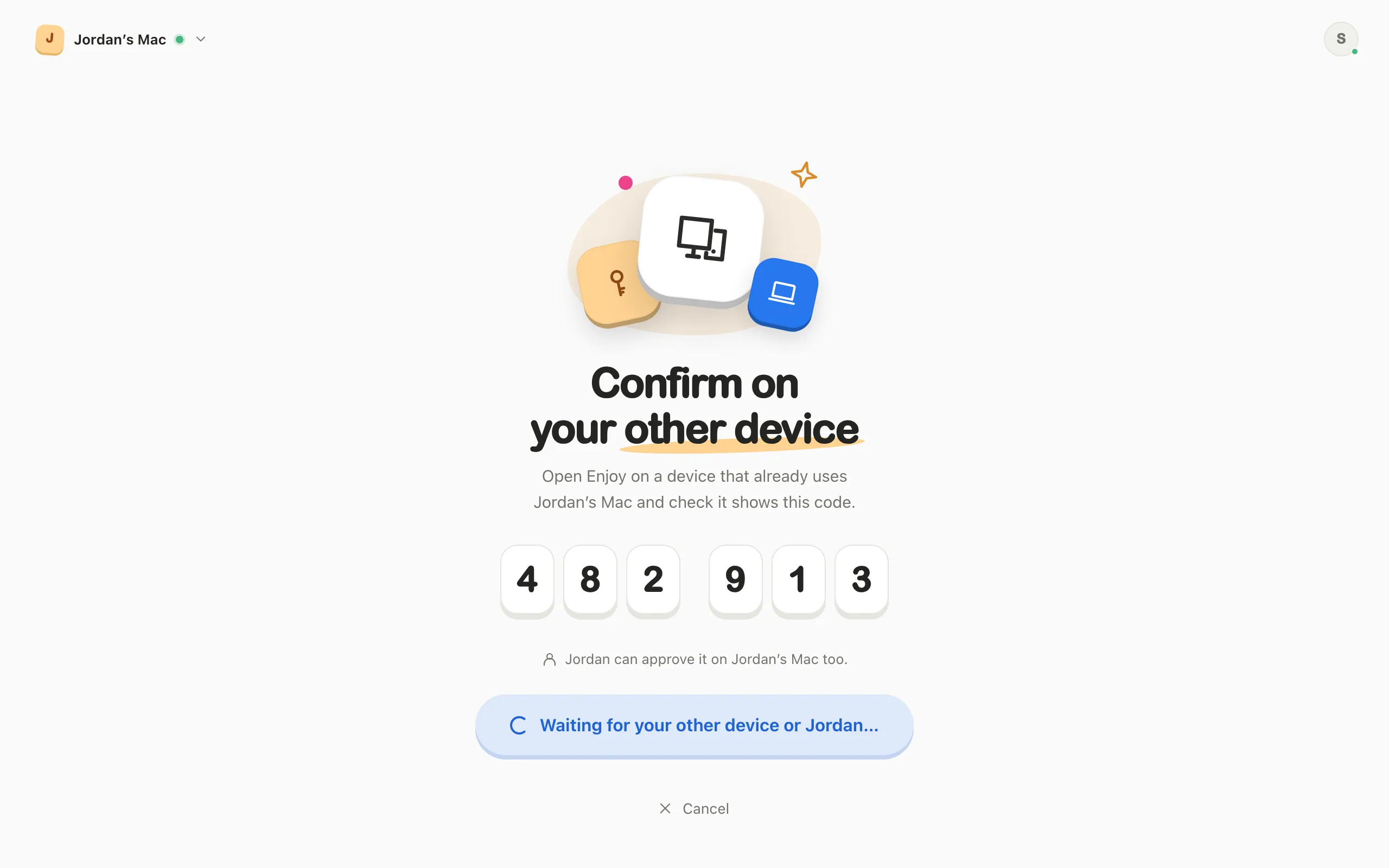
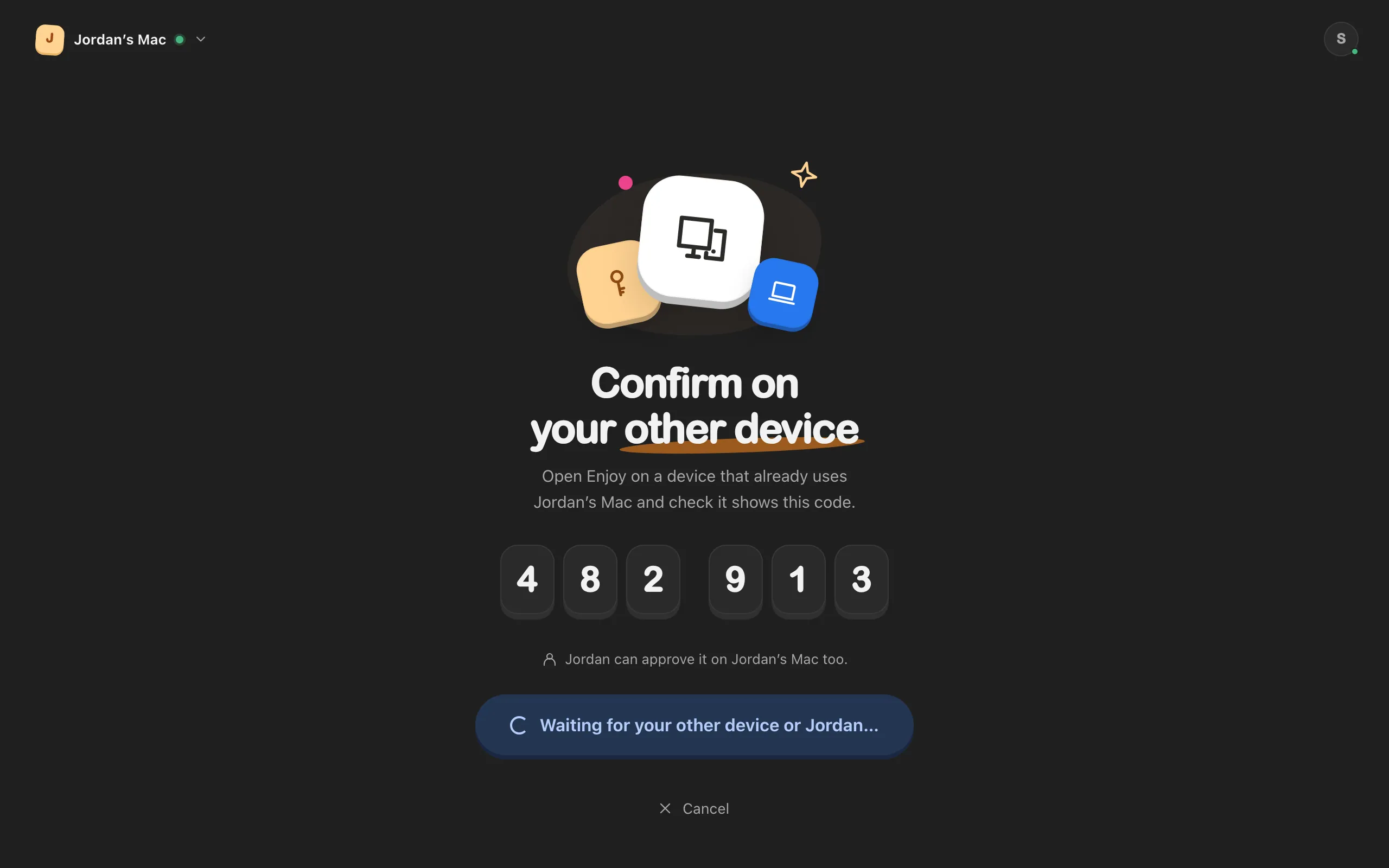
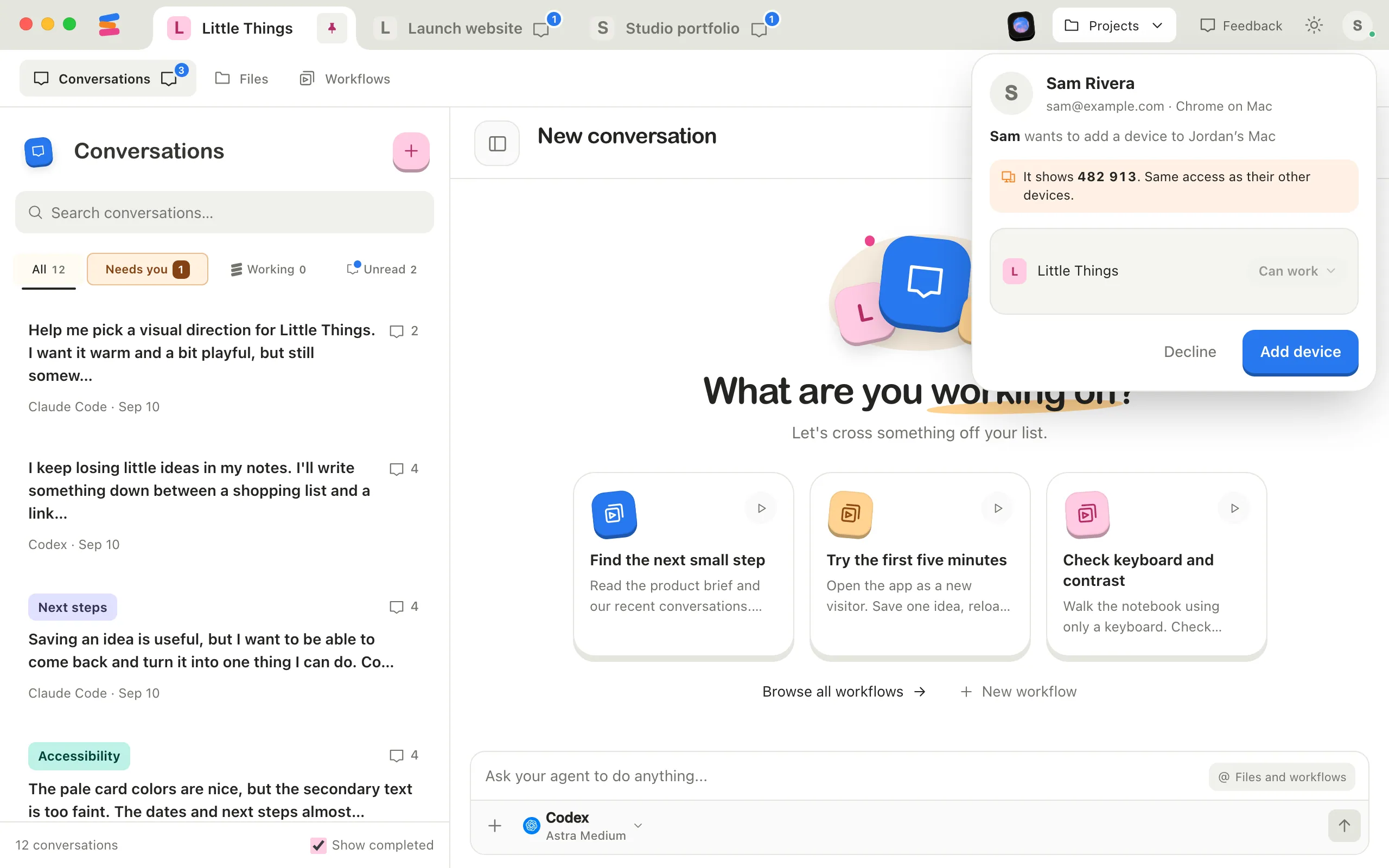
The new device shows a six-digit code and waits for the owner.
Ask the owner to approve it
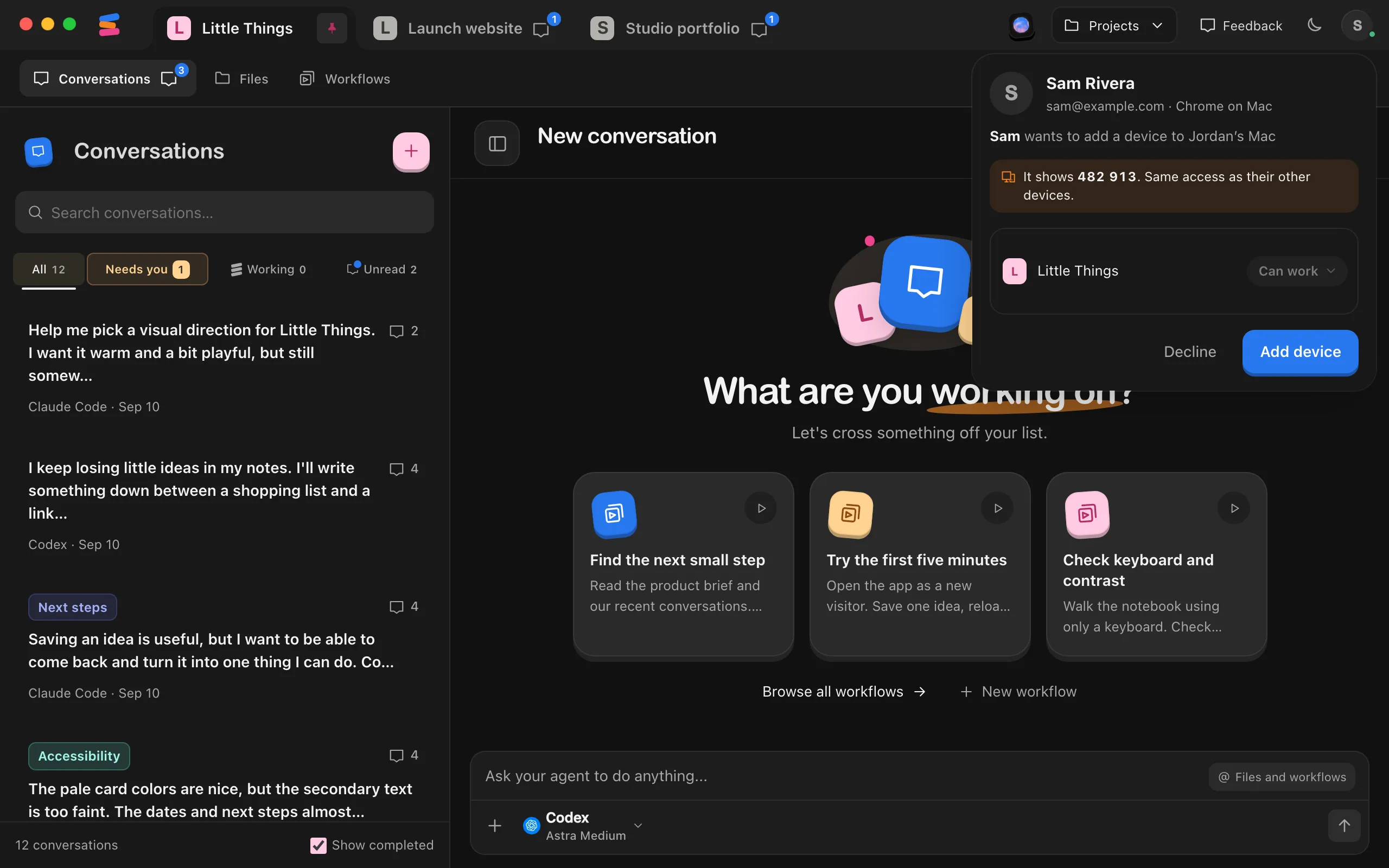
On their computer, the owner sees your request to add a device and its six digits. Compare them with the new device. If they match, the owner selects Add device.
Start working
The new device opens the shared computer with your existing project access.
Good to know
- The new device gets your current project access. Later changes the owner makes apply to all your devices.
- Approval always happens on the owning computer. Your existing devices cannot approve another device, even with Full access.
- The request lasts five minutes. If nobody answers in time, the new device says No one answered in time. Start again with Try again.
- If the code doesn’t match, ask the owner to select Decline. The new device says the computer didn’t approve it.
- The owner can disconnect any of your devices.
- You can have up to 10 devices on one shared computer.
If something goes wrong
You have 10 devices on this computer. Ask its owner to remove one first.
Ask the owner to disconnect a device you no longer use, then try again.
You’re not on this computer anymore. Ask its owner for an invite link.
The owner removed you. You’ll need a new invite to join again.
This computer has as many devices as it can hold. Ask its owner.
The computer has reached its limit of devices across everyone. Ask the owner to disconnect some.