Invite a team member
Invites are made in the Enjoy computer app, on the computer whose projects you’re sharing.
Before you start
- You need the Unlimited plan. See The Unlimited plan.
- The projects you want to share must be in Enjoy on this computer. The invite lists all of them.
- Your teammate needs their own Enjoy account. They can create one when they open your link.
Steps
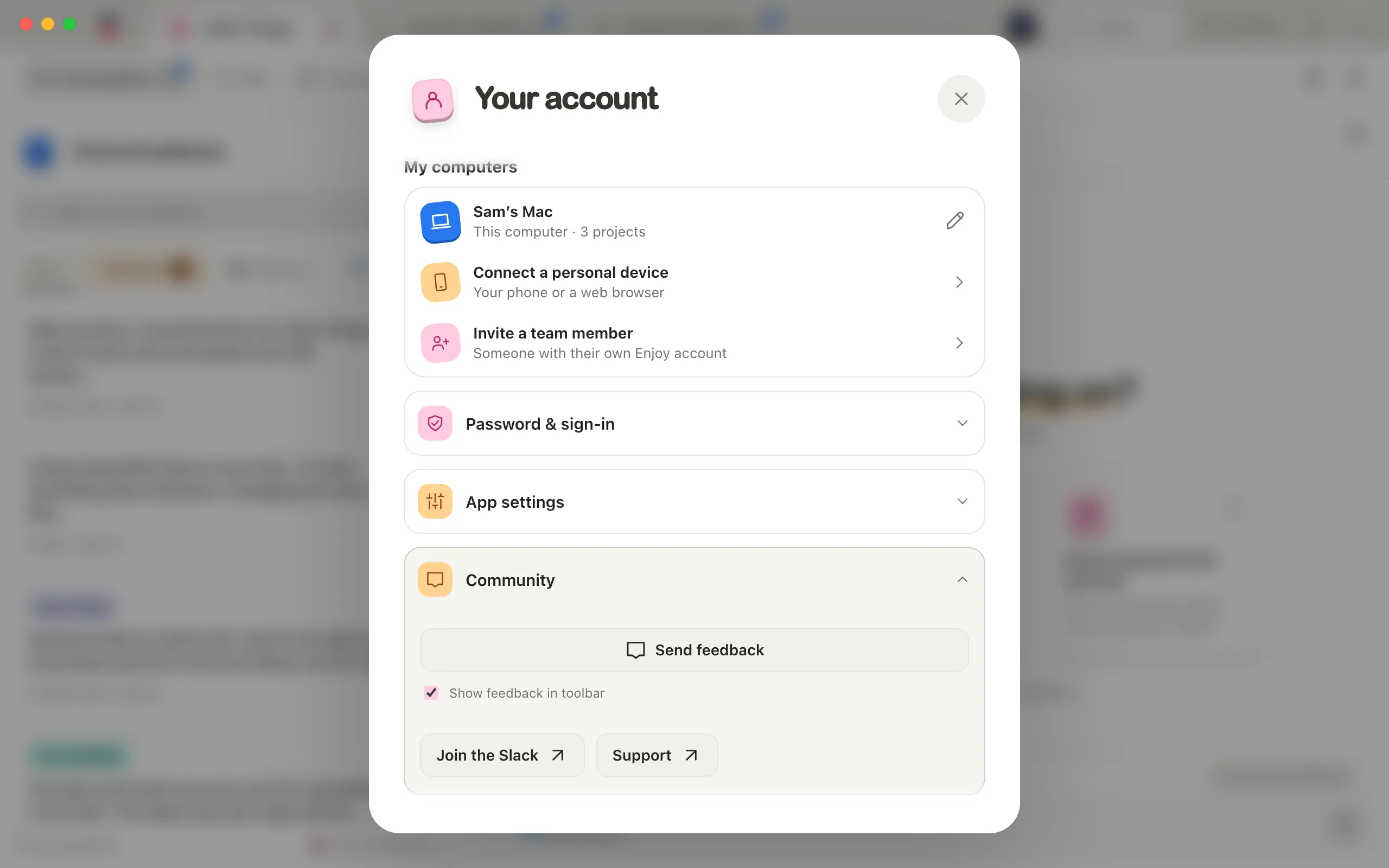
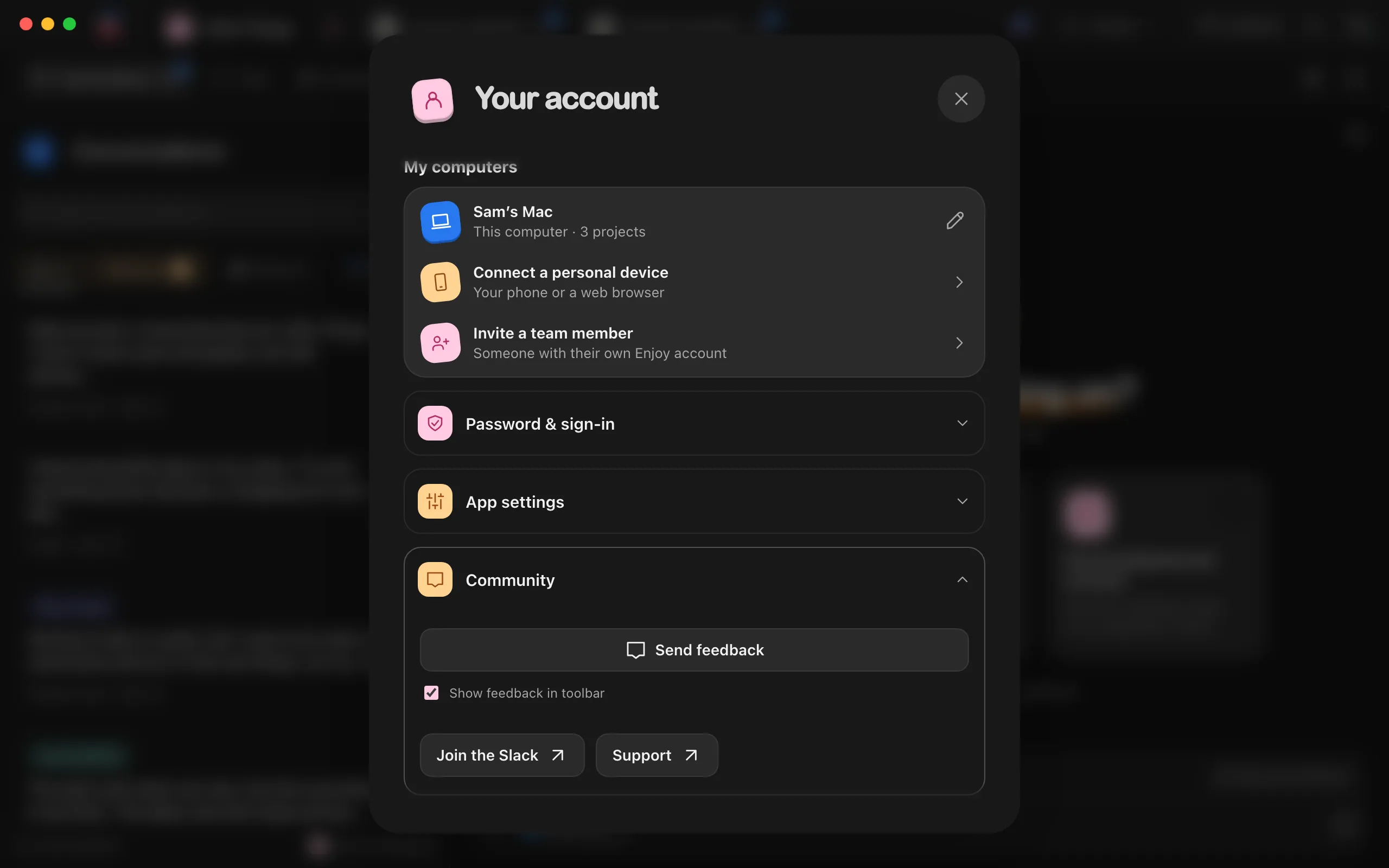
Open your account
Select the circle with your initial in the top-right corner of Enjoy.
Choose Invite a team member
It’s under My computers, below Connect a personal device. If an invite is already open, the window shows that link instead. Select New link to start a different one.
Type their email
Under Who are you inviting?, type the email address they use, or will use, for Enjoy.
Pick the projects
Under Projects to share, check each project they should get. A checked project starts at Can work. Select its pill to switch it to View only, and select it again to switch back.
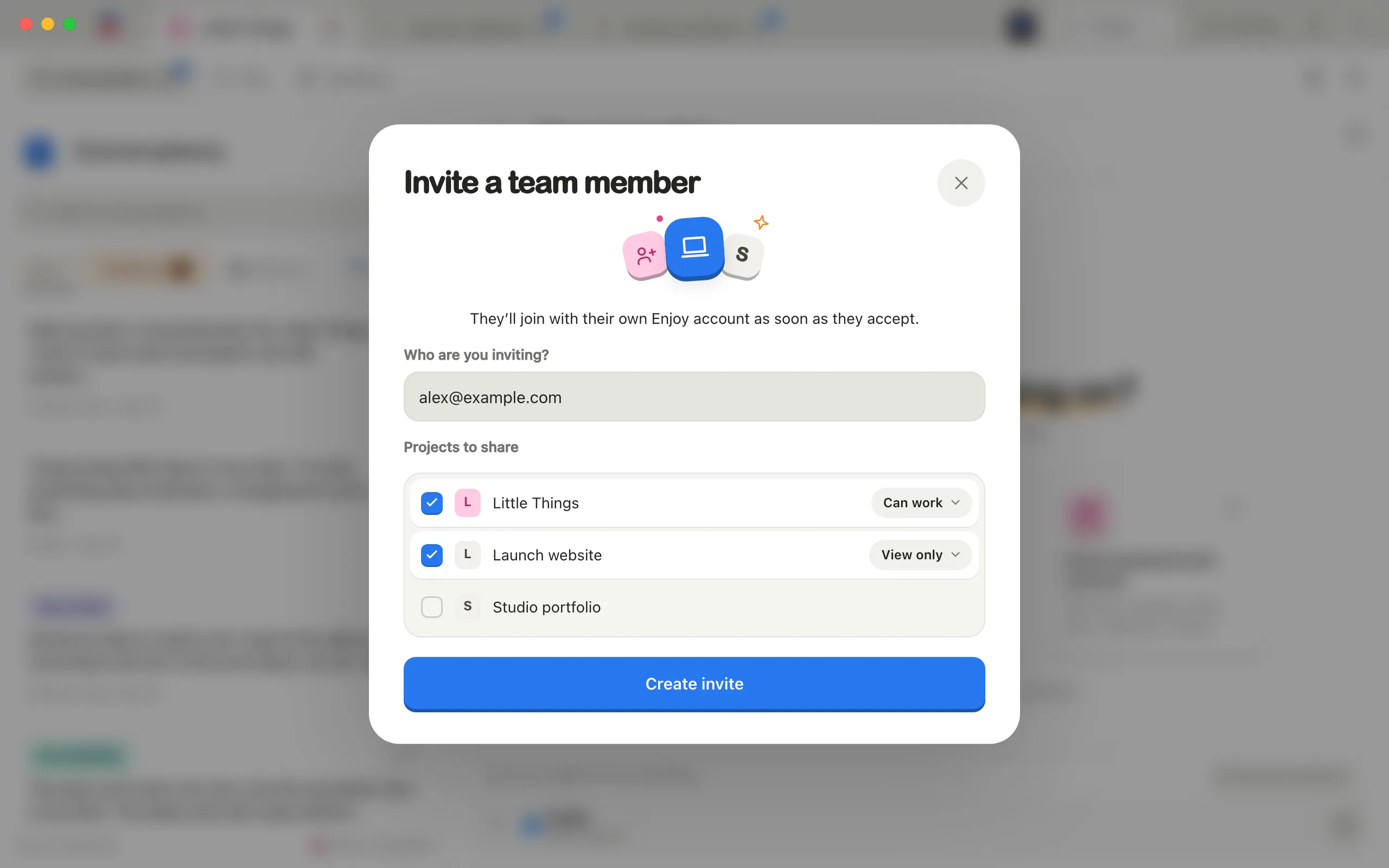
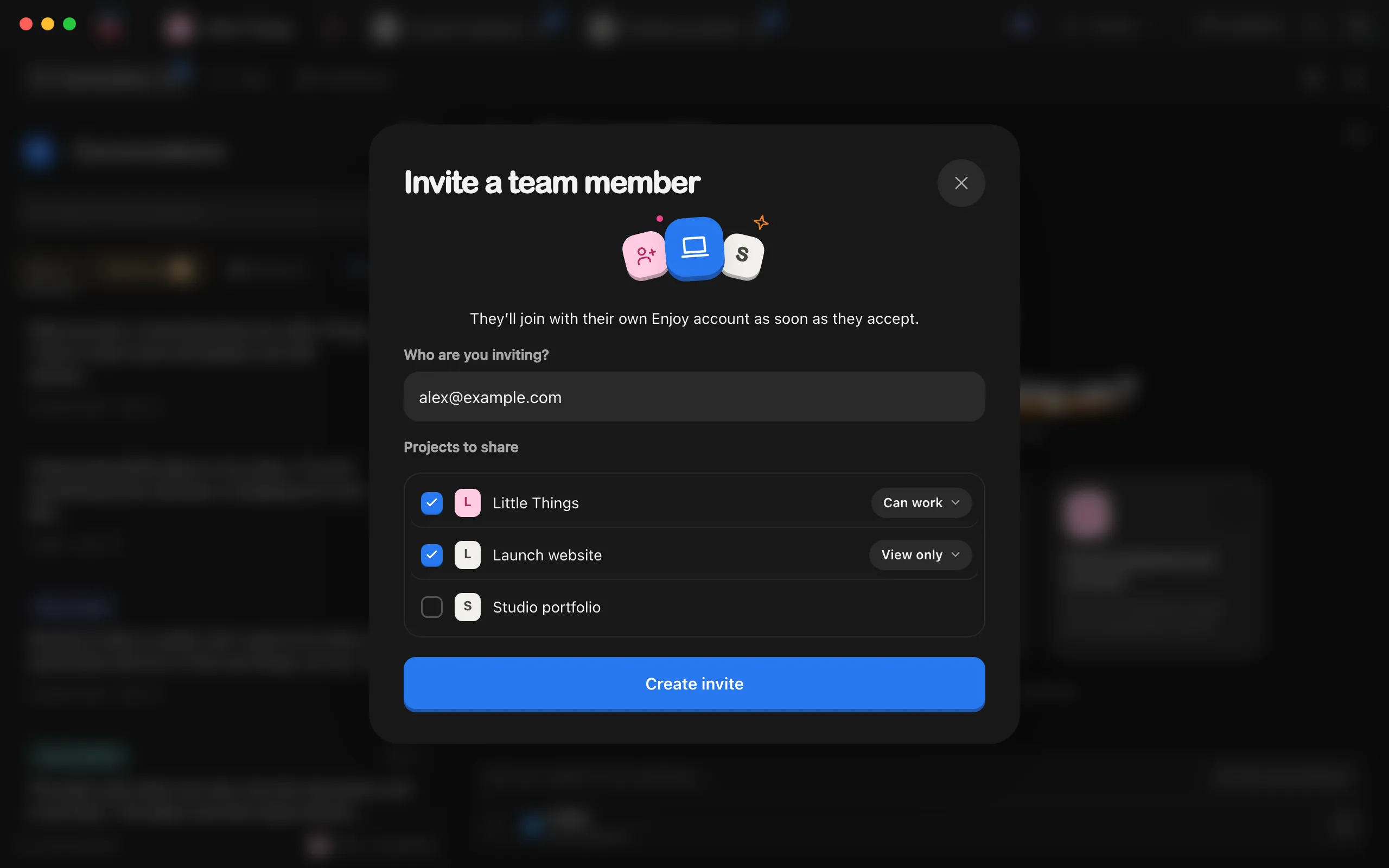
Select Create invite
Enjoy makes the link and shows Send this link to with their email.
Select Copy link
Send the link to them yourself, by email or chat. Enjoy doesn’t send it.
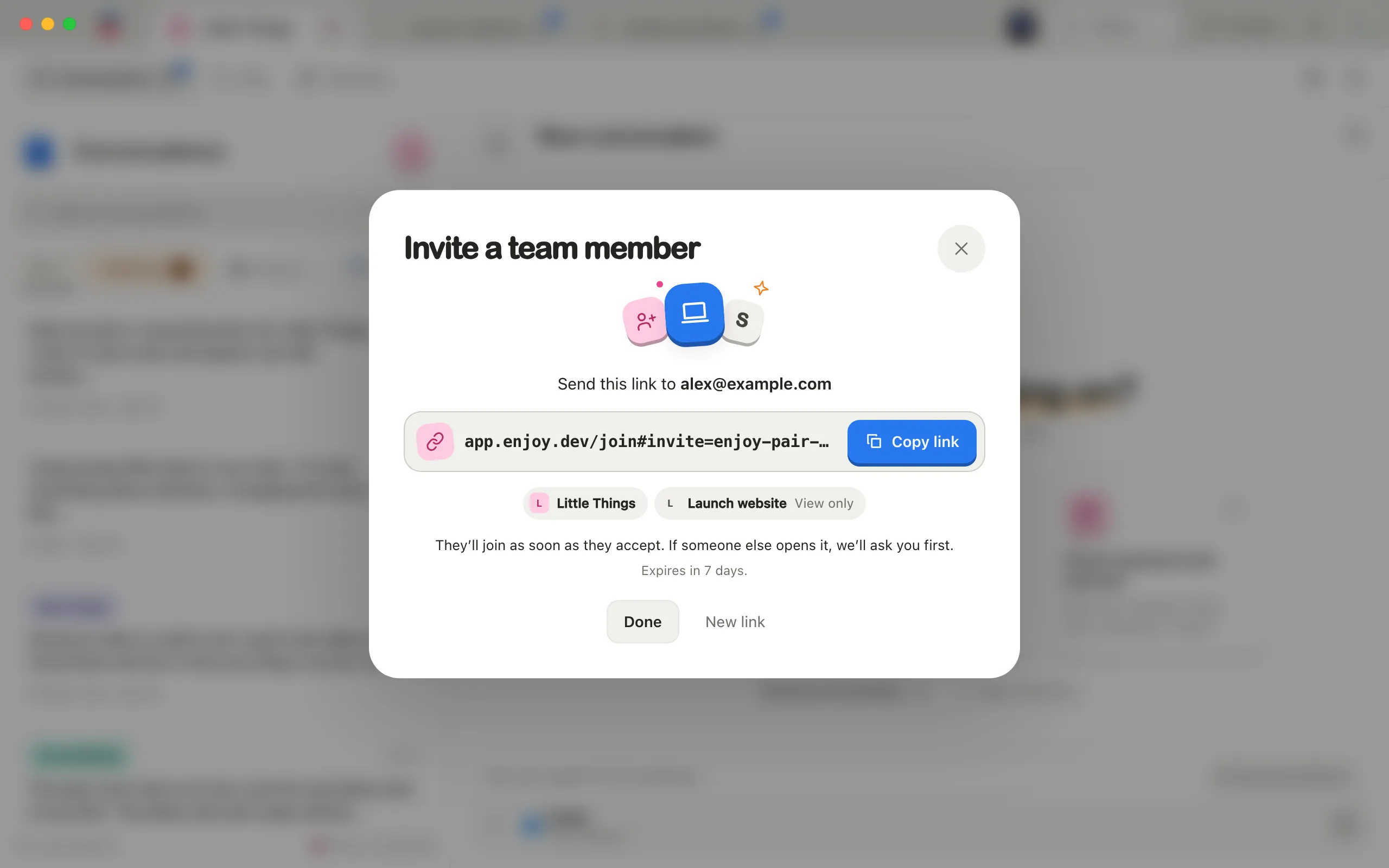
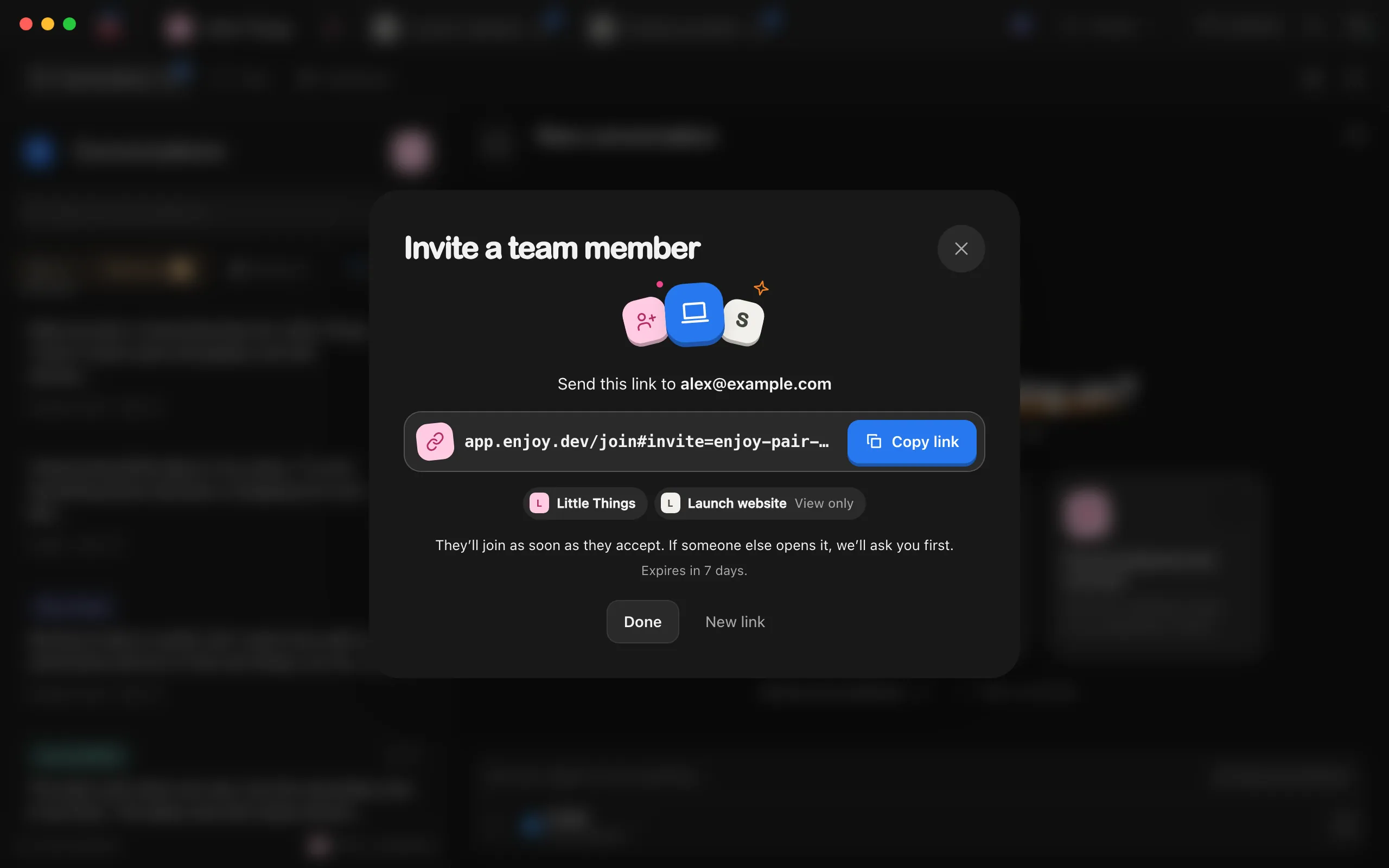
Select Done
The invite stays open until they use it or it expires.
Good to know
- Can work lets them start conversations and make changes. View only lets them read conversations and files.
- Create invite stays unavailable until you’ve typed a full email address and checked at least one project.
- The link works once and expires after seven days. The window shows how long it has left. Quitting and reopening Enjoy doesn’t change that, but your computer has to be running Enjoy when they join.
- Your computer has one open invite at a time. New link ends the current link before you make another. To invite a second person, wait until the first one has joined.
- While someone who opened the link is waiting for your answer, New link is unavailable. Answer their request first.
- Until they join, the invite shows in My computers under Team members, with Invited, hasn’t joined yet and the day it expires. Select Copy there to copy the link again.
- If they open the link signed in with the invited email, and that email is confirmed, your computer lets them in on its own and you briefly see that they joined. If anyone else opens it, a request appears for you to answer. See Approve someone who wants to join.
- To cancel an invite before it’s used, see Remove someone from your computer.
If something goes wrong
Open a project before inviting someone.
There are no projects in Enjoy on this computer yet. Start or add a project, then try again. See Start a new project.
That’s your email. Invite someone else.
You typed the email of your own account. Invites are for other people. To use Enjoy on another device of your own, see Connect your phone.
This invite has expired. Create a new link.
The seven days are up. Select New link and send the new one.
This invite ended. Create a new link.
The link was used, declined, cancelled, or replaced by a newer one. If you still want to invite someone, select New link.
Too many open invitations.
An account can have five open invites at once, across all its computers. Cancel one you no longer need on the computer that made it, or wait for one to expire.
Select the link and copy it.
Enjoy couldn’t copy to your clipboard. The link is selected in the box beside Copy link. Copy it with ⌘C on a Mac, or Ctrl+C on Windows and Linux.
Unlimited is required to invite team members.
Your plan doesn’t include sharing right now. Start or renew Unlimited, then try again.