Approve someone who wants to join
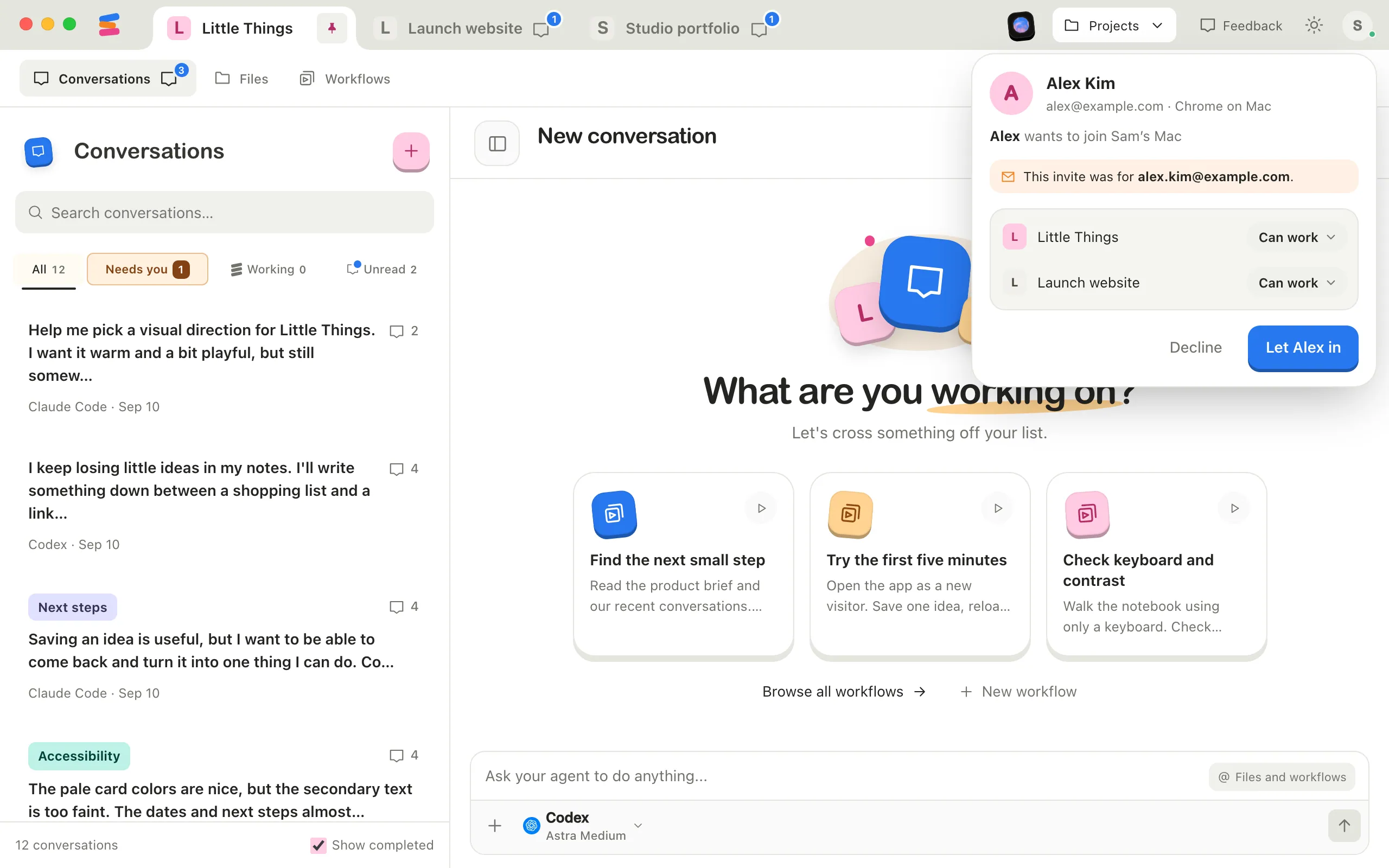
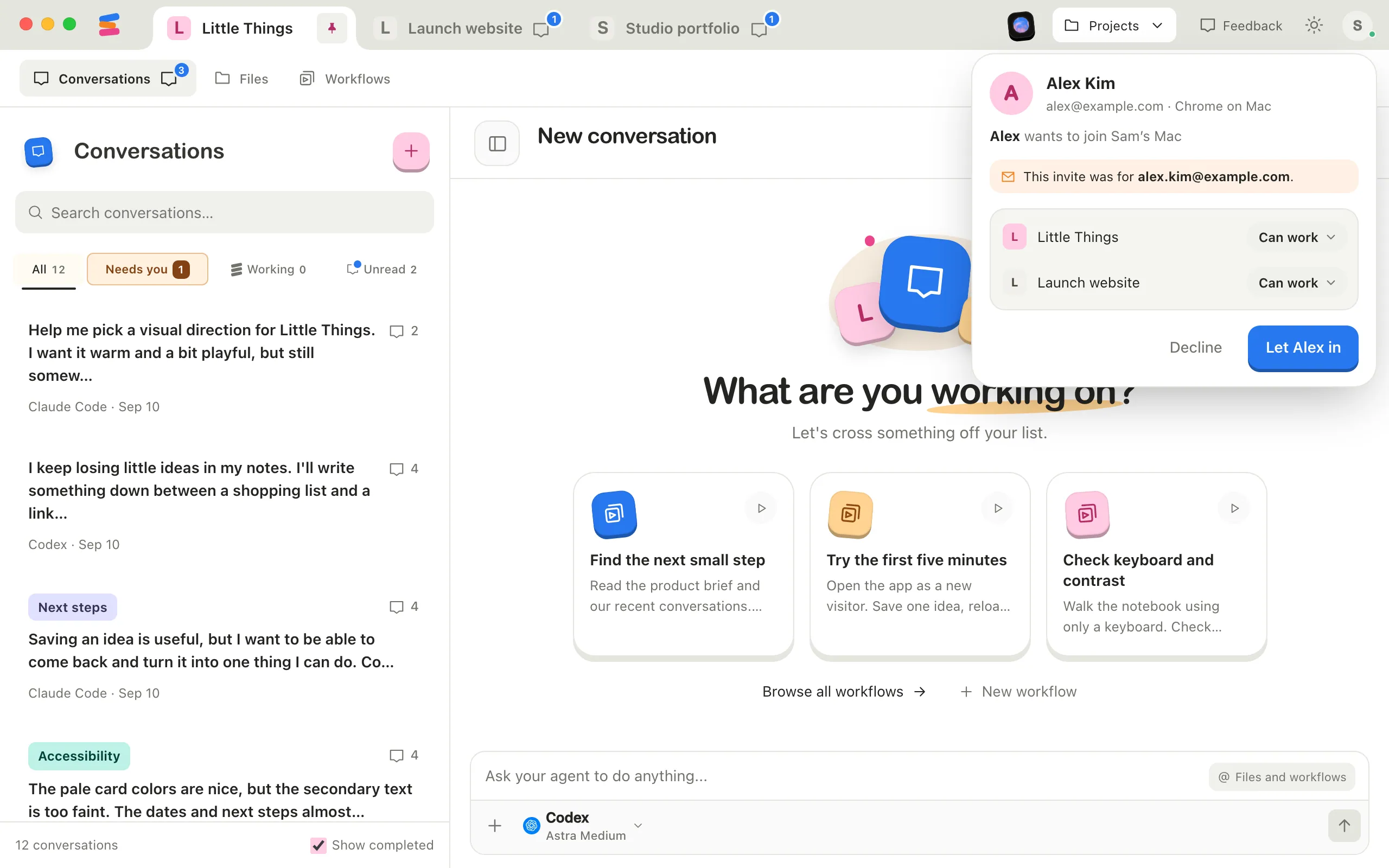
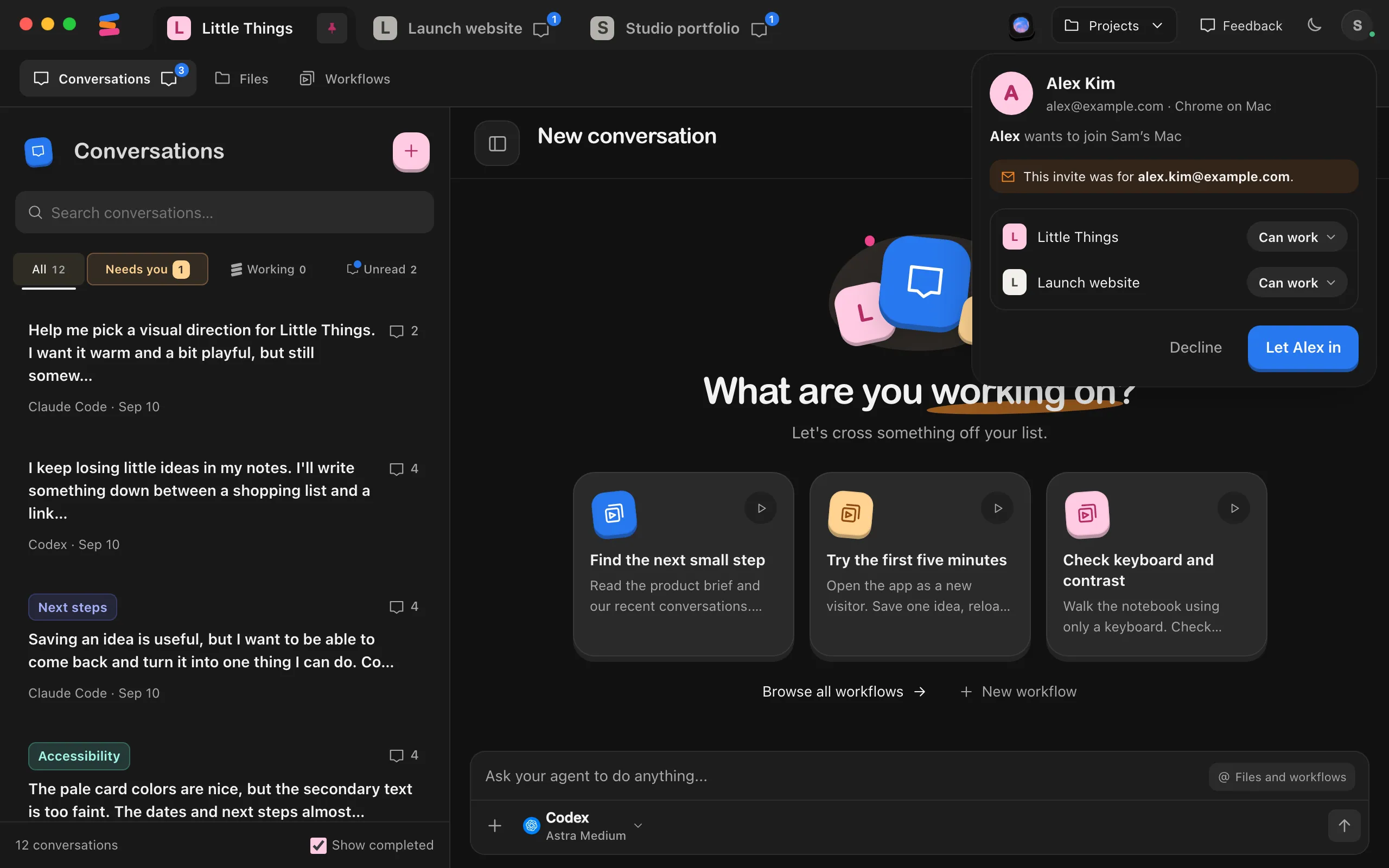
Requests appear on the computer you shared, in the Enjoy computer app. The card shows up below your account button in the top-right corner, wherever you are in Enjoy, and also in your account window.
Before you start
- Enjoy must be open on the shared computer. Requests can only be answered there.
Steps
Check who’s asking
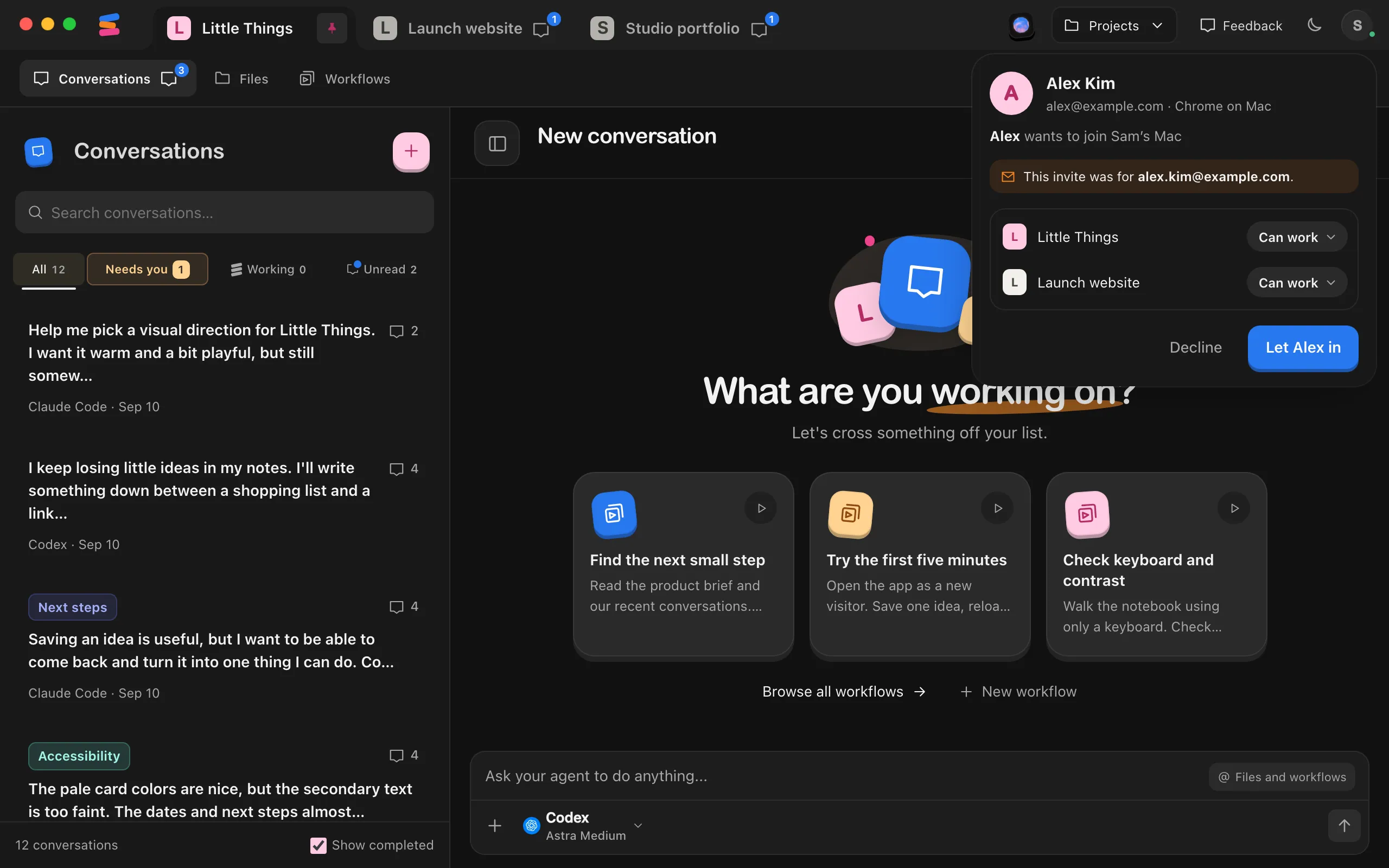
The card shows the person’s name, the email of the account they’re signed in with, and their device, such as Chrome on Mac. Make sure the email belongs to someone you meant to invite.
Adjust their access if you want
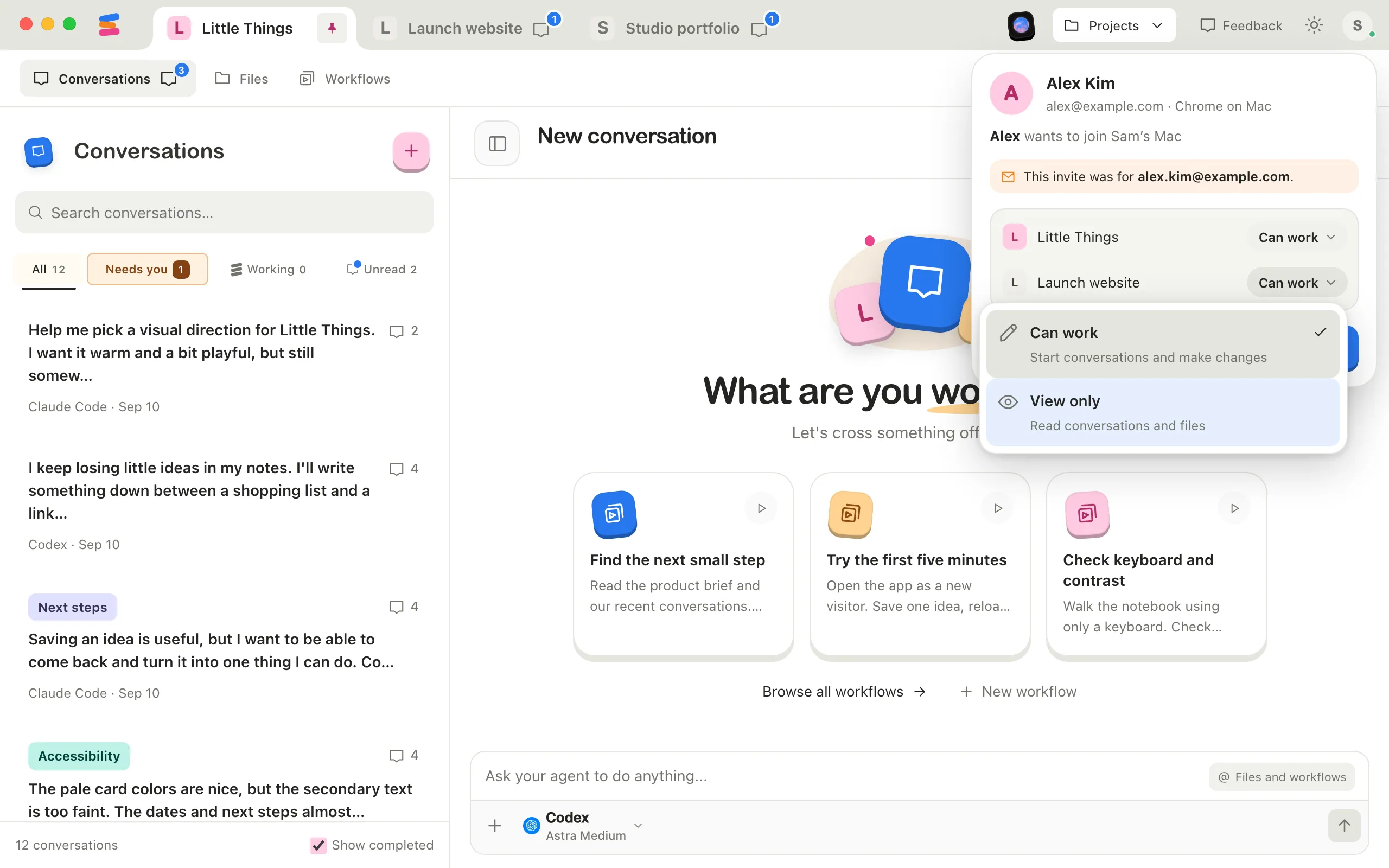
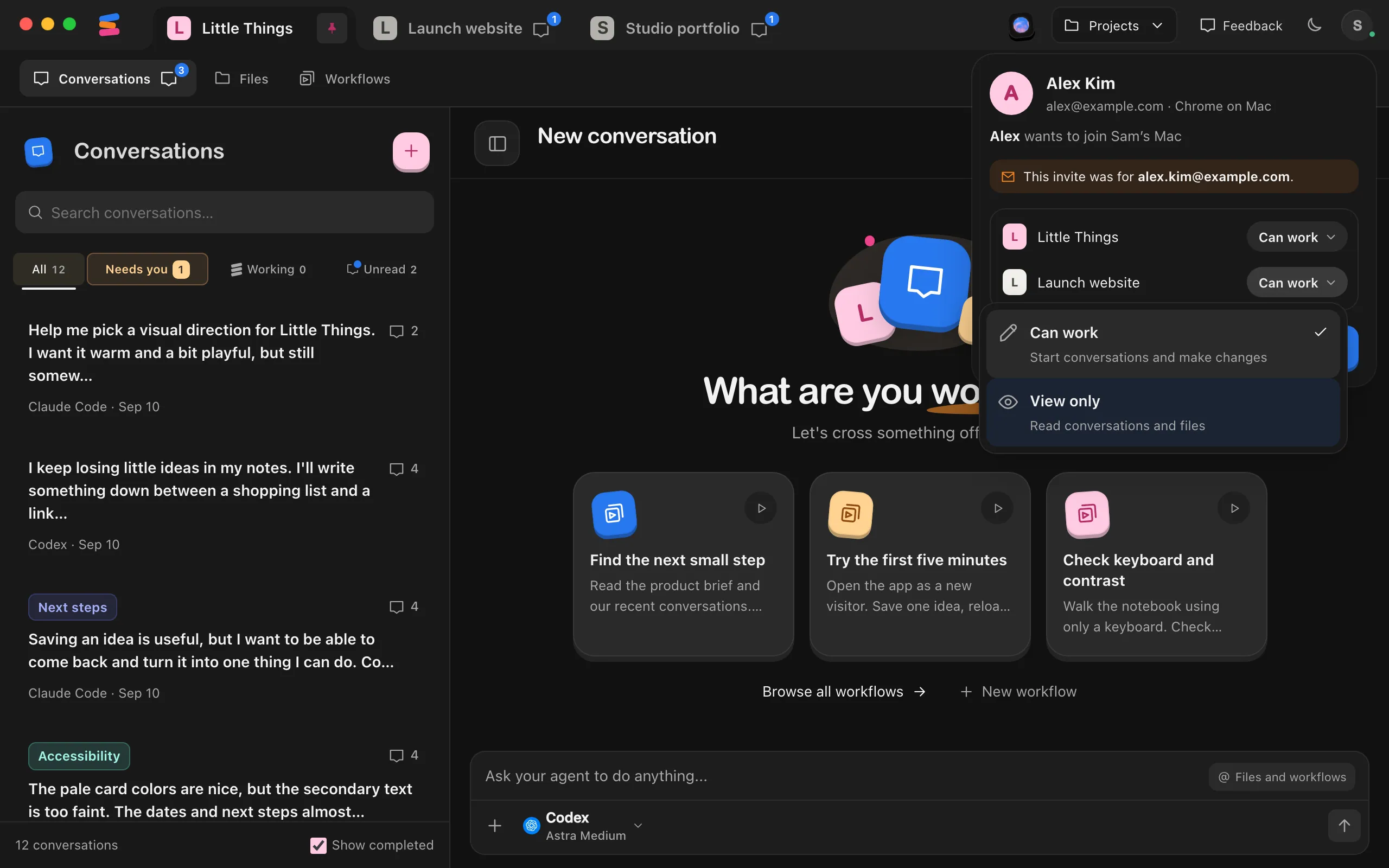
Each project from the invite is listed with its access. Select a project’s pill to choose Can work or View only.
Select Let them in
The button uses their first name when it’s short, such as Let Alex in. Select Decline to say no instead.
Check that they’re in
The card briefly shows that they’re in and how many projects they have on your computer.
Good to know
- If the invite named a different address, the card says This invite was for and that address. If it’s the invited address but the person hasn’t confirmed it yet, the card says it isn’t confirmed yet.
- The device name is chosen by the person’s device. The email on the card is the part Enjoy checks.
- On the card you can change each offered project’s level, but you can’t add or remove projects. To change that later, see Change what a teammate can access.
- If someone opens your invite while signed in with the invited email, and that email is confirmed, your computer lets them in without a card. You briefly see that they joined.
- Declining ends the invite link. They’re told you declined and that they need a new invite.
- A request to join waits about ten minutes for your answer, and a request to add a device about five minutes. Then it ends.
- A teammate who’s already in can add another device. The request always appears on your computer. The card says they want to add a device and shows a six-digit code. Check that their new device shows the same code, then select Add device. The new device gets the same access as their others, so the card doesn’t let you change it.
If something goes wrong
The requesting device does not match this account.
Enjoy couldn’t verify the request, so it declined it and ended the invite link. Select Dismiss. If you know who it was, send them a new invite.
The card disappeared before you answered
The request ended: they cancelled it, it waited too long, or their connection dropped. Ask them to open the link again. If Enjoy tells them the invite expired or was already used, send a new one.