Choose sounds and notifications
Enjoy can alert you when an agent sends a message or needs a decision from you, such as an answer or an approval. Unless you choose Chimes, agents can say a short line with their messages instead of a chime.
Steps
Open your account
Select the circle with your initial in the top-right corner of Enjoy.
Select App settings
The section expands.
Choose Chimes or Voice
Voice is selected at first, so agents say short lines such as “Let me check.” as they work. Select Chimes for a soft tone instead. Select the play button on either one to hear it first. Voice says a different line each time.
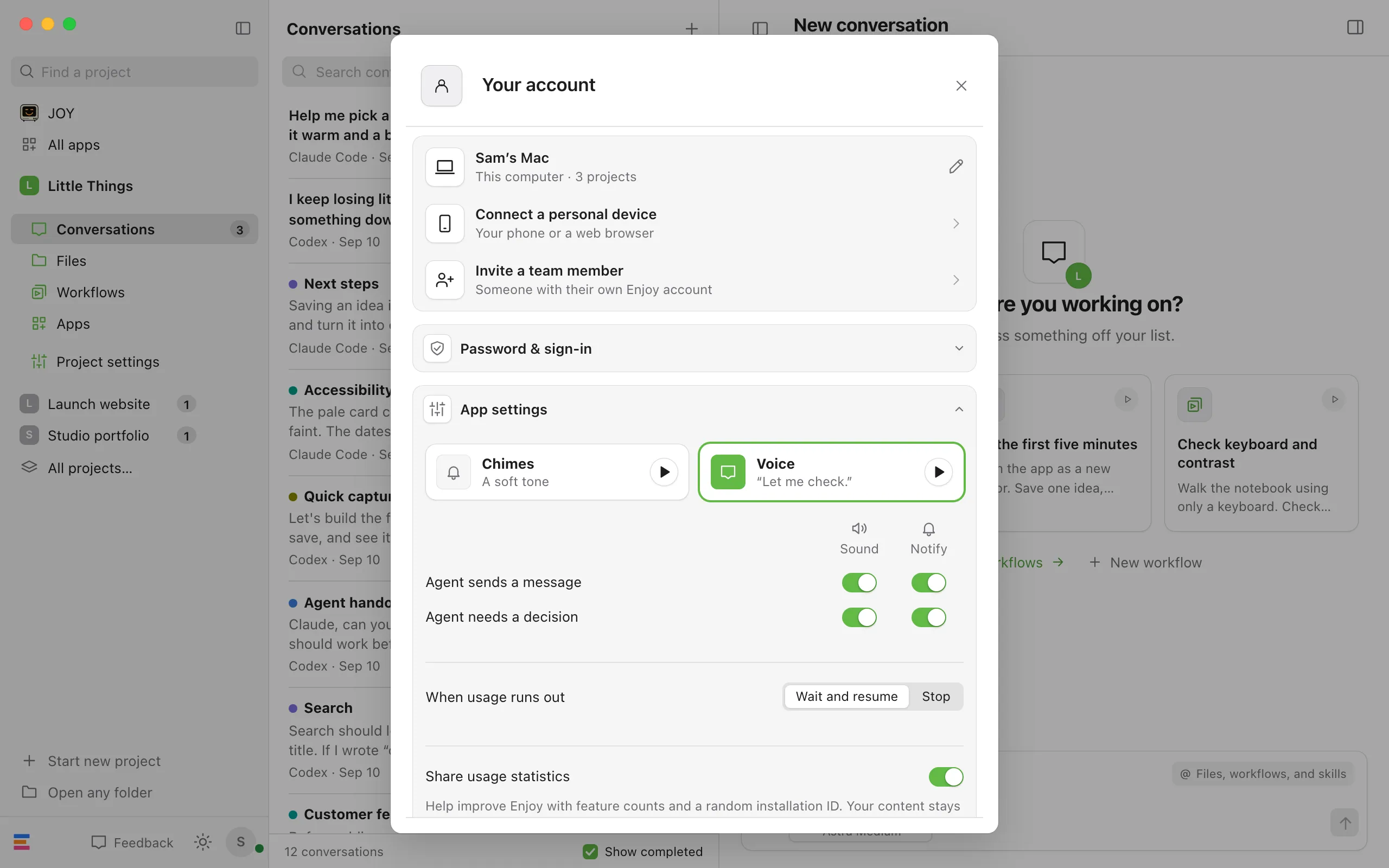
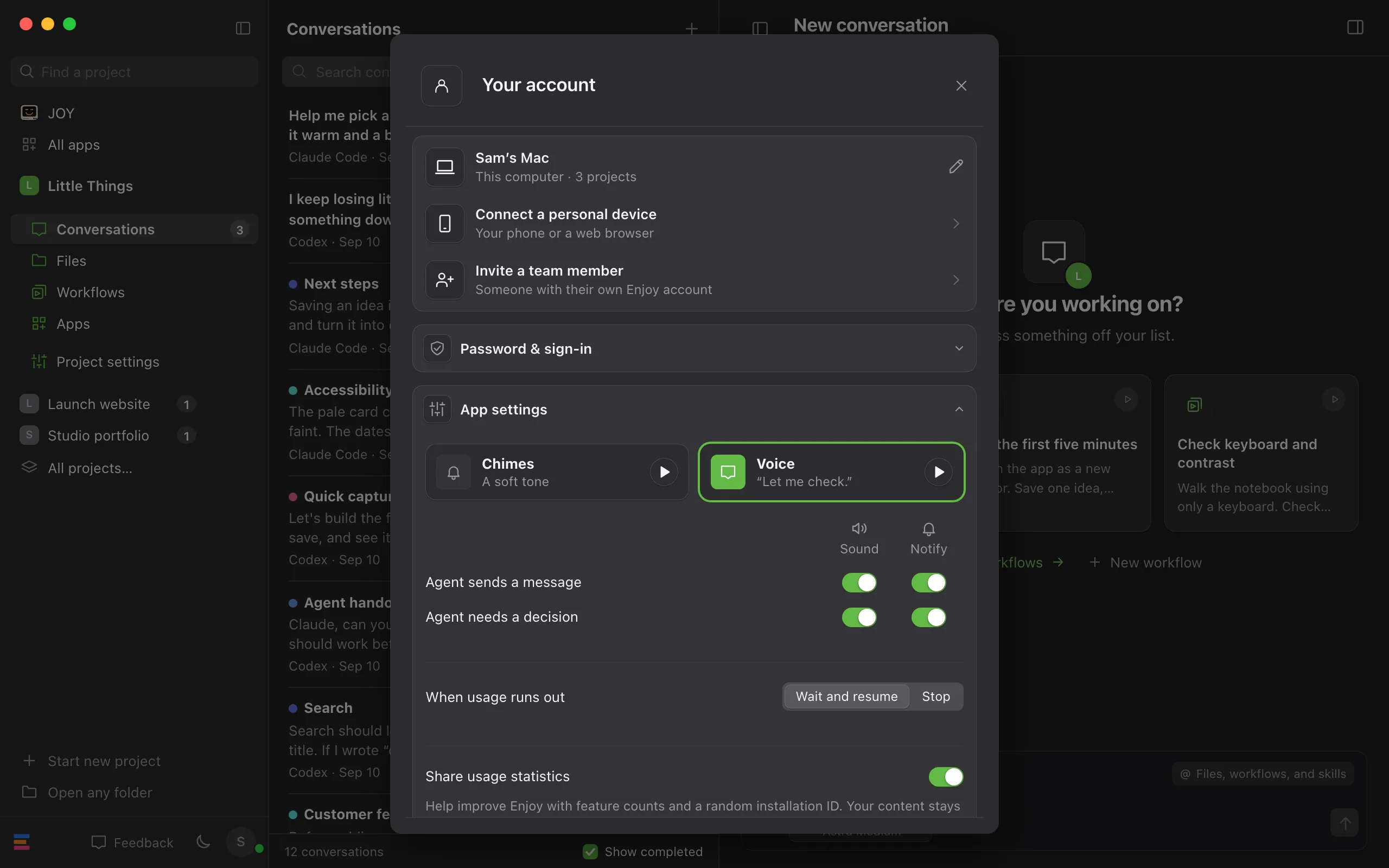
Turn alerts on or off
In the Mac app, there’s a row for Agent sends a message and one for Agent needs a decision, each with a switch under Sound and one under Notify. On Windows, Linux, and in the web app, there are two switches: Sound when an agent sends a message and Sound when an agent needs a decision.
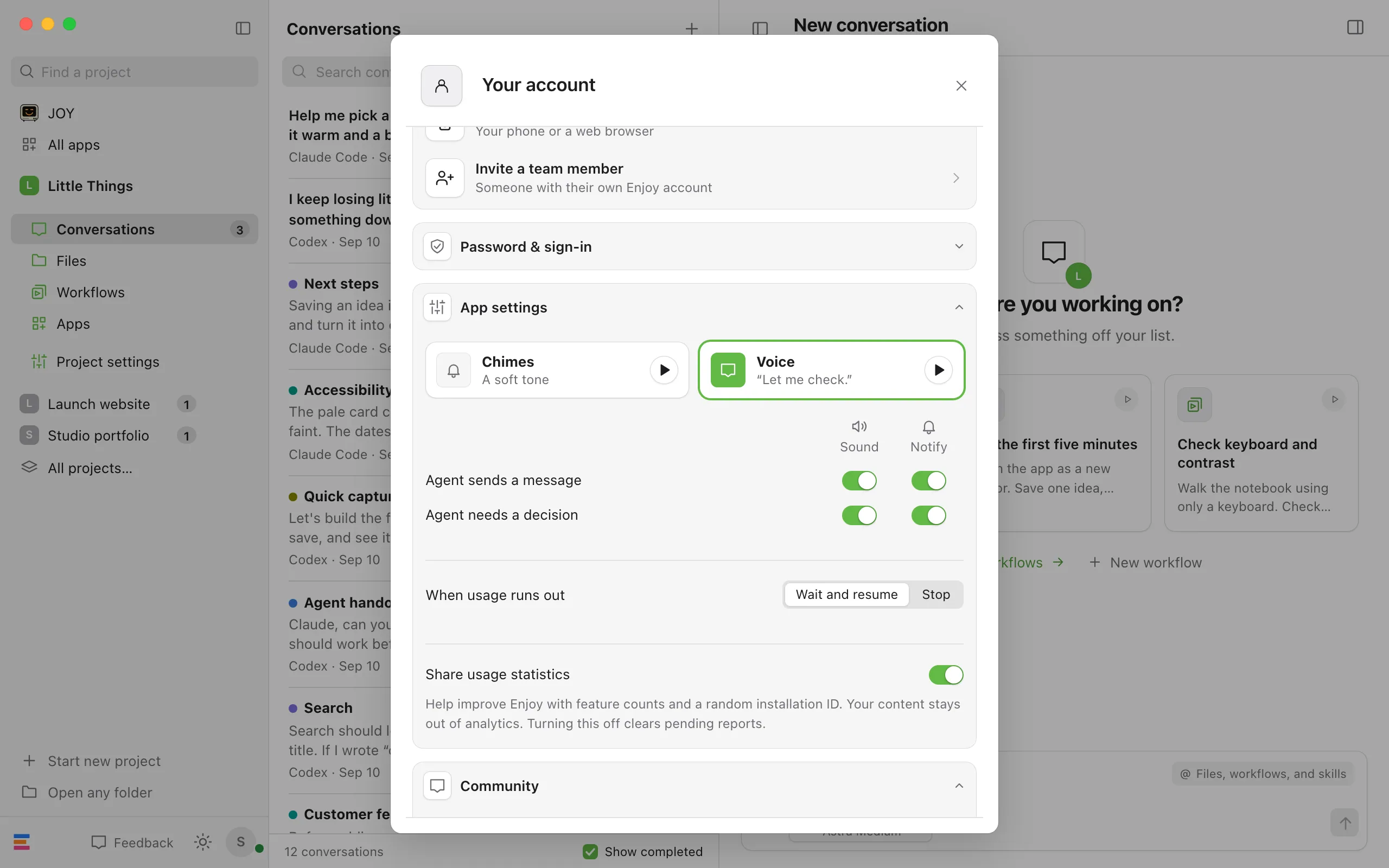
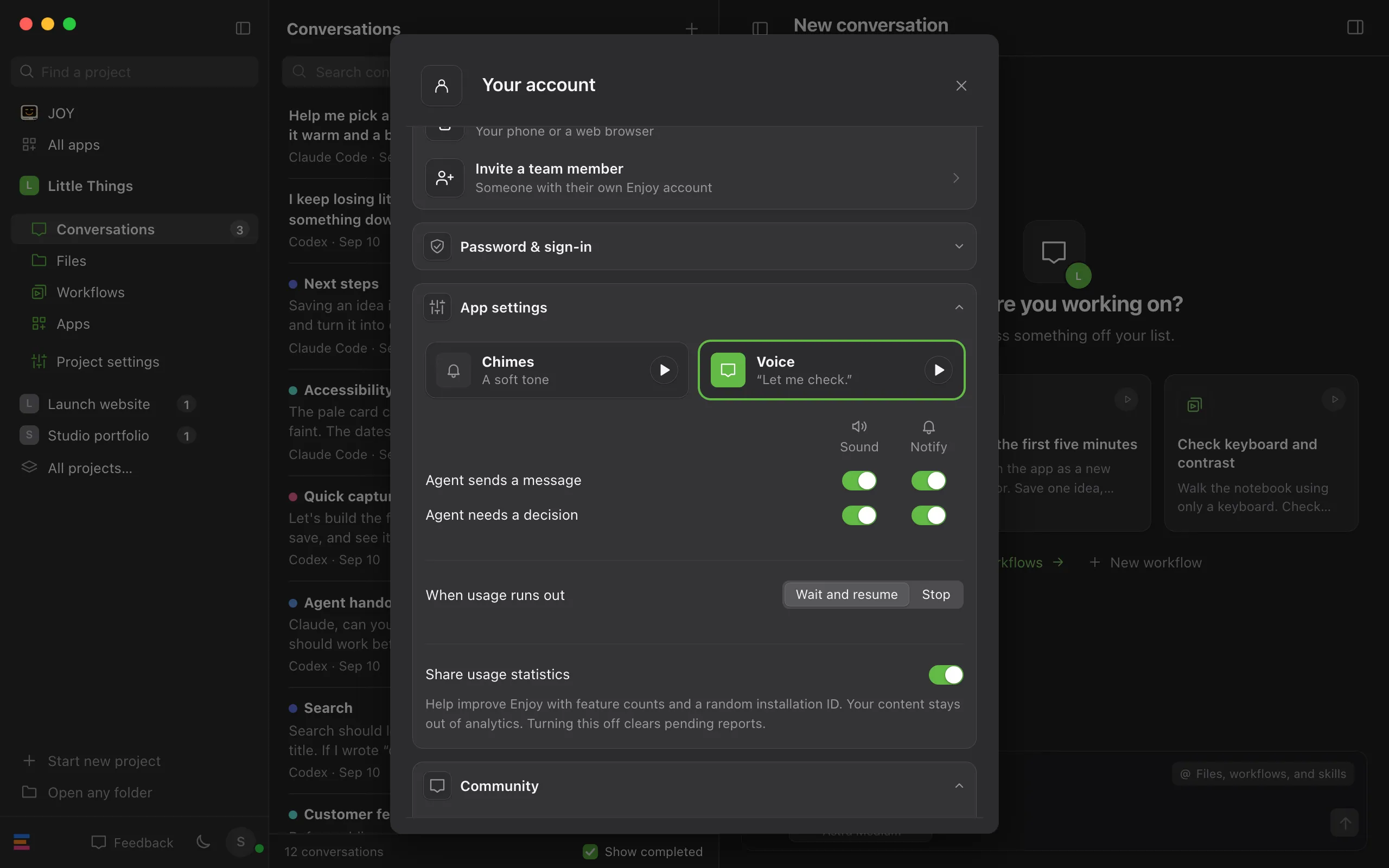
Allow notifications if your Mac asks
The first time Enjoy has a notification to show, or you turn a Notify switch on, macOS asks whether to allow notifications from Enjoy. Choose to allow them.
Good to know
- All alerts are on until you turn them off. The settings are saved on this device.
- Notify shows a Mac notification only while you’re in another app, even with sound off. Select the notification to open that conversation. A newer notification for the same conversation replaces the older one.
- In the computer app, Enjoy skips the message sound for a conversation you’re already reading at the bottom.
- Voice is selected until you choose Chimes. With Voice, an agent can say a line with its message, such as “Let me check.” or “Take a look at this.” The line plays instead of that message’s chime and follows the same Sound switch. It plays even in the conversation you’re reading. Messages without a line still chime.
- If an agent can’t finish and shows an error instead of a reply, you hear the message sound: a chime, or with Voice, “Hit a snag.” When it’s waiting for its usage to reset, Voice says “Hit a rate limit. Waiting a bit.” Stopping an agent yourself makes no sound.
- When an agent’s reply asks you something, you get the decision alert, not two alerts.
- In a web browser, sounds start working once you’ve clicked or typed somewhere in Enjoy.
- On a Mac, the Dock icon shows a number: the conversations that need you plus agent replies you haven’t read. While agents work, three colored dots appear in the icon’s top-left corner. Conversations with Joy aren’t counted there; a dot on its row in the sidebar shows them instead.
- Joy says a line with every reply, whether you chose Chimes or Voice. Turning off the sound for Agent sends a message silences it too. See Ask JOY, which oversees your agents.
- The iPhone app doesn’t play sounds or show notifications. Open it to check on your agents.
If something goes wrong
macOS is blocking notifications from Enjoy.
The Notify switches are turned off and can’t be changed. Select Open System Settings, find Enjoy under Notifications, and allow its notifications. When you come back, Enjoy checks again and the switches work.
Notifications don’t appear
Enjoy only shows them while another app is in front. Check that Notify is on for the event, and that macOS allows notifications from Enjoy.
The Dock icon doesn’t show a number
macOS shows it only while Enjoy may badge its icon. Open System Settings, select Notifications, then Enjoy, and turn on Badge application icon.
No sound plays
Check that the Sound switch for that event is on. In a browser, select anywhere in the Enjoy tab once so the browser lets it play sounds.