Change Enjoy's look
Steps
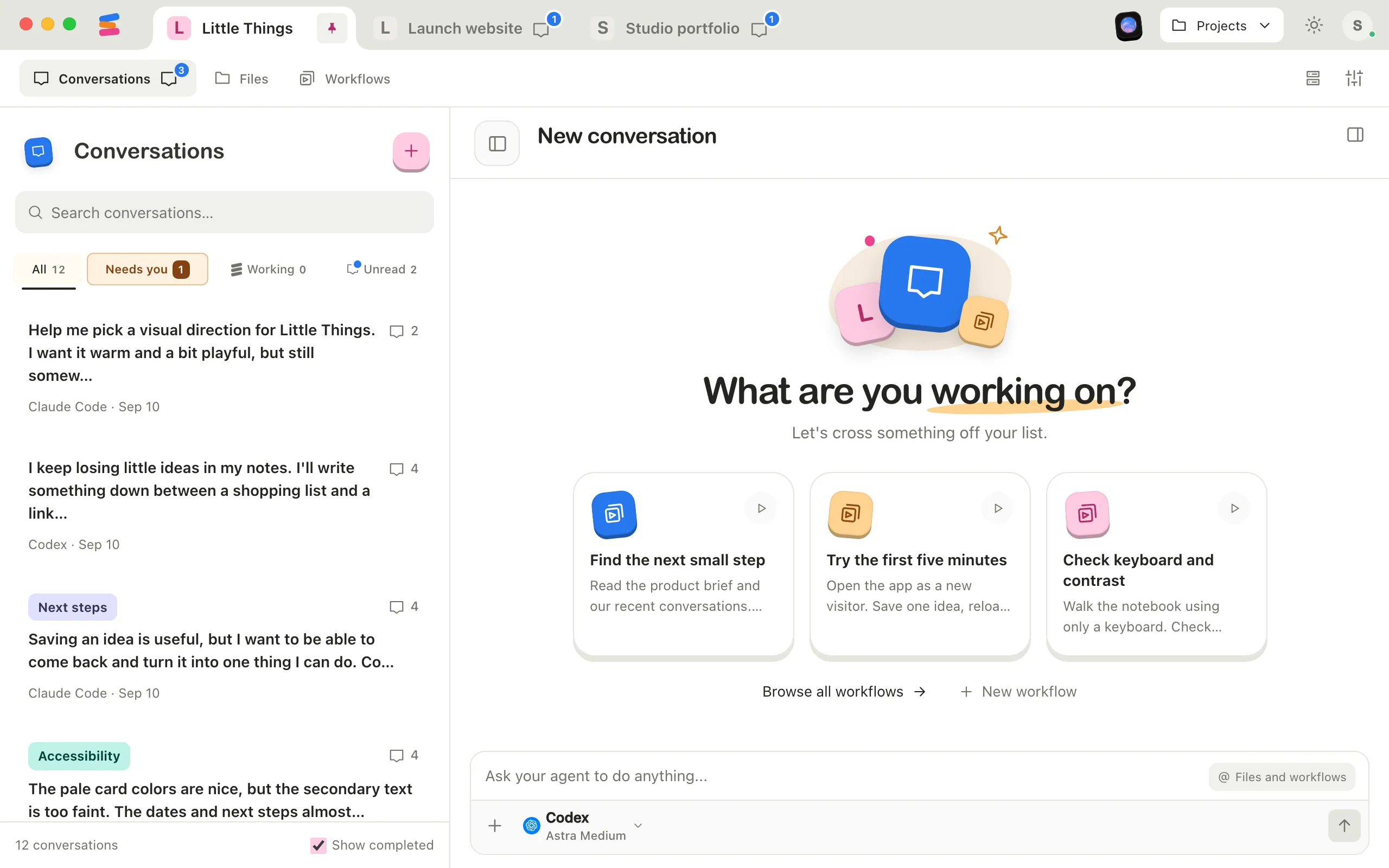
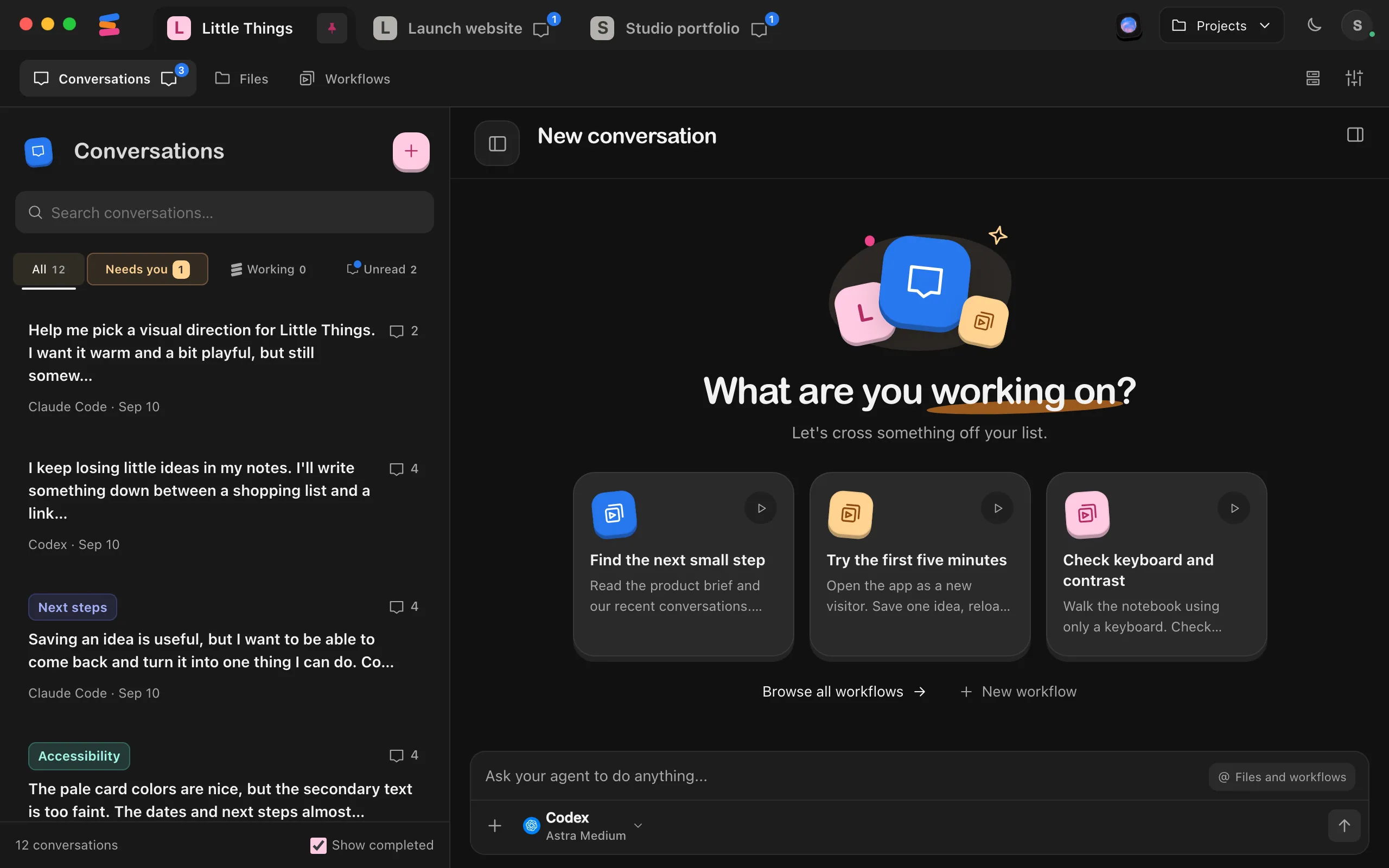
Select the Appearance button
It’s the sun or moon in the top bar, to the left of the circle with your initial. Hover over it to see the current theme, such as Appearance: Dark.
Choose a theme
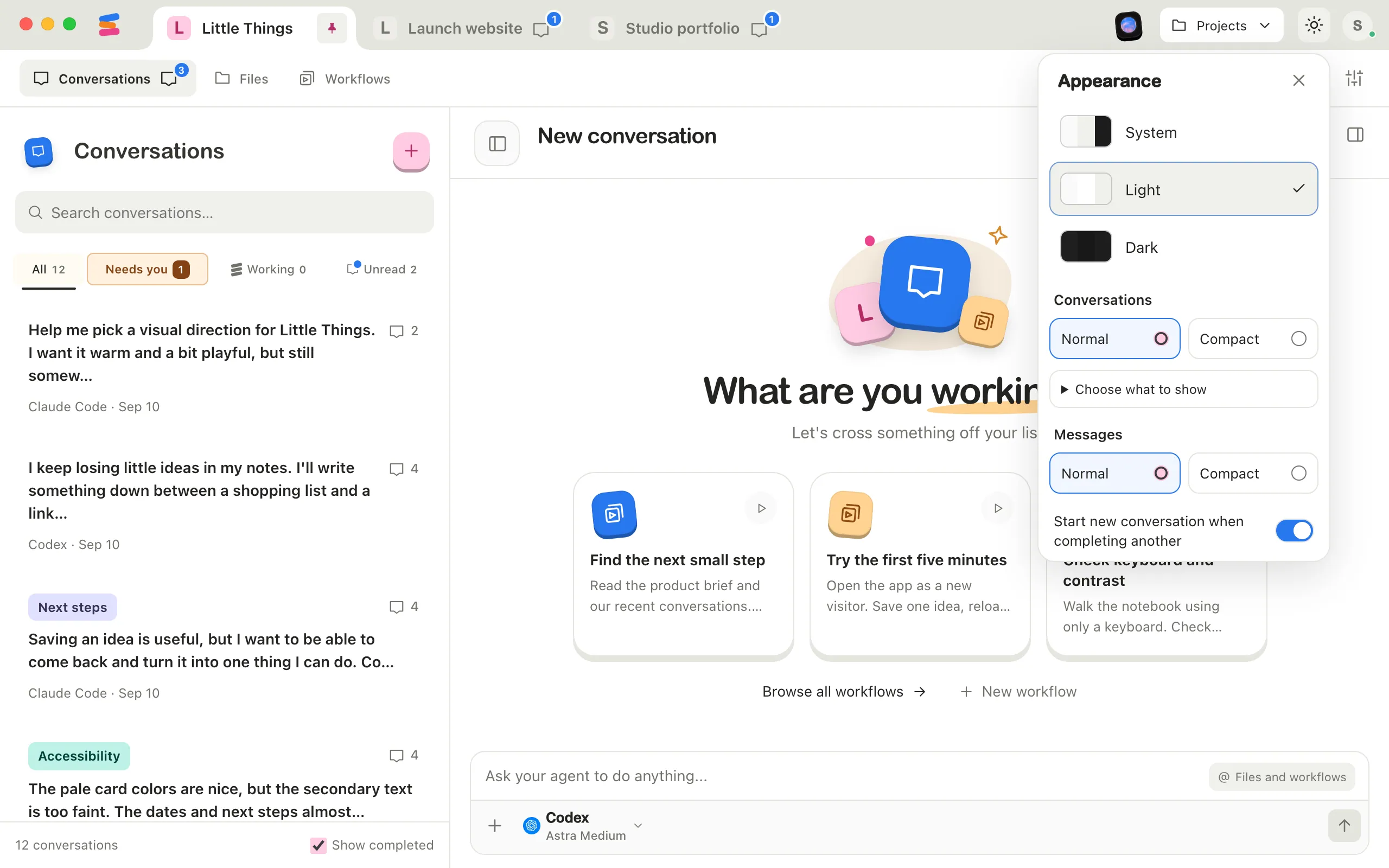
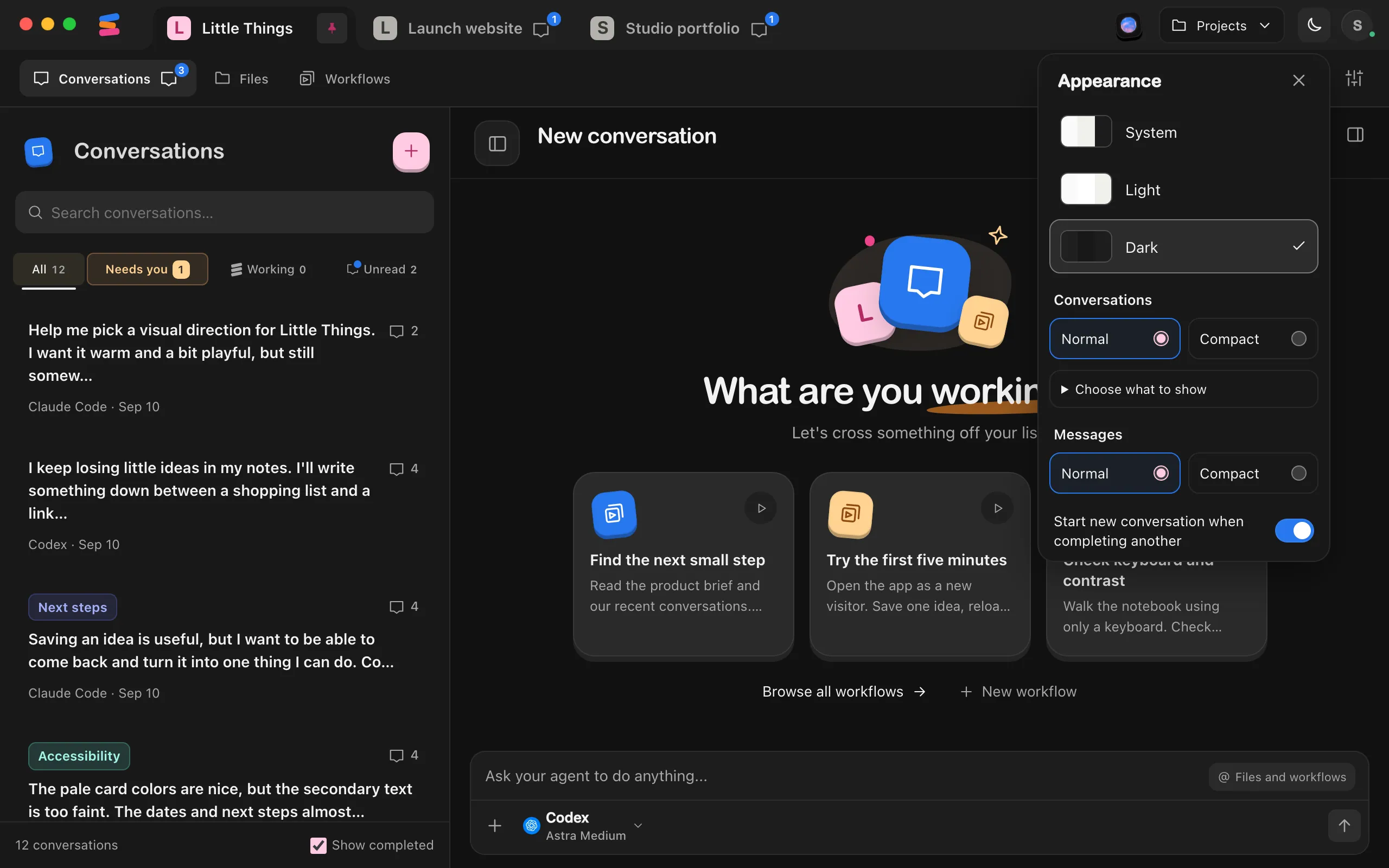
At the top of Appearance, select System, Light, or Dark. Enjoy changes right away.
Close Appearance
Select the close button in its corner, or select anywhere outside it.
Good to know
- System follows your computer’s light or dark setting and switches when it does. The button then shows a small clock.
- Enjoy starts in Dark until you choose a theme.
- Your choice is saved on this device. Each computer and browser keeps its own.
- Appearance also sets how compact conversations and messages look. See Use Compact view for conversations and messages.
- At the bottom of Appearance, Start new conversation when completing another decides whether marking a conversation completed opens a new one. It’s on at first. See Mark a conversation as completed.
- On a Mac, Enjoy’s Dock icon turns charcoal when you choose the Dark icon style in macOS System Settings. The icon follows that system setting, not the theme you choose here.