Hide the conversation list
Steps
Hide the list
At the top left of the conversation, select the list button (Hide conversation list). You can also press ⌘\ on a Mac, or Ctrl+\ on Windows and Linux.
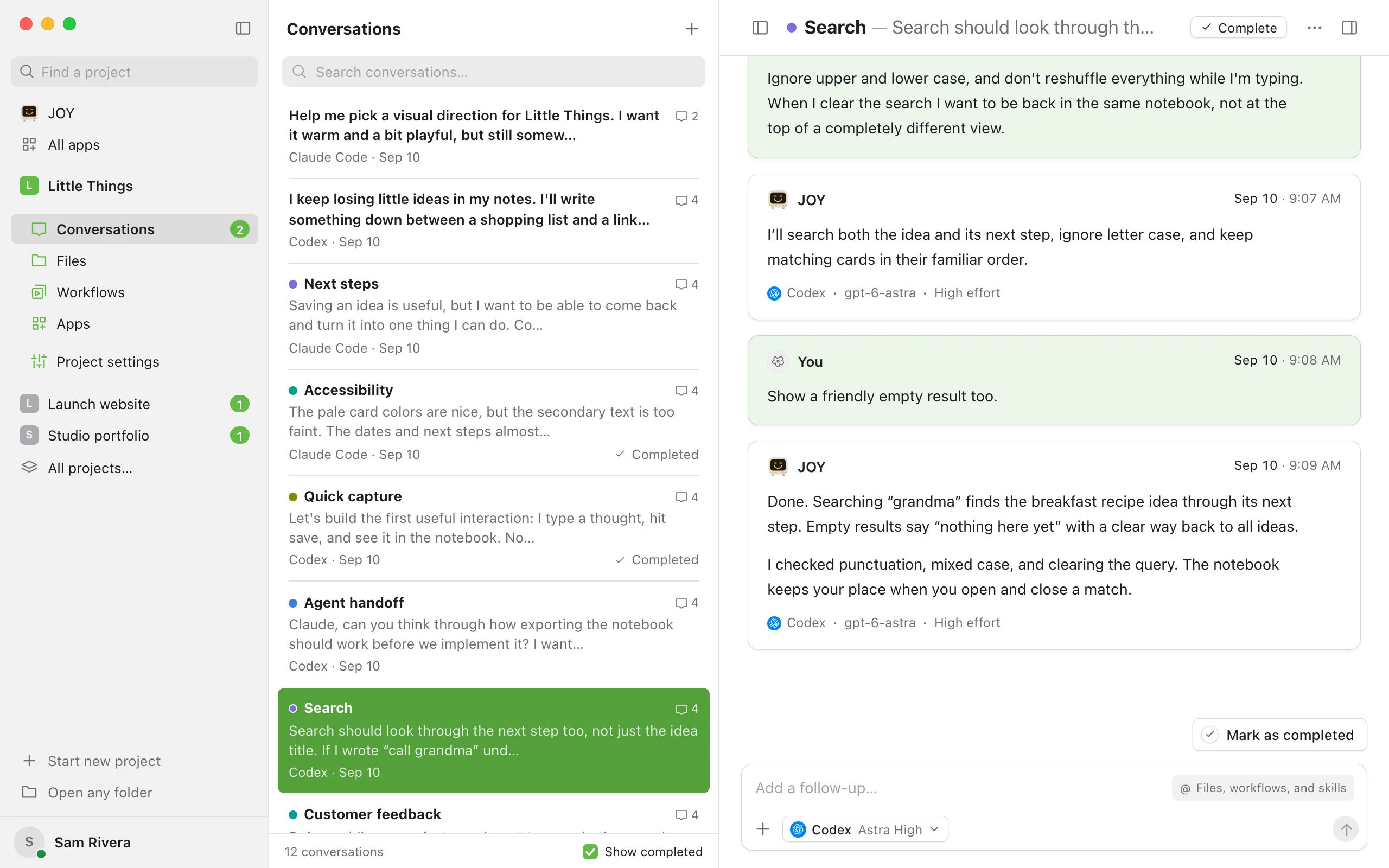
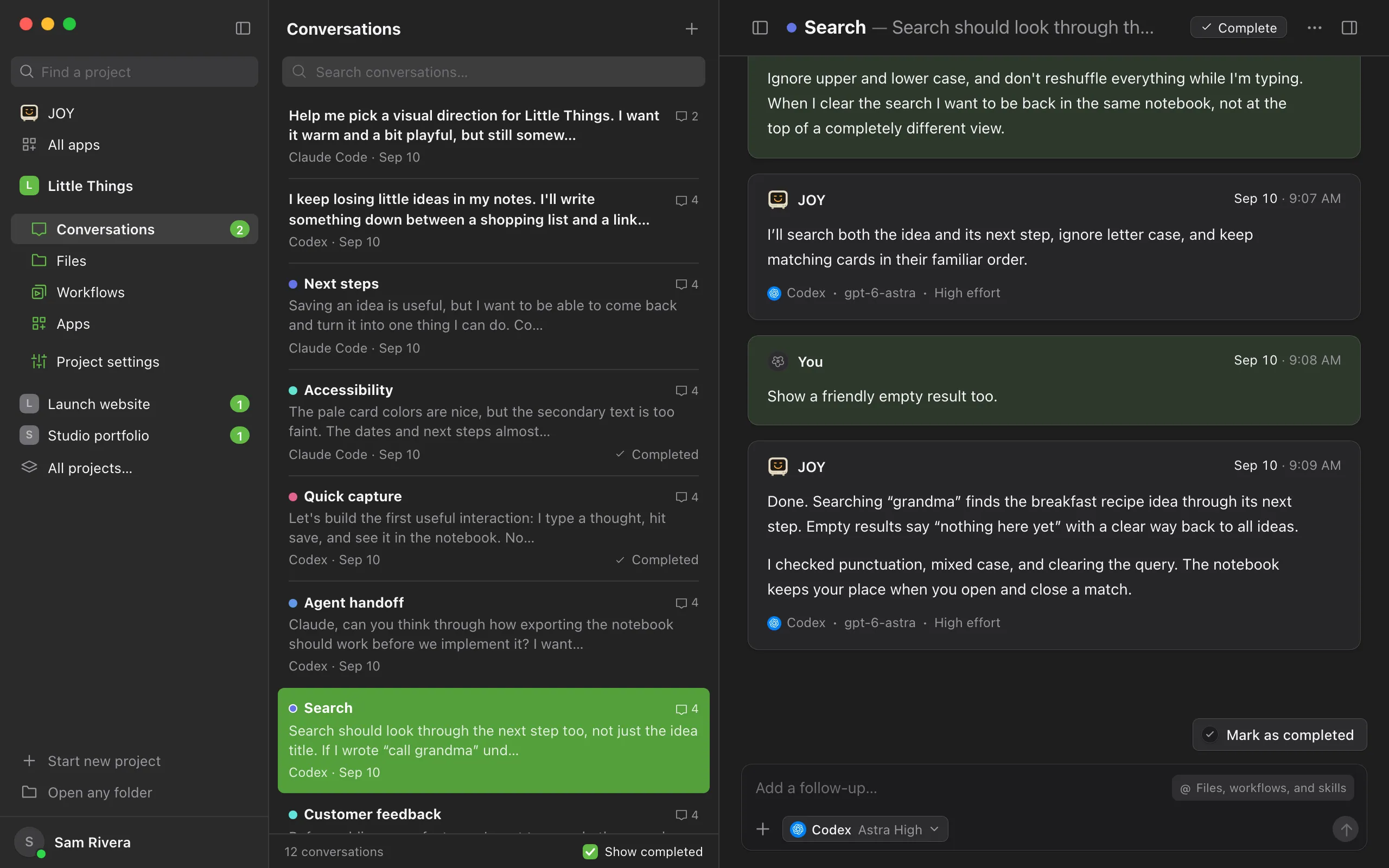
Switch conversations from the rail
When you want another conversation, select Conversations in the rail on the left side of the window. The list opens beside the rail with the search box ready. Select a conversation to open it, or press Escape to close the list.
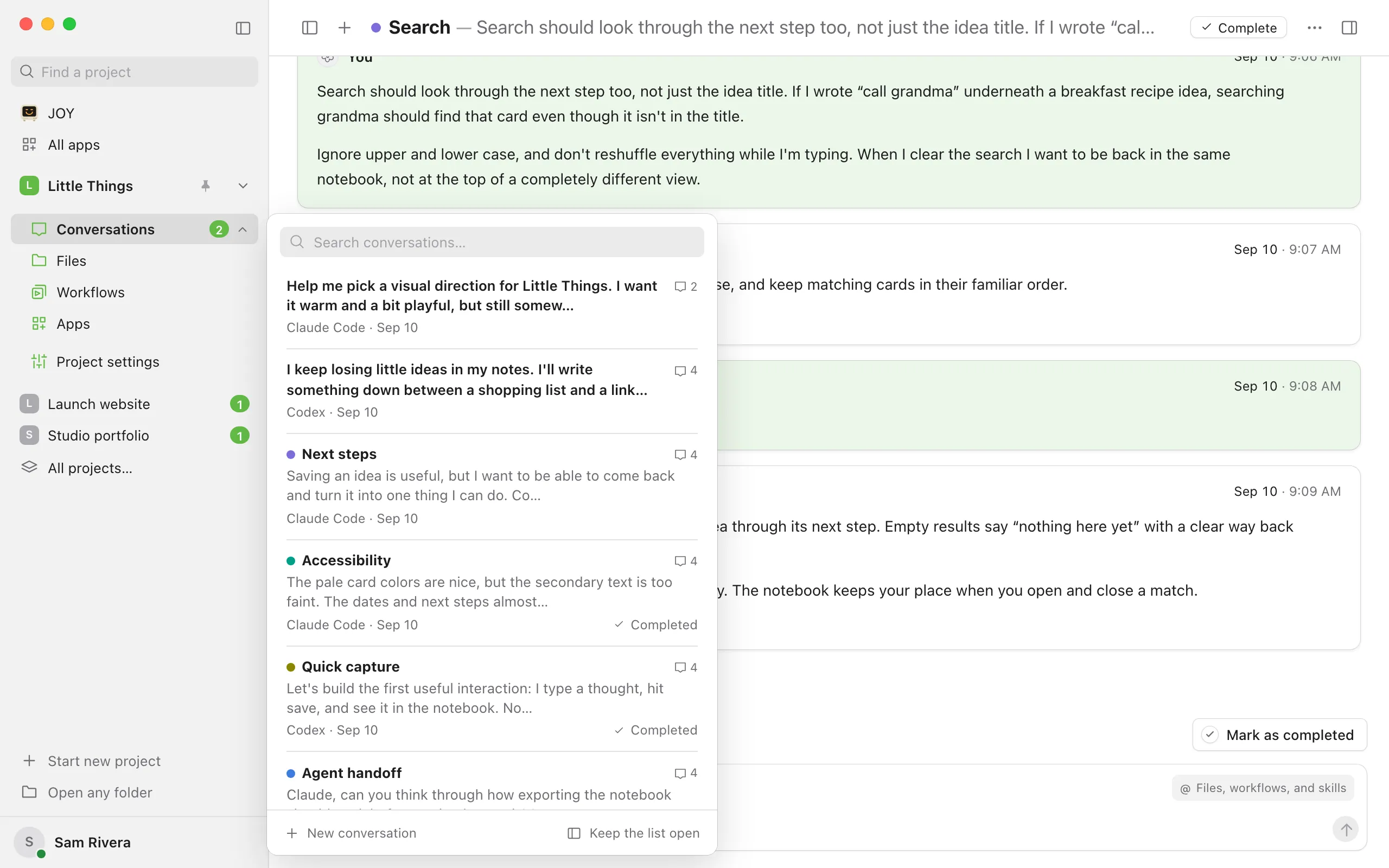
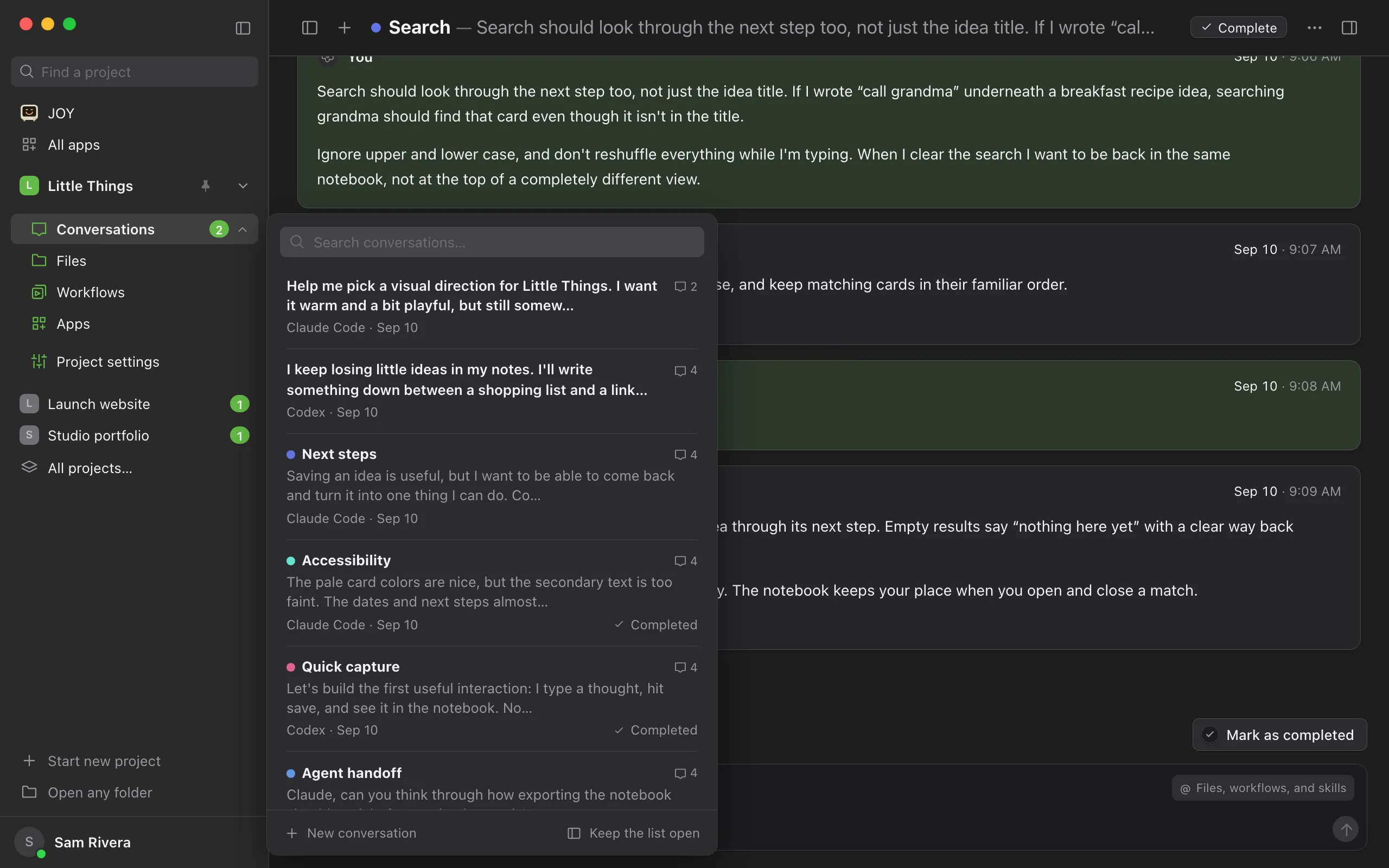
Bring the list back
Select the list button again (Show conversation list), press the same shortcut, or choose Keep the list open at the bottom of the list that opened from the rail.
Good to know
- Enjoy remembers your choice on this device, so the list stays hidden until you show it again.
- While the list is hidden, a + button beside the list button starts a new conversation. The list that opens from the rail also has New conversation at the bottom.
- In the list that opens from the rail, the up and down arrow keys move through conversations, and pressing Enter in the search box opens the first result.
- On narrow windows, such as the web app on a phone, the list and the conversation take turns filling the screen instead. Open a conversation from the list, and select the back arrow (Back to conversations) to return.
- Expanding the built-in browser also covers the list while the browser is expanded, without changing this setting. See Give the preview more room.