Sign in and out of Enjoy
The computer app shows its sign-in screen whenever you’re signed out. After you sign in, Enjoy checks your plan. With Unlimited or a free trial, it opens your projects. Without one, it offers the free trial or Restore Unlimited instead. See The Unlimited plan and free trial.
In the web app (app.enjoy.dev), signing in is optional for a browser you connected to your computer with a code.
Before you start
- You need an Enjoy account. If you don’t have one yet, see Create your account and start your free trial.
Steps
Open Enjoy
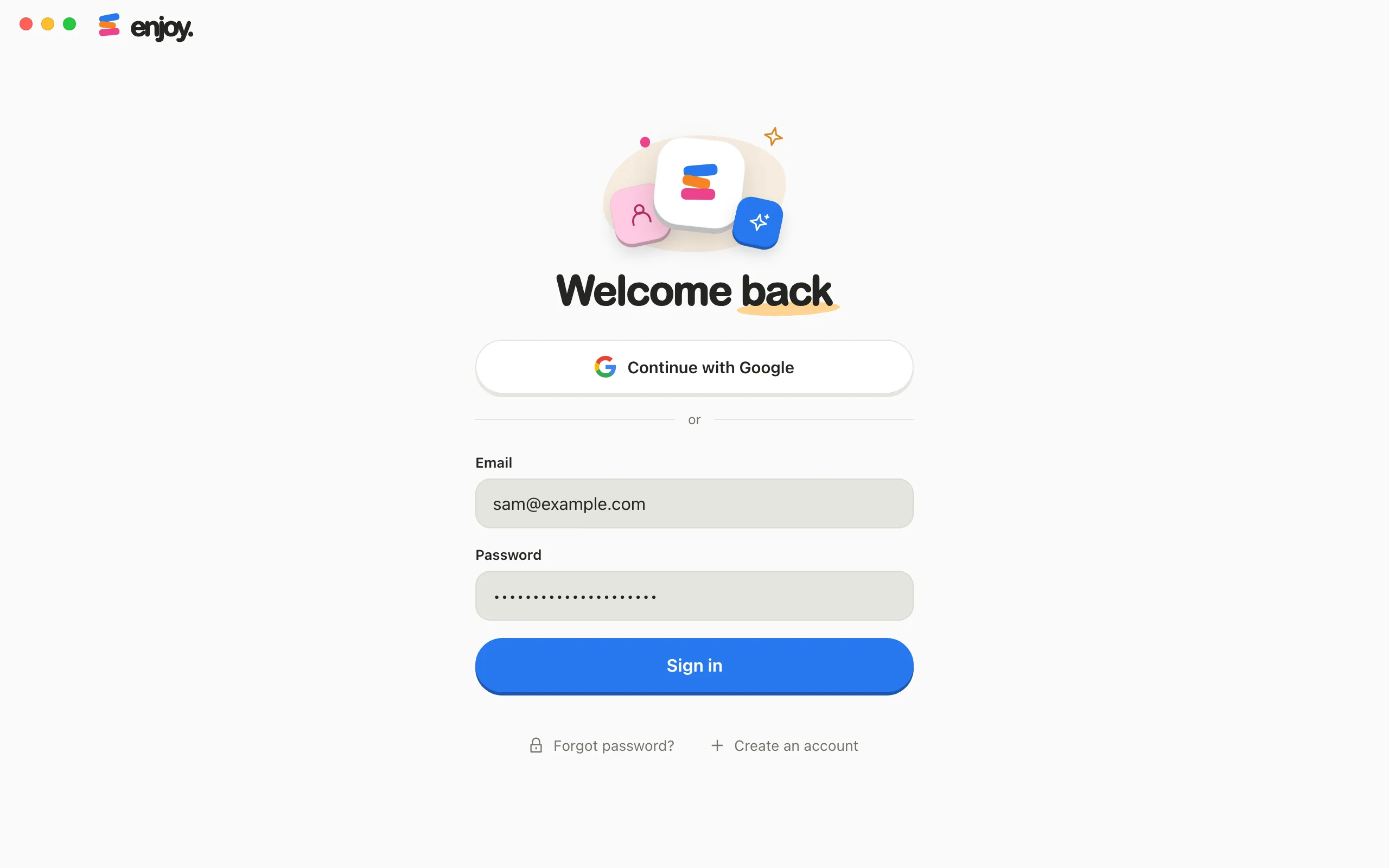
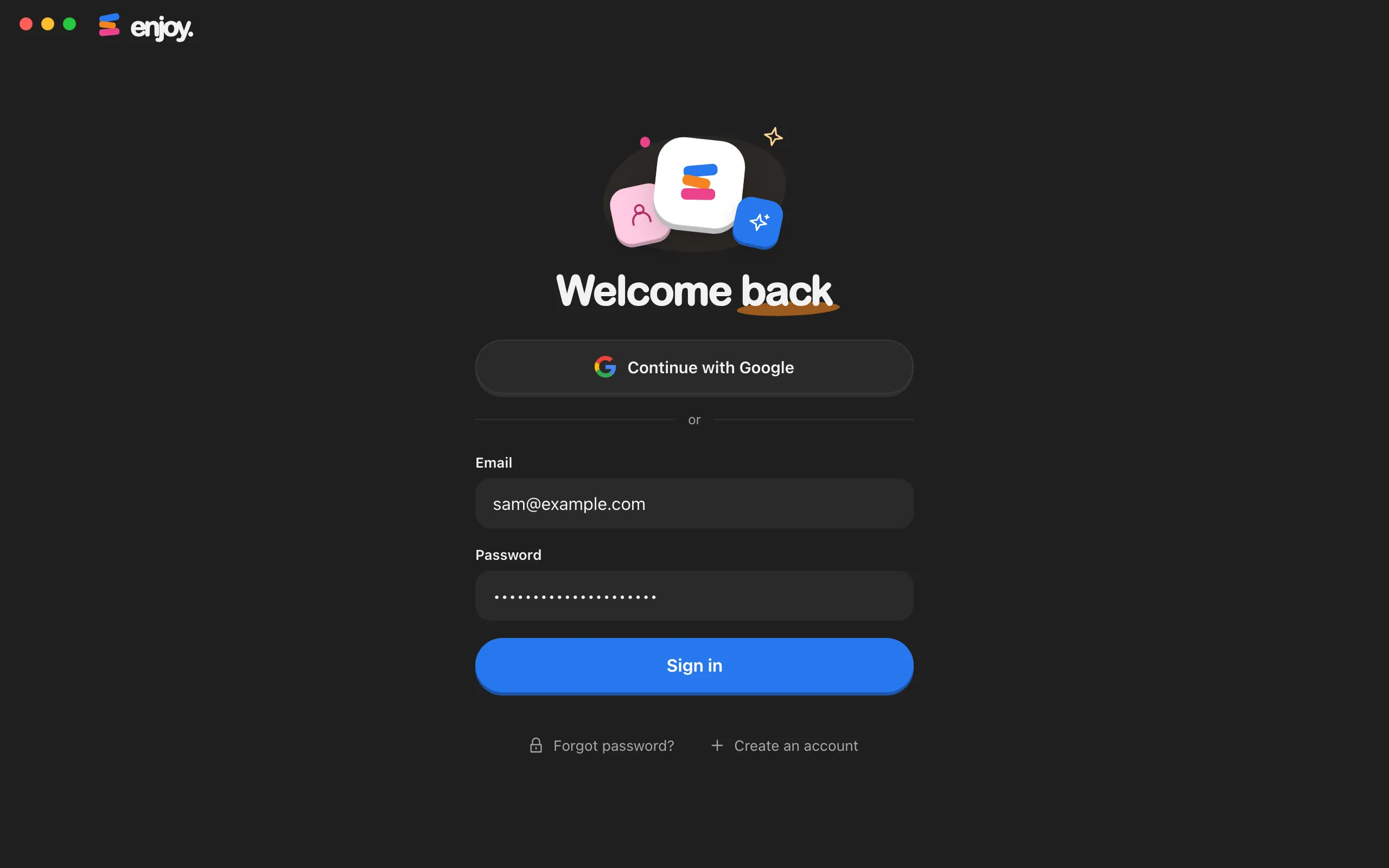
In the computer app, the Welcome back screen appears when you’re signed out. In the web app, select Sign in at the top of the page.
Sign in with your email
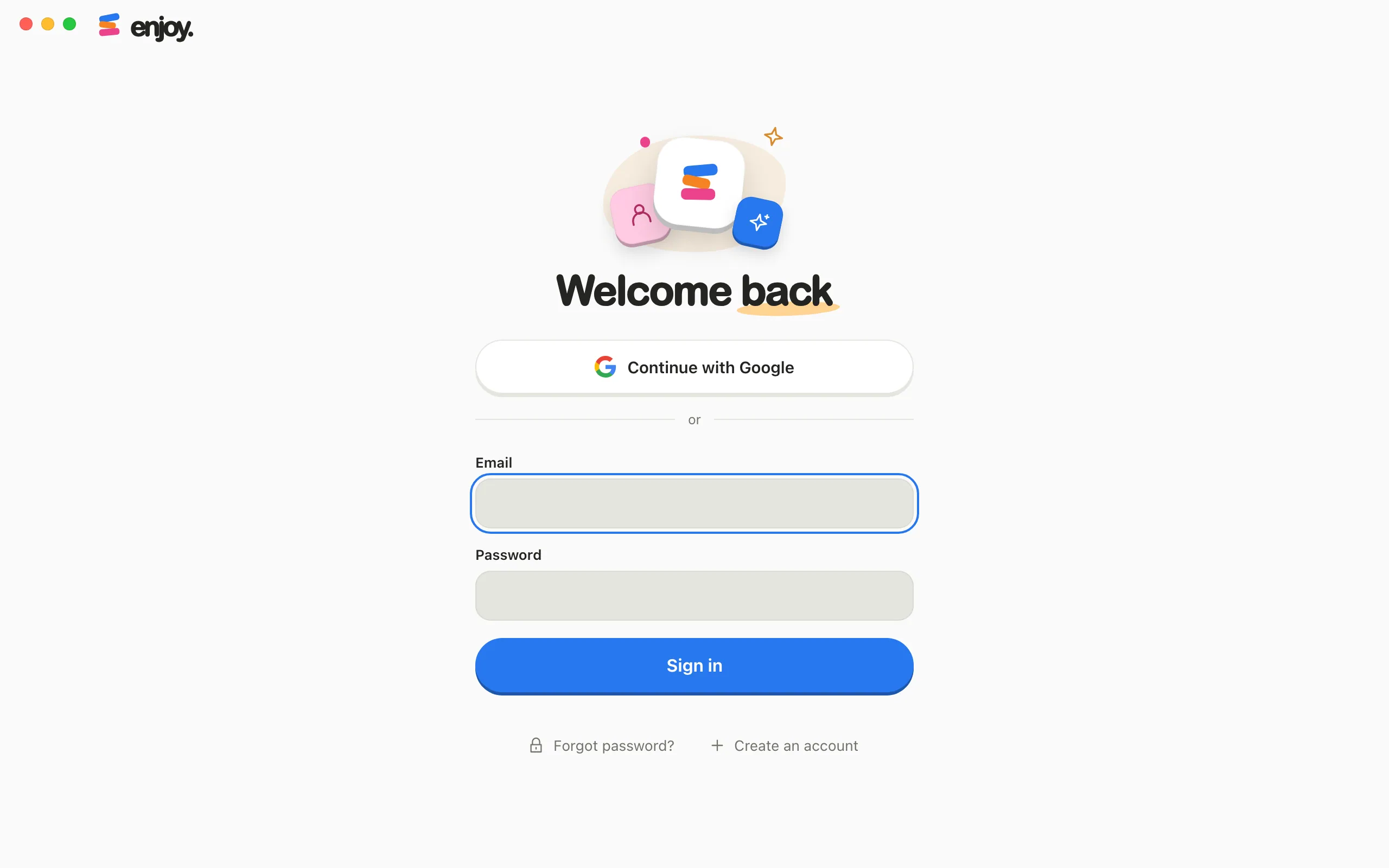
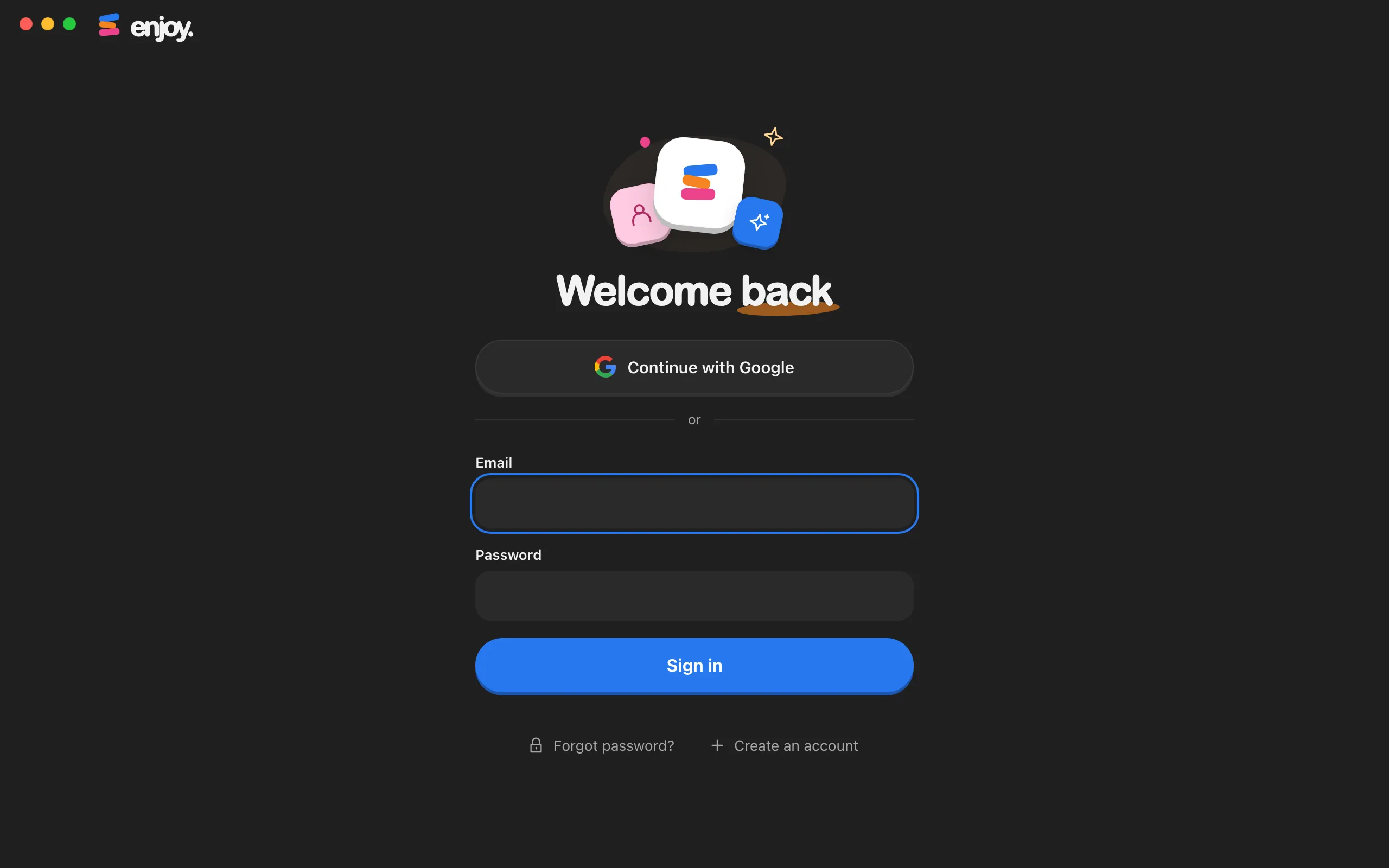
Type the Email and Password for your Enjoy account, then select Sign in. Enjoy shows Connecting… while it checks, then continues.
Or continue with Google
If your account uses Google, select Continue with Google instead. Your web browser opens Google’s sign-in page and Enjoy shows Finish in your browser with Waiting for Google…. Choose your Google account there, then come back. Enjoy continues on its own.
Good to know
- To edit the name on your account, select the pencil beside it. See Change your name.
- To sign out, select the circle with your initial in the top-right corner of Enjoy. The Your account window opens. Select Sign out at the bottom. The computer app then shows the sign-in screen until you sign in again, even when it can’t reach Enjoy. Your projects and conversations stay on your computer.
- To sign out everywhere else, open Your account, select Password & sign-in, then select Sign out on other devices. You stay signed in where you are, and Enjoy confirms with Signed out on your other devices. Enjoy on your other computers, and in other browsers, asks you to sign in again.
- The Continue with Google button only appears when Google sign-in is available.
- Google sign-in expires after five minutes, and sometimes sooner in the web app. To stop waiting, select Cancel on the Finish in your browser screen. In the web app, if Google’s page doesn’t open, select Open Google sign-in.
- To add Google to an account that uses a password, see Add Google sign-in to your account.
- In the iPhone app, select the round button with your initial at the top of the Computers screen, or of the Projects screen when there’s no Computers screen, to open Settings. Select Sign out, then Sign out again to confirm. Your computers stay as they are.
If something goes wrong
Unable to sign in. Check your email and password.
The email or password didn’t match an account. The message ends with the server Enjoy contacted, such as (server: https://app.enjoy.dev). Check both fields and try again. If you’ve forgotten your password, select Forgot password?. See Reset a forgotten password.
Sign-out could not be confirmed. Check your connection and try again.
The web app couldn’t reach your account to end your session, so you’re still signed in. Check your connection, then select Sign out again.
Could not sign out your other devices.
Enjoy couldn’t reach your account. Check your connection, then select Sign out on other devices again.
Other sign-in problems
For Too many attempts, We can’t reach your account, and Google sign-in errors, see Fix problems signing in to Enjoy.