Create a new file in your project
Steps
Go to the folder where the file belongs
In Files, open that folder from Project files, or open any file that’s already in it. See Browse and search your project’s folders.
Select New file
Use the New file button at the top of the folder’s page. If you have a file open, use the + in the tab bar instead.
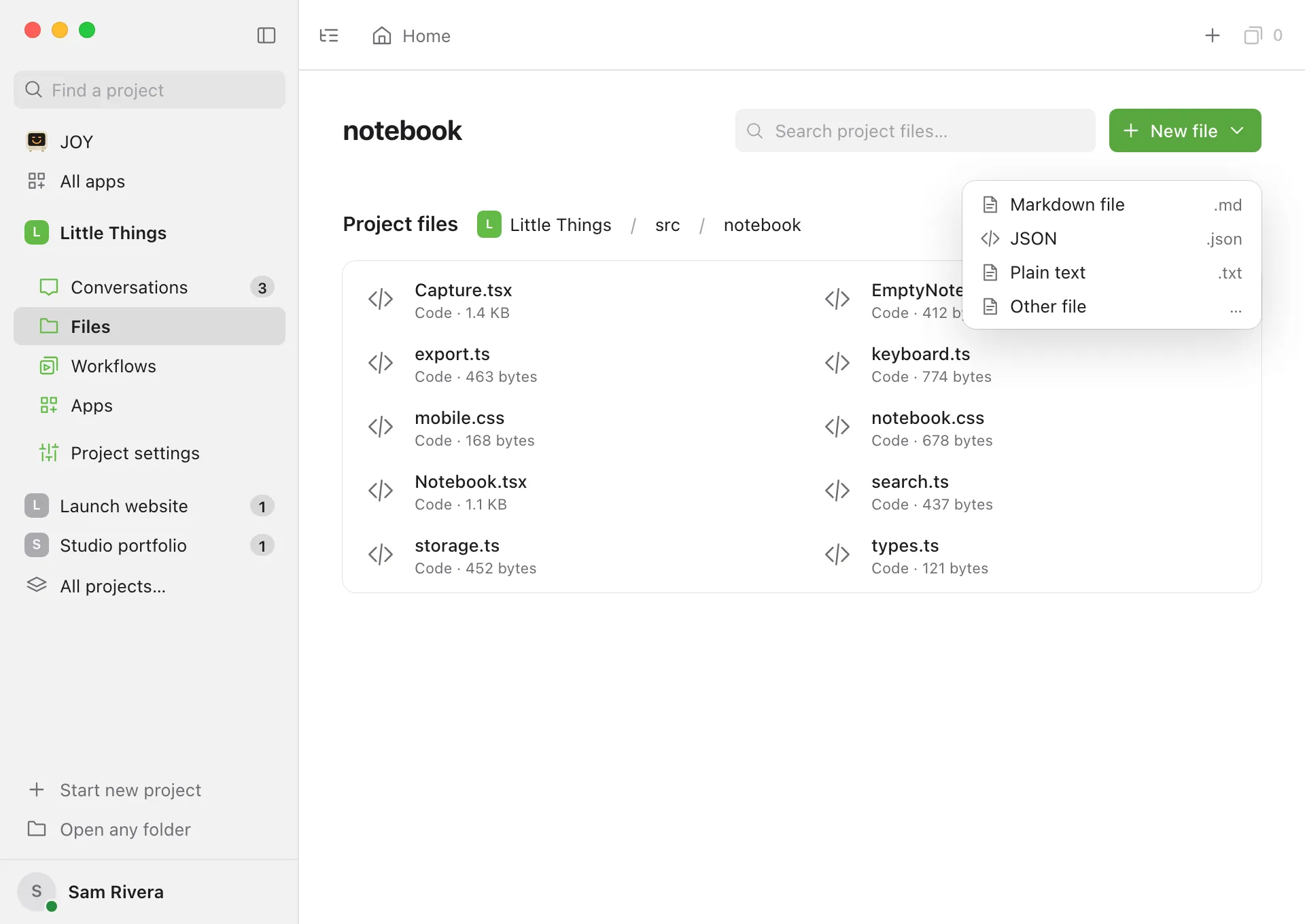
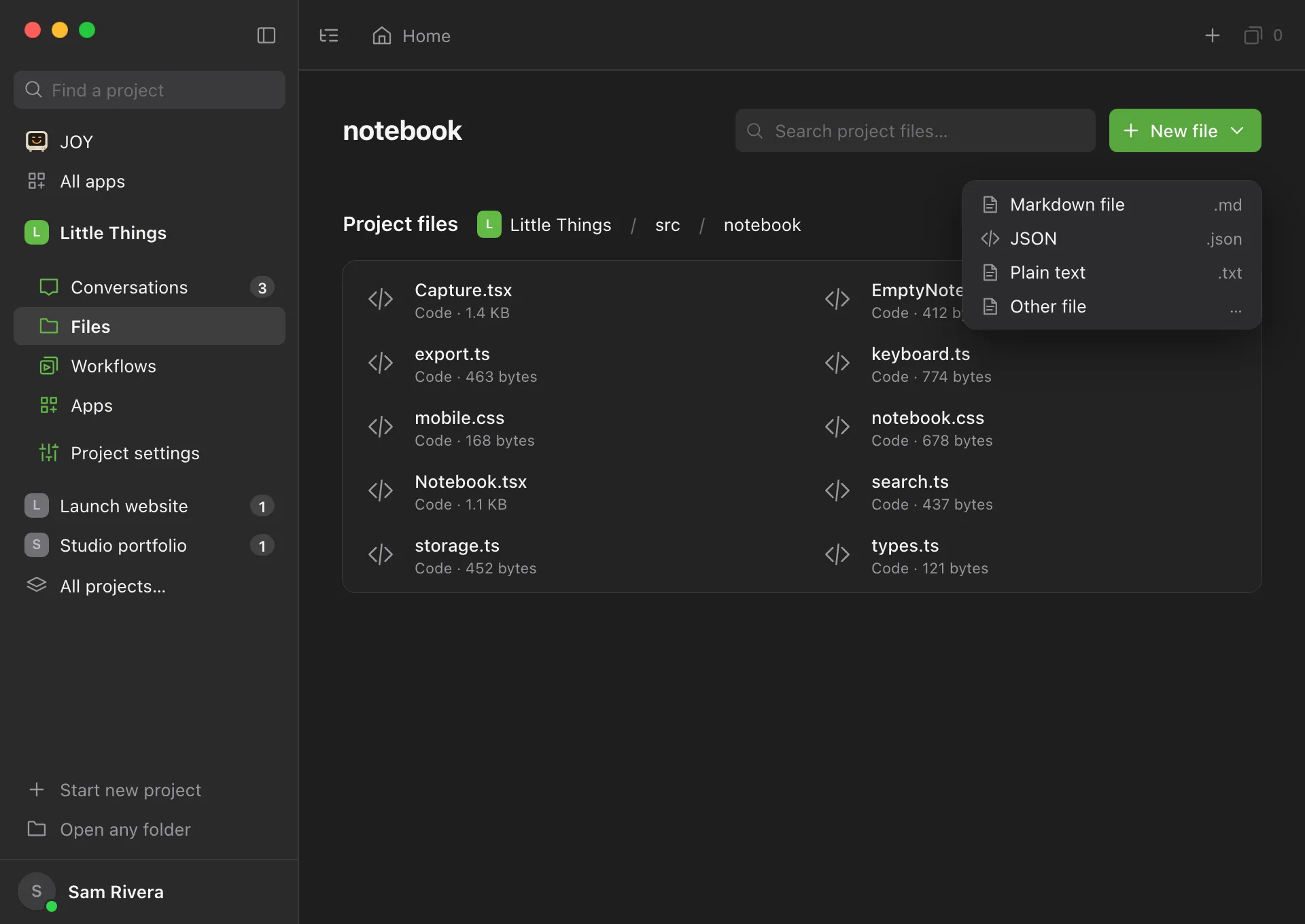
Choose a type
Choose Markdown file, JSON, Plain text, or Other file for anything else, such as a web page or a Python script.
Check the name and place
Type the full name in Filename, including the ending, such as
notes.txt. It starts asUntitledwith the type’s ending, such asUntitled.json, or empty for Other file. Location is set to Project folder, and Folder shows the folder you were in. Clear Folder to put the file at the top of the project.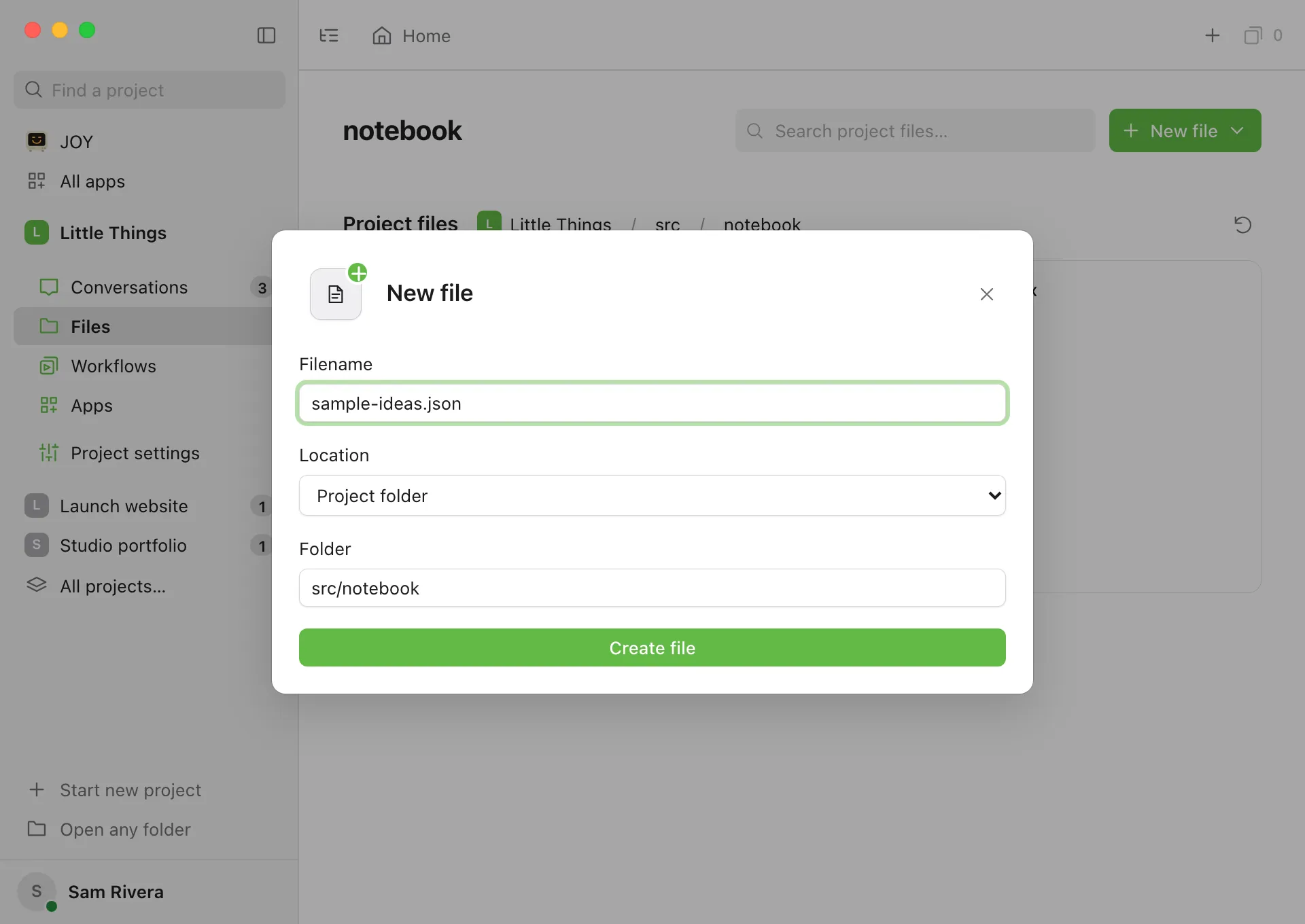
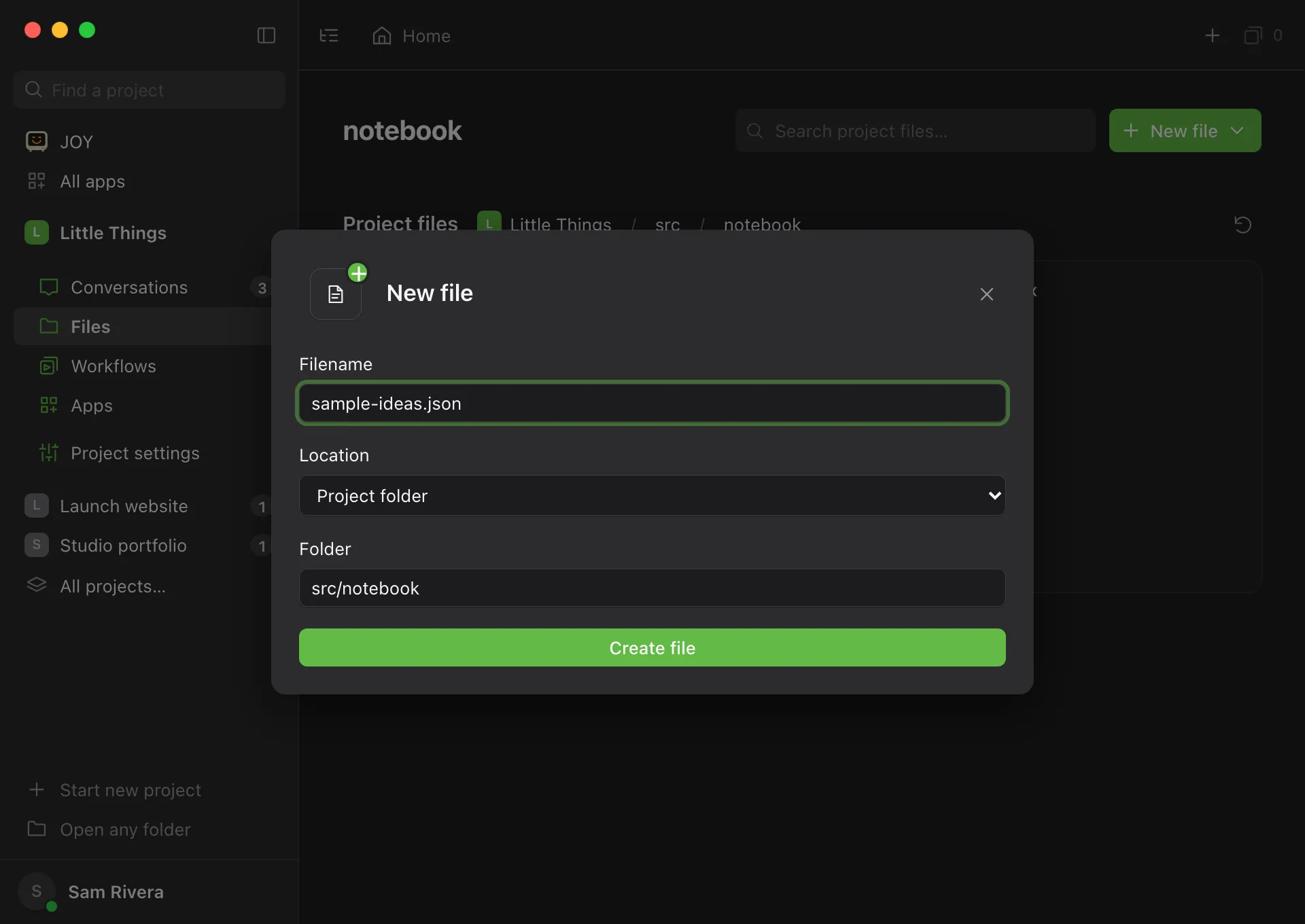
Select Create file
The new file opens in a tab, ready for you to type.
Good to know
- On Files home, with no folder or project file open, Markdown file creates a document instead of a project file. To make a Markdown project file at the top of your project, choose Other file and give it a name ending in
.md. To learn how the two differ, see Find your way around Files. - New JSON files start with
{}, an empty JSON object. Other new files start empty. - For a name ending in
.md, you can set Location to Your documents to create a document instead. - The folder you type in Folder must already exist. Files can’t create folders.
- Names can’t include these characters:
\ / < > : " | ? *. They can be up to 180 characters long. - Enjoy never replaces an existing file when it creates one.
- To create files on your phone, see Use Files on your iPhone.
If something goes wrong
“A file with this name already exists.”
There’s already a file with that name in the folder. Change Filename and select Create file again.
“The destination folder does not exist.”
Check the spelling in Folder, using / between folder names, such as src/components. Or clear it to create the file at the top of the project.
Create file is greyed out
The name is empty or uses a character that isn’t allowed. If New file itself is greyed out, you have view-only access. The computer’s owner can change that. See Change what a teammate can access.