Make an app with an agent
Before you start
- Use the computer app, in a project on that computer. See What are apps?
- The conversation’s agent needs a permission mode that lets it change the project on its own, such as Claude Code’s Auto or Accept edits, or Codex’s Approve for me. See Choose what your agent can do without asking.
Steps
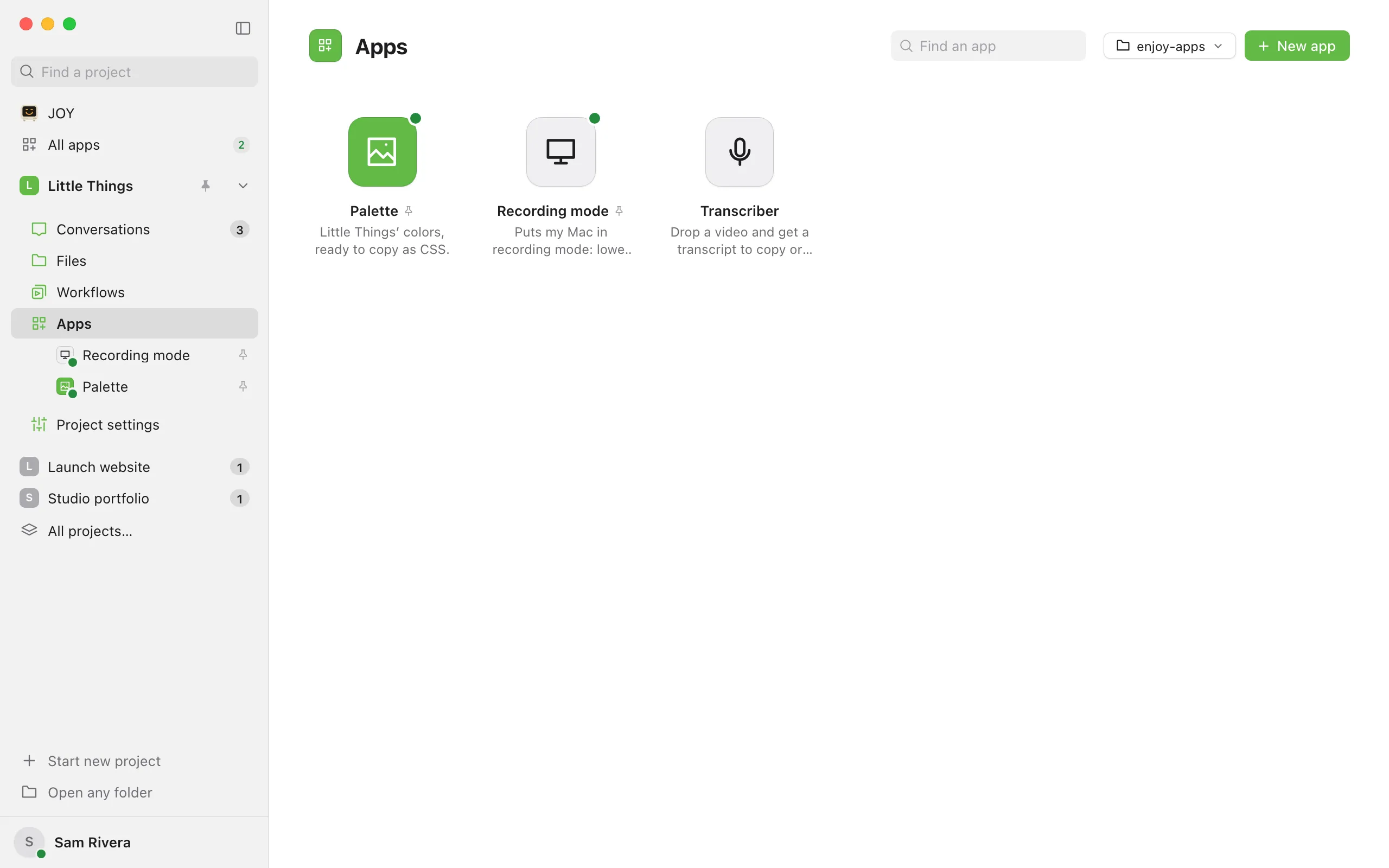
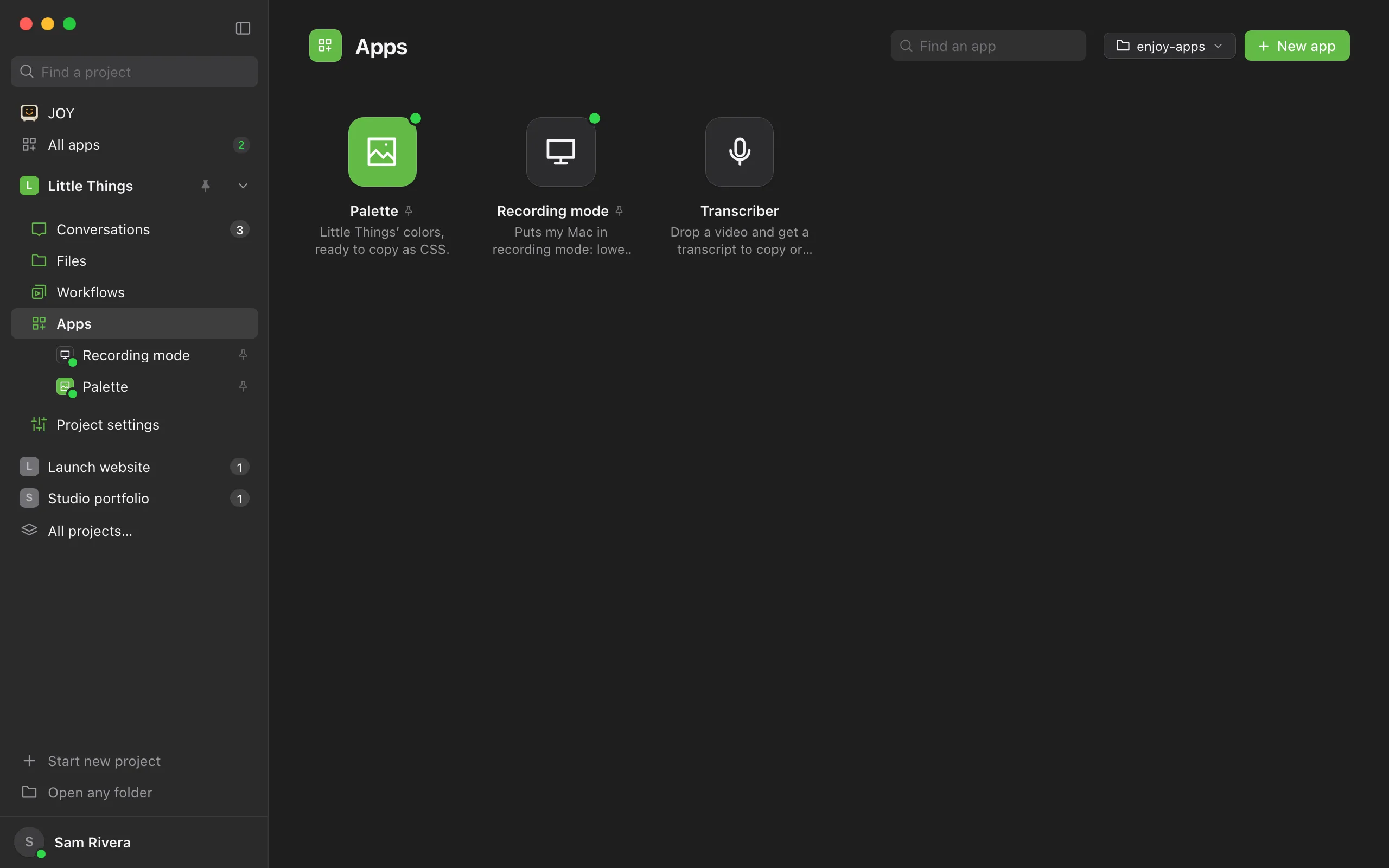
Select New app
Select Apps in the rail on the left side of the window, then New app at the top right. You can also select Apps at the top of the window, next to Projects, then New app, which makes the app in the project you’re in.
Say what the app should do
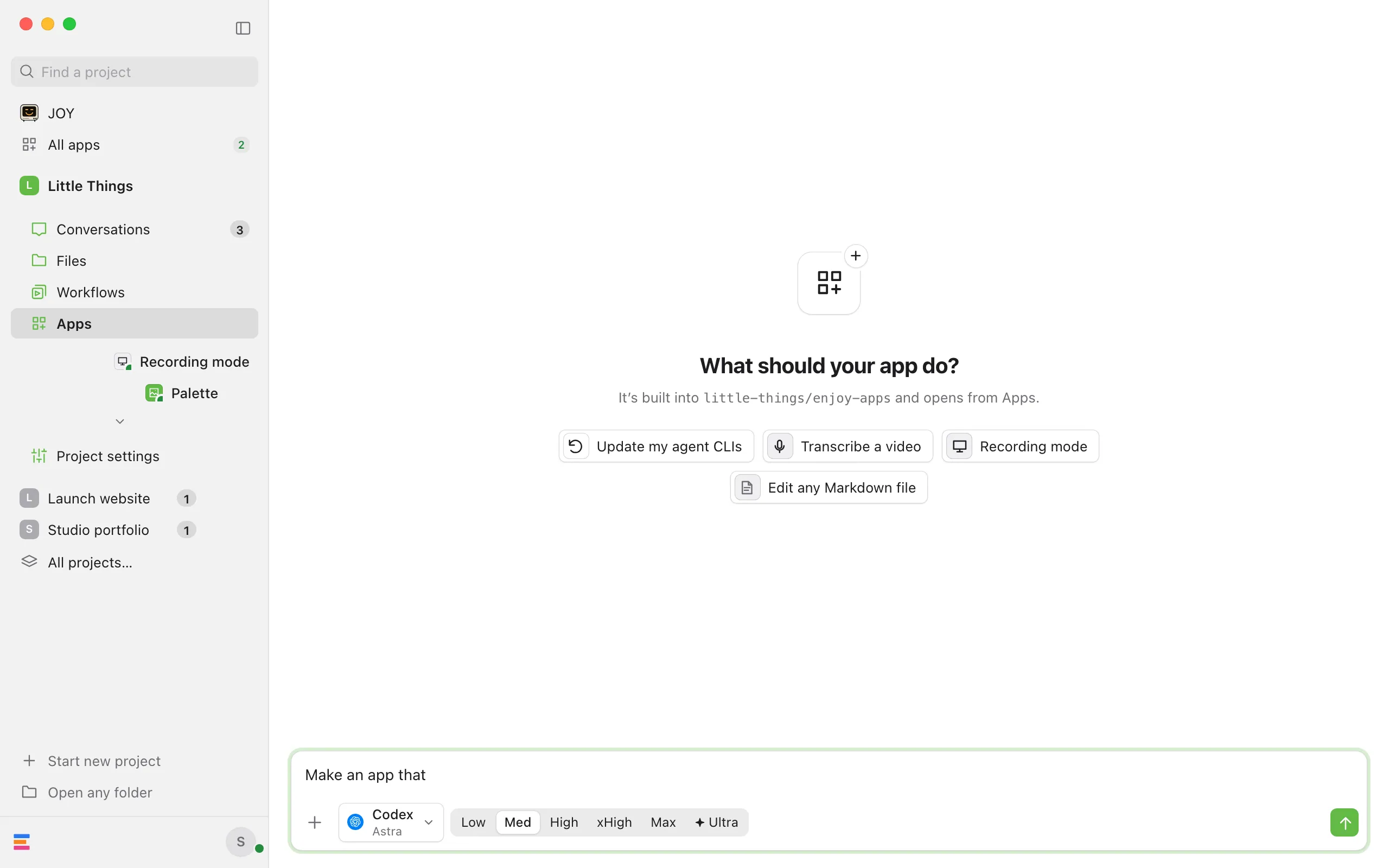
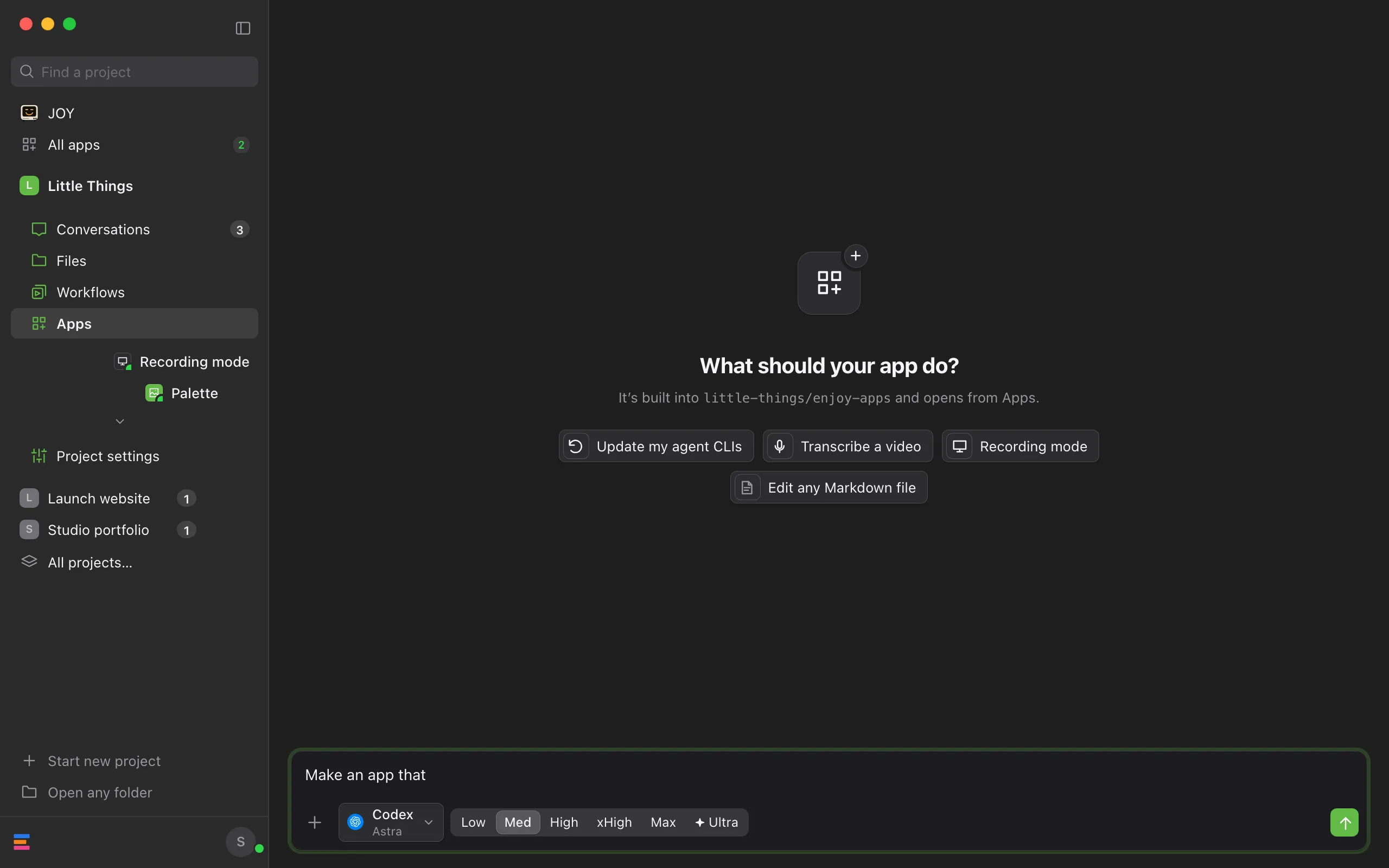
A new conversation opens under What should your app do?, and the message box already says “Make an app that “. Finish the sentence and send it. To start from an idea, select one, such as Transcribe a video. It replaces what the message box says, so you can change it before you send it.
Follow the build
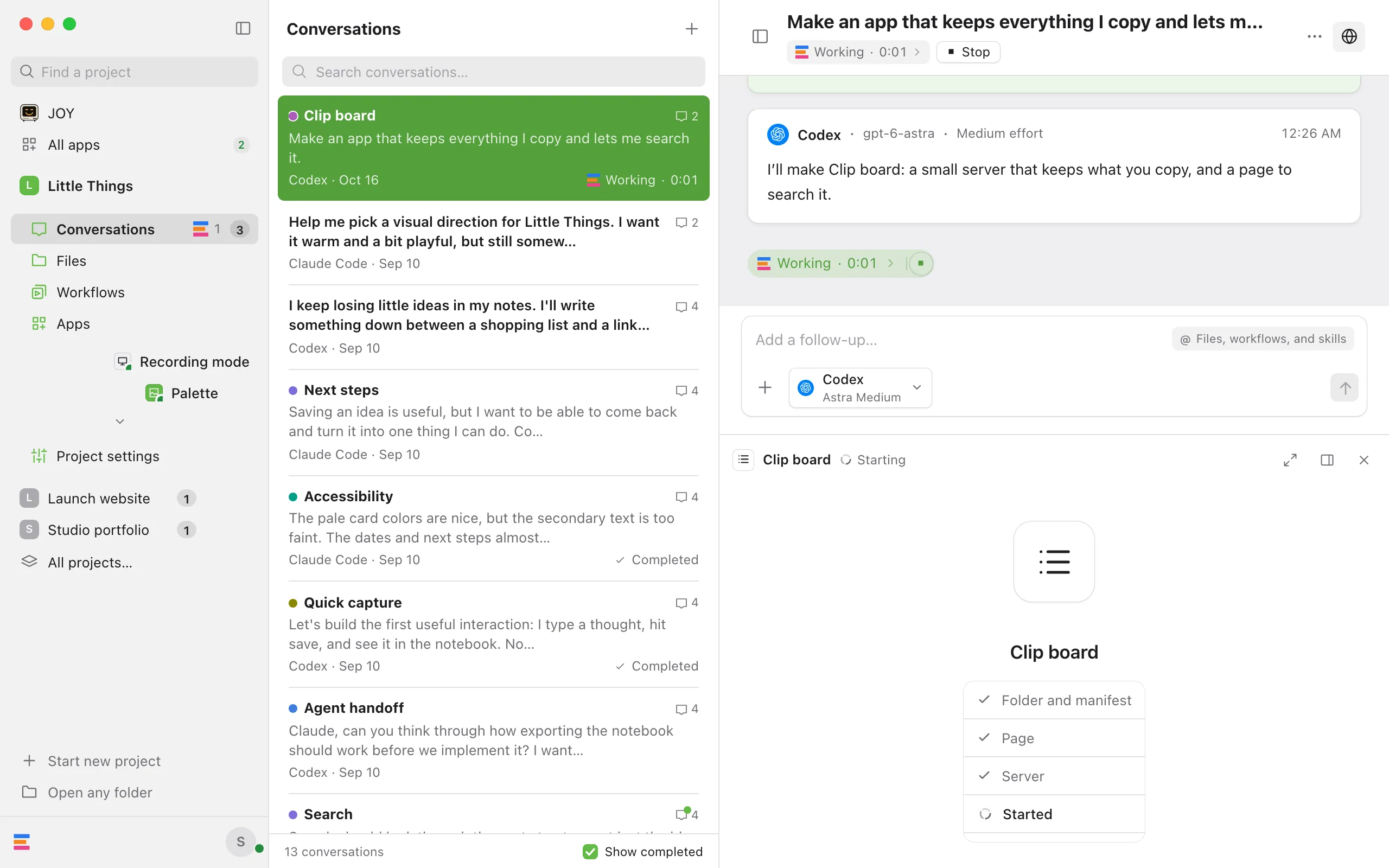
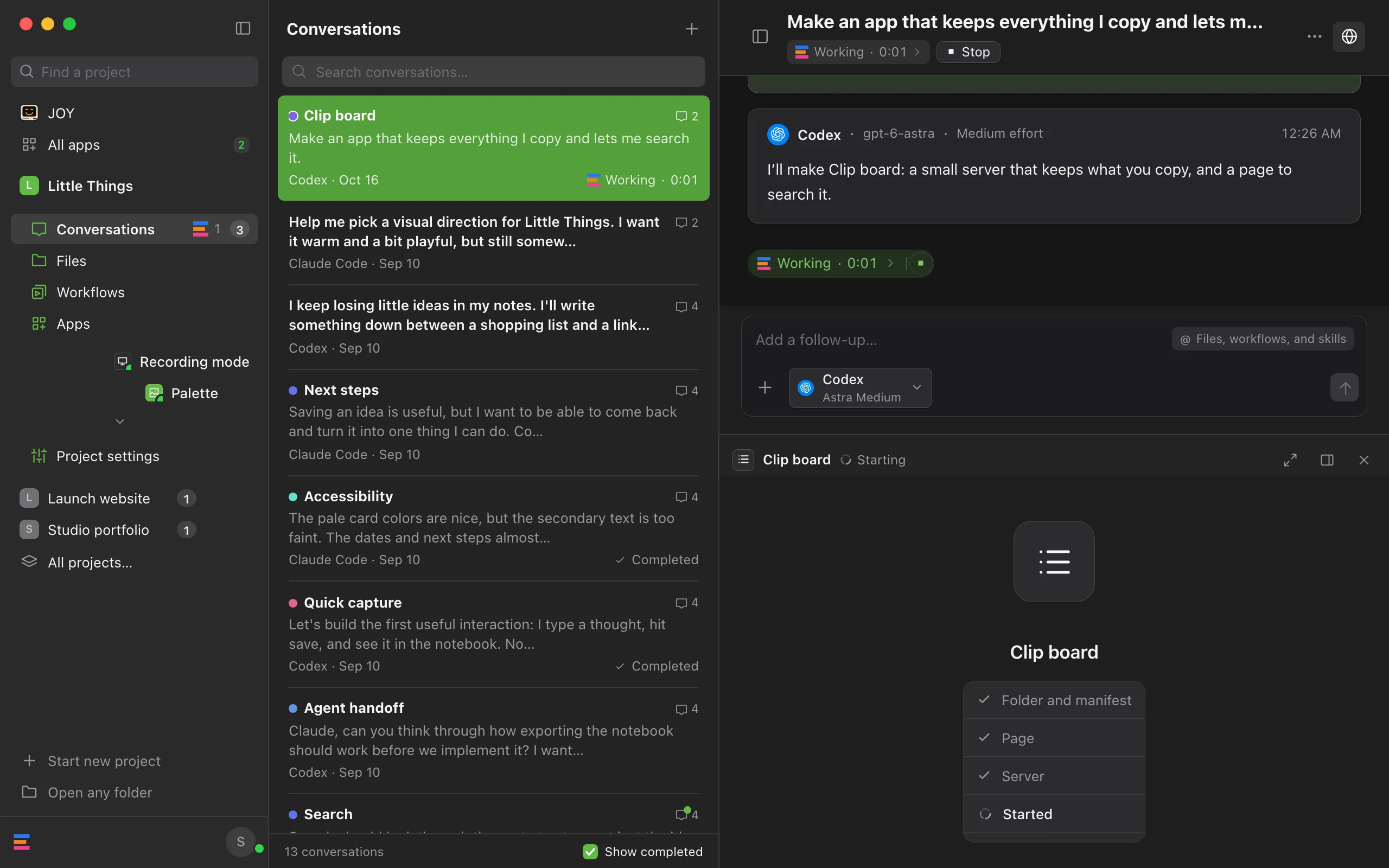
When the agent makes the app, its key and a checklist open beside the conversation: Folder and manifest, Page, Server and Packages when the app has them, Started, and Tried it. Folder and manifest gets its check as the agent makes the app. Page and Server get theirs once the app first starts, since the agent is through writing them then, and the other steps as the app installs, starts and the agent tries it.
Try it
Once the app runs, it takes the checklist’s place beside the conversation, and the agent tries it there, the way it tests a website. Select Open full size at the top of the browser to open the app in Apps.
Change it later
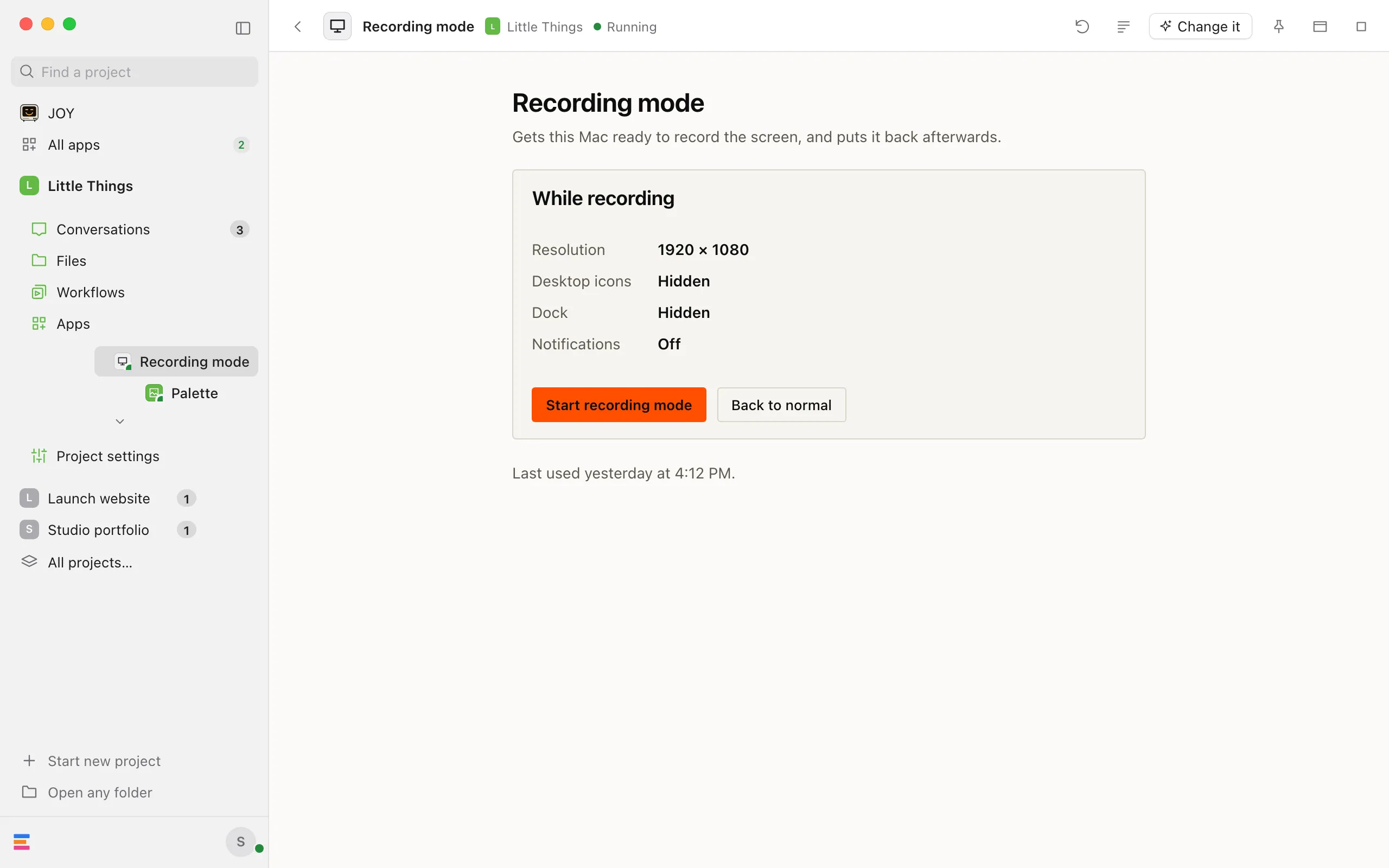
Open the app and select Change it in its bar. A new conversation starts with “Change” and the app’s name, followed by “so that “, in the project’s main folder, where the app lives. Finish the sentence and send it.
Good to know
- The four ideas are Update my agent CLIs, Transcribe a video, Recording mode, and Edit any Markdown file.
- The agent builds the app in your project folder, in
enjoy-appsand a folder named after the app, such asenjoy-apps/clip-board. - The message box under What should your app do? keeps its own draft, apart from your other new conversations, until you quit Enjoy.
- The agent starts the app it builds by itself, so you never need to approve it.
- Apps made or changed by a conversation on this computer count as seen, so they don’t show a note about new code. See Check what changed in an app.
- When the browser beside a conversation shows an app that isn’t running, Enjoy starts it, unless you stopped it or its server has code you haven’t seen. Then the browser offers Start with the app’s name instead.
- A step shows a spinner only while the app installs its packages or starts. The agent waits up to 40 seconds, then checks again.
- While the agent writes the app, the checklist rests still and says Building above it. While the agent waits for you, such as for an answer or an approval, it offers Start if the app isn’t running, installing its packages, or starting.
- If the agent finished without showing the app, the checklist offers Show followed by the app’s name. If the app couldn’t start, it offers Try again.
- Agents make and change apps only in conversations in the project’s main folder. The conversation New app starts always works there, so it offers no branch or worktree. In a worktree, an agent can open an app, but it runs the copy in the main folder.
- Hiding the browser beside the conversation doesn’t stop the build. See See your site beside the conversation.
- In the web app, New app starts the same conversation, but the checklist shows only in the computer app. Open the app from Apps when the agent is done.
If something goes wrong
The agent says the conversation can’t make apps
It asks before changing things, so it can’t make, change, or start apps. Choose a mode such as Auto or Accept edits, then ask again. You can still open an app yourself from Apps.
The agent says the conversation works in a worktree
Apps live in the project’s main folder. Select New app to start a conversation there.
A step on the checklist has a red mark
The step didn’t work, and the reason is below the checklist, such as “Clip board stopped while starting.” Select Try again, or tell the agent what you see.
New app is greyed out
You can only view this project, so you can’t start conversations in it. The computer’s owner can change that. See Change what a teammate can access.