Find a conversation's file on your computer
Enjoy saves each conversation as files on the computer that runs the project. You can open their folder to back them up, share a conversation, or read it in another app.
Before you start
- Use the computer app on the computer that runs the project. The web app and the iPhone app can’t open folders on that computer.
Steps
Open the conversation
Select it in the conversation list.
Open the menu
Select the ⋯ button (Conversation actions) at the top right of the conversation. Point to Show in Finder to see the file’s full path.
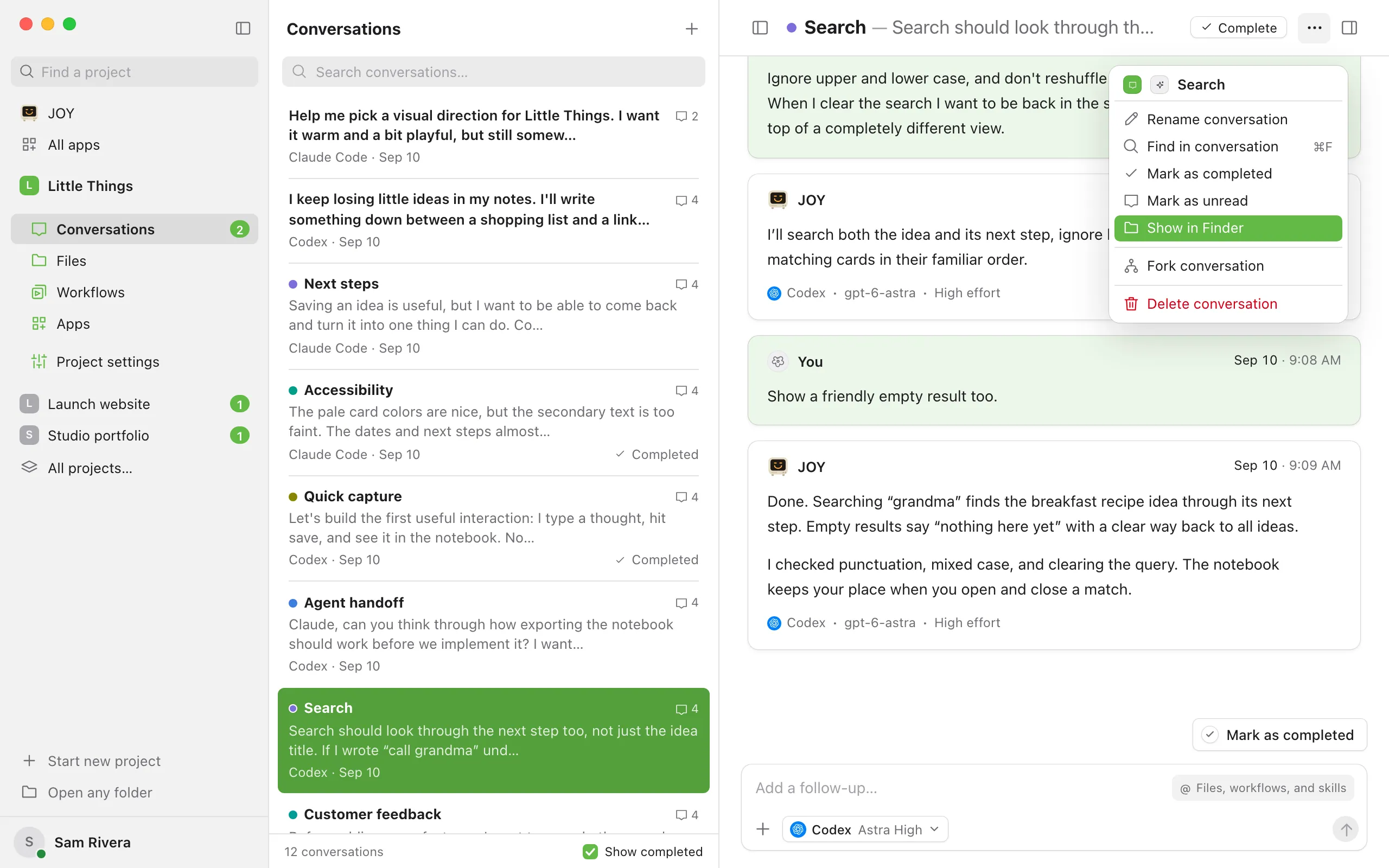
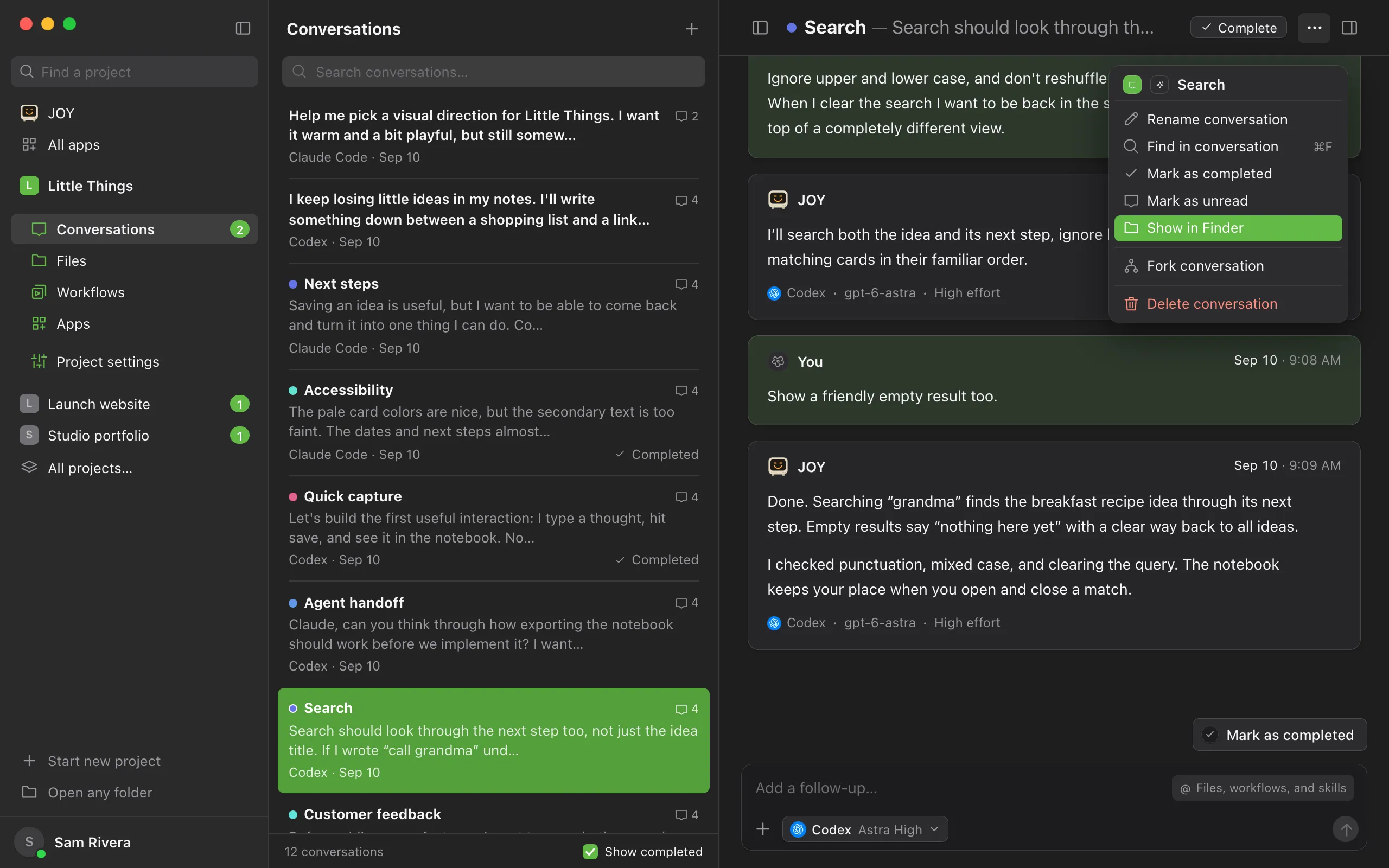
Choose Show in Finder
On Windows it’s called Show in File Explorer, and on Linux Show in file manager. A window opens with the conversation’s messages.md file selected.
Good to know
- The conversation’s folder holds messages.md and, once the agent has worked, activity.md. messages.md has the messages, the conversation’s settings, and its status. activity.md has a short summary of each step the agent took.
- Both files are plain text in a format called YAML, so any text editor can open them.
- The folder is in the project’s storage, outside your project folder, so branches and older versions of your project never change your conversations. Each conversation’s folder is named after its ID, inside a folder called threads.
- By default, project storage is in Enjoy’s own app data. On a Mac, that’s in ~/Library/Application Support/app.enjoy.desktop/projects. You can move it in Project settings. See Choose where a project’s conversations are stored.
- Attachments you add to messages are saved in the same storage, in a folder called attachments.
- On narrow windows, the ⋯ menu also has Conversation details, which shows where the file is under File. Select the file there to show it in its folder.
If something goes wrong
“Unable to show the conversation in its folder”
The file may have moved, or the project’s storage folder isn’t available, for example on a disconnected drive. Check the storage location in Project settings. See Choose where a project’s conversations are stored.
Show in Finder isn’t in the menu
You’re using the web app, or a project on another computer. Open the project in the computer app on the computer that runs it.