Check how much usage you have left
Agent plans limit how much you can use them in a period, such as five hours or a week. Enjoy asks the agent for its current limits each time you open the agent settings.
Before you start
- Use the Enjoy app on your computer. The web app shows Usage unavailable, and the iPhone app doesn’t show usage.
- Sign in to the agent. See Sign in to an agent.
Steps
Open the agent settings
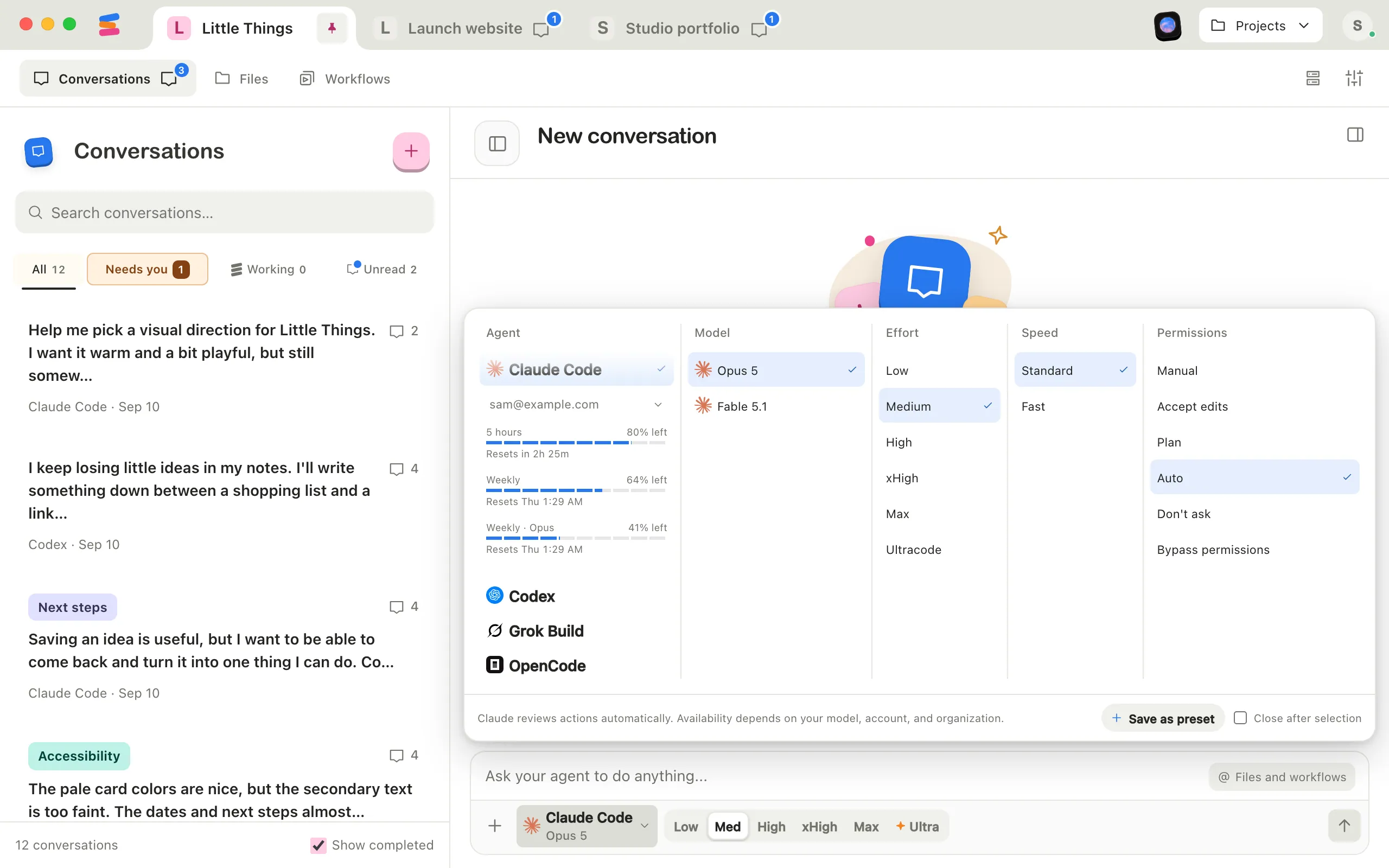
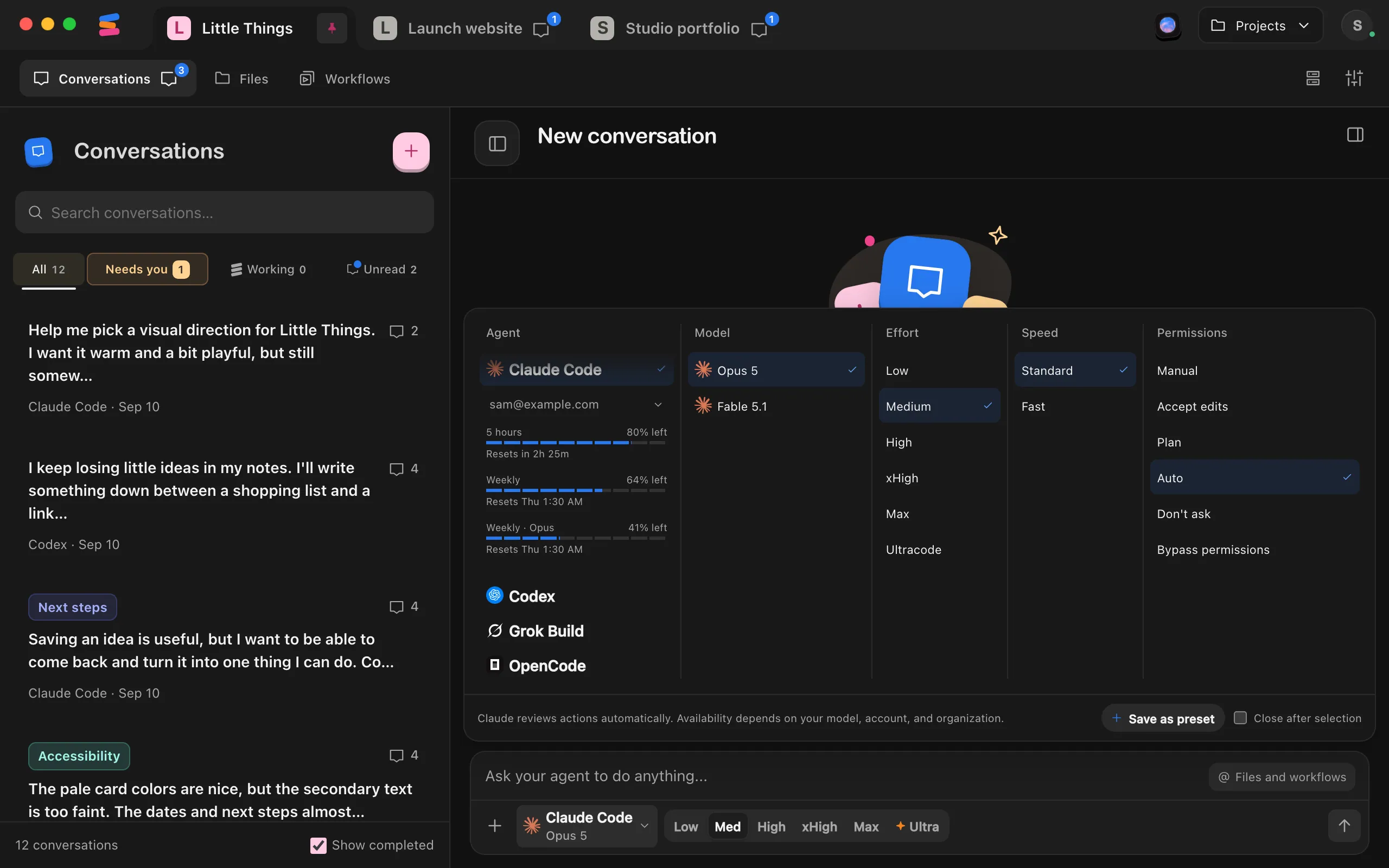
At the bottom of the message box, select the agent button.
Look under the selected agent’s name
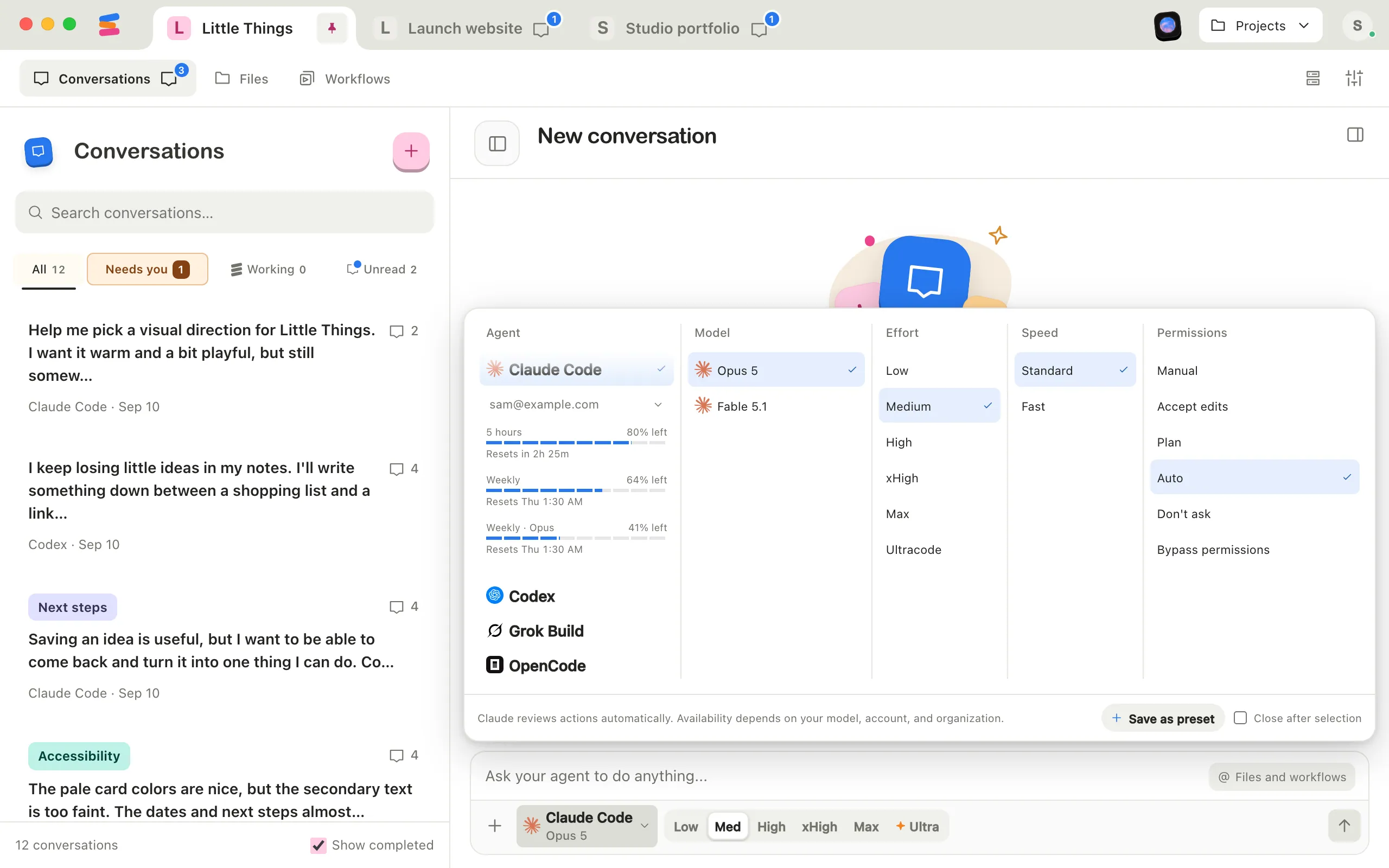
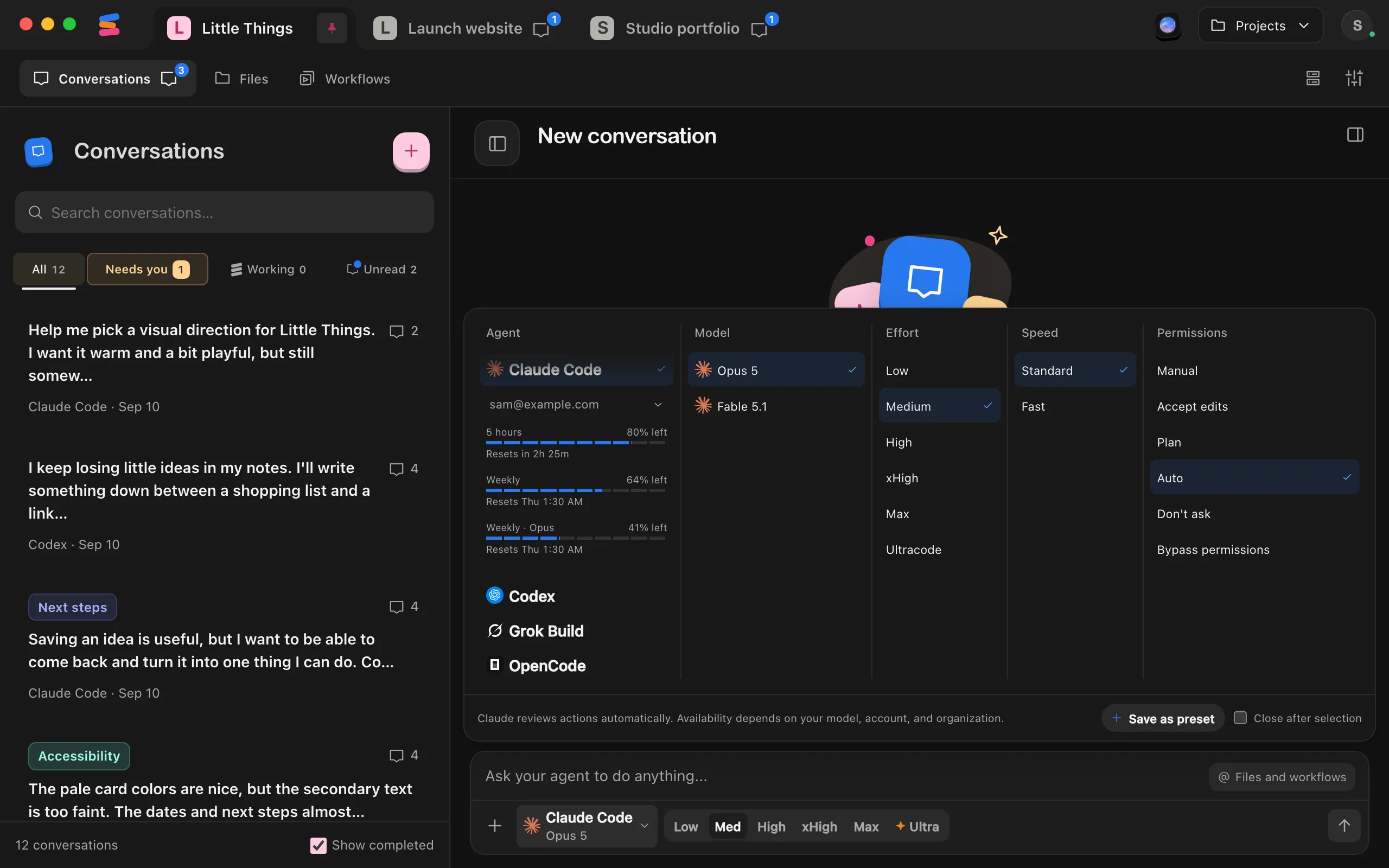
Each bar is one limit, with its name and how much is left, such as 5 hours and 80% left.
See when each limit resets
Under each bar, Resets shows when it fills back up: a countdown for the five-hour limit, such as in 2h 14m, and a day and time for longer limits, such as Thu 9:00 AM. Point to the time to see the full date.
Check another agent if you like
Select it in the Agent column, and its usage appears under its name. This also switches your next message to that agent, so switch back afterward if you want.
Good to know
Compare your saved accounts
Select the account name above the bars. Each signed-in account in the menu shows the same usage bars, including any model-specific limits and credits. You can compare how much is left, and when each limit resets, before choosing an account.
Enjoy reads the other accounts when you open the menu, without switching the project’s account. They show Loading usage… while their numbers arrive. A signed-out account shows Sign in instead of bars; if a usage check fails, point to Usage unavailable to see why and reopen the menu to retry.
What each agent shows
- Claude Code: 5 hours and Weekly, plus separate weekly limits when your plan has them, such as Weekly · Opus.
- Codex: the limits Codex reports for your plan, named by their length, such as 5 hours or Weekly, plus Credits when you have credits and the number of free resets you have, such as 2 resets.
- Grok Build: one bar, named Weekly or Subscription.
- Antigravity: weekly and five-hour limits for each group of models.
- OpenCode: Usage unavailable. OpenCode’s usage depends on the providers you set up in it, so check with each provider.
- Muse Code: your subscription’s limits, such as 5 hours and Weekly. Muse Code learns them when it replies, so they appear once it has replied to a message in the project. Enjoy then keeps the latest numbers, faded, until each limit resets. Before that, you see Usage unavailable. With an API key, Muse Code has no limits to show.
Reading the bars
- A bar turns orange when 10% or less is left. Its Resets line turns orange once the limit runs out, so you can see when it’s back.
- Bars look faded while Enjoy is getting fresh numbers. If they stay faded, Enjoy couldn’t refresh them and is showing the last numbers it had. Point to them to see why.
- The bars under the selected agent are for the account this project uses. The account menu shows each saved account’s own limits. See Use a different account in each project.
- Enjoy checks usage when you open the agent settings or account menu, and when a conversation starts waiting for usage without the agent saying when it resets. After each turn, it also asks the agent for its usage, for AI plans in Your account and to tell you when a smaller plan would do. See Find out when a smaller plan would do. It doesn’t check usage between turns.
Use a free reset
OpenAI sometimes gives Codex accounts free resets. Using one refills your Codex usage limits right away. When you have some, a line under the bars says how many, such as 2 resets. Point to it to see the date you need to use the next one by.
- Select Use next to the number of resets.
- Enjoy says what happens: Refills your usage limits now, how many resets you’ll have left, and when this one expires. If you haven’t run out yet, it says how much you still have, such as You still have 38% left on Weekly.
- Select Use reset, or Keep it to save it for later. The bars refill, and the line says Limits refilled with how many resets are left. Conversations in this project that are waiting for Codex usage continue right away.
Enjoy shows free resets for Codex only. Use Claude Code’s resets in Claude’s own apps.
If something goes wrong
Not authenticated
The agent’s sign-in has expired or was removed. Select Sign in below it.
Usage unavailable
The agent didn’t report usage for your account. Point to Usage unavailable to see the agent’s reason. Accounts that use an API key instead of a plan often have no limits to show.
Couldn’t reset usage
Enjoy shows the reason Codex gave. Select Try again. Trying again repeats the same request, so it can’t use up a second reset. Other messages you might see:
- Your limits are already full · nothing was used: you hadn’t used any of your limits, so the reset was kept.
- That reset was already used: an earlier try went through. Reopen the agent settings to see your refilled limits.
- No resets left: the reset expired or was used somewhere else, such as in the Codex app.
A conversation is waiting for usage
When an agent runs out of usage, the conversation shows Waiting for usage and continues on its own after the limit resets. To keep going sooner, carry on with another account or agent:
- If you have a free reset, select Use a reset on the waiting conversation. See Use a free reset.
- After you switch to another account, select Resume now on the waiting conversation. See Switch between agent accounts.
- To use a different agent, select Stop waiting, then choose the agent in the message box. The conversation offers Retry with followed by the agent’s name and any other settings you changed. It tries again with them.
For more, see What to do when an agent runs out of usage.