See what's new in Enjoy
Steps
Open the Help menu
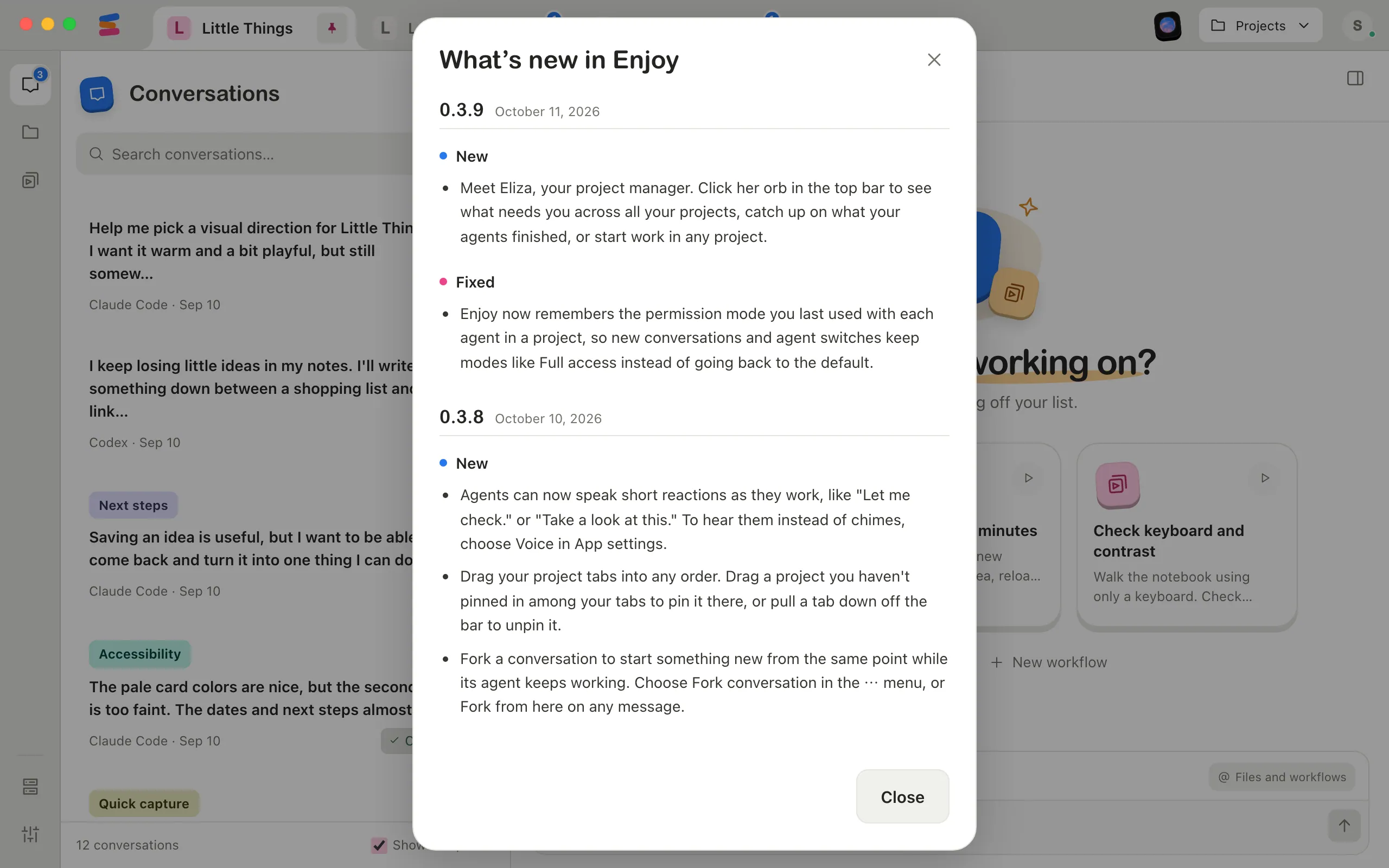
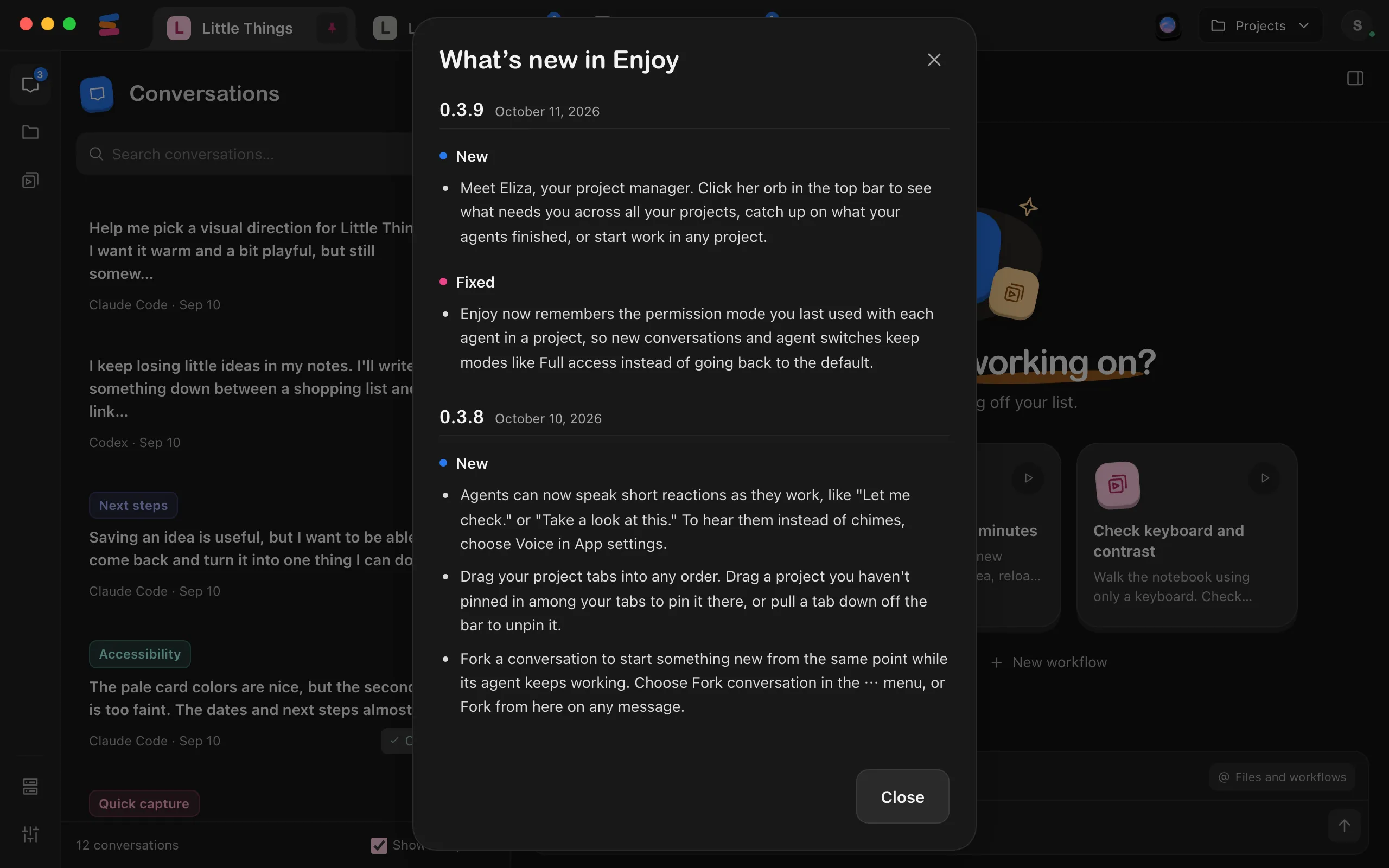
Choose View release notes. On a Mac, Help is in the menu bar at the top of your screen. On Windows, select the three-line menu button in the top-left corner of Enjoy first. On Linux, Help is in the menu bar of the Enjoy window. A window titled What’s new in Enjoy opens inside the app.
Read the notes
Each version has its own section, newest first, with the date it was released. Within a version, changes are grouped under New, Improved, and Fixed. A version’s number stays at the top of the window while you scroll through its changes. A change that only applies to one system starts with its name, such as Mac:.
Close the window
Select Close when you’re done.
Good to know
- If an update is downloading or ready, the window shows only that update’s notes, with its version in the title. Once the update is ready, the window also has Restart to update. Otherwise it shows every version up to the one you have.
- The update panel lists a ready update’s first few changes, and Show all changes shows the rest right there, so you can read about an update before restarting. See Update Enjoy.
- Right after an update, Enjoy updated successfully appears for five seconds. Select Show release notes there to read about the version you installed.
- Select All releases to open the full release history on GitHub in your web browser.
- The notes come with the app, so they open even without an internet connection.
If something goes wrong
Release notes aren’t available for this update.
The update didn’t include notes. If View this release on GitHub appears, select it to read about the release in your browser.
Couldn’t open your browser. Try the link again.
Enjoy couldn’t open All releases or the GitHub link. Select the link again.