Use Grok Build
Grok Build signs in with your Grok or X account. During Enjoy’s first setup, it appears as Grok from SpaceXAI.
Before you start
- Use the Enjoy app on your computer to install and sign in. After that, you can also use Grok Build from the web app.
Steps
Install Grok Build
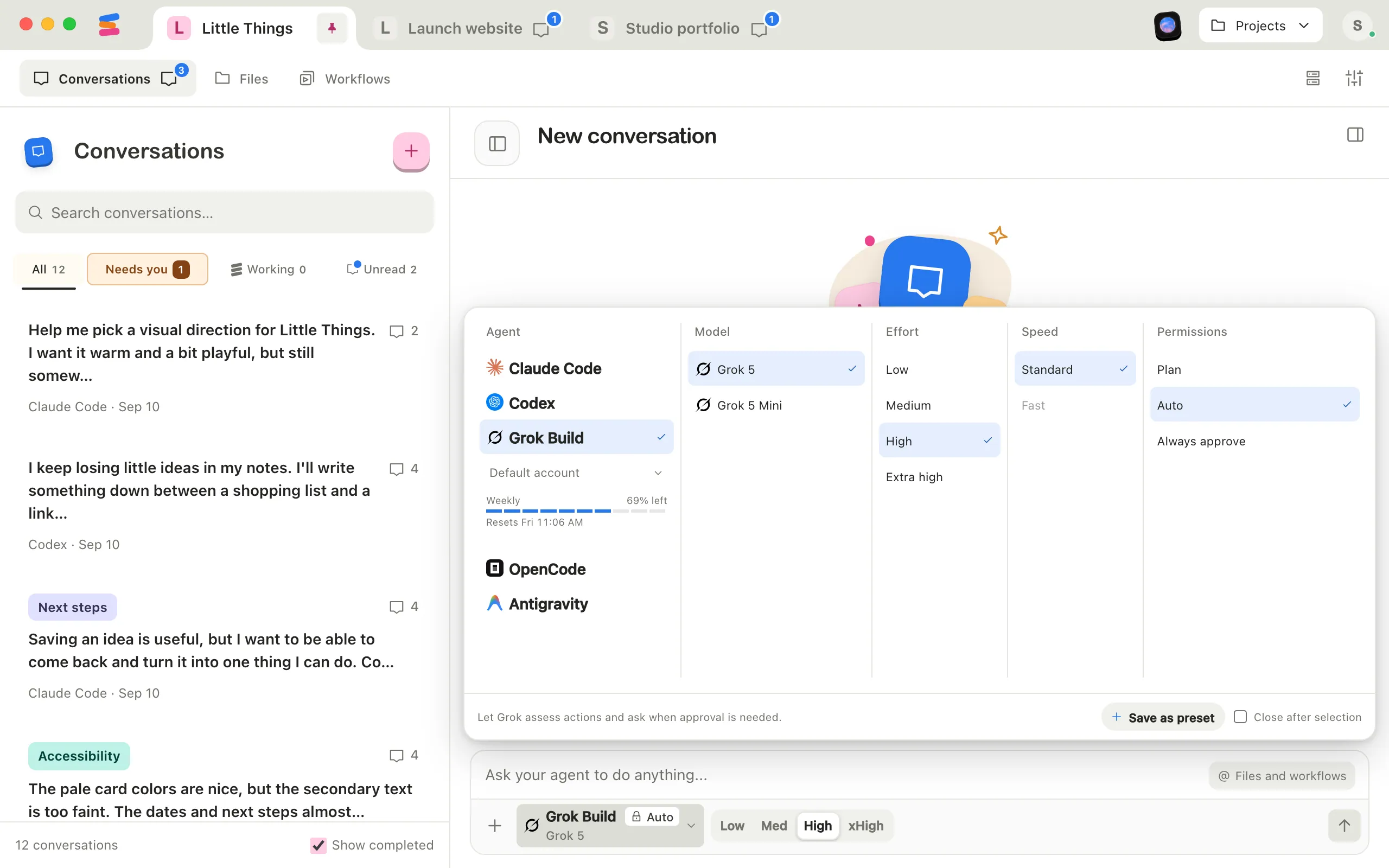
Select the agent button at the bottom of the message box, select Grok Build in the Agent column, then select Install Grok Build. When it’s done, select Use Grok Build. See Install an agent.
Sign in
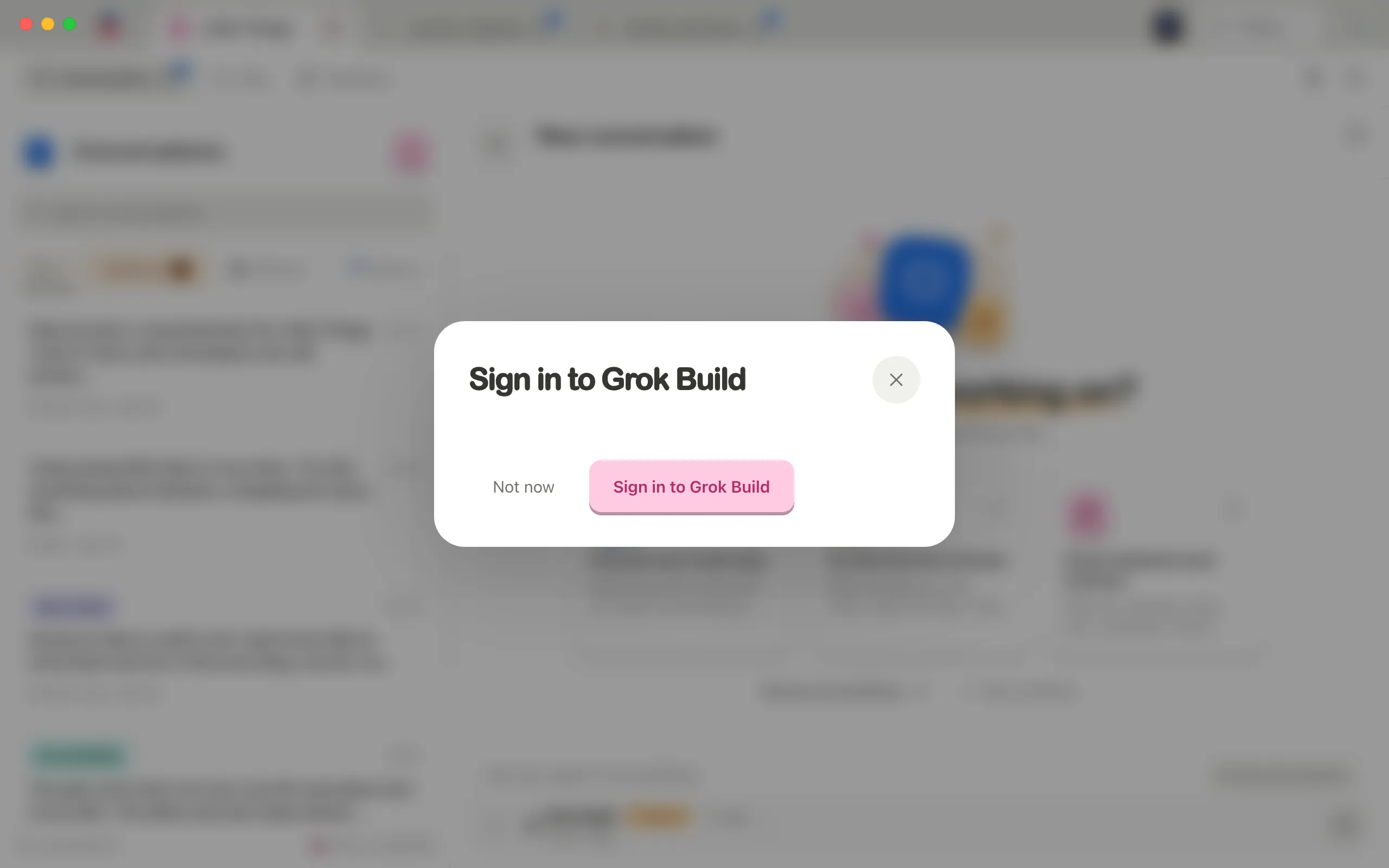
In the Sign in to Grok Build window, select Sign in to Grok Build. In your browser, sign in to your Grok or X account and approve the request.
Choose an effort level
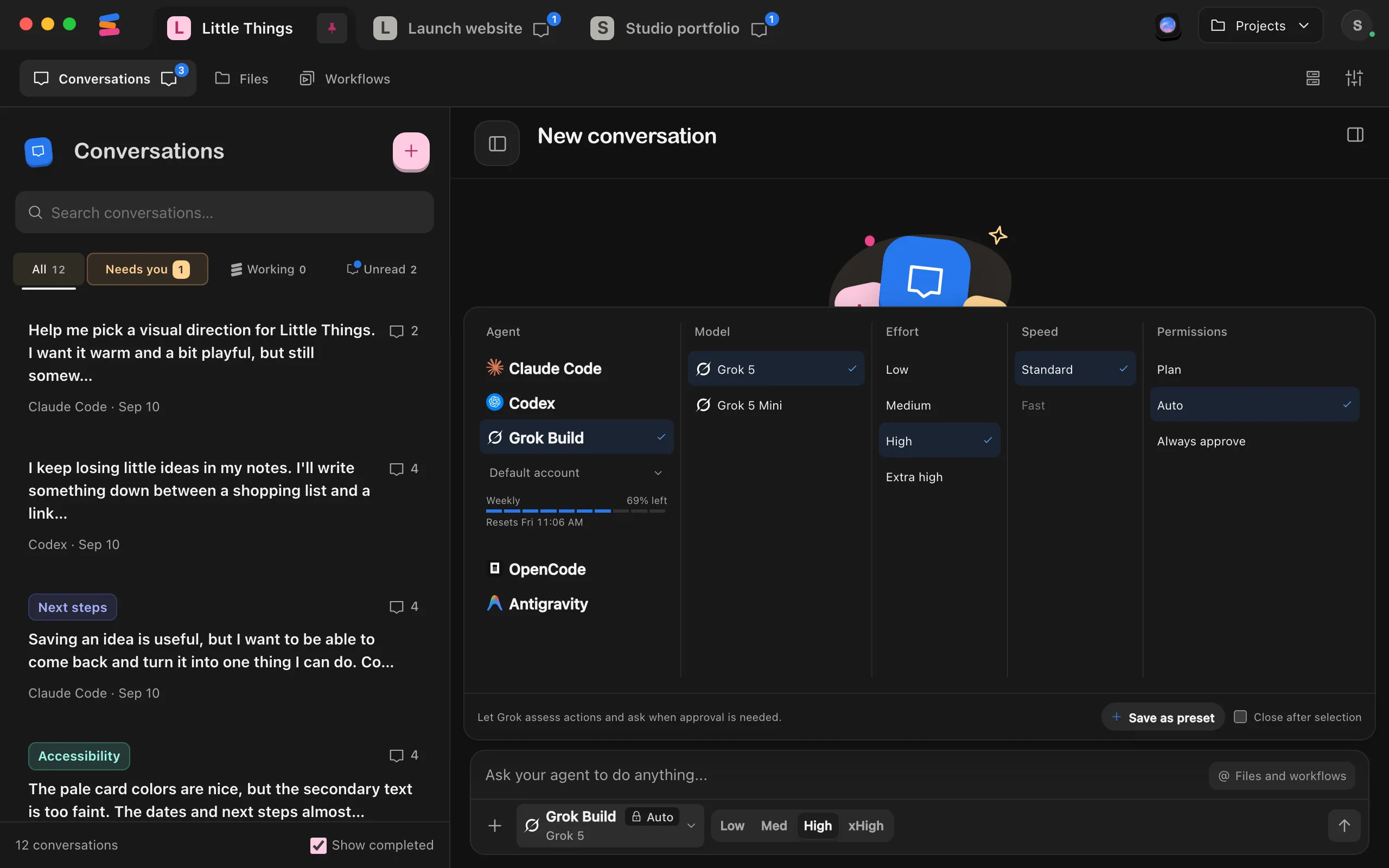
Grok Build offers Low, Medium, High, and Extra high. High is its default.
Choose a permission mode
Plan prepares a plan before implementing. Auto, the default, lets Grok judge each action and ask you when approval is needed. Always approve lets its tools run without asking.
Send your message
Grok Build starts working with the settings you chose.
Good to know
- Grok Build doesn’t have Fast mode.
- Usage shows one bar, named Weekly when your limit resets each week, or Subscription otherwise. Below it, Resets shows when it fills back up.
- Grok Build can keep several accounts signed in, but it doesn’t tell Enjoy which account is which. Its accounts are numbered, such as Account 2, so make sure you sign in with a different account when you add one. See Switch between agent accounts.
- When Grok Build asks permission to use Enjoy’s own tools, Enjoy answers for you, so the approval cards you see are only for other actions.
- You can attach images to Grok Build conversations.
- If you send a message while Grok Build is working, it waits until the current work ends.
- The agent button shows Plan or Auto as a badge. Always approve has no badge.
- Enjoy runs Grok Build with its automatic updates turned off and tells you about new versions instead. See Update an agent.
If something goes wrong
Could not authenticate Grok Build
The message says to sign in with grok login. Select Sign in under Grok Build in the agent settings instead, or follow the sign-in steps for Grok Build to sign in from a terminal.
Subscription usage is unavailable for this Grok account
You see this when you point to Usage unavailable under Grok Build. Grok didn’t report usage for your account. Your conversations still work. Check your usage with Grok directly.