Use Antigravity
Antigravity is Google’s coding agent, and you sign in with your Google account. Enjoy can’t show Antigravity’s own approval requests, so its permission modes decide up front what it may do.
Before you start
- Use the Enjoy app on your computer to install and sign in. After that, you can also use Antigravity from the web app.
Steps
Install Antigravity
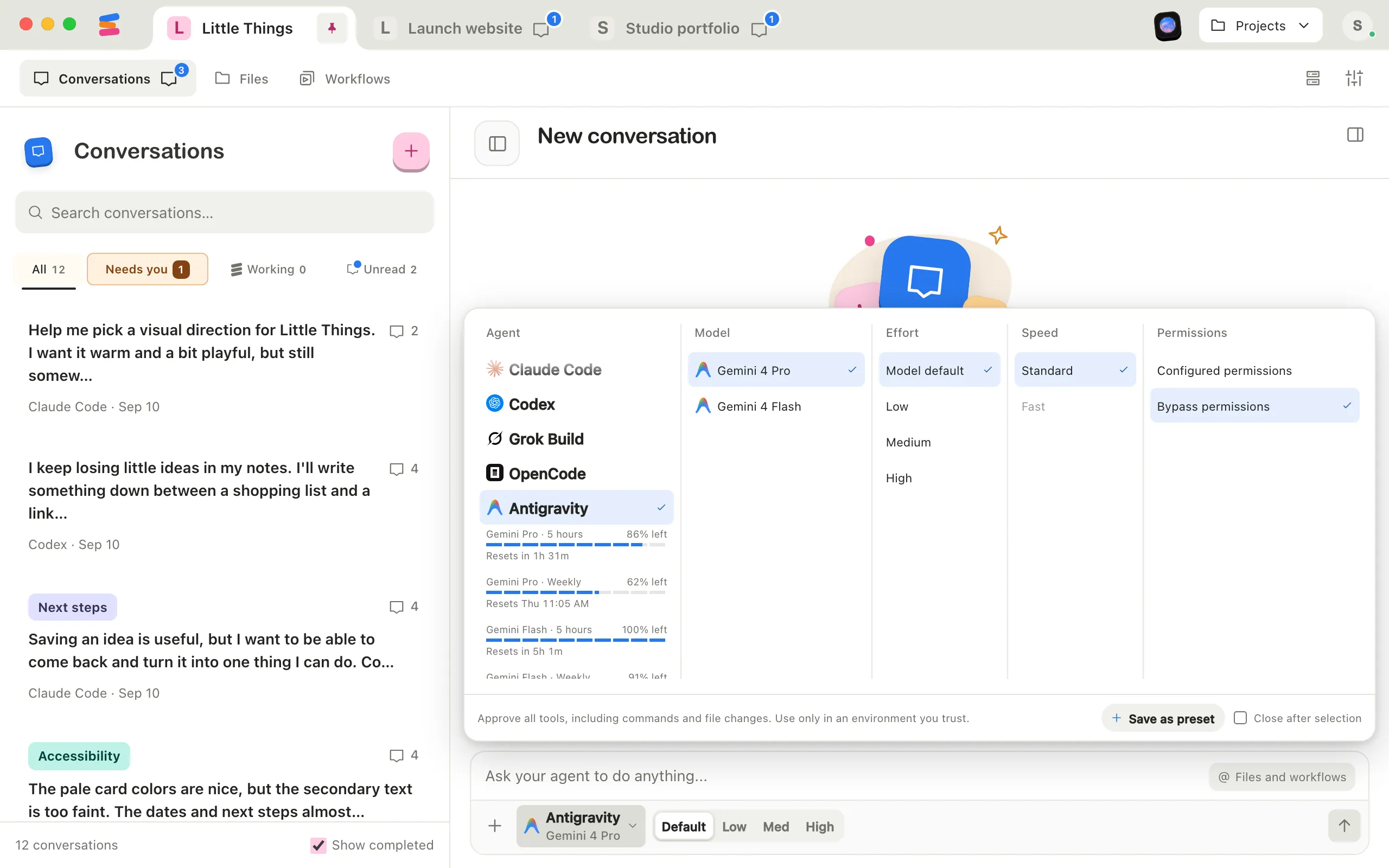
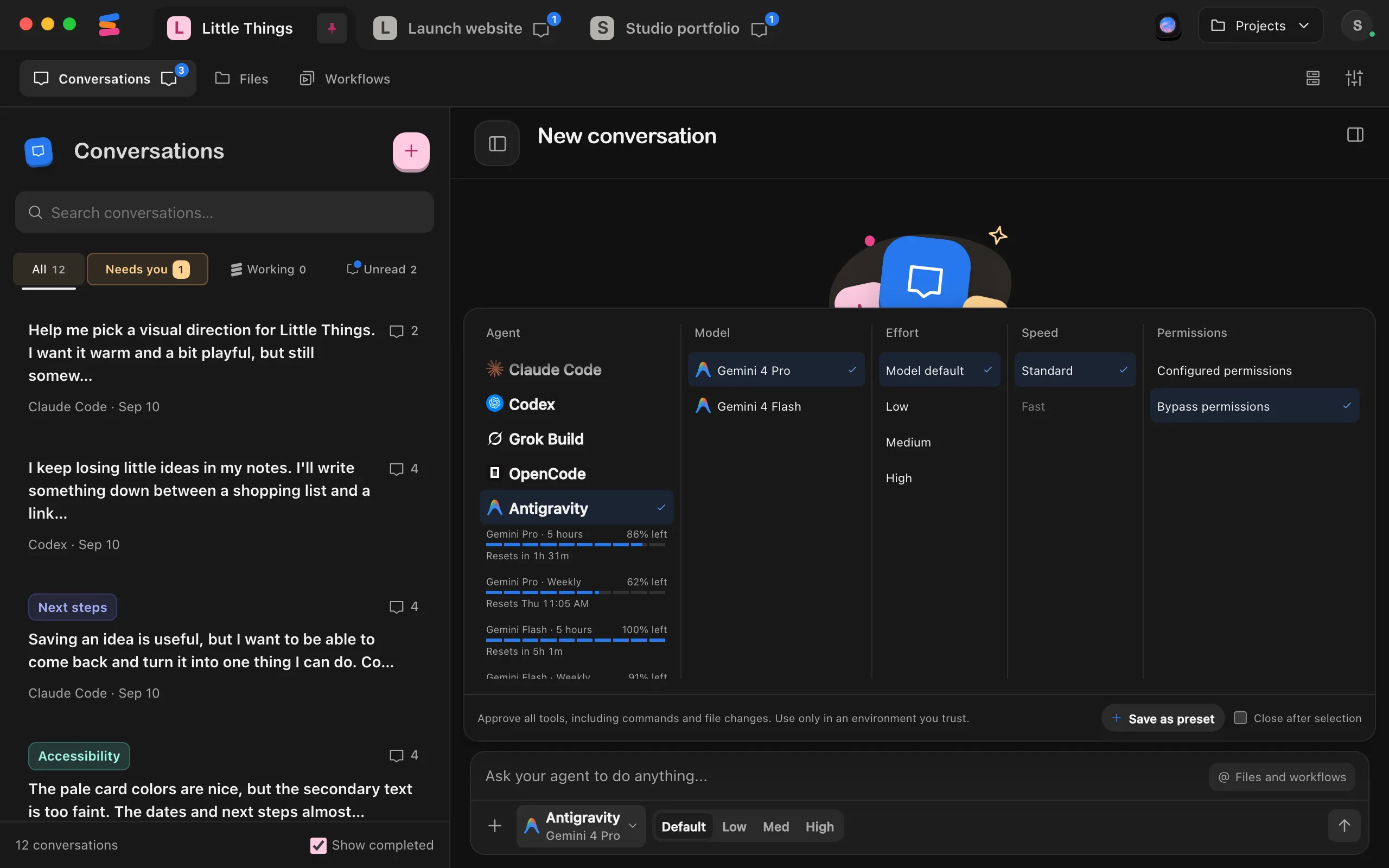
Select the agent button at the bottom of the message box, select Antigravity in the Agent column, then select Install Antigravity. When it’s done, select Use Antigravity. See Install an agent.
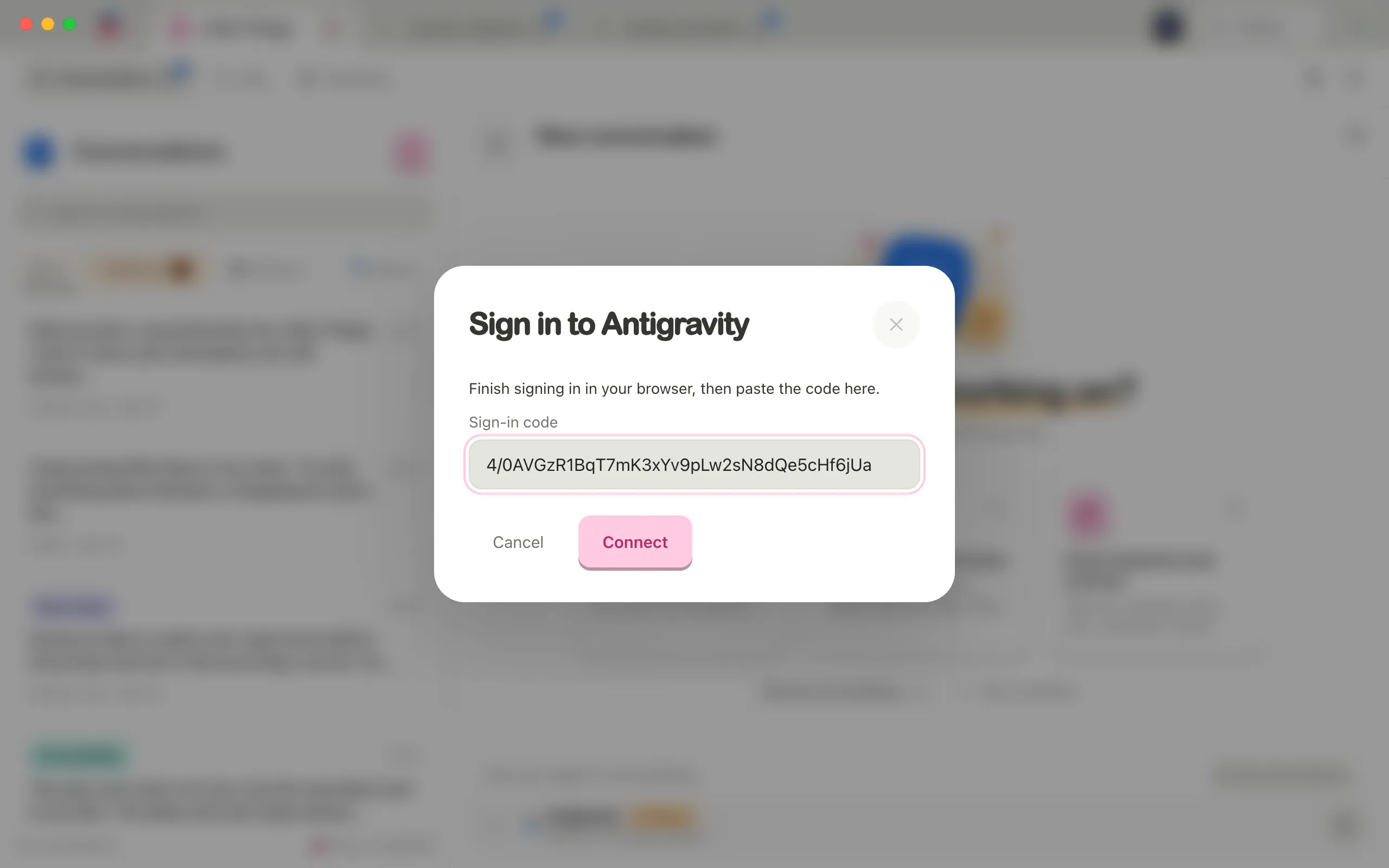
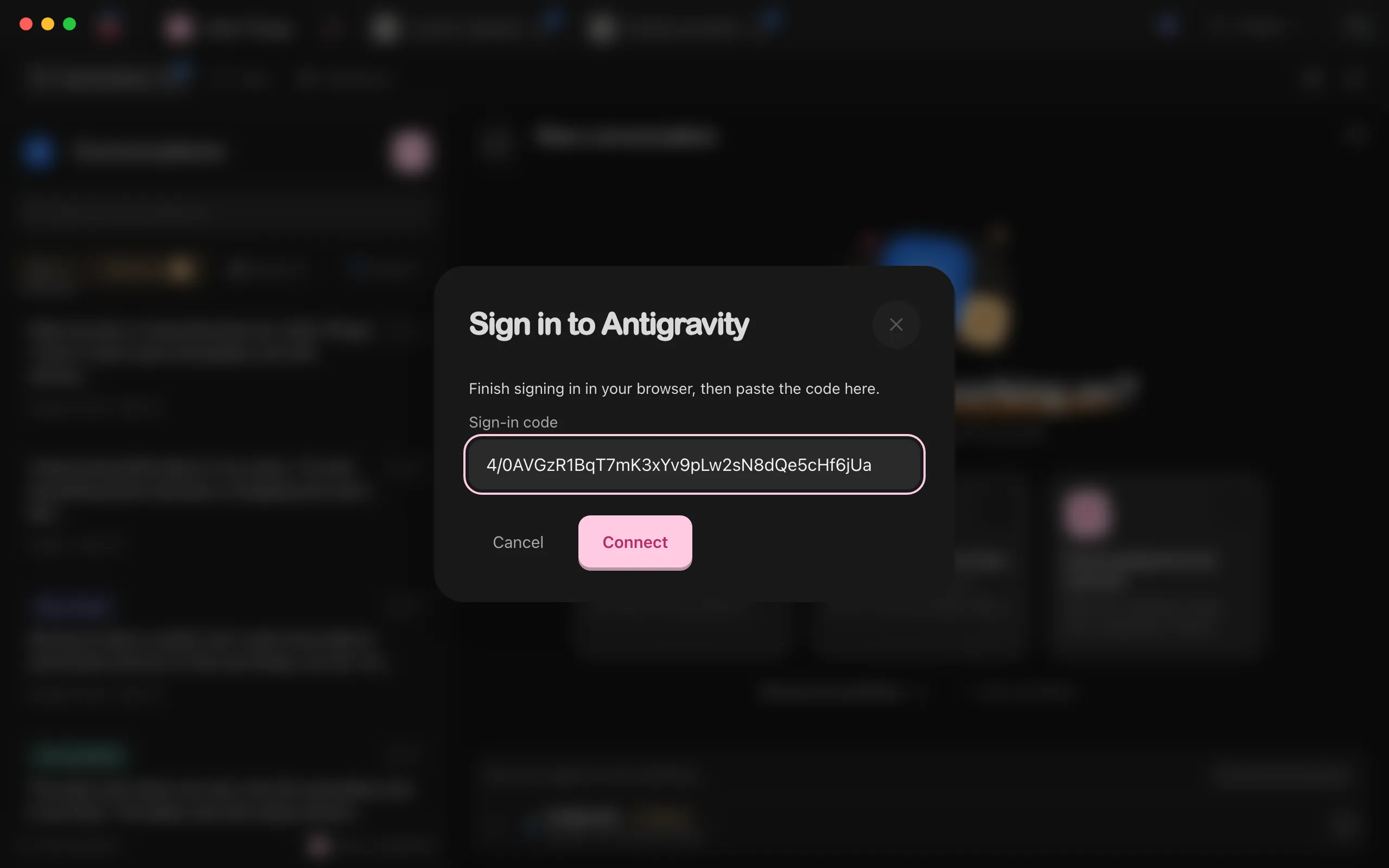
Select Sign in to Antigravity
The Sign in to Antigravity window opens on its own. Select its sign-in button, and Antigravity opens Google’s sign-in page in your browser.
Sign in with Google and copy the code
After you sign in, the page shows an authorization code. Copy it.
Paste the code and select Connect
In Enjoy, paste the code into Sign-in code, then select Connect. Enjoy shows Finishing sign-in… until Antigravity is ready.
Choose a permission mode
In the Permissions column, keep Bypass permissions or choose Configured permissions.
Send your message
Antigravity starts working with the settings you chose.
Good to know
- Bypass permissions, the default, approves every tool, including commands and file changes. Use it only for projects you’re comfortable letting the agent change freely.
- Configured permissions follows the permission rules in Antigravity’s own settings. Edits inside your project are allowed by default, and actions that would need approval are skipped. When Antigravity needs approval anyway, the request stops and asks you to choose another agent. See Antigravity’s permission rules.
- While Configured permissions is on, the agent button shows a Configured badge.
- Enjoy adds a rule to Antigravity’s settings that lets it use Enjoy’s tools, without changing your other rules.
- Effort levels are Model default, Low, Medium, and High. Antigravity doesn’t have Fast mode.
- You can attach images, and Antigravity reads them from saved copies.
- The usage under Antigravity in the agent settings shows weekly and five-hour limits for each group of models, with their reset times.
- Antigravity uses one account in every project. To change it, see Change an agent’s account by signing out.
- Changing the model, effort, or permission mode restarts Antigravity for your next message, and it picks up the same conversation.
- Stopping Antigravity ends its program. Your next message picks the conversation up again.
- If you send a message while Antigravity is working, it waits until the current work ends.
- While Antigravity retries after an error, such as running out of usage, its activity shows Antigravity reported an error.
If something goes wrong
We couldn’t use that code
Copy the whole code from the browser page again, paste it into Sign-in code, and select Connect. To start over, cancel and select Sign in to Antigravity again.
Antigravity took too long to connect
The message says Try signing in again. Sign in again from the agent settings, then resend your message.
Antigravity needs permission for this action
Antigravity hit an action that needs approval, which it can’t ask for inside Enjoy. Switch to Bypass permissions if you’re comfortable with that, or allow the action in Antigravity’s permission rules. You can also continue with another agent.
Your Antigravity permissions are blocking Enjoy’s tools
A rule in Antigravity’s settings denies Enjoy’s tools. Remove that rule, or continue with another agent.
Antigravity couldn’t load your models
Close the agent settings and open them again. If it keeps happening, sign in again.