Let Claude Code use your Chrome browser
Enjoy turns on Claude’s Chrome connection in every Claude Code conversation, the same as running Claude with its Chrome option in a terminal. Claude then works in tabs in your normal browser, which already has your sign-ins. Enjoy does this only for Claude Code.
Before you start
- Sign in to Claude Code with a paid Claude plan: Pro, Max, Team, or Enterprise. Chrome doesn’t work when Claude Code uses an API key.
- Use Google Chrome, Microsoft Edge, or another browser built on Chrome, such as Brave, Arc, Vivaldi, or Opera.
Steps
Install the Claude in Chrome extension
In your browser, open Claude in Chrome in the Chrome Web Store and select Add to Chrome.
Sign in to the extension
When it asks, sign in with your Claude account and give it the permissions it requests.
Ask Claude to use your browser
Keep the browser open. In a Claude Code conversation in Enjoy, ask in your own words, for example: “Open my shop’s admin page in Chrome and check today’s orders.”
Approve browser actions if Enjoy asks
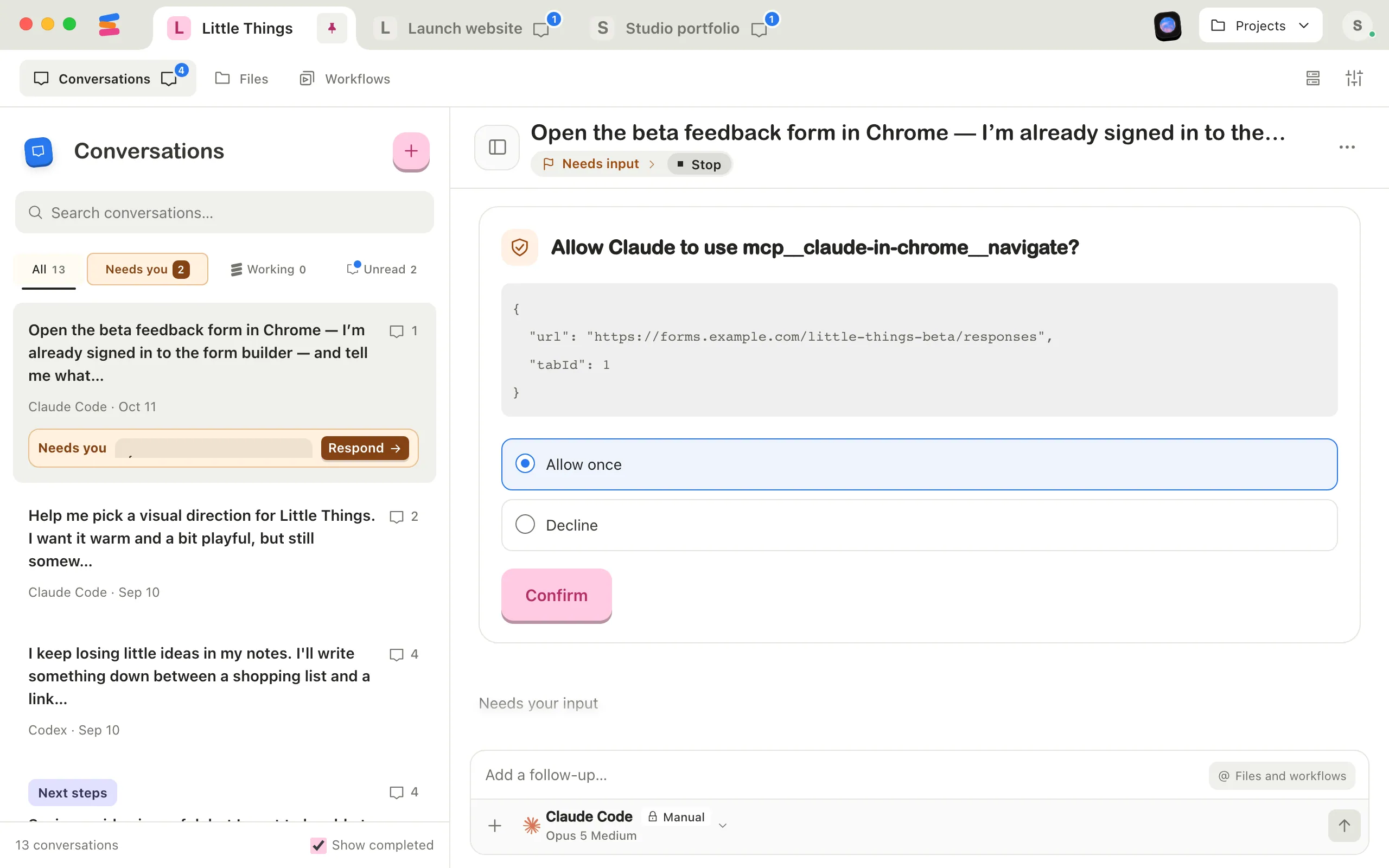
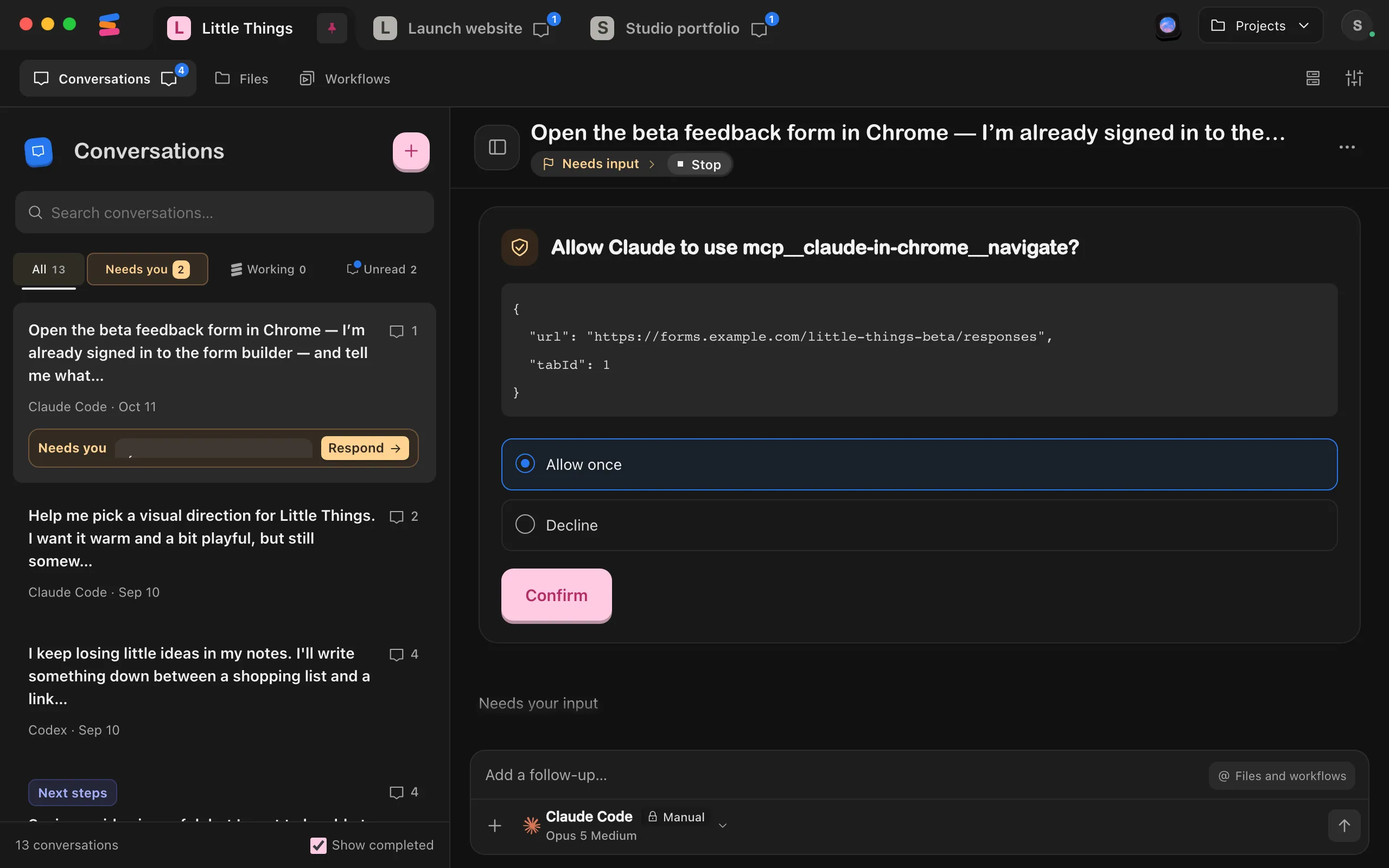
Depending on your permission mode, an approval card asks whether Claude may use a browser tool. Select Allow once, then Confirm. Claude then opens a tab and works in it where you can watch.
Good to know
- Claude shares your browser’s sign-ins, so it can reach any site you’re signed in to. Ask only for what you’re comfortable with it doing in those accounts.
- When Claude reaches a login page or a CAPTCHA, it pauses and asks you to handle it.
- The extension’s own site permissions also apply. You manage them in the extension’s settings.
- For websites your agent builds, agents normally use Enjoy’s preview browser. It keeps its own sign-ins, separate from Chrome. See How agents use the built-in browser.
If something goes wrong
Claude says the extension isn’t connected
The first time, quit your browser and open it again so it notices Claude. Then check that the extension is turned on at chrome://extensions, keep the browser open, and ask Claude again. If it still can’t connect, update Claude Code.
Claude says Chrome isn’t available
Claude Code may be signed in with an API key, or with an account without a paid Claude plan. Sign in with your Claude account. See Switch between agent accounts.