Confirm your email with a code
You’ll meet the code in these places:
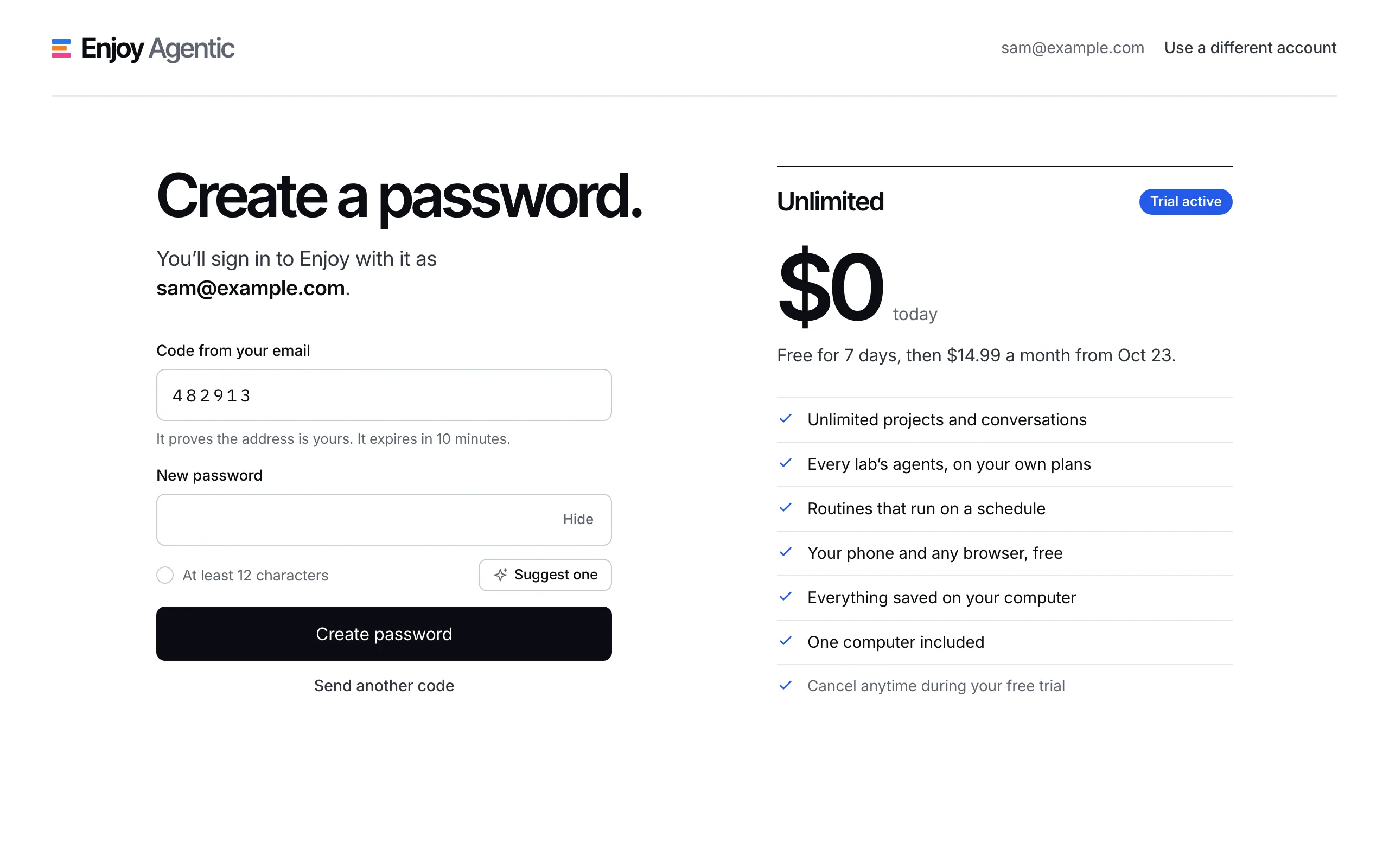
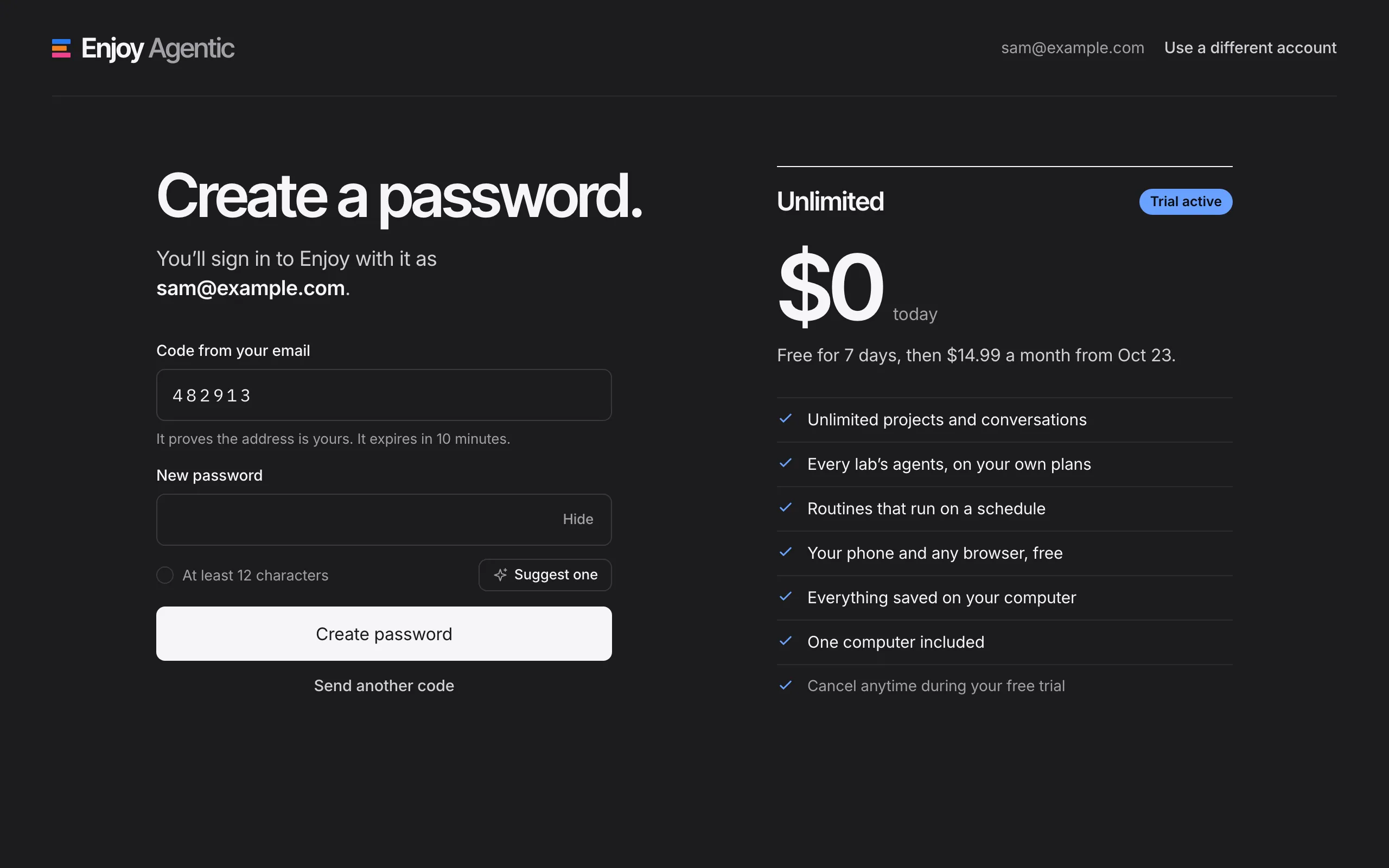
- Starting a free trial at app.enjoy.dev with your email. For a new account, the code field appears on the Create a password step after checkout. If the address already has an Enjoy account, the page asks first, under Check your email.
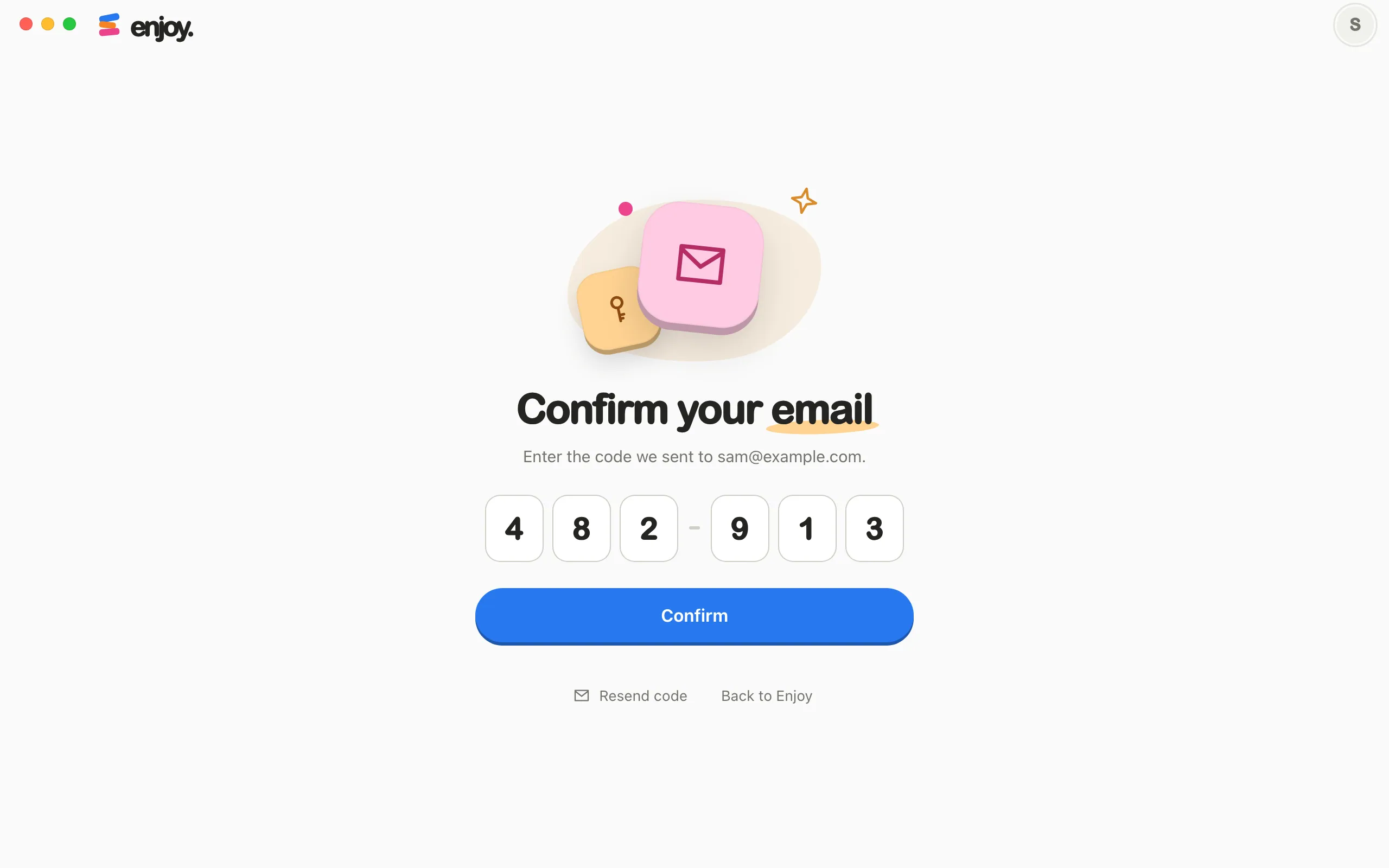
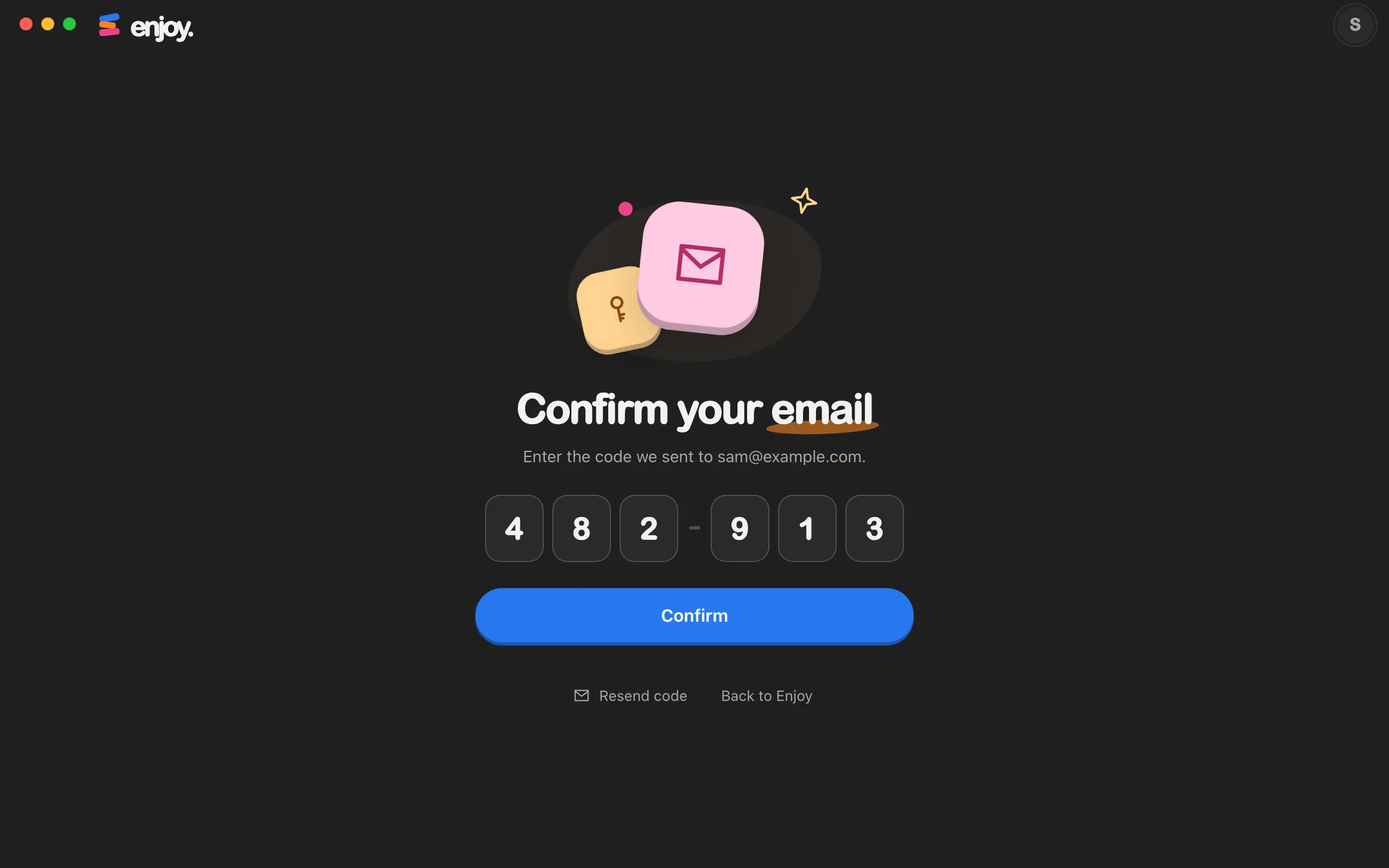
- Opening a team invite sent to your email, if your address isn’t confirmed yet. Enjoy shows Confirm your email, in the computer app, the web app, or the iPhone app.
Signing up with Continue with Google skips the code.
Steps
Find the email
Enjoy sends it when the code screen appears. The subject is your code followed by is your Enjoy confirmation code.
Type the code
For a trial, enter it in Code from your email. For an invite, type it into the six code boxes. Pasting the whole code fills every box.
Continue
For a trial, select Next on Check your email, or finish the step with Create password. For an invite, select Confirm. In the iPhone app, the code goes through as soon as you type the sixth digit.
Good to know
- A code works for 10 minutes and allows five tries.
- To get a new code, select Send another code in the trial signup, or Resend code for an invite. Resend code changes to Code sent once the email is on its way.
- Enjoy sends at most one code a minute, and five an hour, to the same address.
- Confirming an invite’s code only proves the email is yours. Your password and sign-in methods stay the same.
- In the trial signup, if the address belongs to an account whose email was never confirmed, confirming the code removes that account’s old password, signs it out everywhere, and disconnects its devices. You then choose a new password on the Create a password step. This keeps out anyone who signed up with your address before you.
If something goes wrong
That code is invalid or expired. Request a new code to try again.
The code was mistyped, ran out of tries, or is older than 10 minutes. Request a new code and use the newest email.
Please wait before requesting another code. Check your inbox, or try again later.
A code went out less than a minute ago, or you’ve asked for five in the last hour. Look for the email you already have, including your spam folder.
We couldn’t send your code. Wait a minute and try again.
The email couldn’t go out. Wait a minute, then request another code.
Your signup session expired. Enter your email again to continue.
The trial signup waited too long. Type your email again to get a fresh code.
The email doesn’t arrive
Check your spam or junk folder, and check the address shown on screen. In the trial signup, select Use a different account to start over with another address. If nothing arrives after a few tries, see Contact support.