Stop a background process
Steps
Open Processes
Select Processes, near the bottom of the rail on the left side of the window. On a phone, or in any narrow window, select Show sidebar at the top left first.
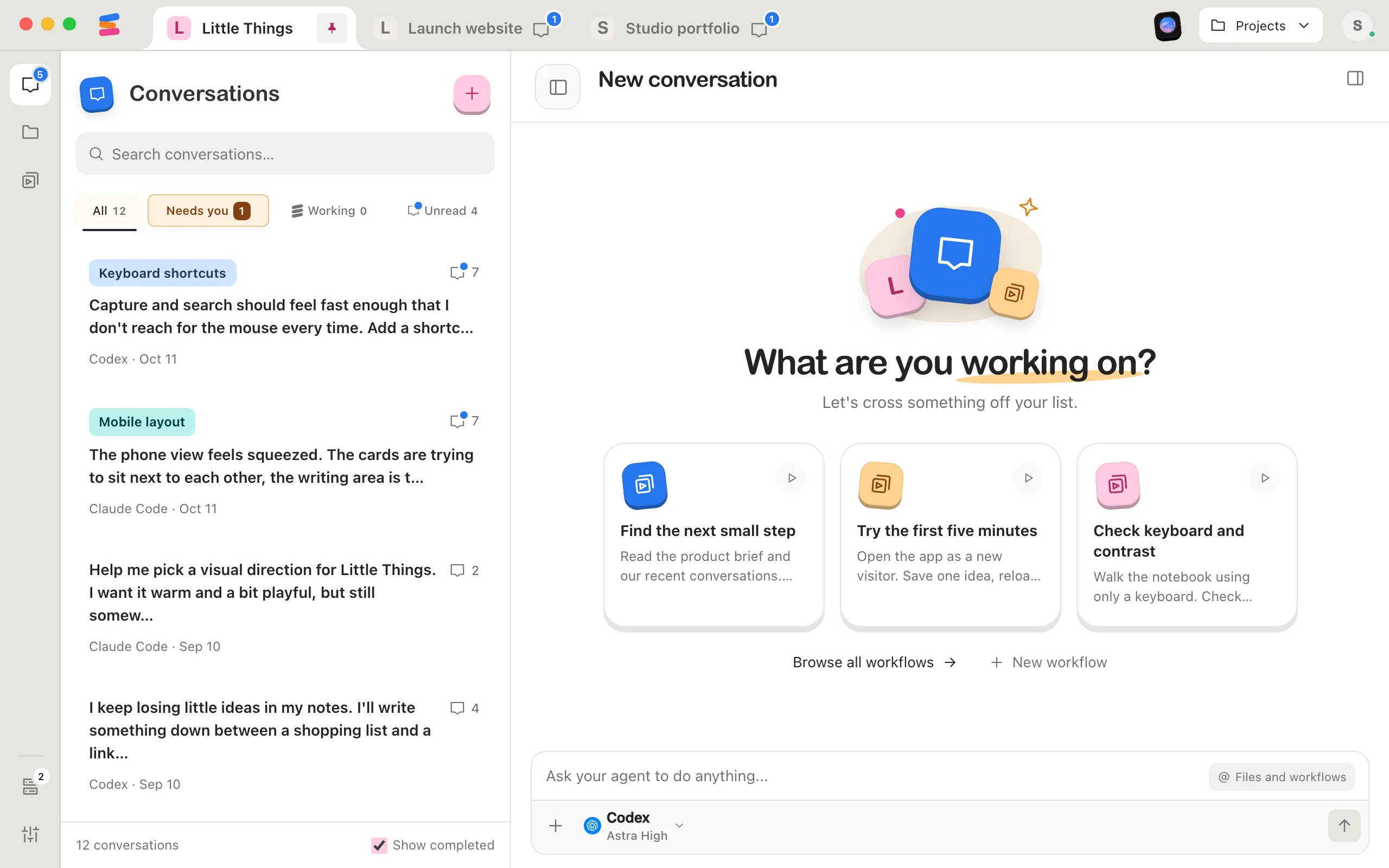
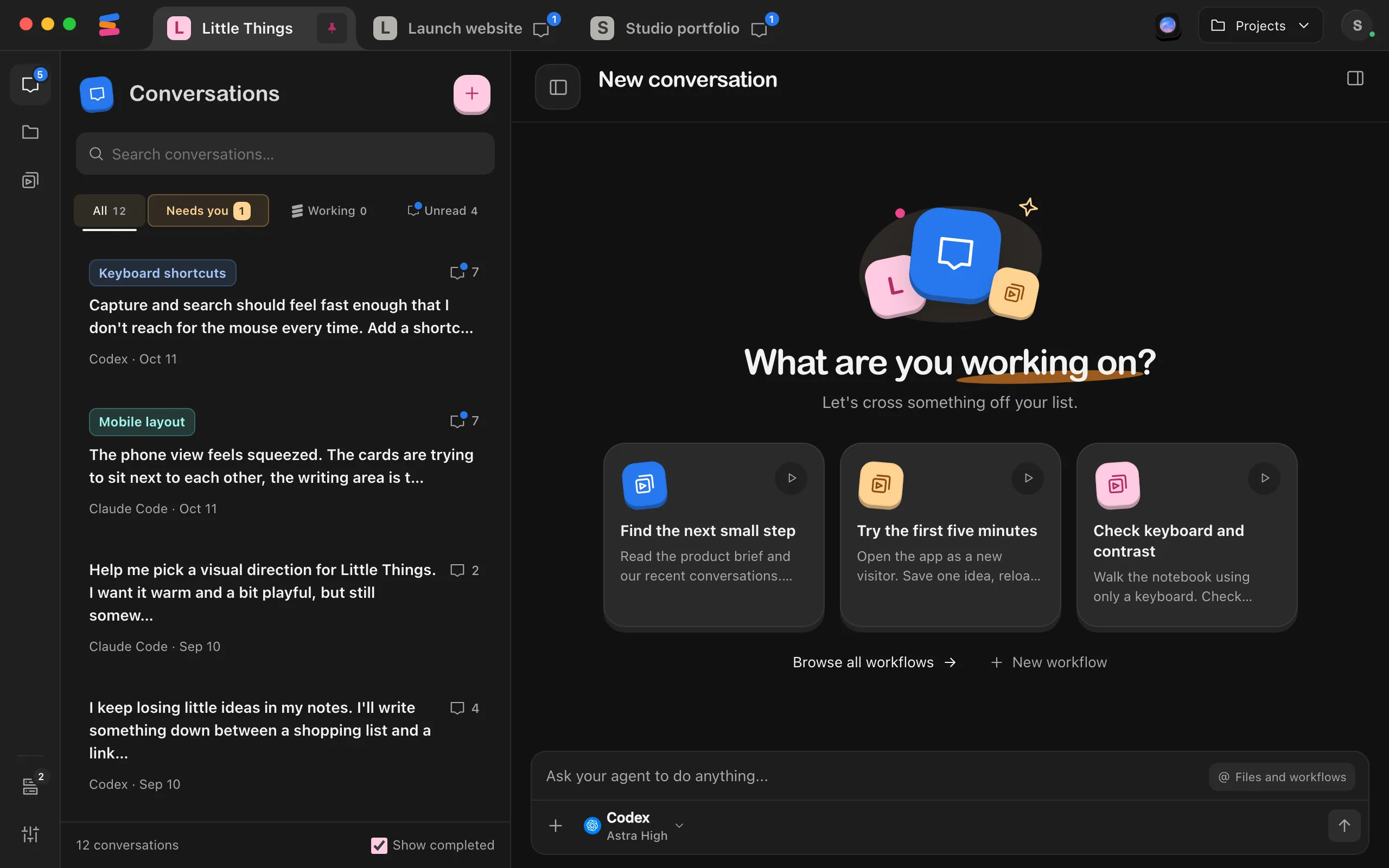
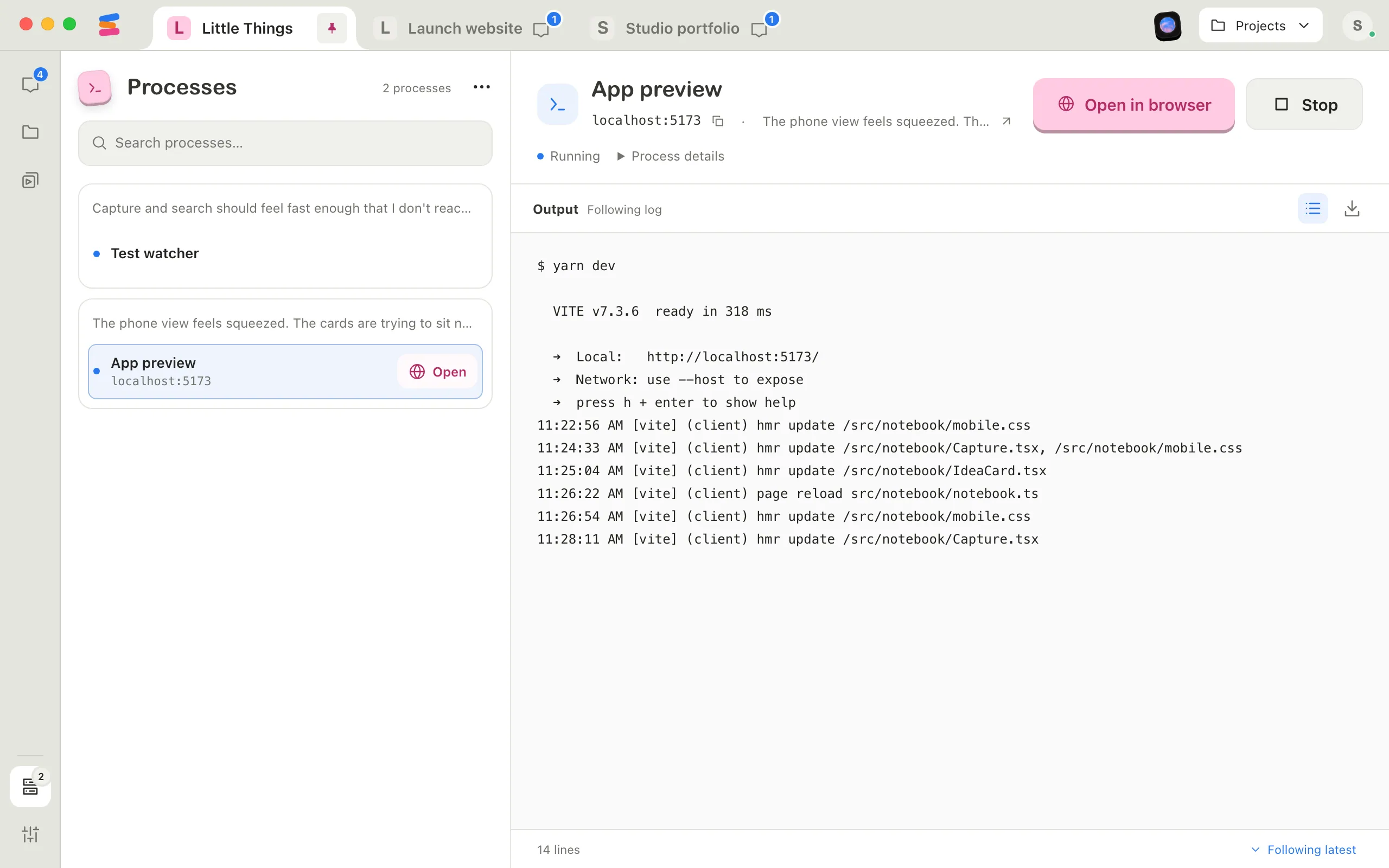
Select the process
Its details open beside the list.
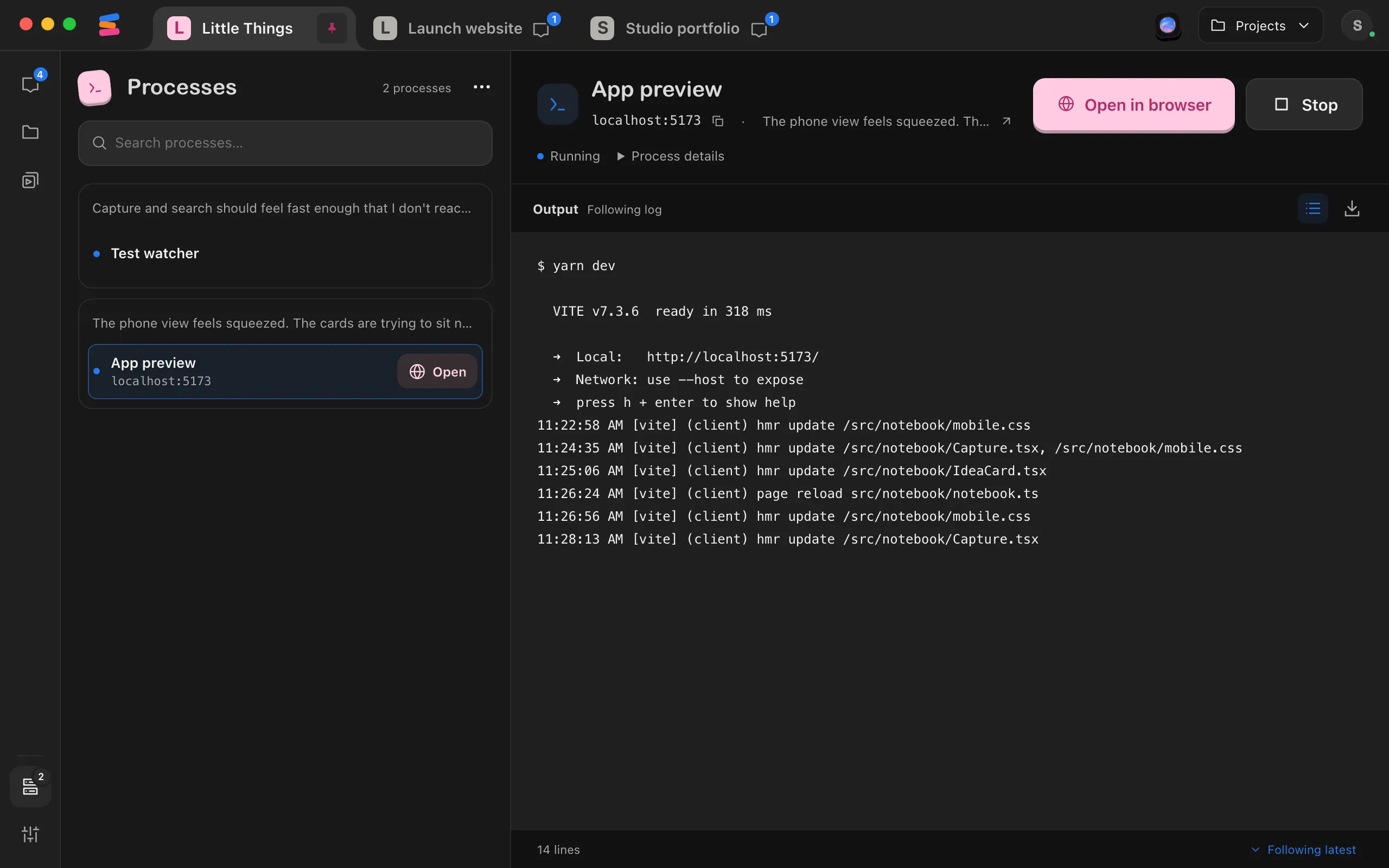
Select Stop
If Enjoy can end the process itself, it disappears from the list. Otherwise the button changes to Stopping… and the status to Stop requested… while the agent stops it, and then the process disappears.
You can also stop a process from its conversation: select the processes button in the message box, select the process, then select Stop. This also works in the iPhone app.
To stop every process in the project at once, select ⋯ next to the process count at the top of Processes, then select Stop all processes. Check the list of what will stop, then select Stop to confirm. This isn’t available in the iPhone app.
Good to know
- Enjoy stops it directly when it can. If Enjoy knows the process’s ID on your computer, it ends it right away, even if the agent that started it has closed.
- Otherwise the agent stops it. Enjoy adds a message to the process’s conversation asking the agent to stop it and keep its other processes running. The agent works on that like any request.
- Your preview stops too. Stopping a website’s server means its page won’t load. Ask the agent to start the site again when you need it.
- Other things that stop processes: deleting the conversation that started them, or removing the project from Enjoy. Completing a conversation doesn’t stop them.
- Stopping a process doesn’t stop the agent’s work in the conversation. To stop the agent, see Stop an agent.
- With View only access to a shared project, Stop is greyed out.
If something goes wrong
“Couldn’t stop” and a reason
Enjoy or the agent couldn’t stop it. Select Retry stop, or select Review in conversation to see what the agent reported.
Stop all processes says “Couldn’t stop” and a reason
The processes that stopped leave the list, and the dialog stays open showing the ones that didn’t and why. Select Try again, or select Cancel and open the process to stop it on its own.
“Stop is queued while this project is paused.”
Agent work in this project is paused, so the stop waits. Select Resume project to let it go ahead.
The process is already gone but stays in the list
When the agent that started a process is no longer running, Remove from list appears in the process’s details. Select it, then Remove entry. This only removes the entry. It doesn’t stop a server that may still be running, so use it only when you’re sure the process has ended. Otherwise, select Stop.
“Wait for the owning agent to finish before removing this entry.”
The agent that started the process is still working. Wait for it to finish, or stop the process instead.