Open a running website from Processes
Before you start
- Use the computer app on the computer where the process runs.
- The process needs to be running and serving a website. Ask your agent to start your site if it isn’t.
Steps
Open Processes
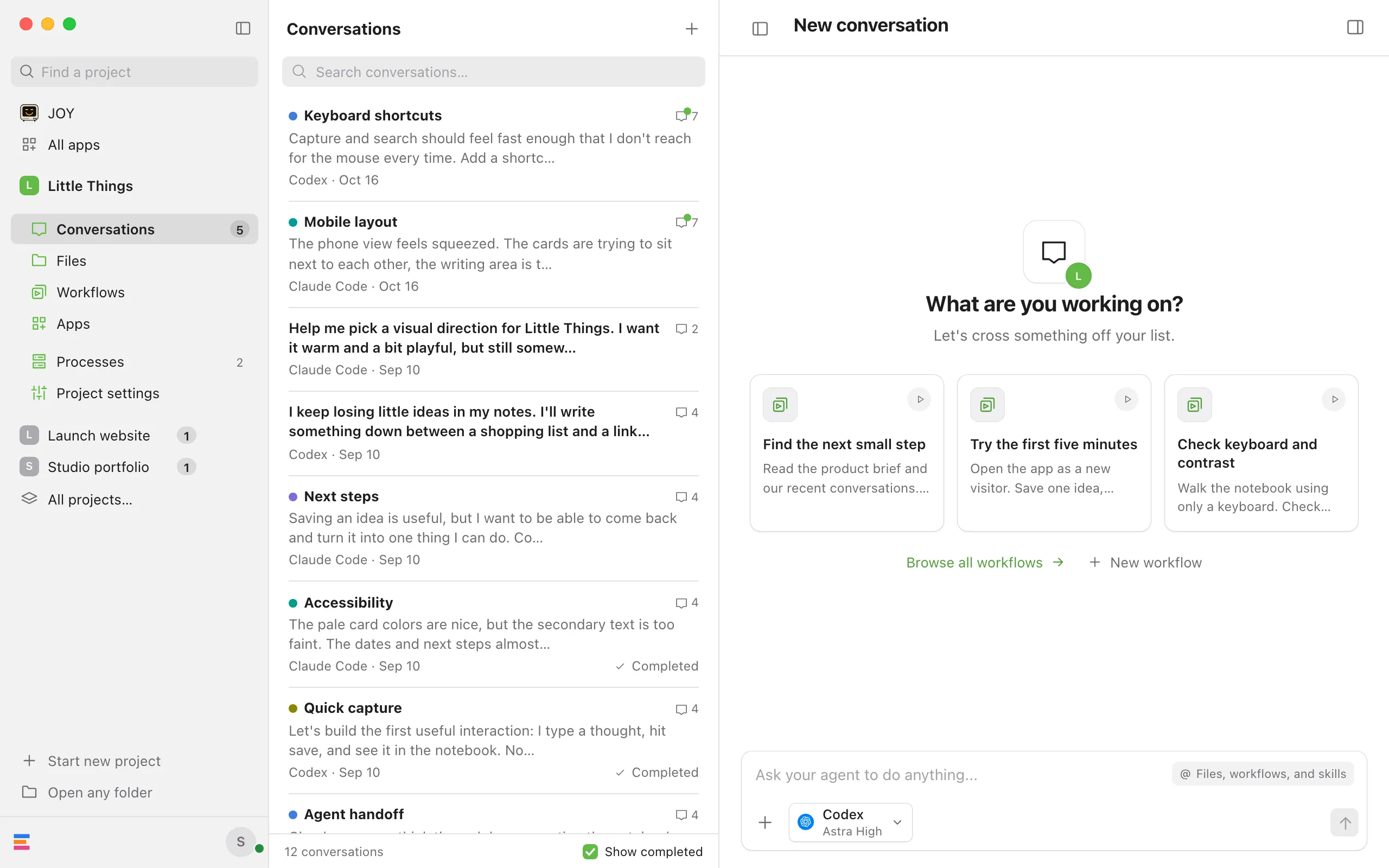
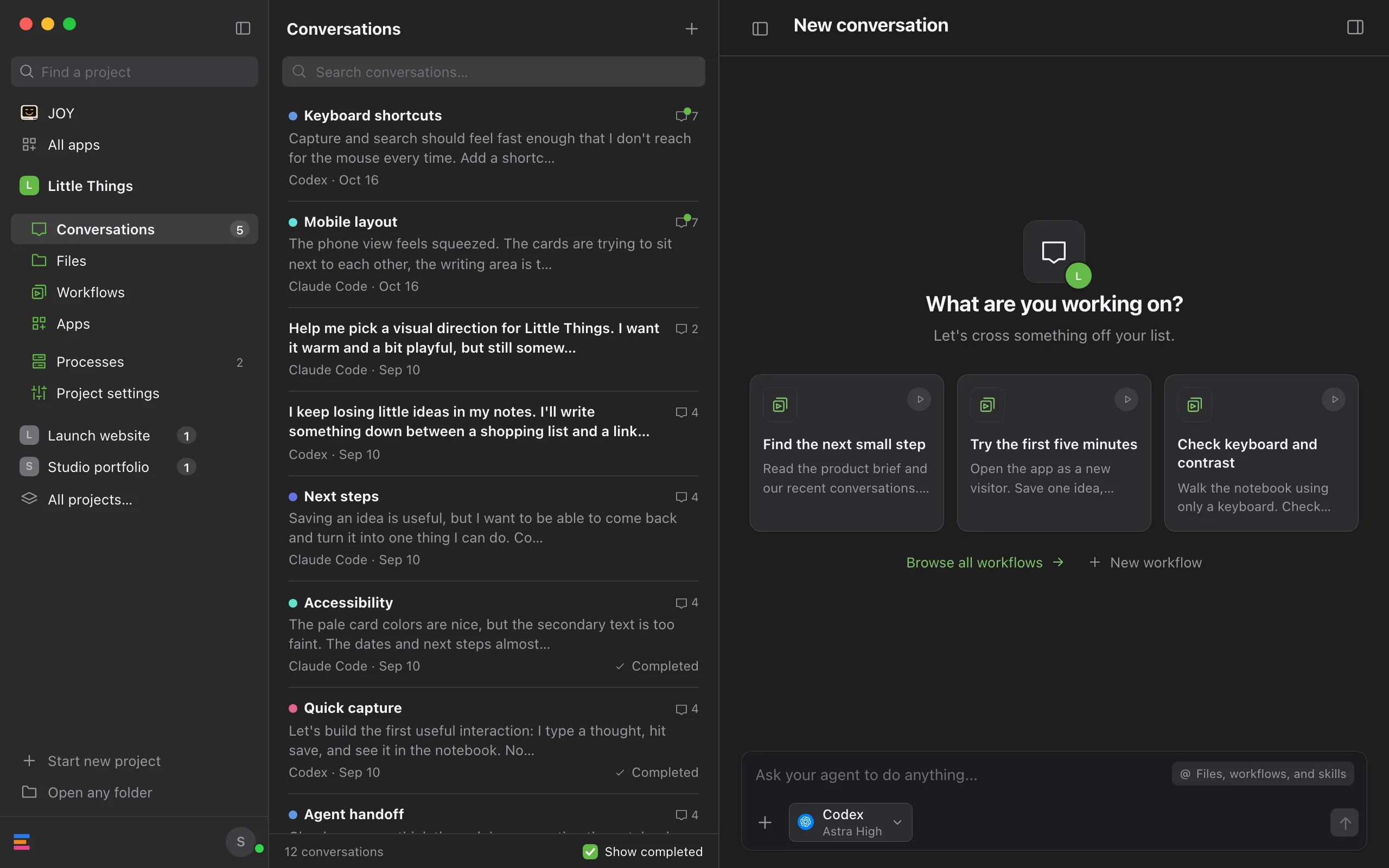
Select Processes, near the bottom of the rail on the left side of the window.
Find the process
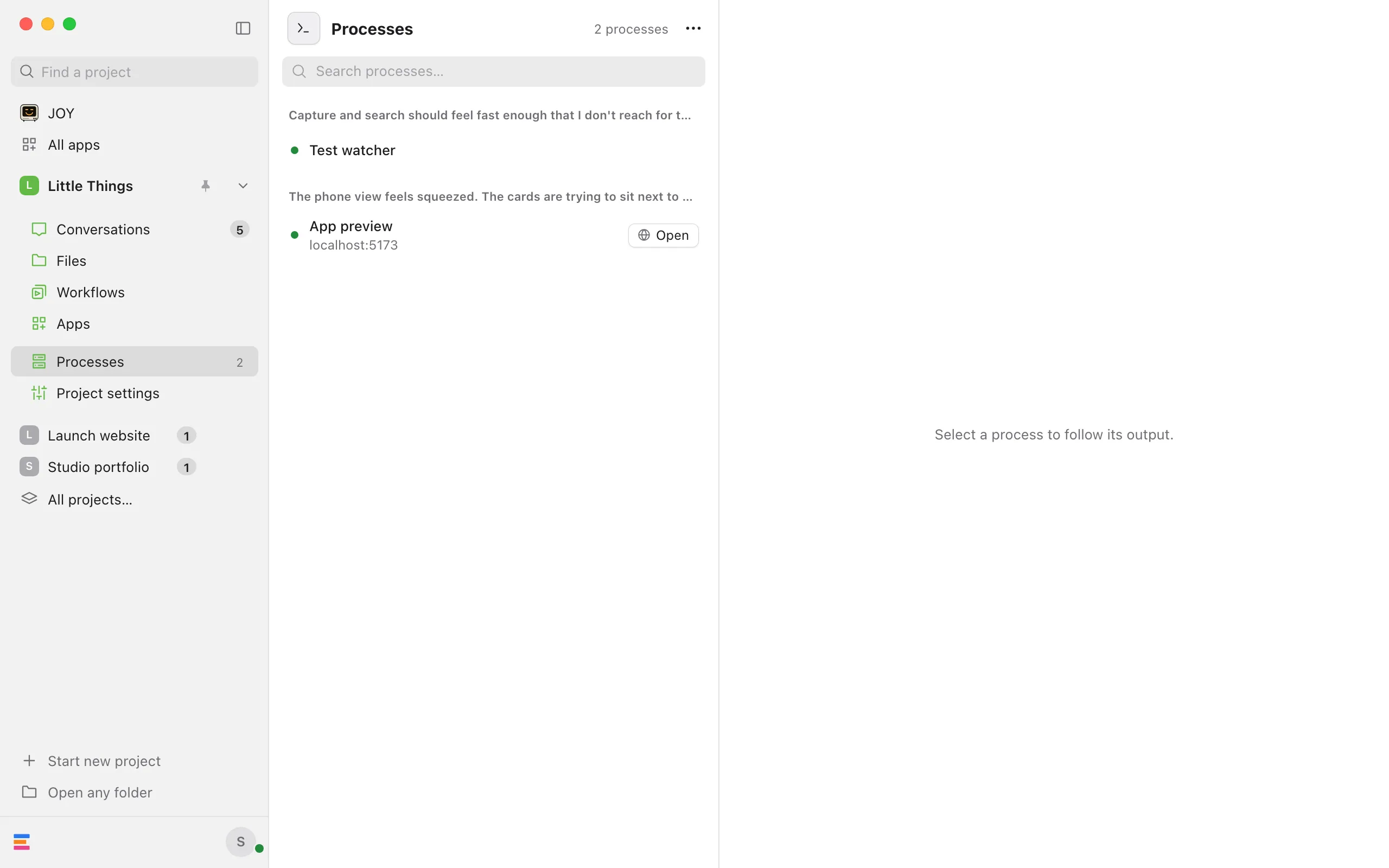
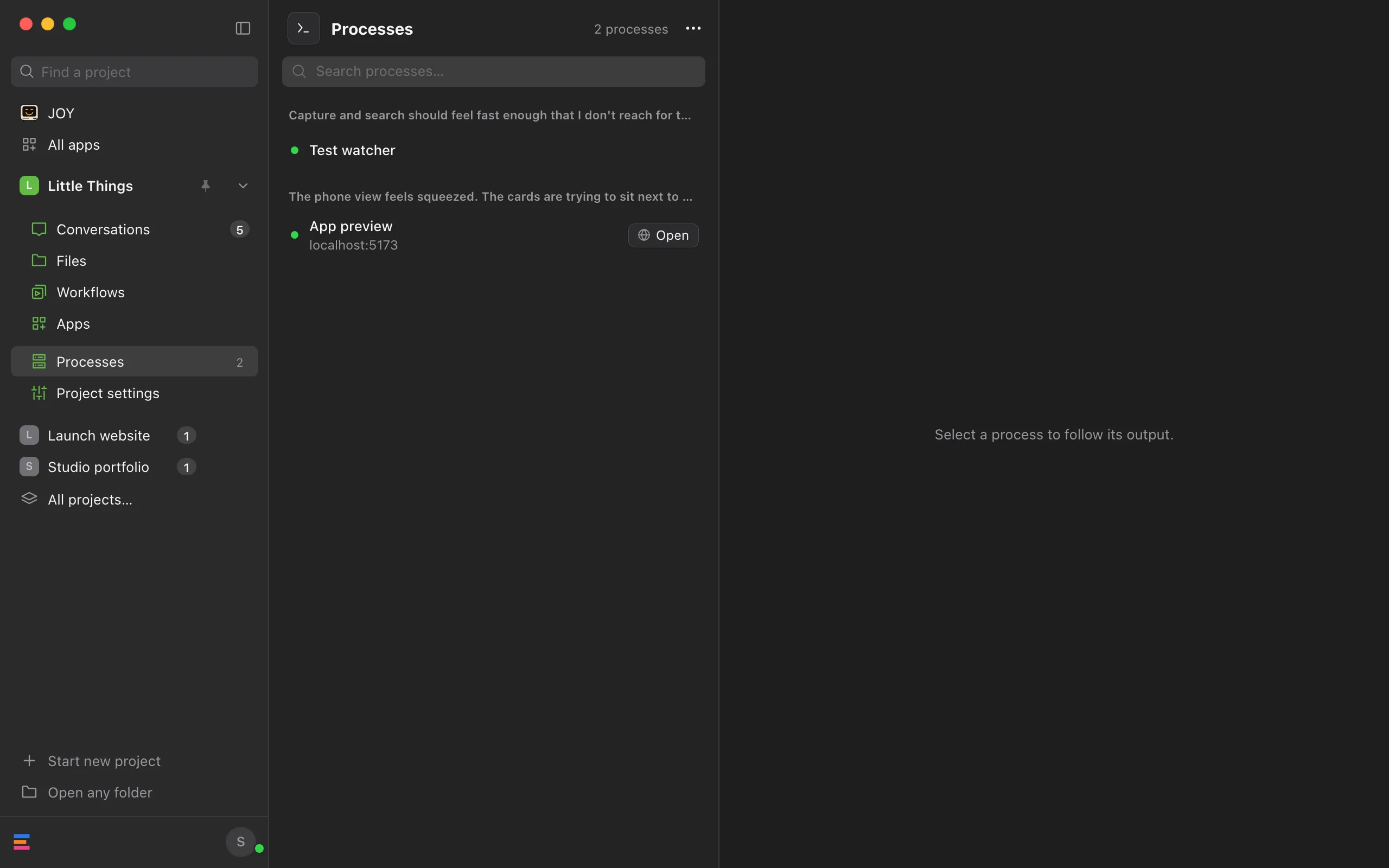
Look under the conversation that started it, or type in Search processes….
Select Open
It’s on the process’s row. If the process serves more than one address, choose one from the list. You can also open the process and select Open in browser.
Use the site
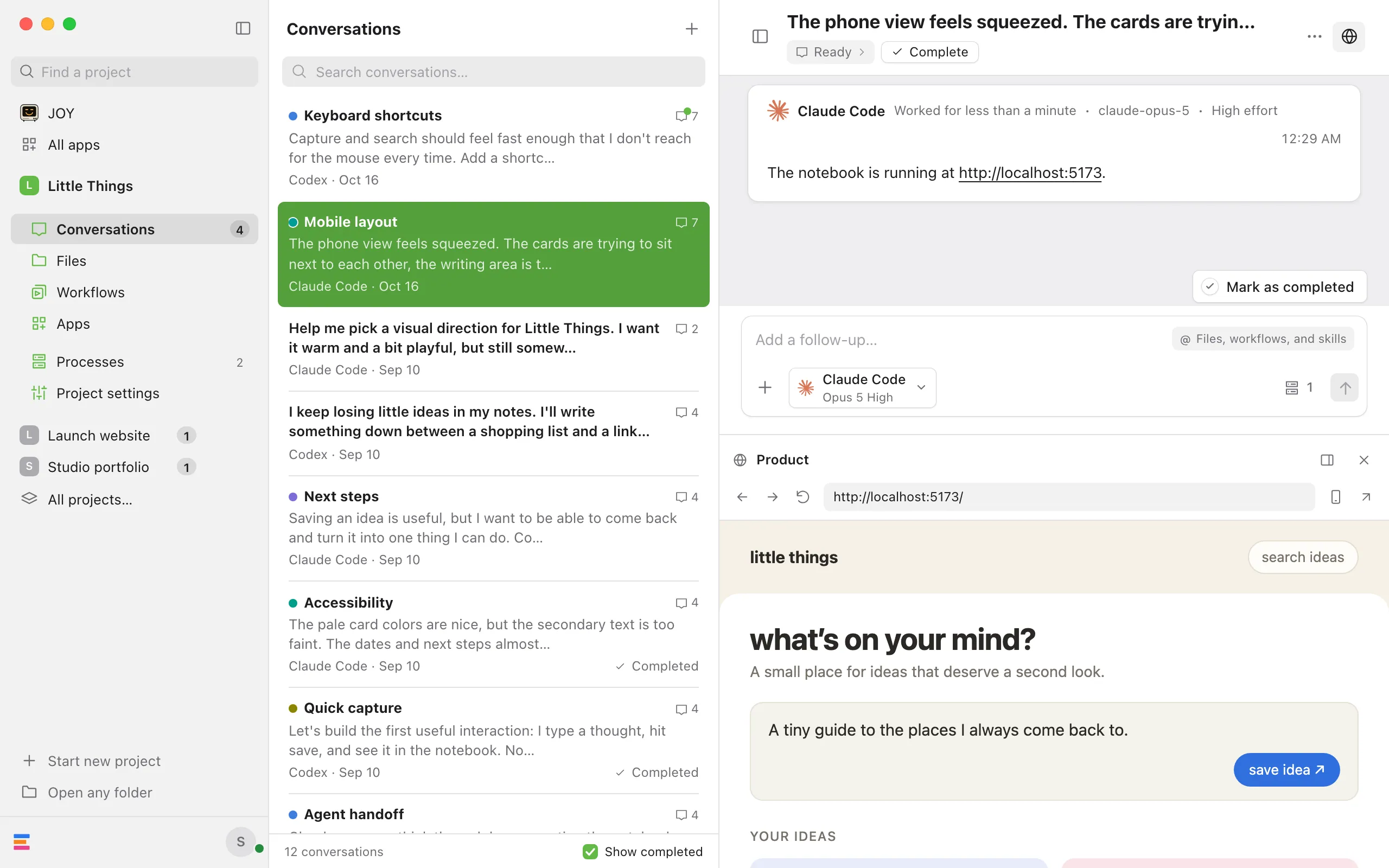
Enjoy switches to the process’s conversation and shows the website in the product browser beside it.
Good to know
- Enjoy finds the address itself. It looks for the addresses the process is listening on, on your computer, such as http://localhost:5173, and shows them under the process’s name. The button appears only for running processes that serve a website.
- Need the address somewhere else? Select the process, then select the copy button beside its address under the name.
- This becomes the conversation’s preview. The product browser in that conversation now opens this address, even if you had hidden it. See See your site beside the conversation.
- Only on the computer app. The web app and iPhone app don’t show this button. They show the site an agent opened beside its conversation instead. See See your site from the web app or your iPhone.
- To open the site in your usual browser, select Open in external browser in the product browser. See Open the preview in your usual browser.
If something goes wrong
There’s no Open button
The process may still be starting, may not serve a website, or may be stopping. Wait a few seconds for a starting server. If it never appears, ask the agent in that conversation which address the site uses, and select that link in the conversation.
“This website is no longer available. It may still be starting or have stopped.”
The process changed or stopped between the check and your selection. Wait a moment and select Open again. If the process is gone from the list, ask the agent to start the site again.
“This website is not available on this device.”
Enjoy can’t check this process on this computer, for example because the agent didn’t give Enjoy its process number. Ask the agent which address the site uses, and select that link in the conversation.