Use Enjoy in a web browser
The web app shows the same Enjoy you know from your computer, in a browser tab. Your projects stay on your computer, and the browser connects to it.
Before you start
- You need the Unlimited plan. See The Unlimited plan.
- Your computer is on, online, and running Enjoy, signed in to your account.
Steps
Go to app.enjoy.dev
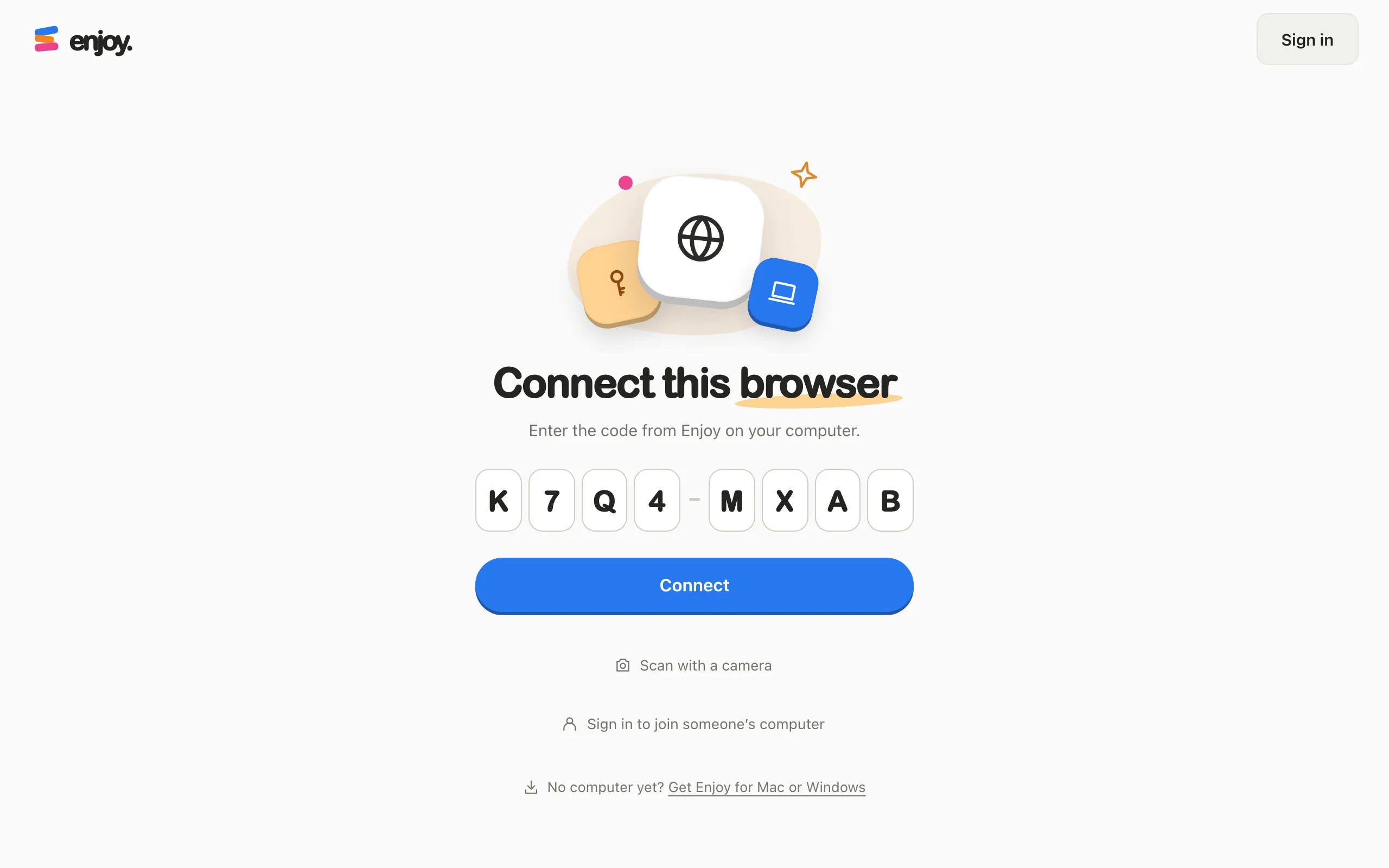
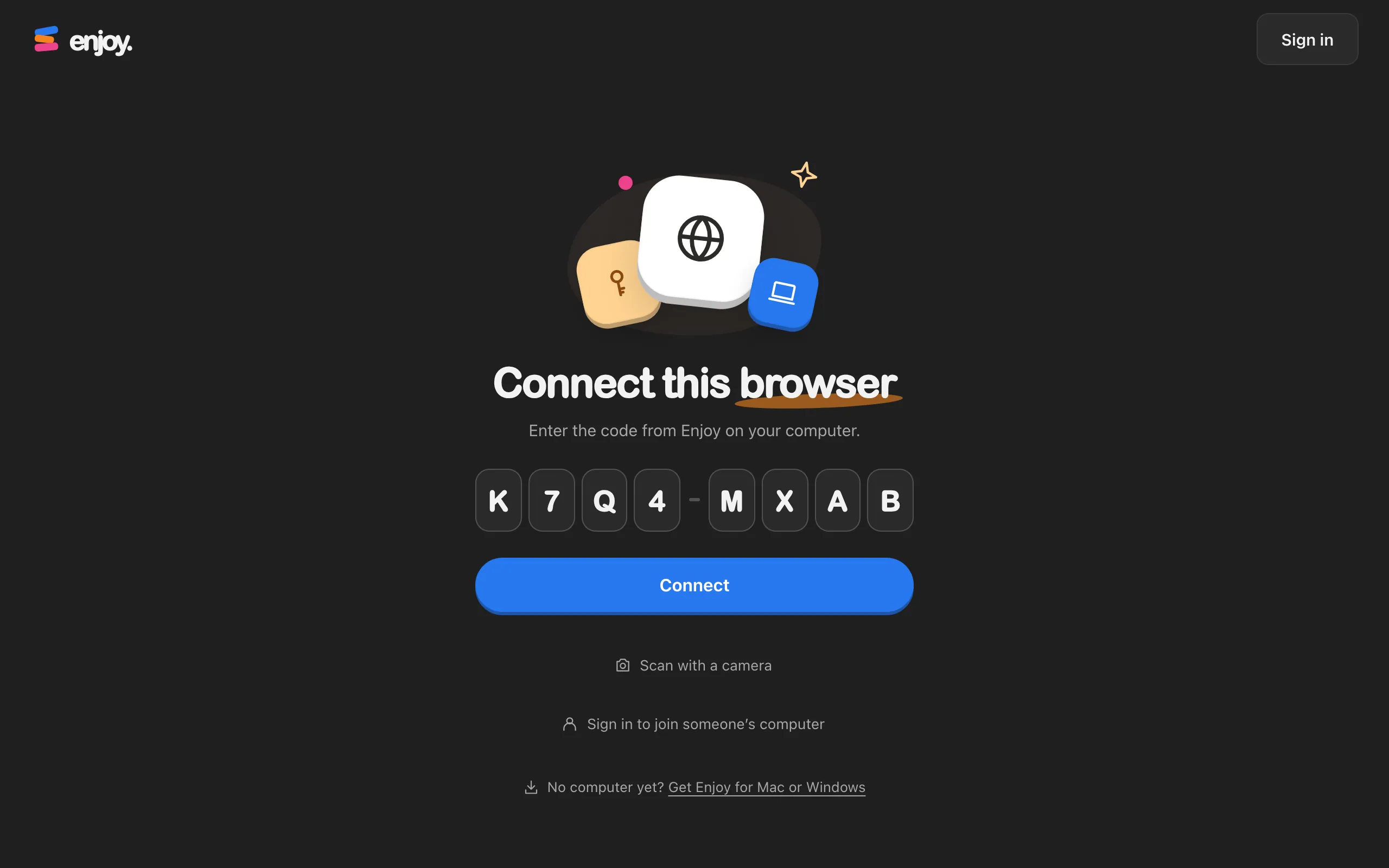
Open it in any web browser. If you aren’t signed in, it shows Connect this browser with boxes for a code. Signing in first is optional.
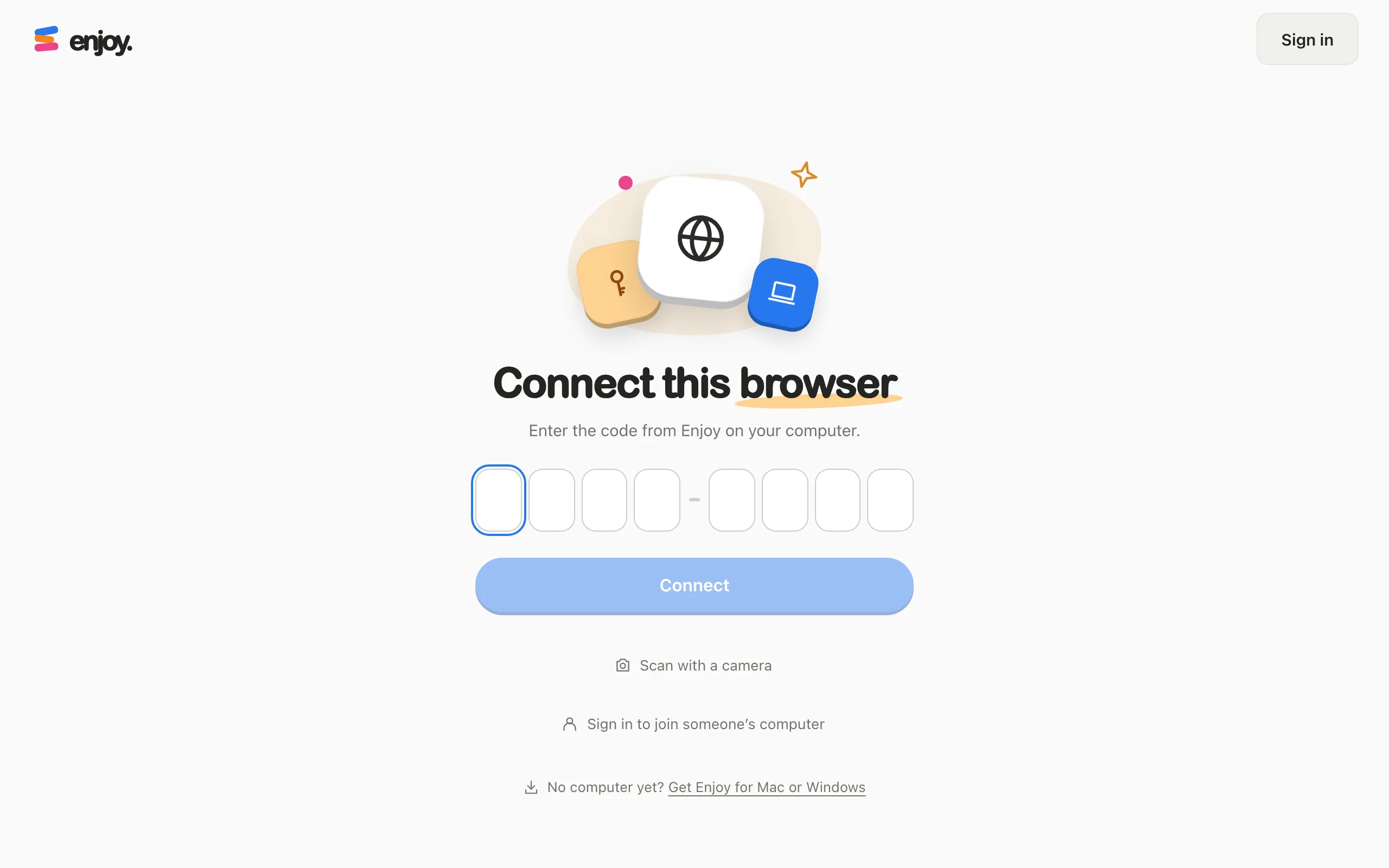
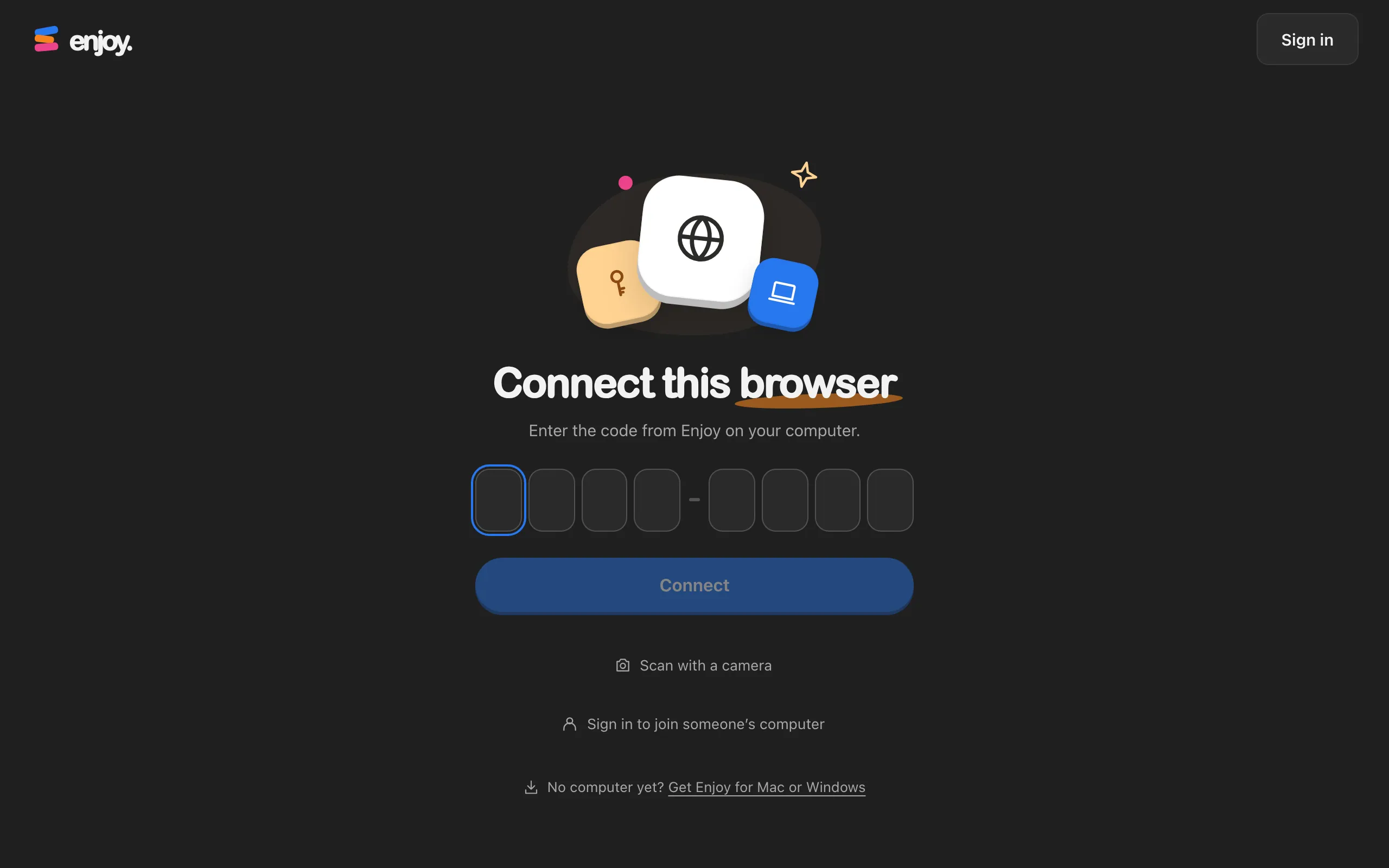
Get a code from your computer
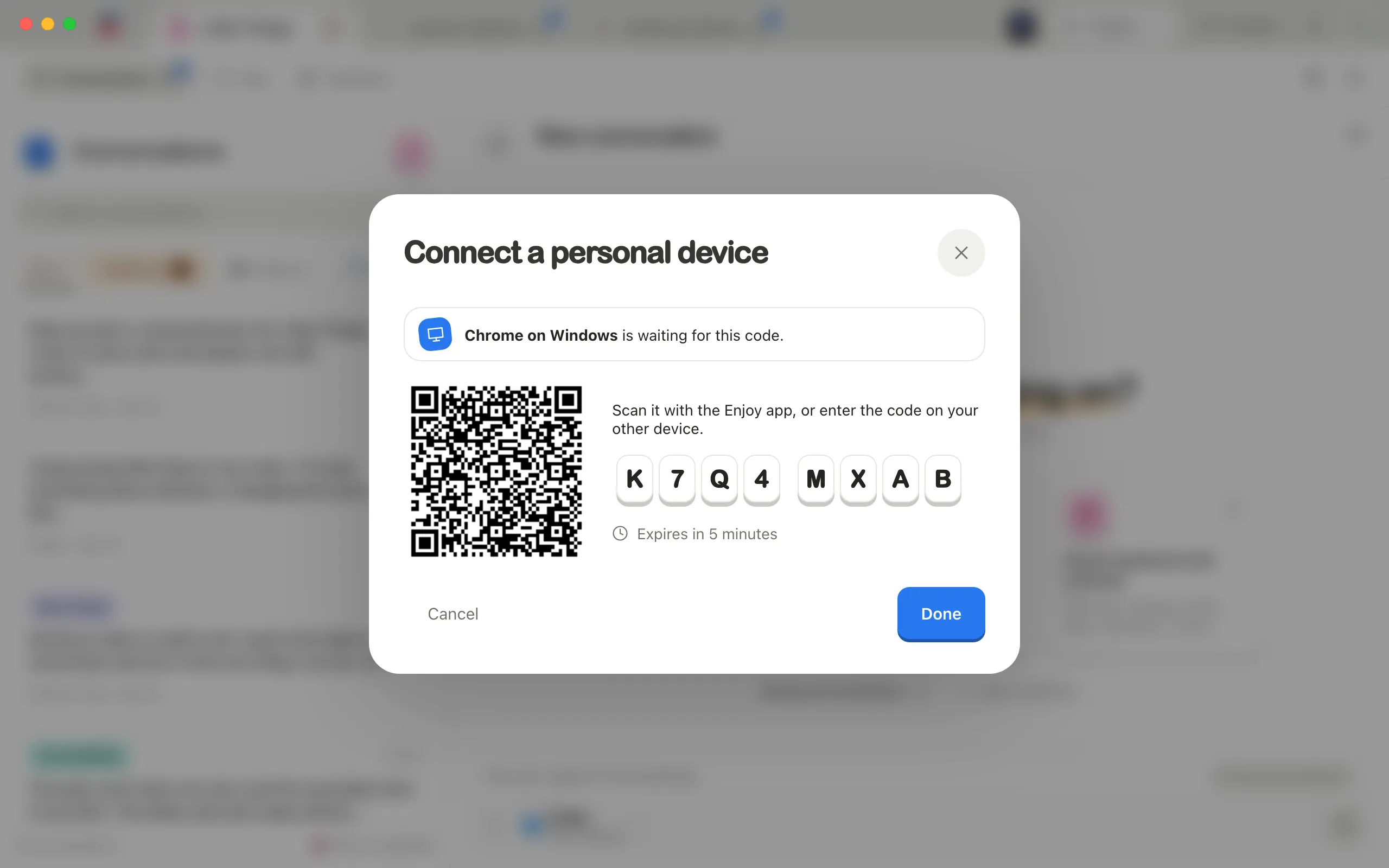
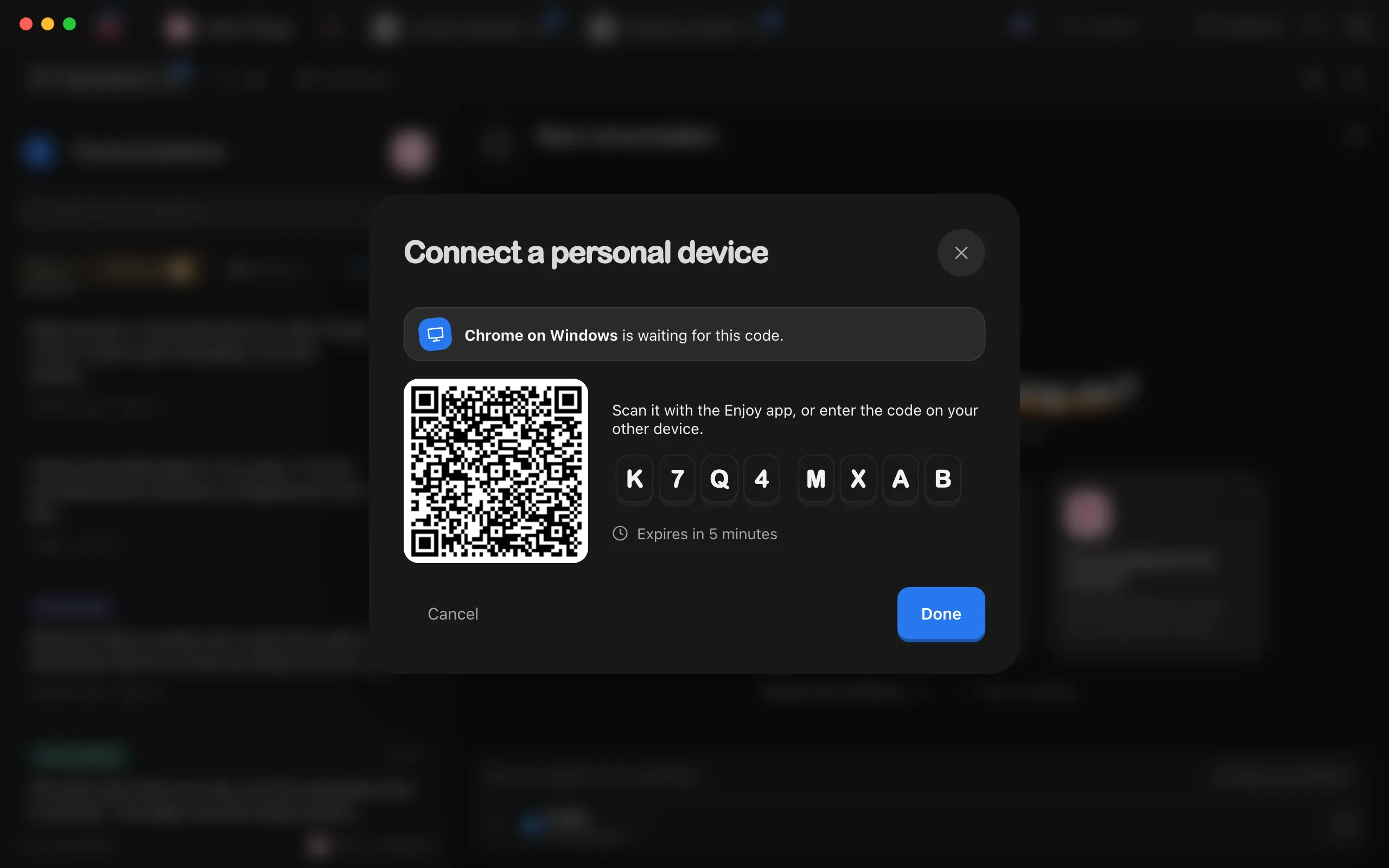
If you’re signed in, the browser finds your computer and asks it to show a code, and the Connect a personal device window opens there on its own. If you aren’t signed in, or the window doesn’t open, go to your computer, select the circle with your initial in the top-right corner, then choose Connect a personal device under My computers.
Type the code
In the browser, type the eight-character code from your computer, then select Connect.
Compare the six digits
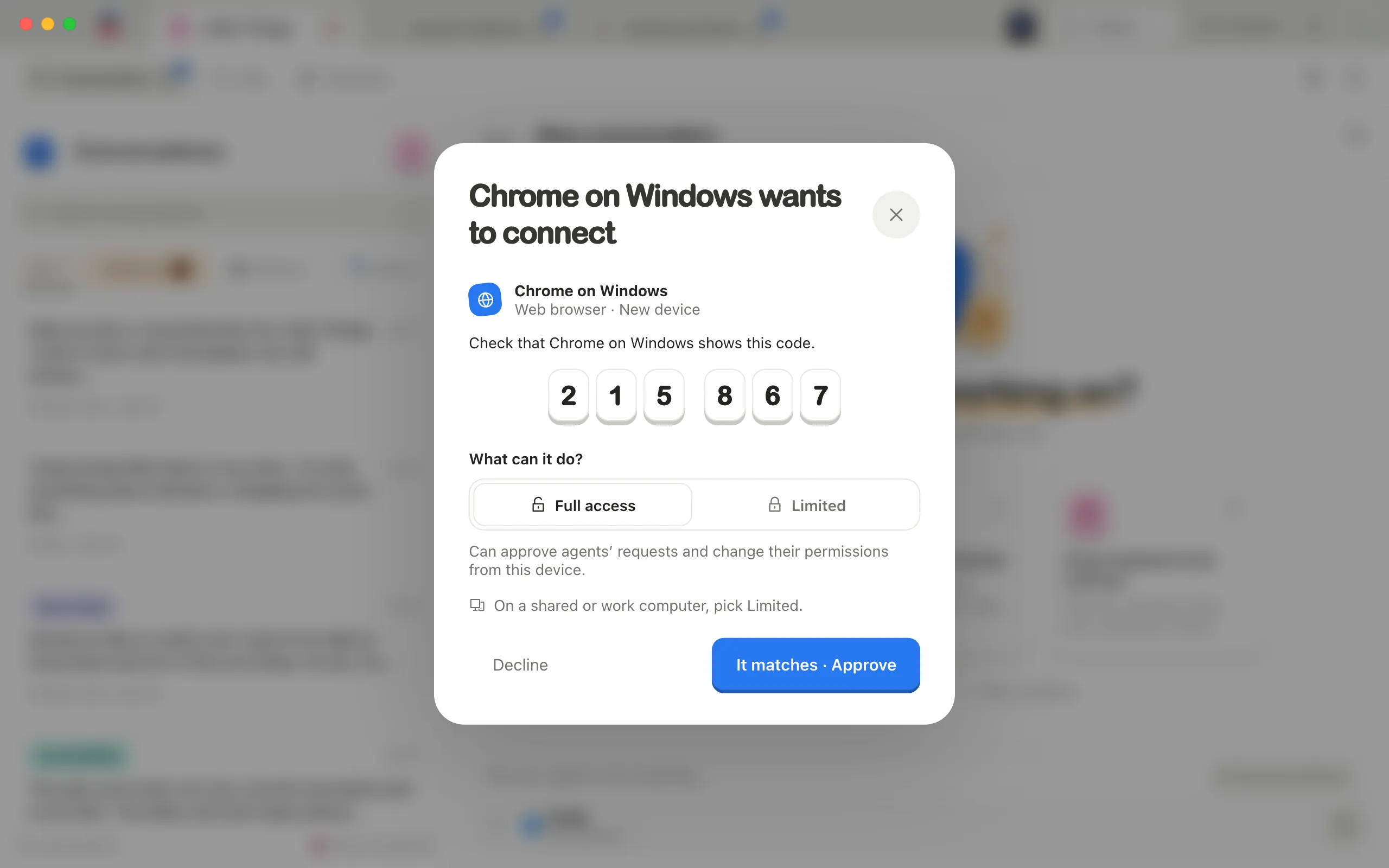
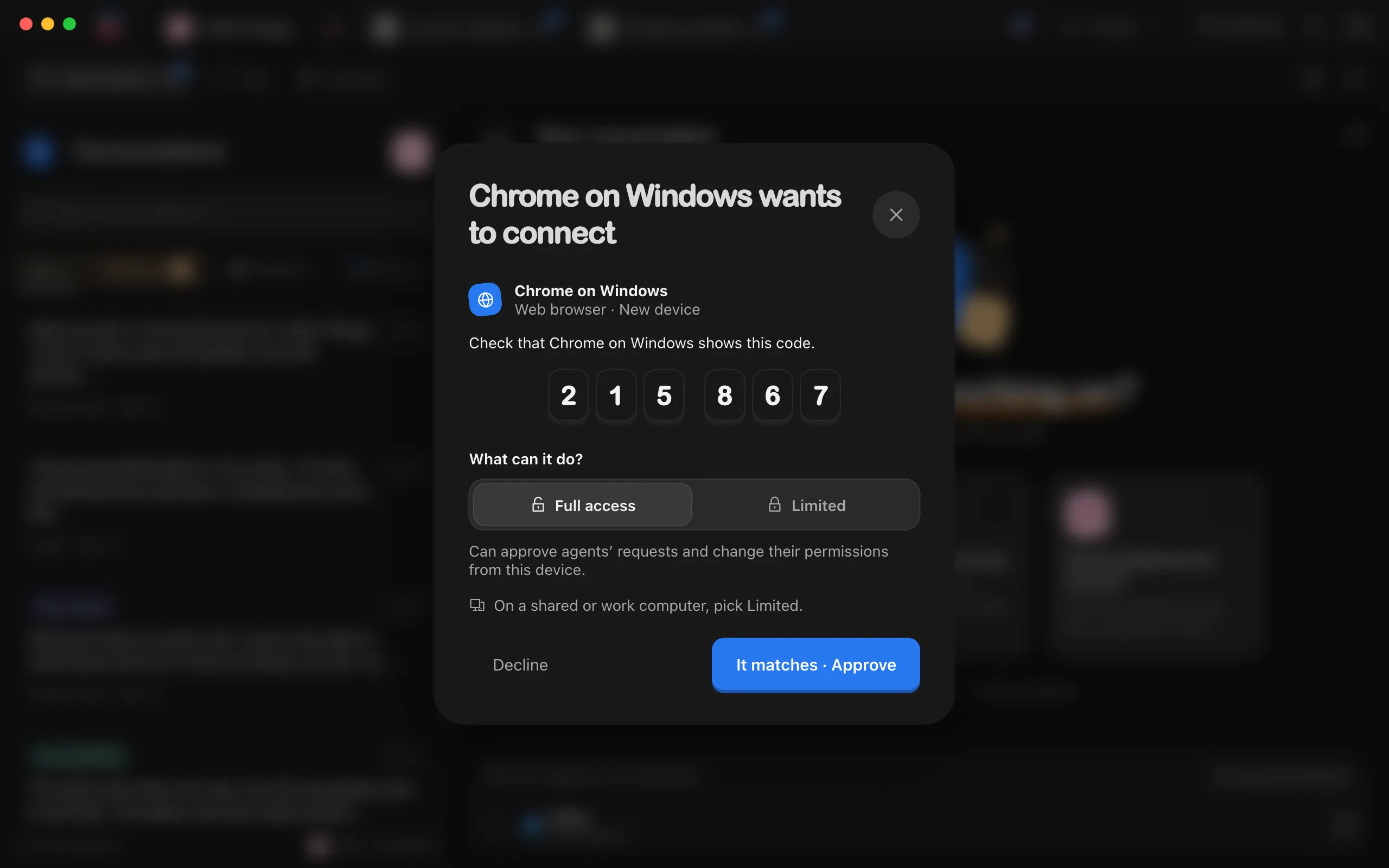
The browser shows Approve on with your computer’s name and six digits. Your computer shows a window saying the browser wants to connect, with six digits too.
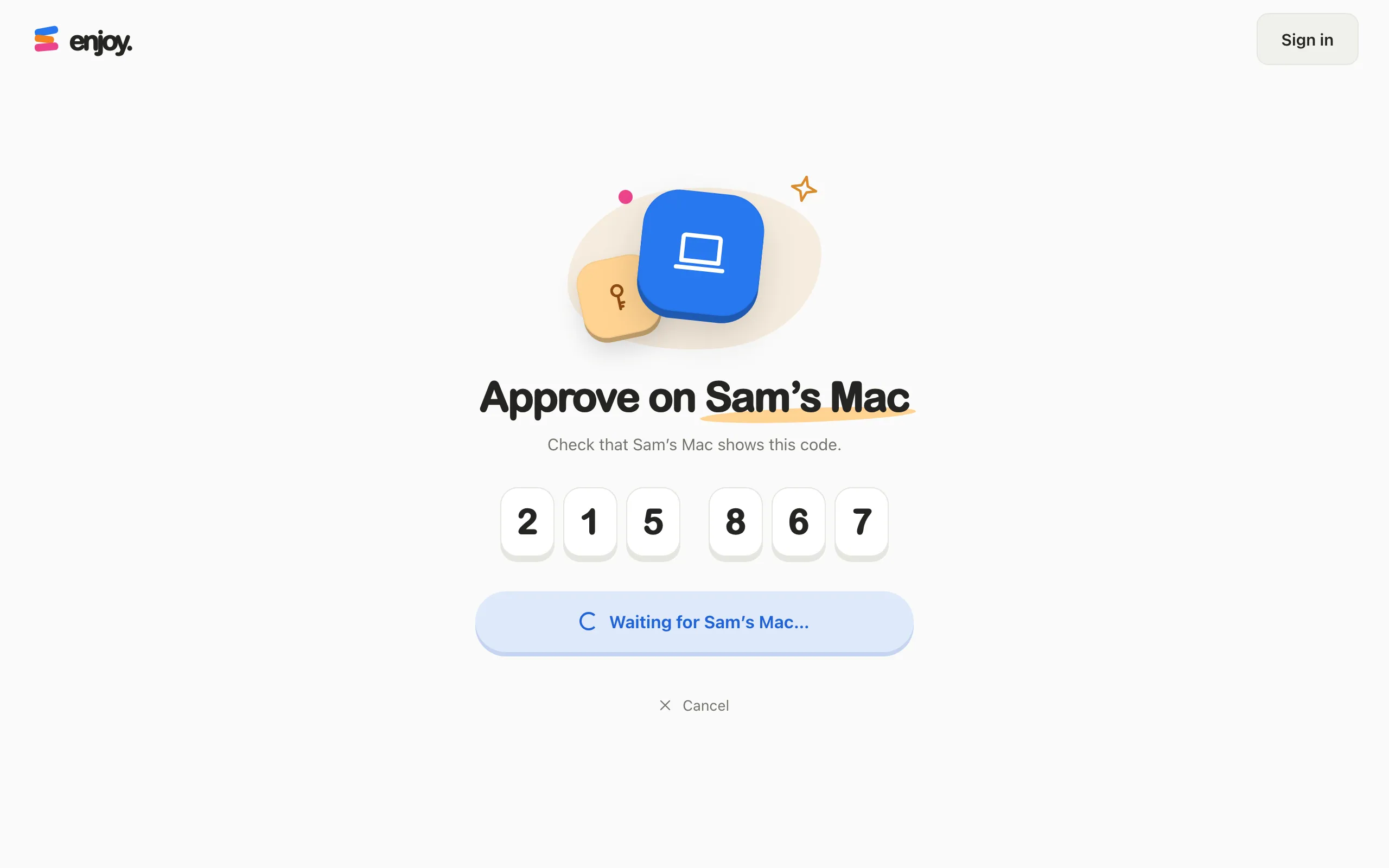
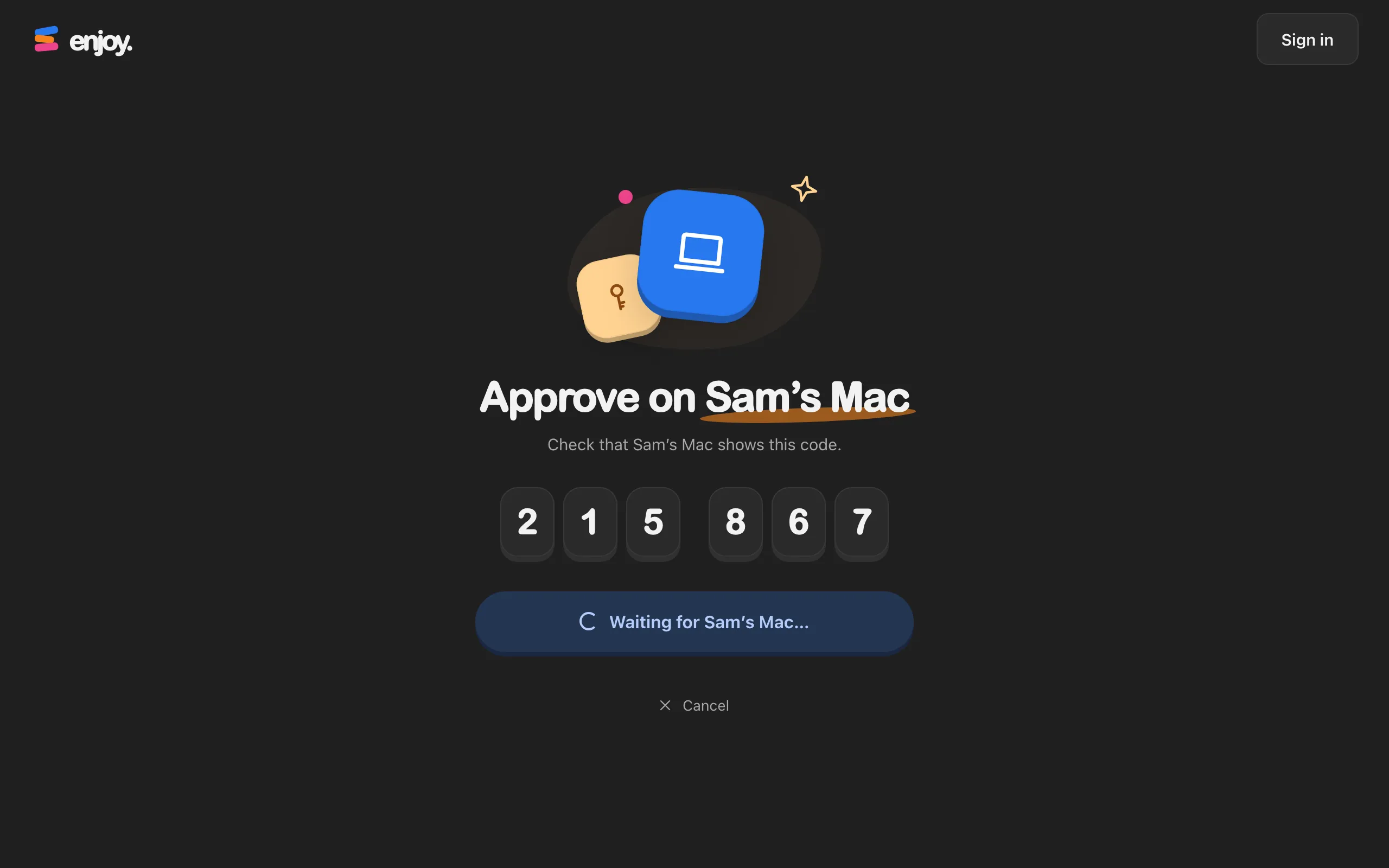
Select It matches · Approve
Do this on your computer, only if the digits match. Otherwise select Decline.
Start working
The browser says it’s connected and opens your projects.
Choose this browser’s access
When approving the browser on your computer, choose Full access or Limited. Full lets you approve agents’ requests and change their permission modes from the browser. On a shared or work computer, pick Limited. You can change the level later in My computers on the computer the browser connects to. See Manage your devices.
Good to know
- If the browser wasn’t signed in, approving it also signs it in to your account.
- The browser remembers the connection. Next time you open app.enjoy.dev, it reconnects on its own. If you clear this browser’s data for app.enjoy.dev, connect it again with a new code.
- With more than one computer, the browser may ask you to Pick a computer. Computers that are on say Online · Connect this browser, and ones that are off say Offline · Open Enjoy on it first. Later, switch computers with the menu in the top-left corner. Each computer needs its own code the first time.
- The browser appears on your computer in My computers under Personal devices, with a name such as Chrome on Mac.
- To stop using this browser, select your initial in the top-right corner, then Disconnect this browser beside your email. The browser then asks for a code again. It stays on your computer’s list until you also disconnect it in My computers on the computer. See Rename or disconnect your devices.
- Teammates use the web app with their own accounts, through an invite. See Join someone else’s computer.
If something goes wrong
Your computer is offline
The browser shows that your computer is offline and that its projects come back when Enjoy is open on it. Wake the computer, open Enjoy, then select Try again.
We can’t reach your computer
The browser couldn’t connect to a computer it used before. Select Try again. If this browser was disconnected or the computer’s remote access was reset, select Connect with a new code and connect it again.
We can’t list your computers
The browser couldn’t load your computers. Check your internet connection, then select Try again.
Enjoy runs on your computer
Your account doesn’t have a computer yet. Install Enjoy on a Mac or PC and sign in there first. See Install Enjoy on your computer.
The code doesn’t work
See the code problems in Connect your phone. They’re the same in any browser.