Use another computer with your projects
Your Unlimited plan includes one computer that runs your projects and agents. Another computer can work on those same projects as one of your devices, the same way a phone or browser does.
Before you start
- You need the Unlimited plan. See The Unlimited plan.
- Your main computer is on, online, and running Enjoy, signed in to your account.
- Install Enjoy on the second computer. See Install Enjoy on your computer.
Steps
Sign in on the second computer
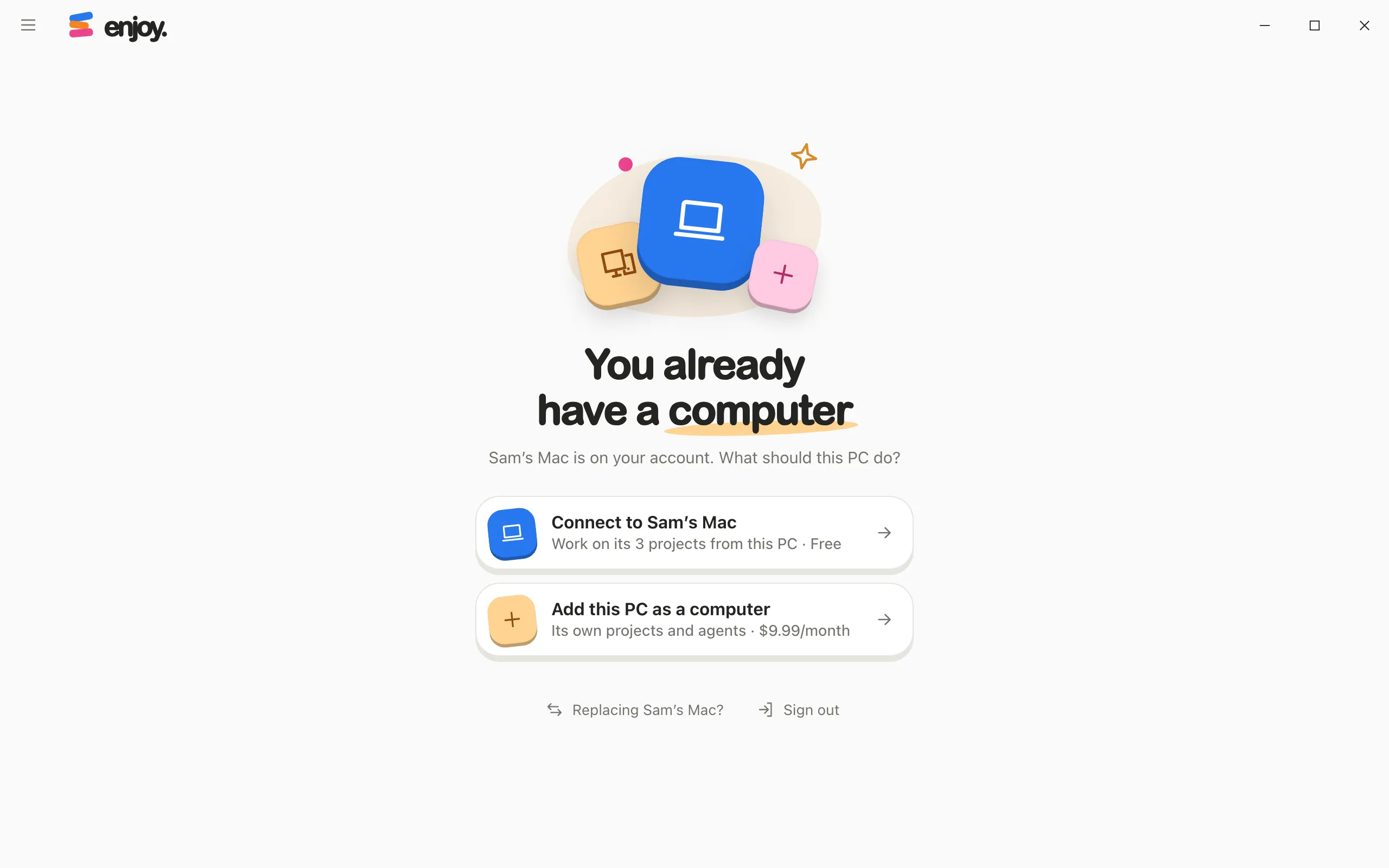
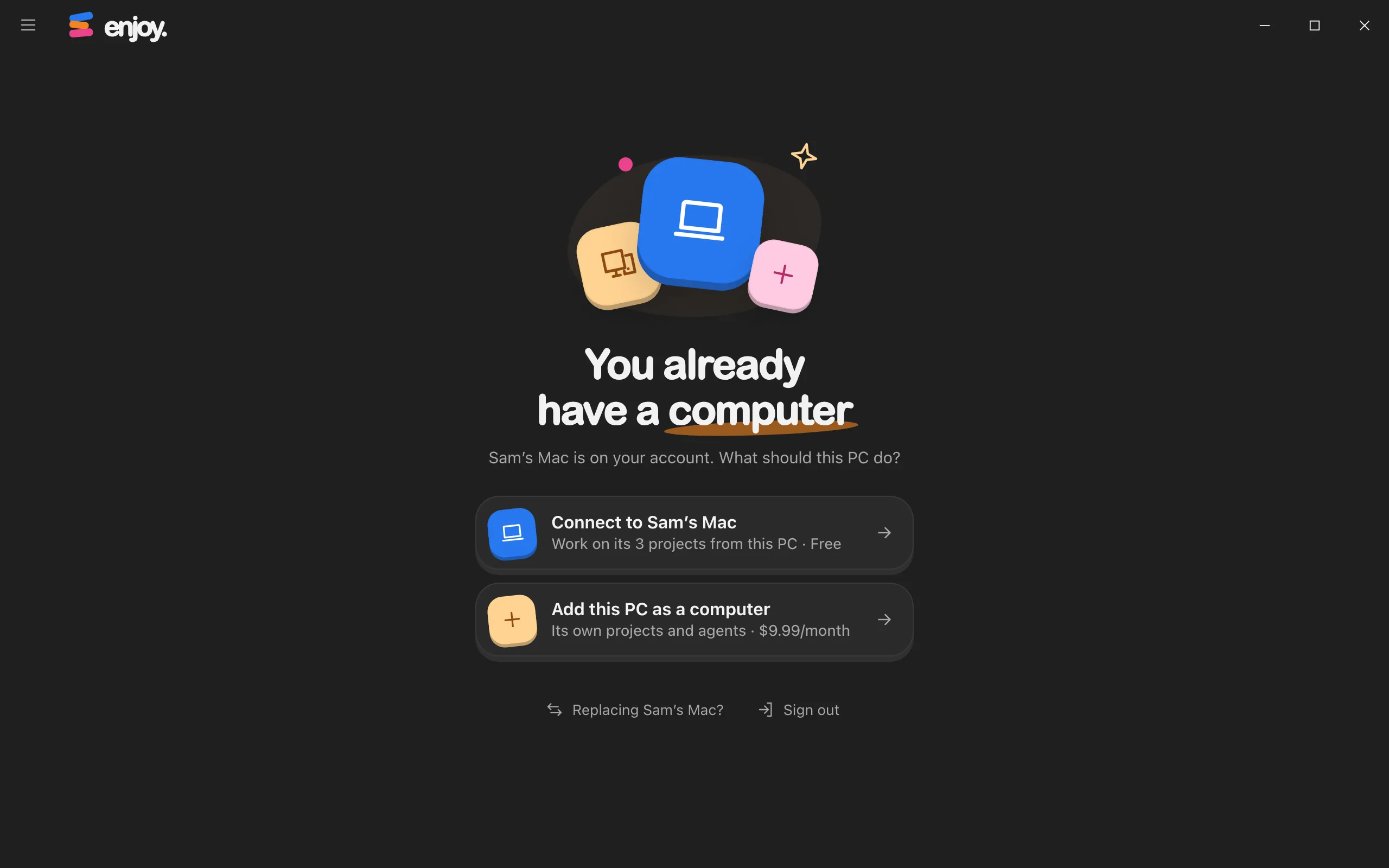
Open Enjoy there and sign in with the same account. Enjoy shows You already have a computer and asks what this computer should do.
Choose your main computer
Select Connect to followed by your main computer’s name. Under it, Enjoy says how many of its projects you can work on from here.
Check your main computer
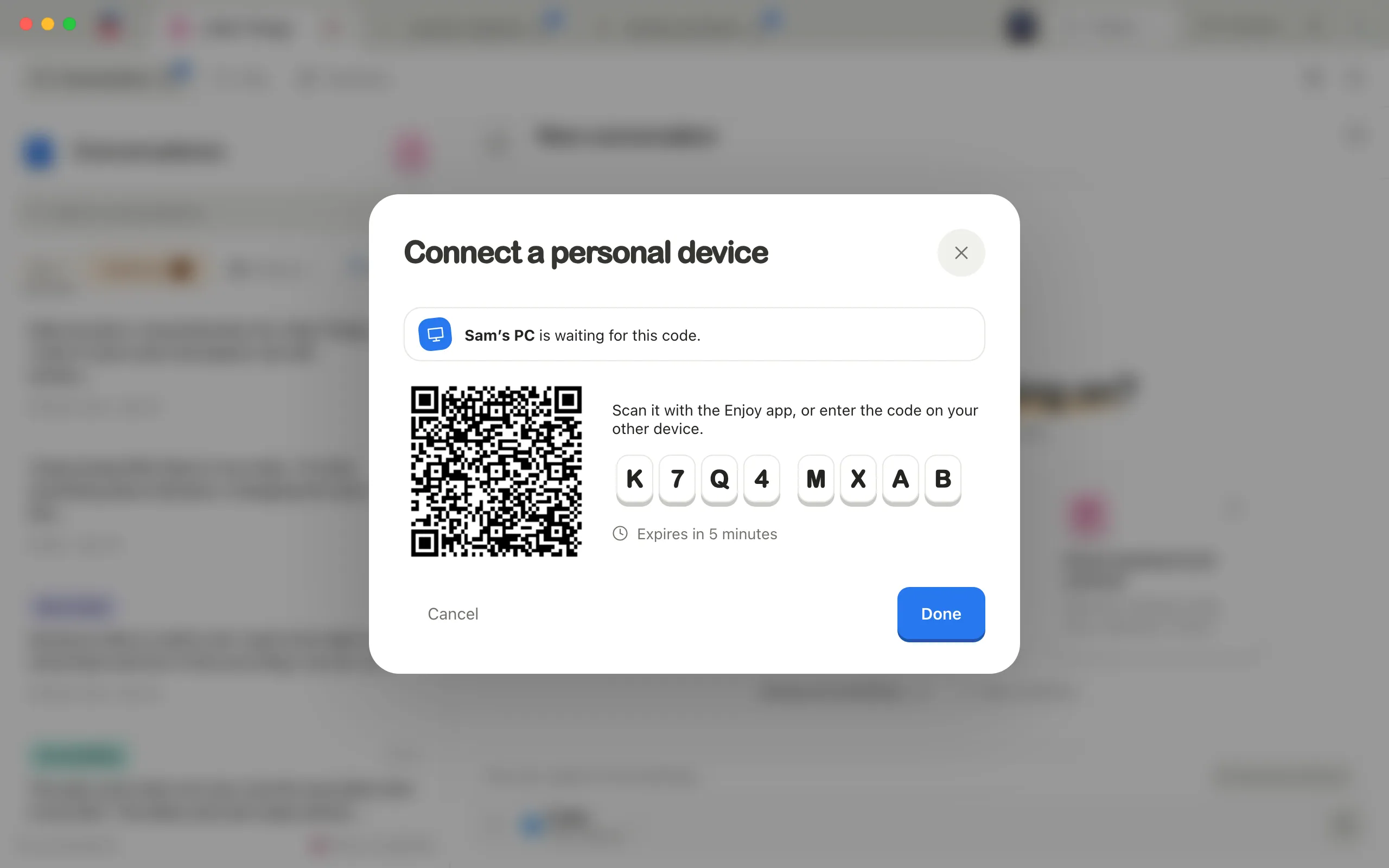
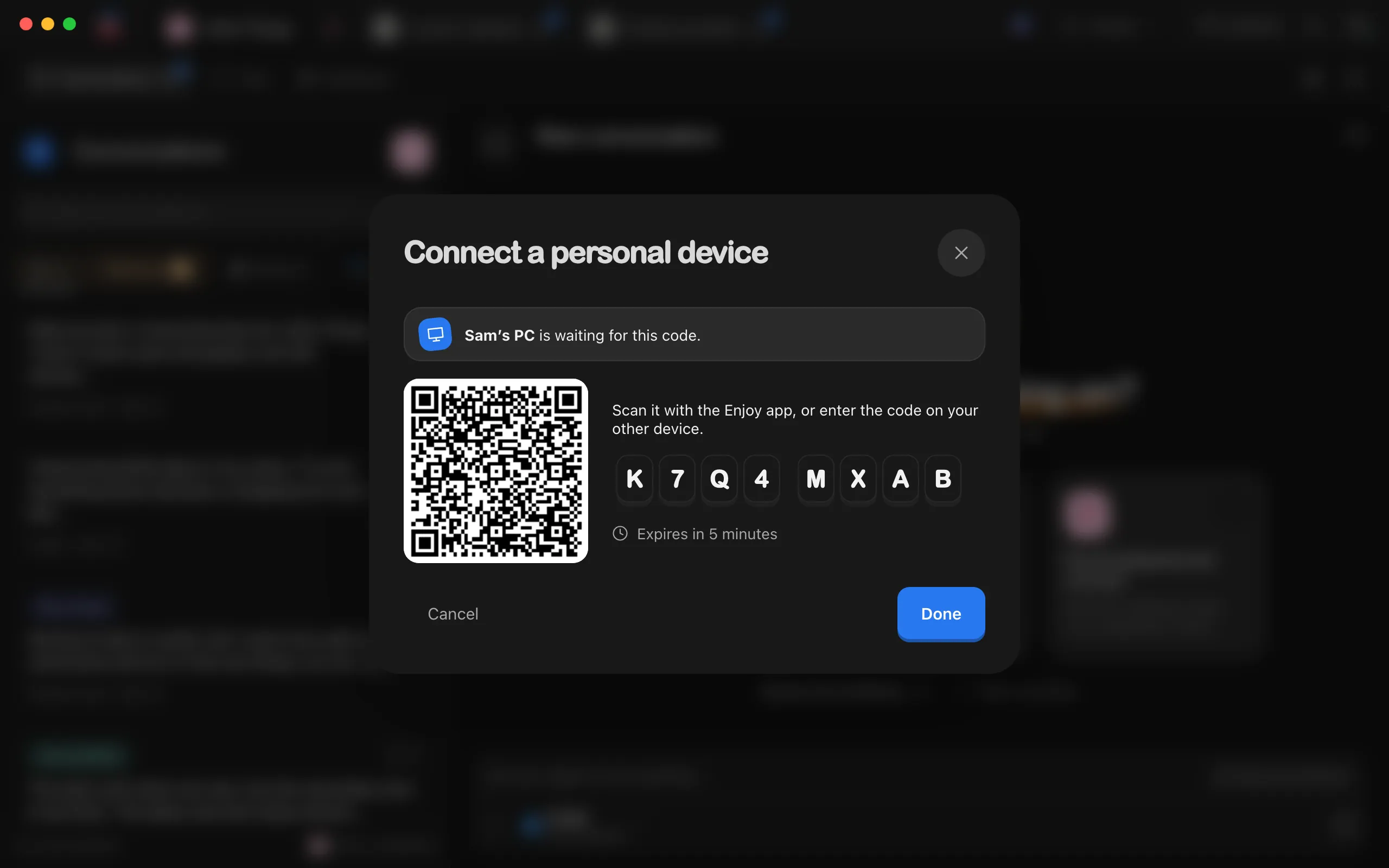
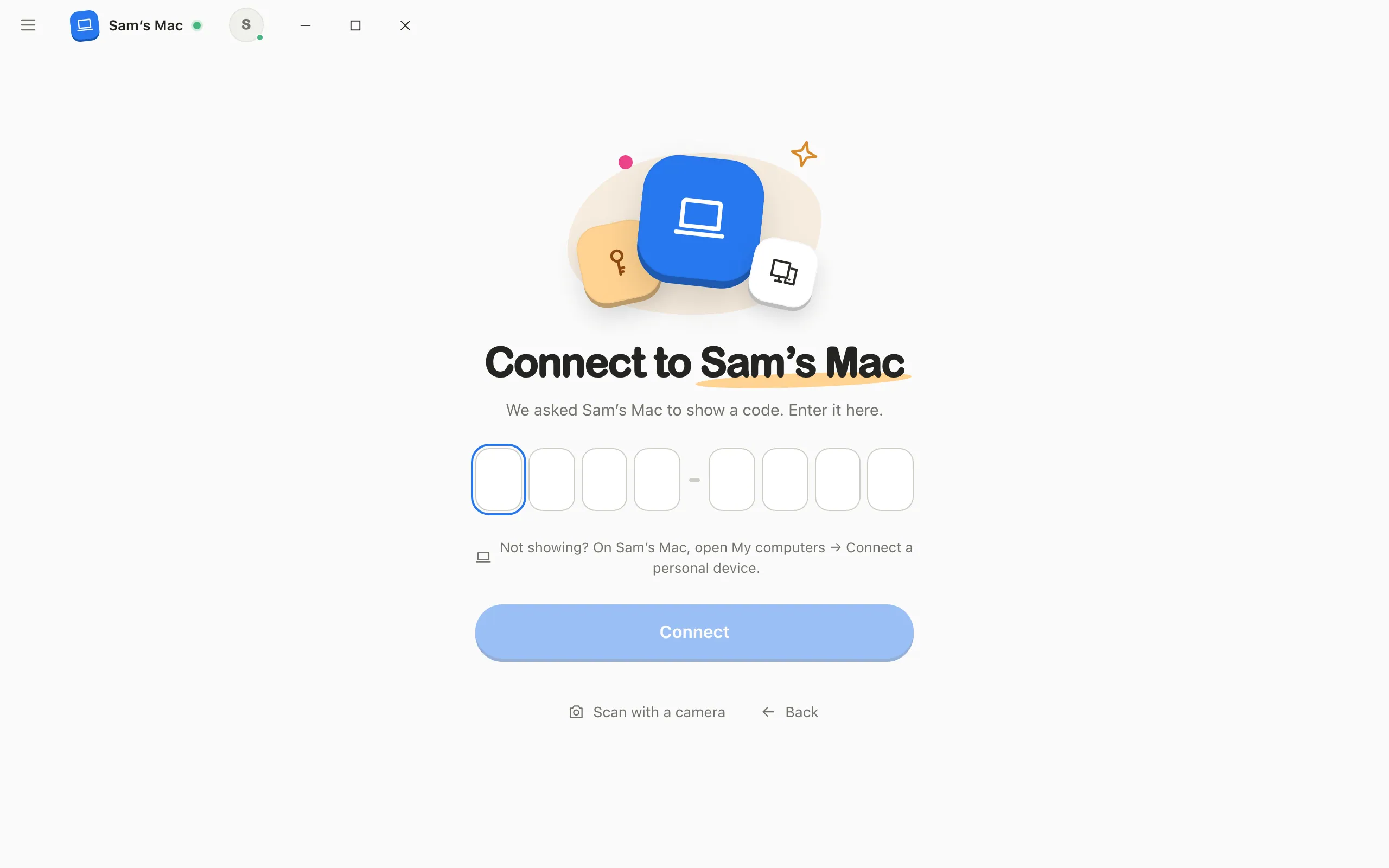
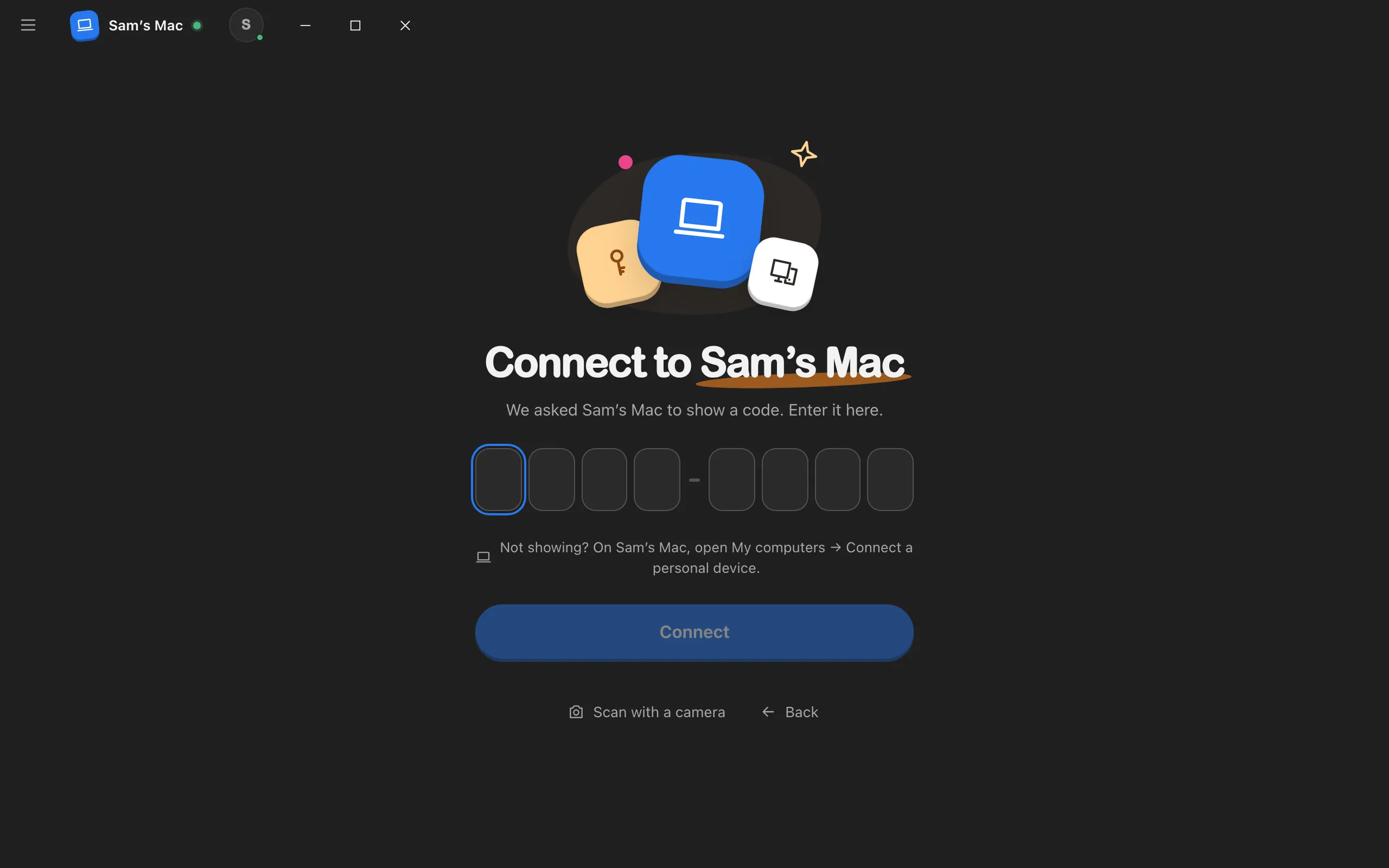
Enjoy asks it to show a code. The Connect a personal device window opens there on its own, saying your second computer is waiting for the code.
Type the code
On the second computer, type the eight-character code and select Connect.
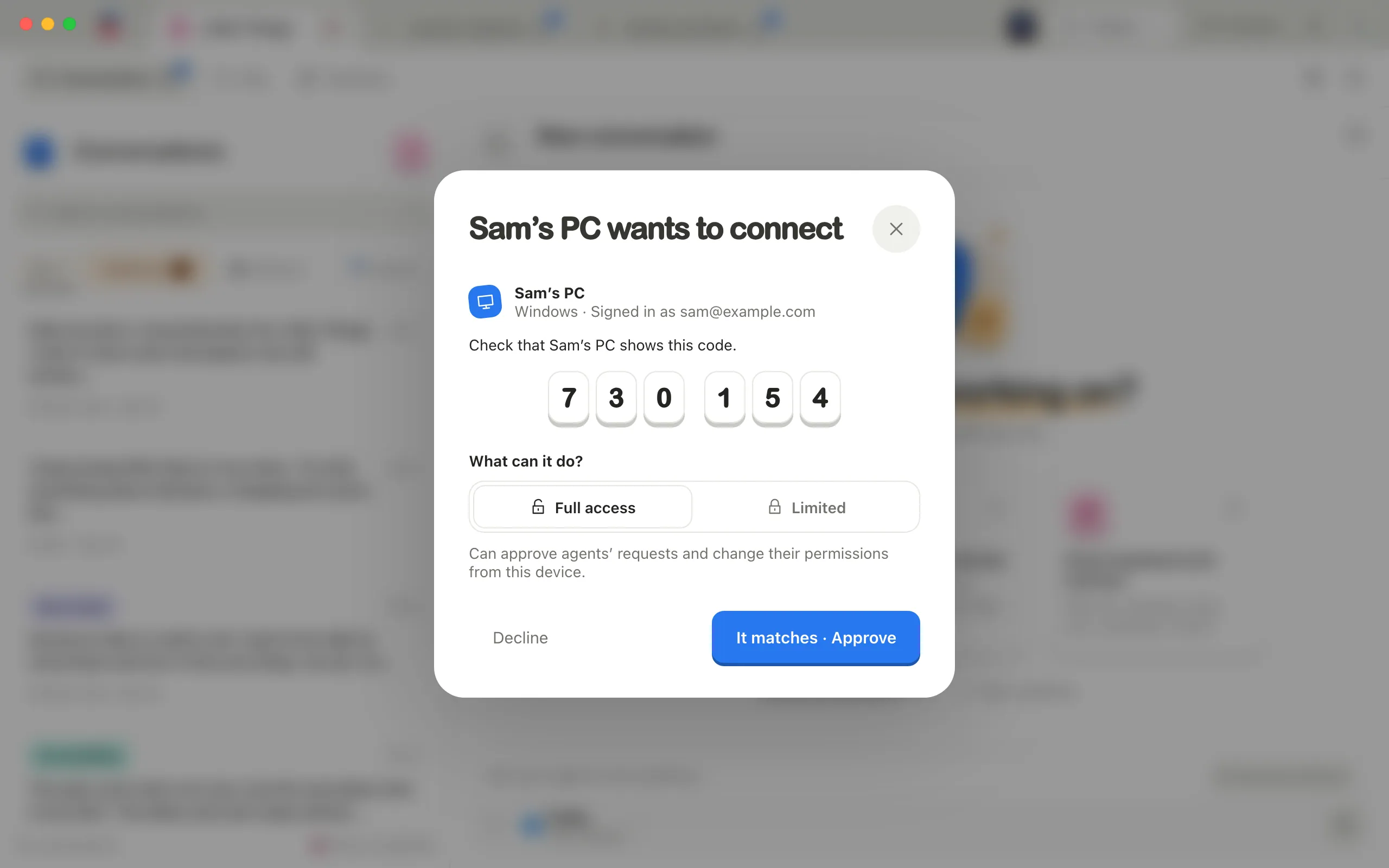
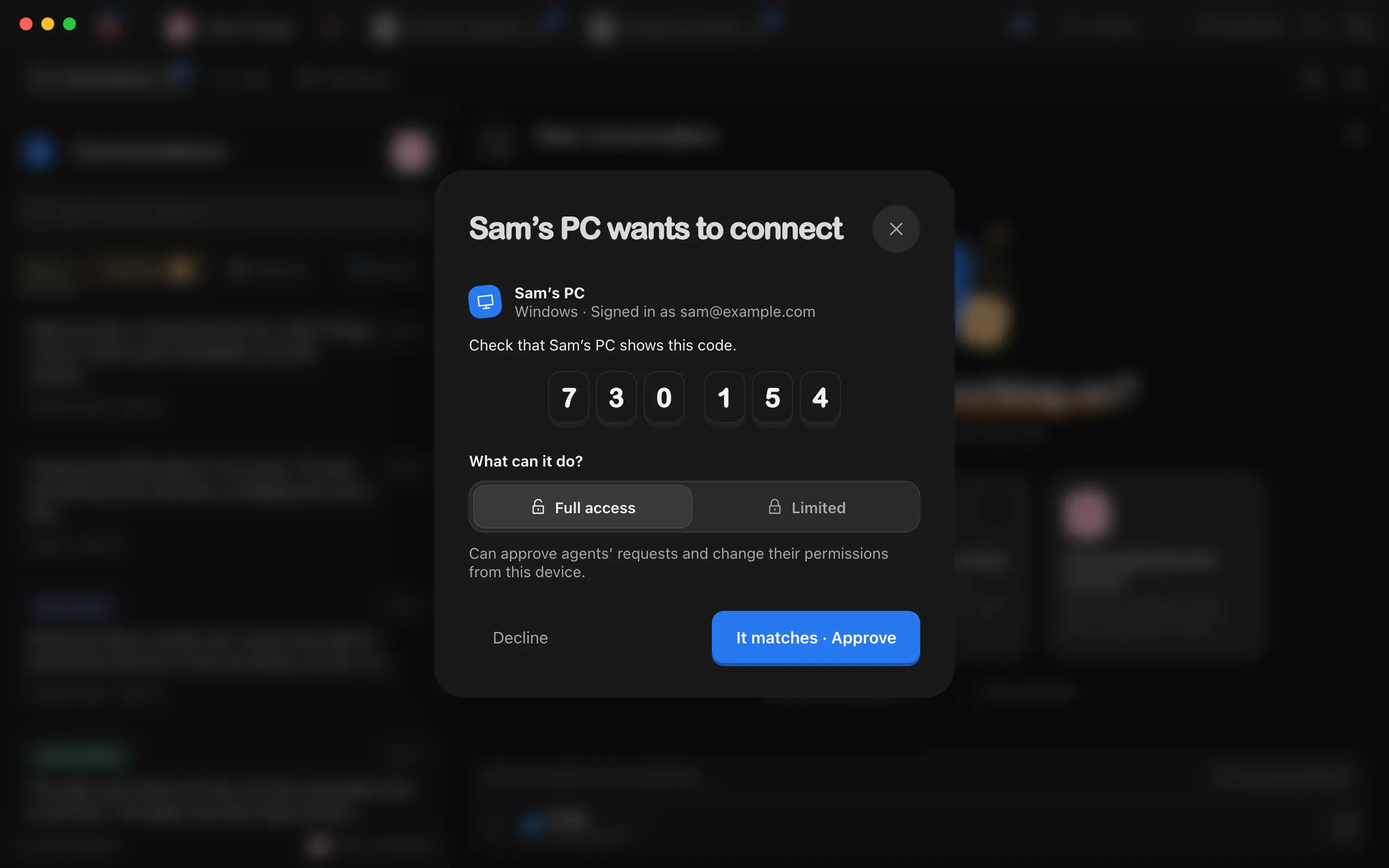
Compare the six digits
Both computers show the same six digits.
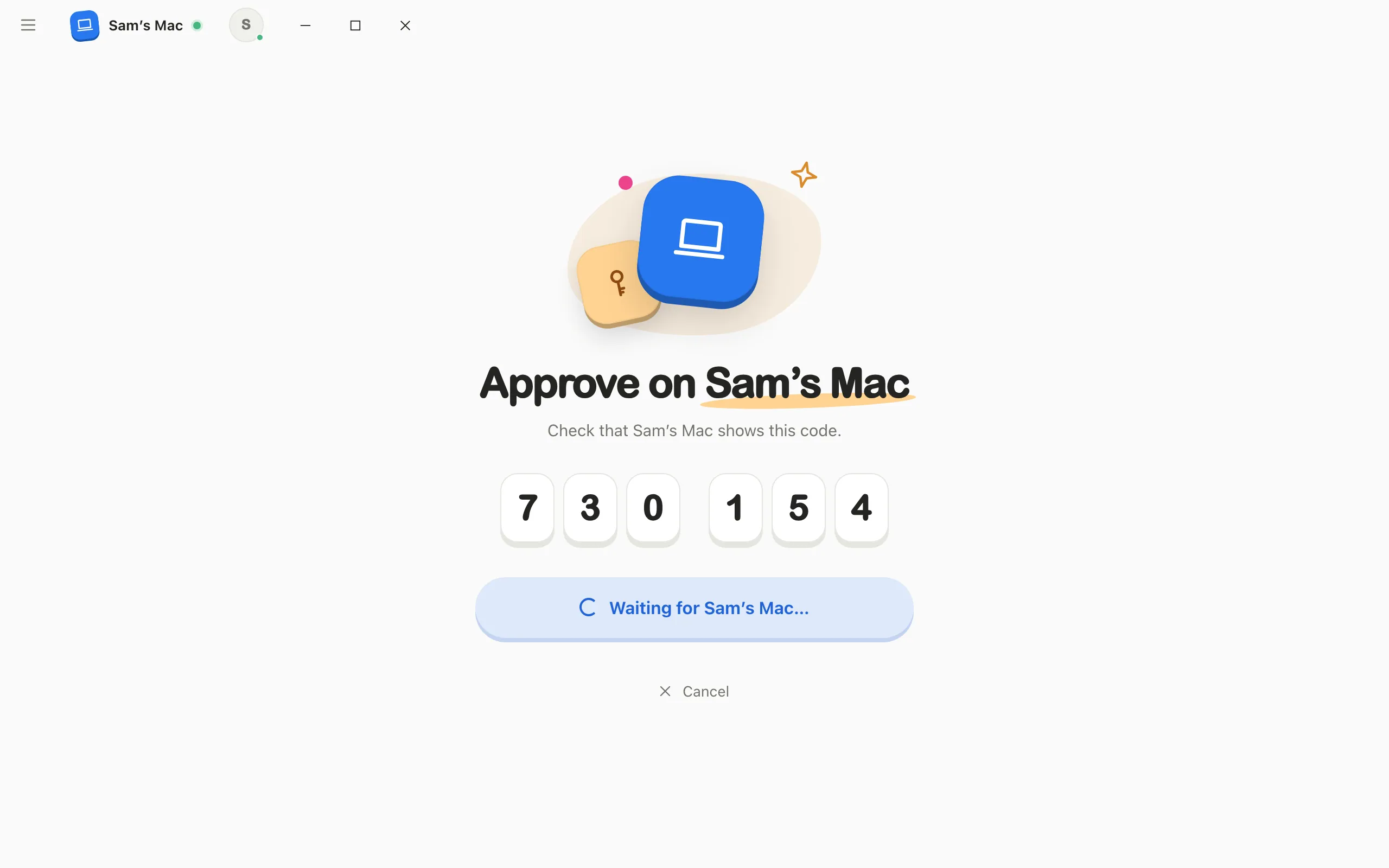
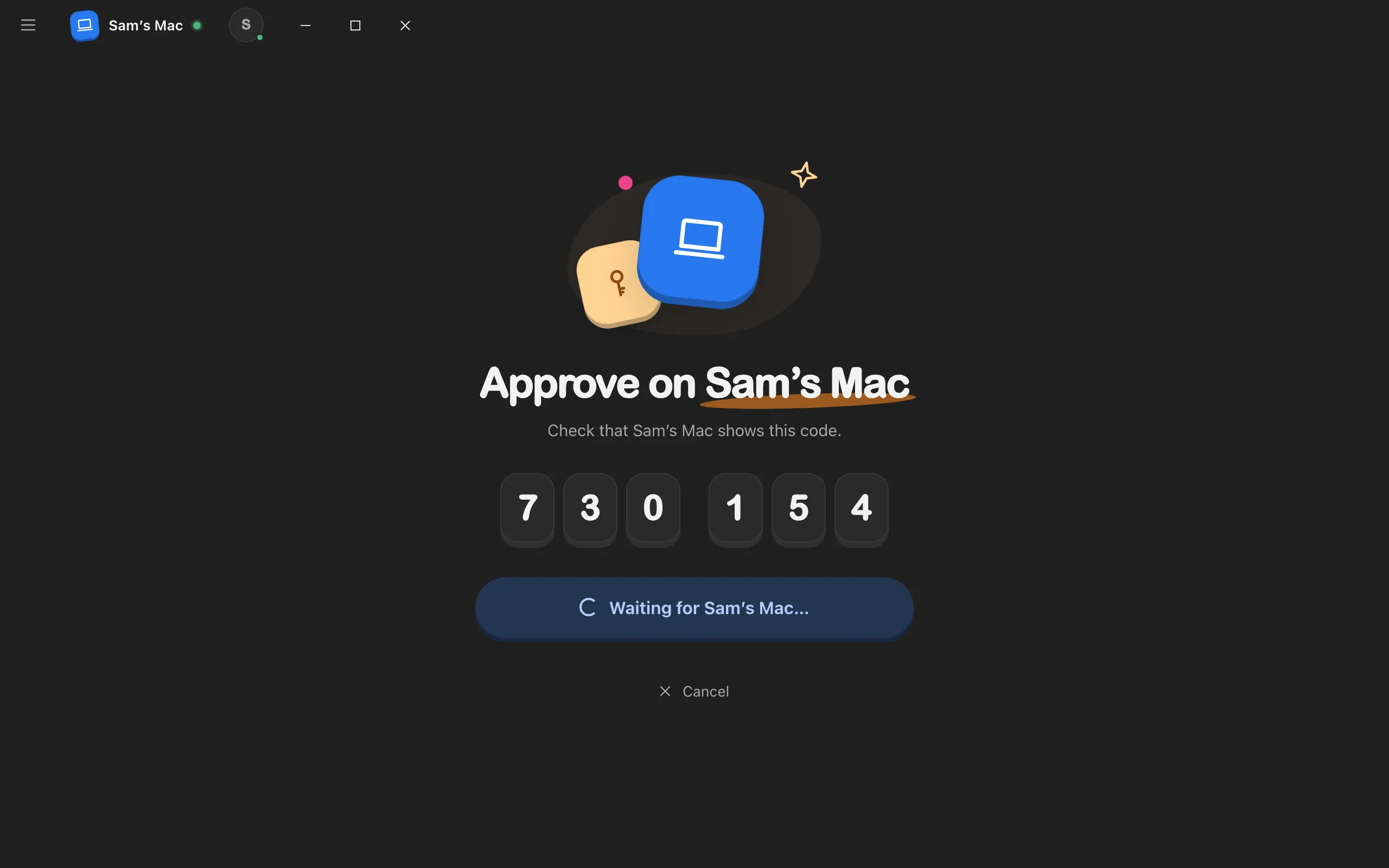
Select It matches · Approve
Do this on your main computer, only if the digits match.
Start working
The second computer opens your main computer’s projects.
Good to know
- Working from a second computer this way doesn’t cost extra.
- Projects, files, and agents stay on your main computer, and the second computer works on them from there. With Full access, the connected computer can approve agents’ requests and change their permission modes. With Limited, those decisions stay on the main computer. See What you can do from your phone or a browser.
- Next time you open Enjoy on the second computer, it connects to your main computer on its own.
- The second computer appears on your main computer in My computers under Personal devices.
- If the code window doesn’t open on your main computer, open it yourself: select the circle with your initial in the top-right corner, then choose Connect a personal device.
- If you have more than three computers, choose Connect to a computer first, then pick one.
- To run projects and agents on the second computer itself, choose Add this Mac as a computer instead, or Add this PC as a computer on Windows. Each extra computer is a paid add-on. See Add another computer to your plan.
- Moving to a new computer for good? Select Replacing followed by your current computer’s name (or Replacing a computer? if you have several), then Replace followed by its name. The new computer takes its place at no charge, and your phone and browsers connect to it again with a new code. Team members on the old computer need new invites. The old computer’s projects stay on it, so copy the folders you need. You can move your computer once a week.
If something goes wrong
Offline · Open Enjoy on it first
Your main computer is asleep, offline, or not running Enjoy, and its choice can’t be selected yet. Open Enjoy on it, then try again. With only one computer, the choice names the computer to open Enjoy on.
Your main computer didn’t approve this computer
Someone selected Decline on the main computer, or closed the approval window there. Select Try again and enter a new code.
The code doesn’t work
The code problems are the same as on a phone. See Connect your phone.