Pin a conversation to the top
The list keeps your newest conversations at the top, so one you’re watching moves down every time another gets a reply. Pin it, and it stays at the top of the list until you unpin it.
Steps
Pin the conversation
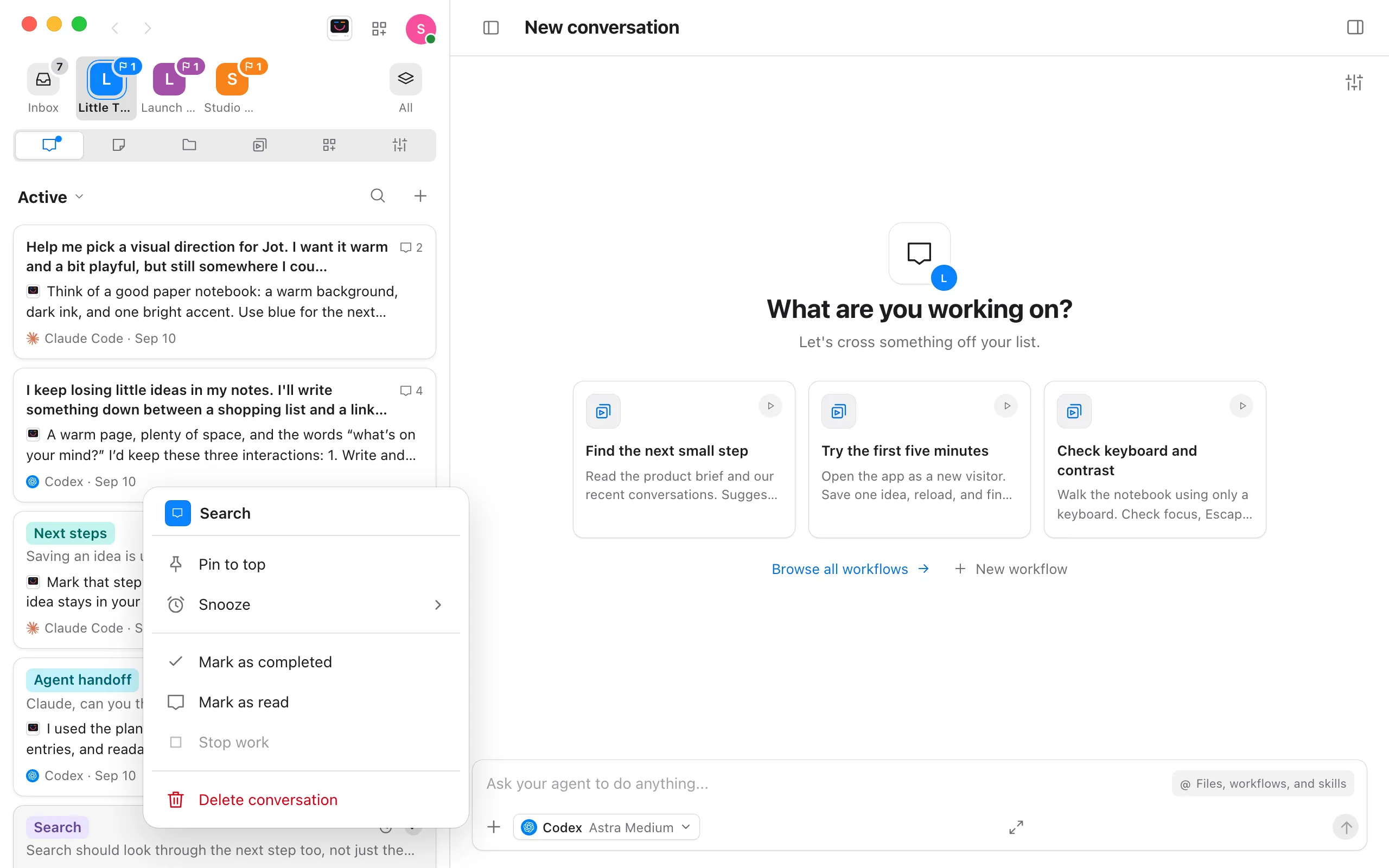
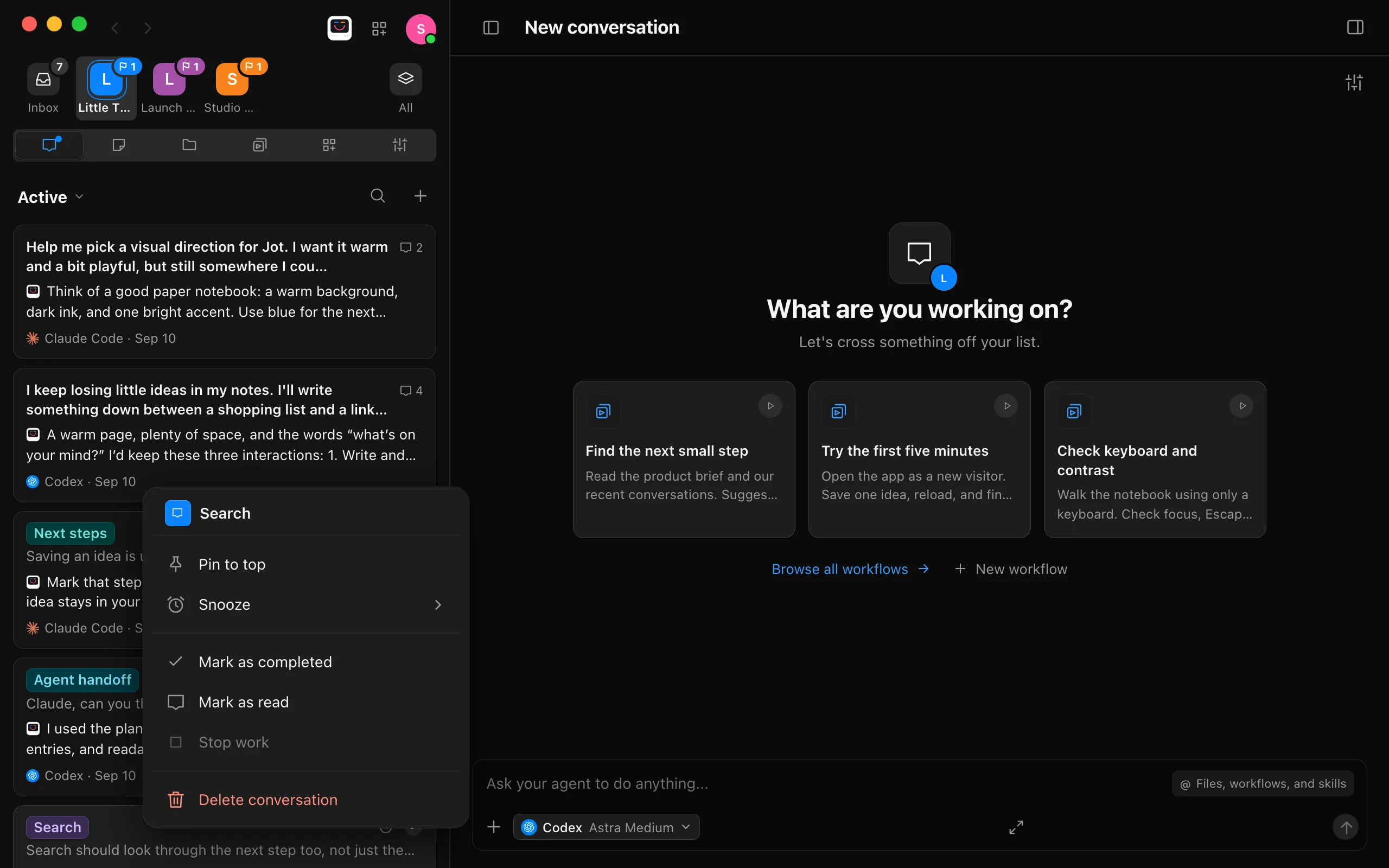
Right-click it in the list and choose Pin to top. With the conversation open, you can also choose Pin to top from the ⋯ menu (Conversation actions) beside its title.
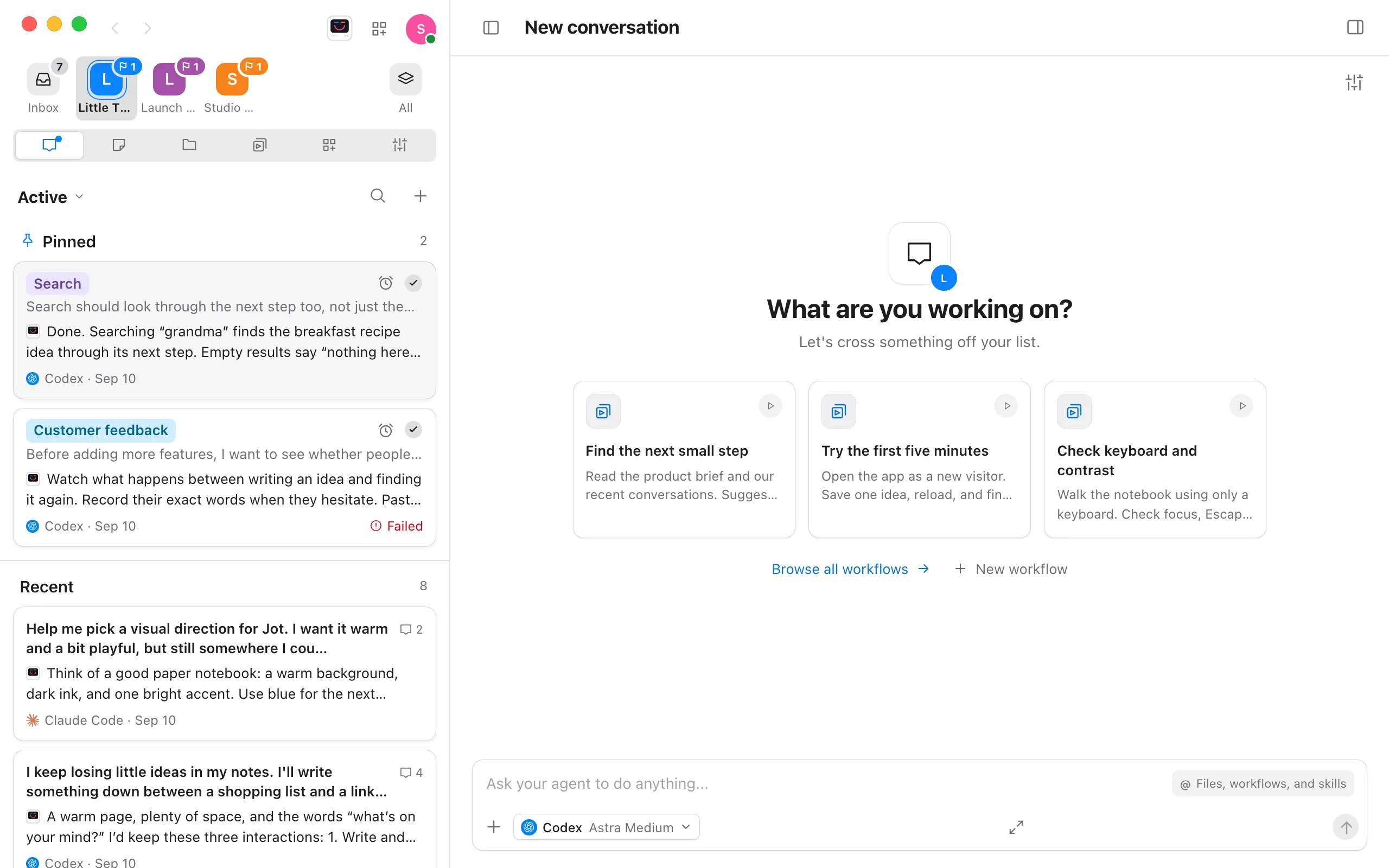
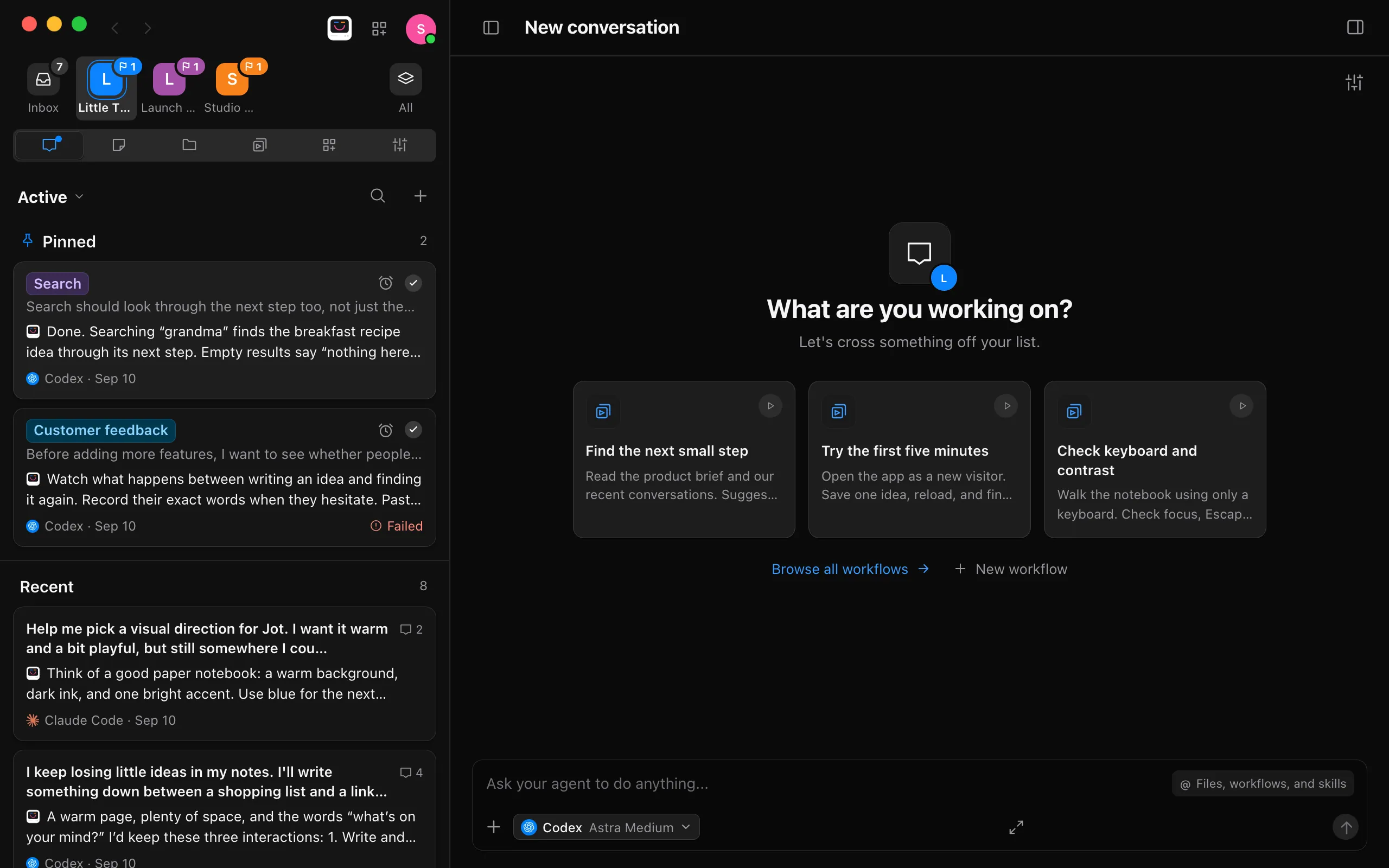
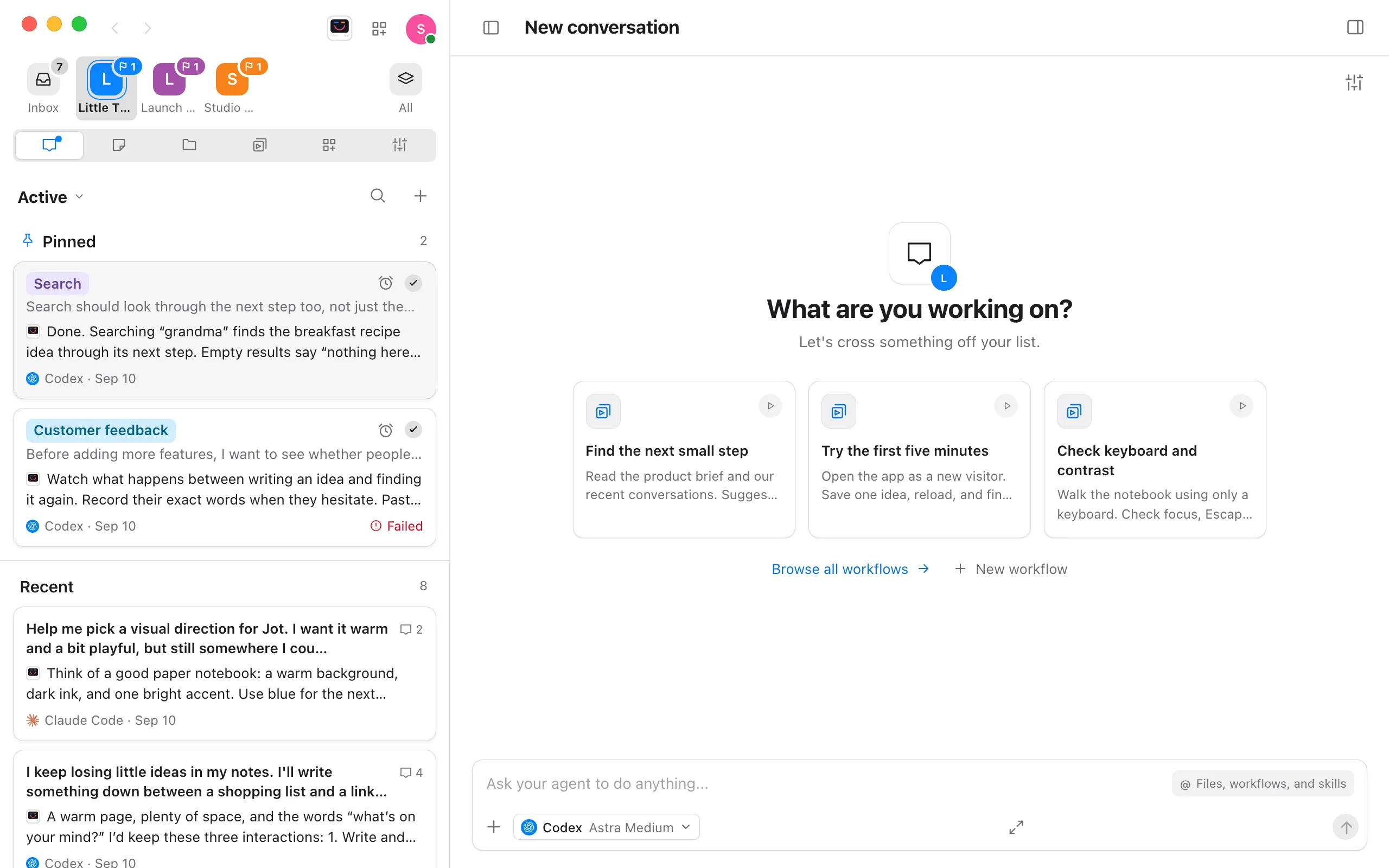
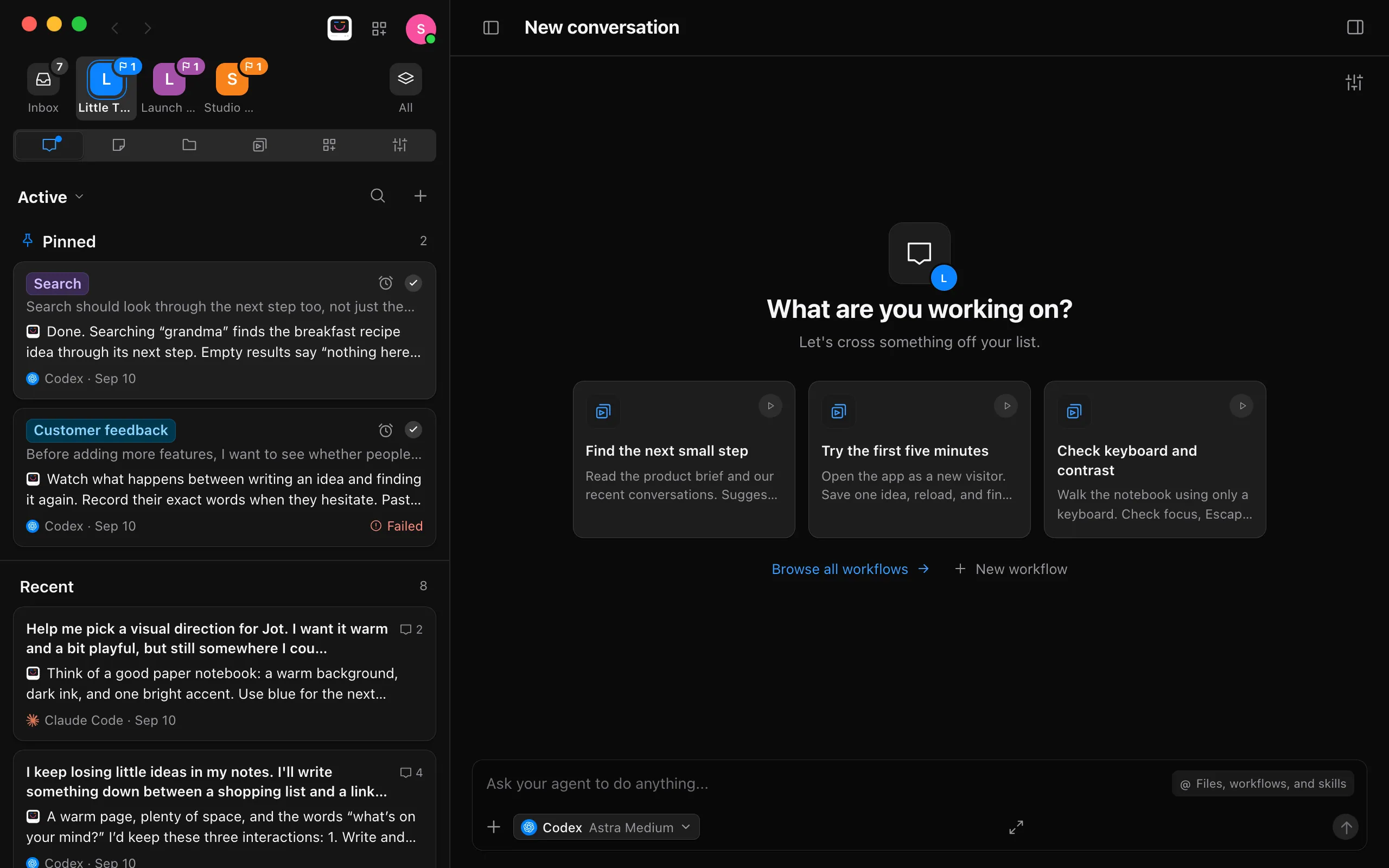
Find it under Pinned
Pinned conversations sit at the top of the list under Pinned. Every other conversation follows under Recent, newest first, as before. A new reply in a pinned conversation shows on it where it is, and other conversations’ replies never move it.
Put your pins in order
Drag a pinned conversation up or down among the others. The others slide aside to make room, and it stays where you drop it. Press Escape while dragging to put it back. To move one without dragging, right-click it and choose Move up or Move down.
See only your pins
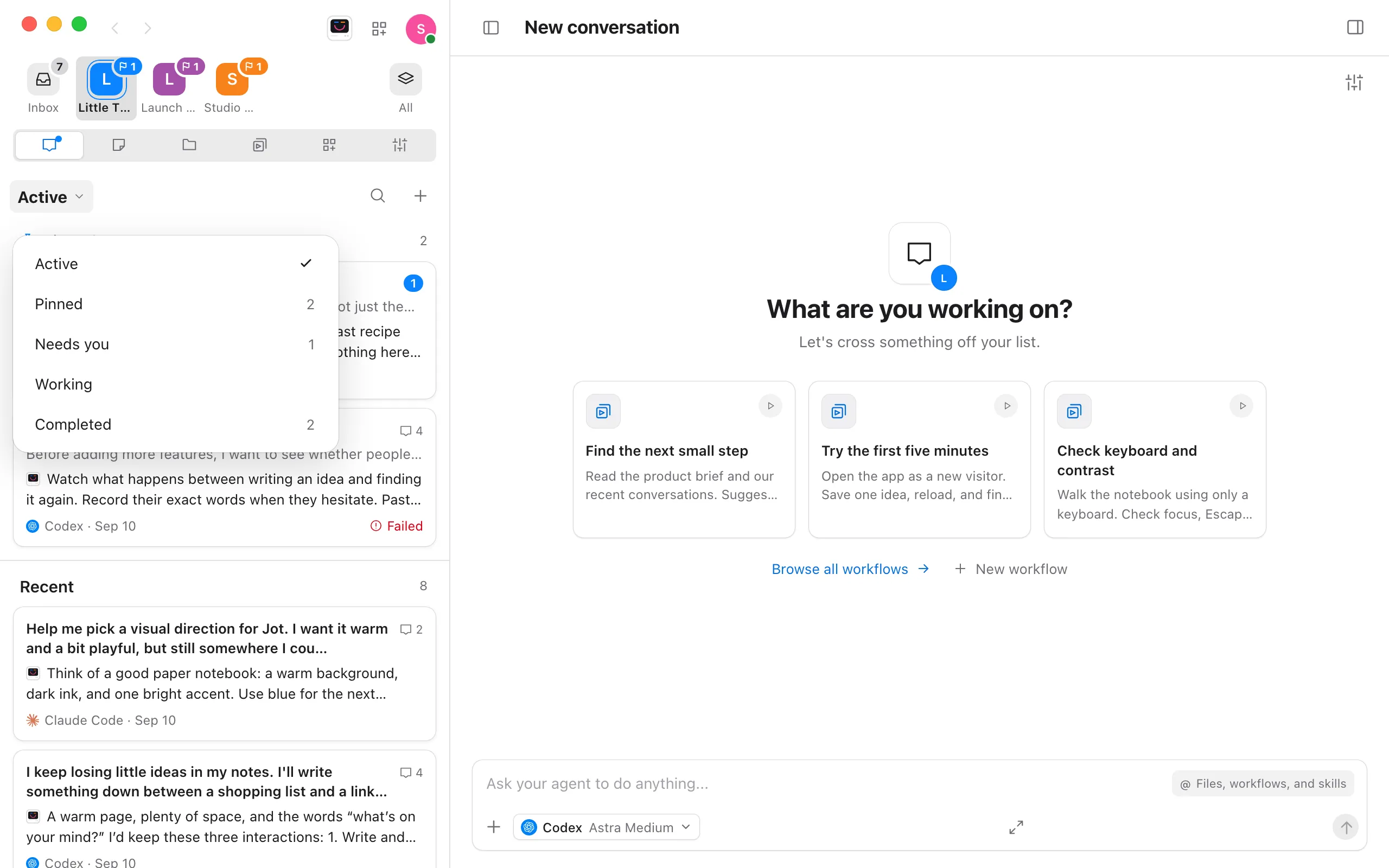
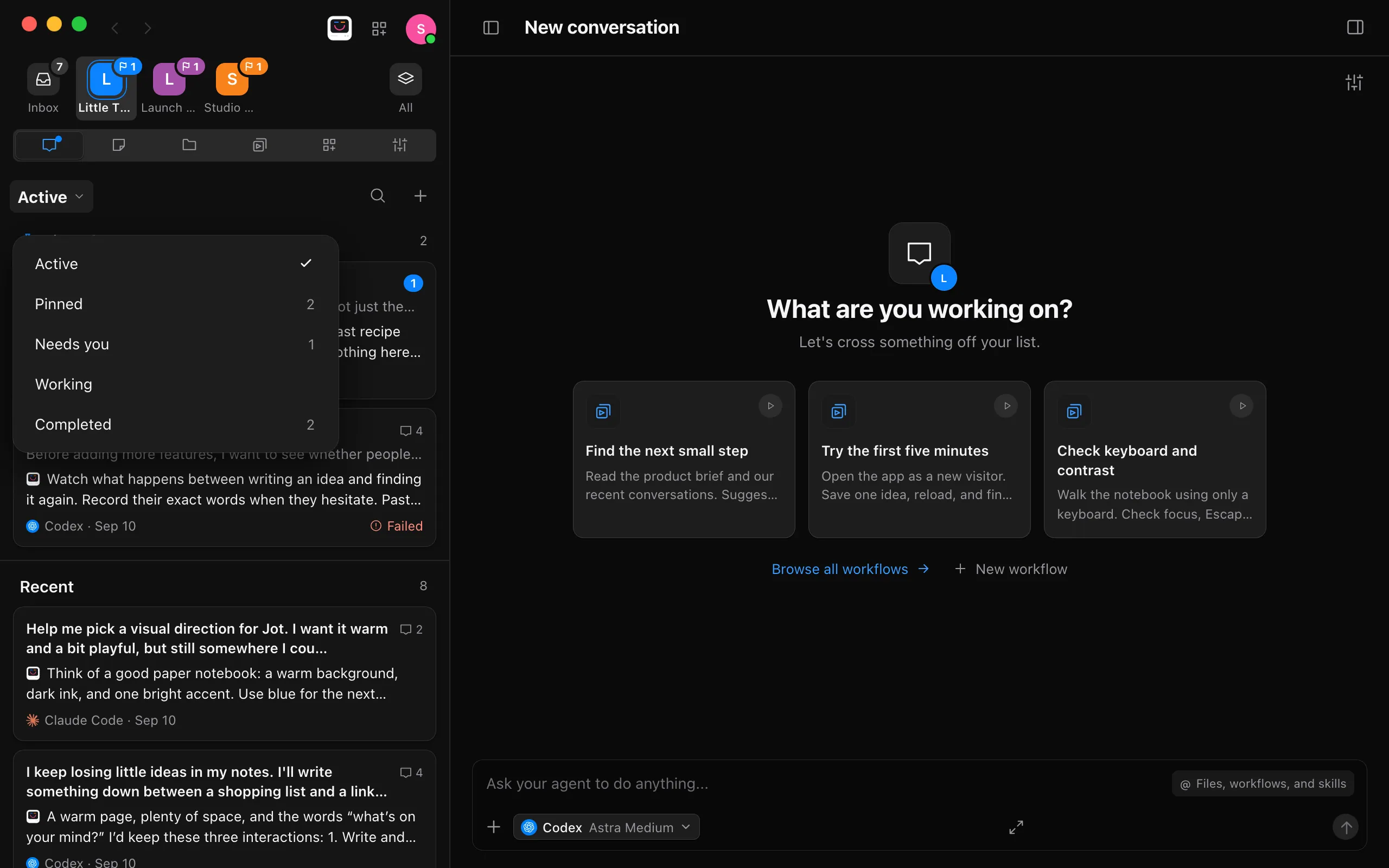
While anything is pinned, the menu under Active, the title at the top of the list, offers Pinned, with how many there are. Choose it to list just your pinned conversations, in your order. Choose Active to see every conversation again.
Good to know
- To unpin a conversation, right-click it, or open its ⋯ menu, and choose Unpin. It goes back to its place among the others. Once nothing is pinned, Pinned leaves the list and its menu.
- To pin several at once, select them with ⌘-click (Ctrl-click on Windows and Linux), then right-click one of them and choose Pin to top. See Select several conversations at once.
- A pinned conversation stays pinned when you mark it completed, so it doesn’t leave the top of the list. Unpin it when you’re done watching it. See Mark a conversation as completed.
- Once any pinned conversation works in a worktree, each pin is headed by the folder it works in, as the rest of the list is grouped, and a worktree’s heading keeps its ⋯ for merging and deleting it. See Try ideas side by side in worktrees.
- Your pins from every project also lead Inbox, under Pinned, in an order you set there apart from each project’s. See Use your Inbox.
- A search from Active lists every match newest first, pinned or not. A search from Pinned looks only through your pins. See Find a conversation.
- Each project has its own pins, saved on your computer. The web app, and another computer you connect to it, show the same pins and the same order in Inbox, and changing them there changes them on your computer too. On a computer someone shared with you, your pins are your own, kept in your browser. If a pinned conversation is deleted, here or on another device, its pin goes too.
- The iPhone app doesn’t show pins yet.