Review the changes an agent made
Before you start
- The agent committed during its reply. Replies without commits don’t have View changes. See Save your changes with a commit.
Steps
Find View changes
It’s below the agent’s reply. If the reply made several commits, the button also says how many, such as 3 commits.
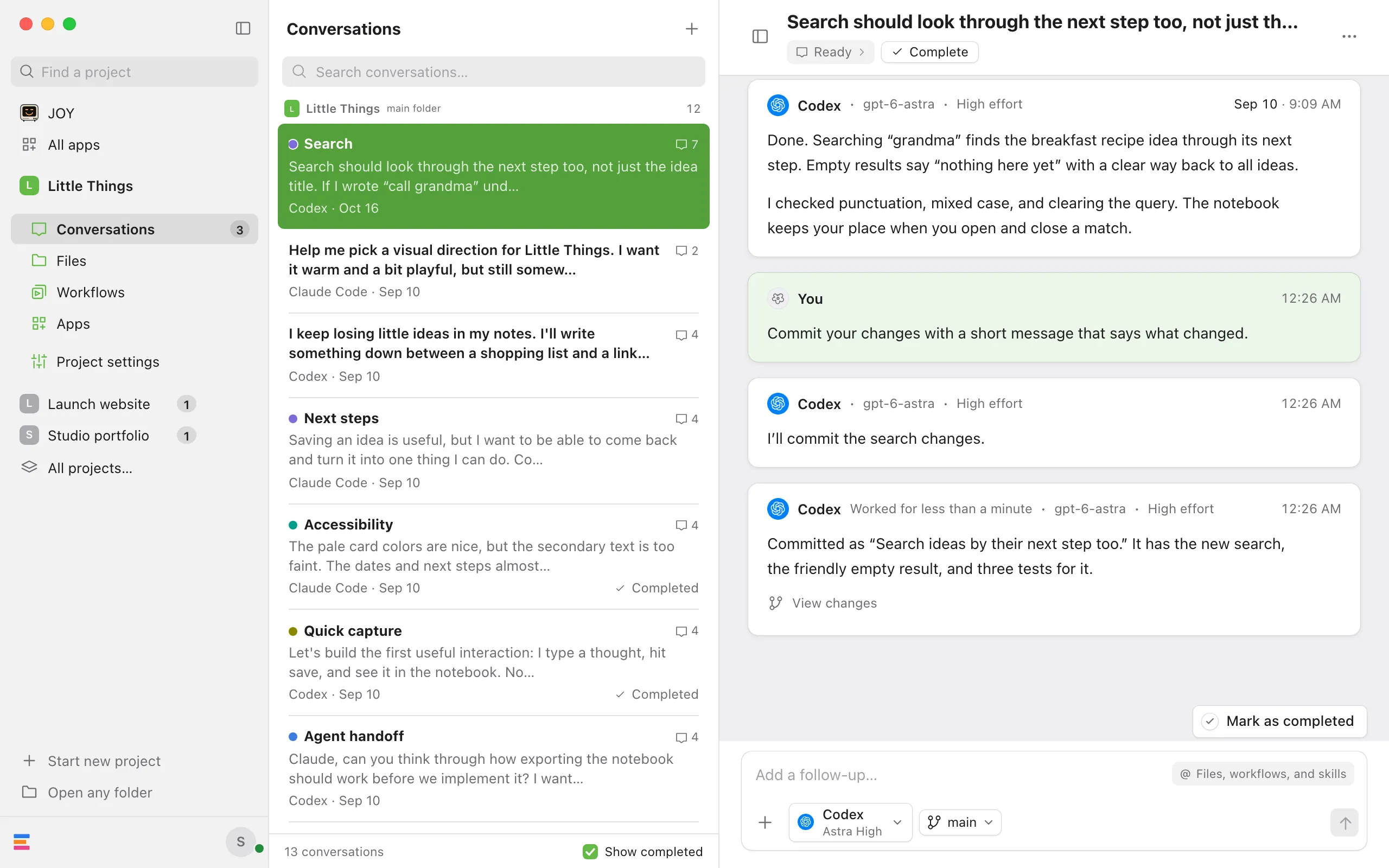
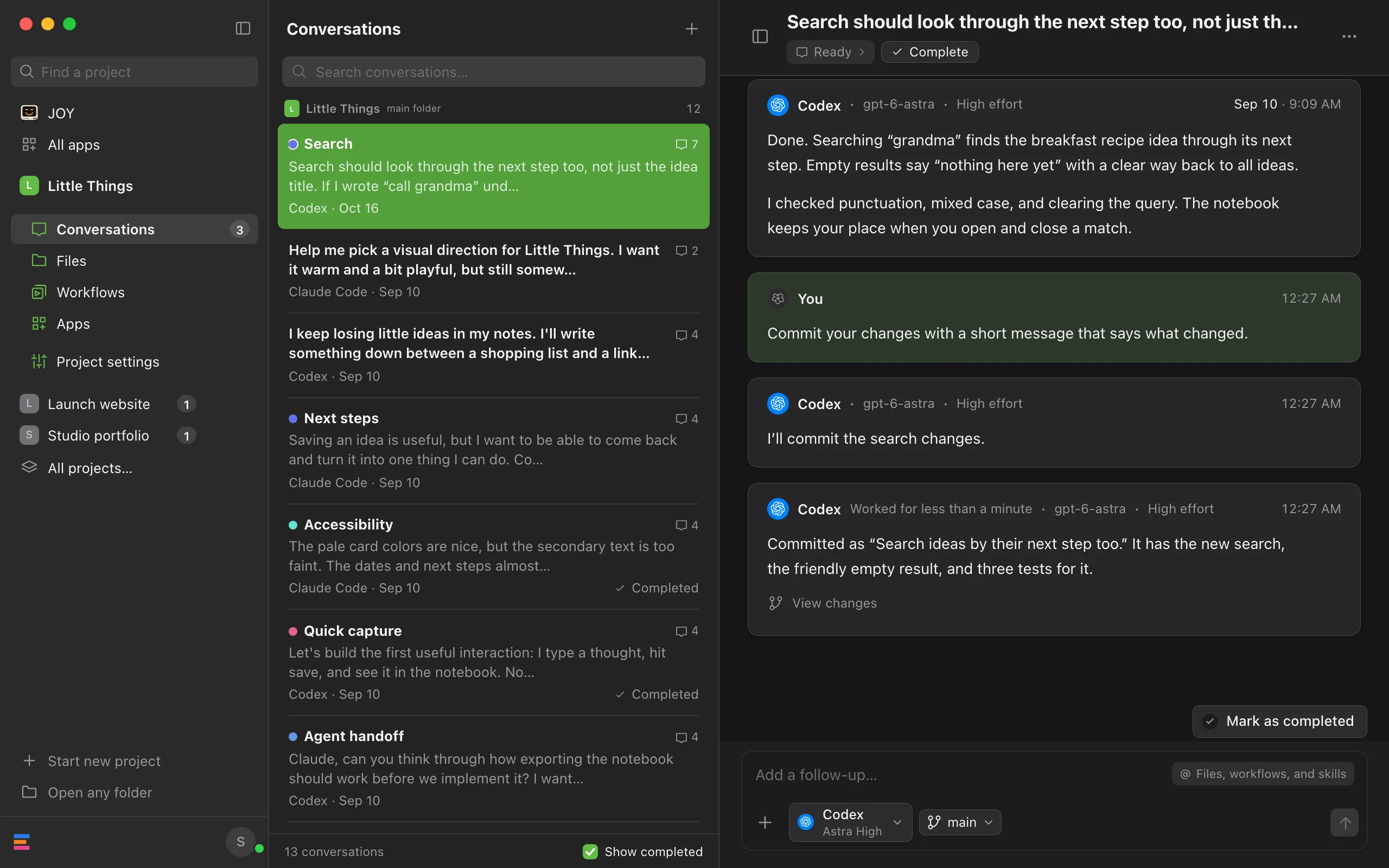
Select View changes
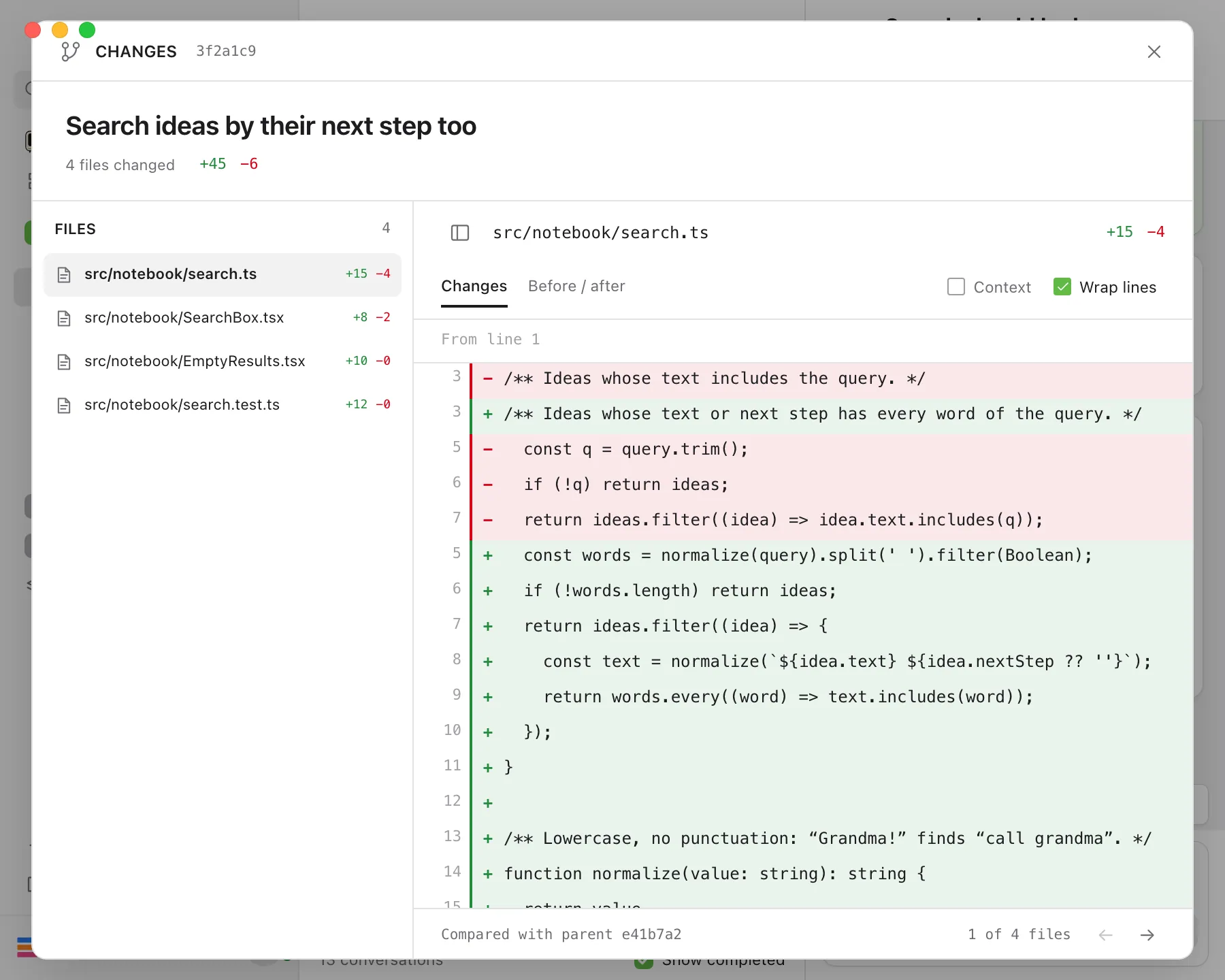
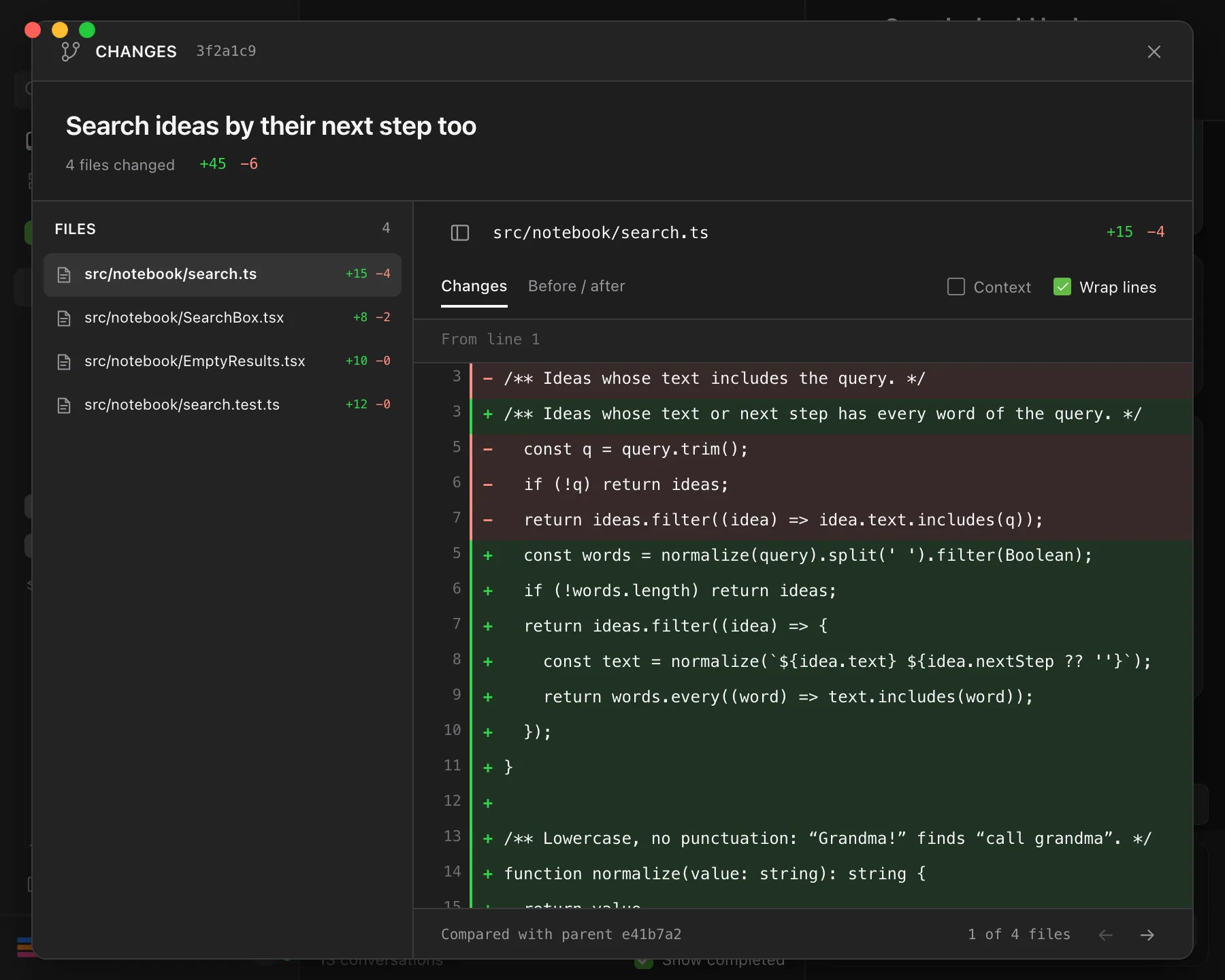
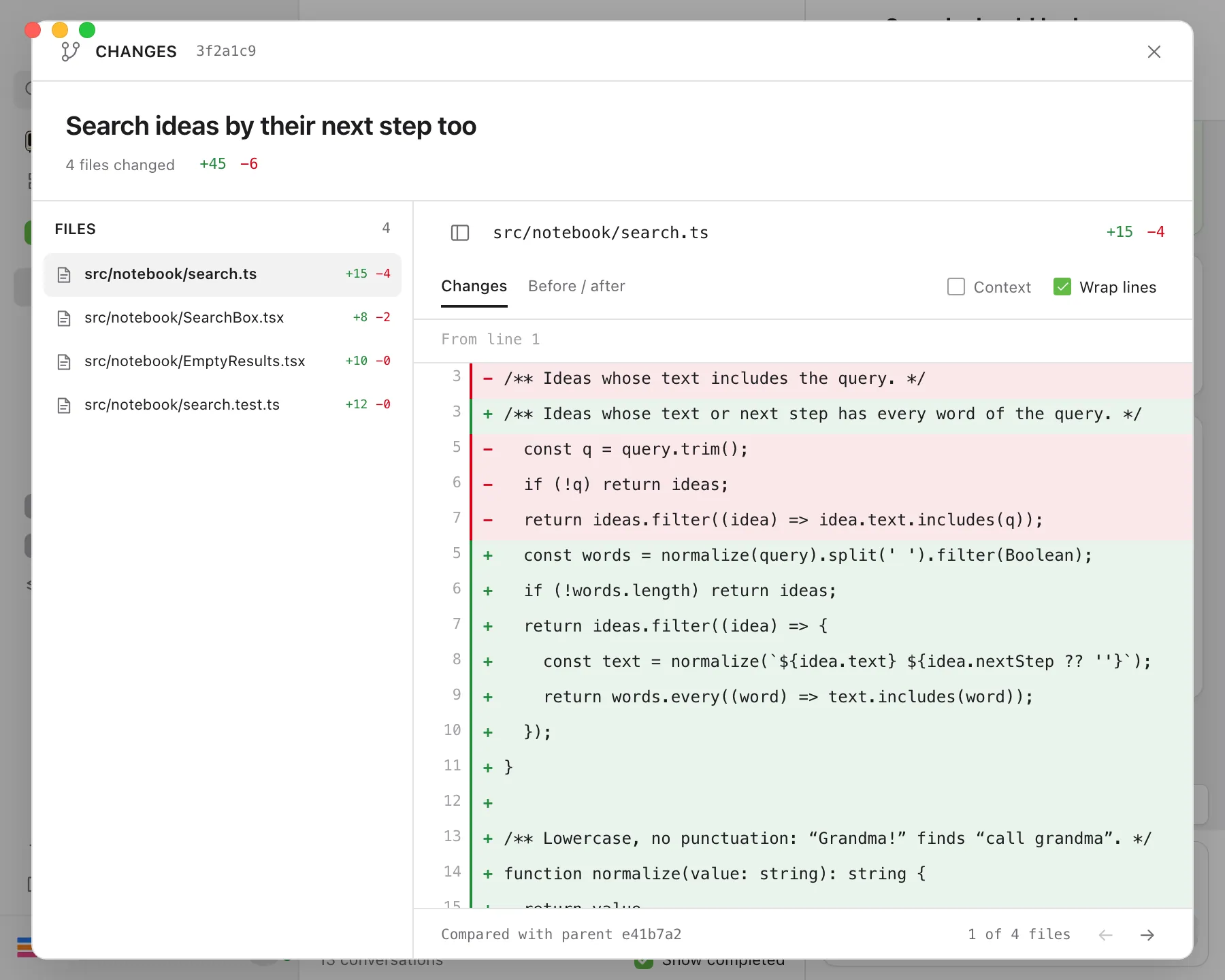
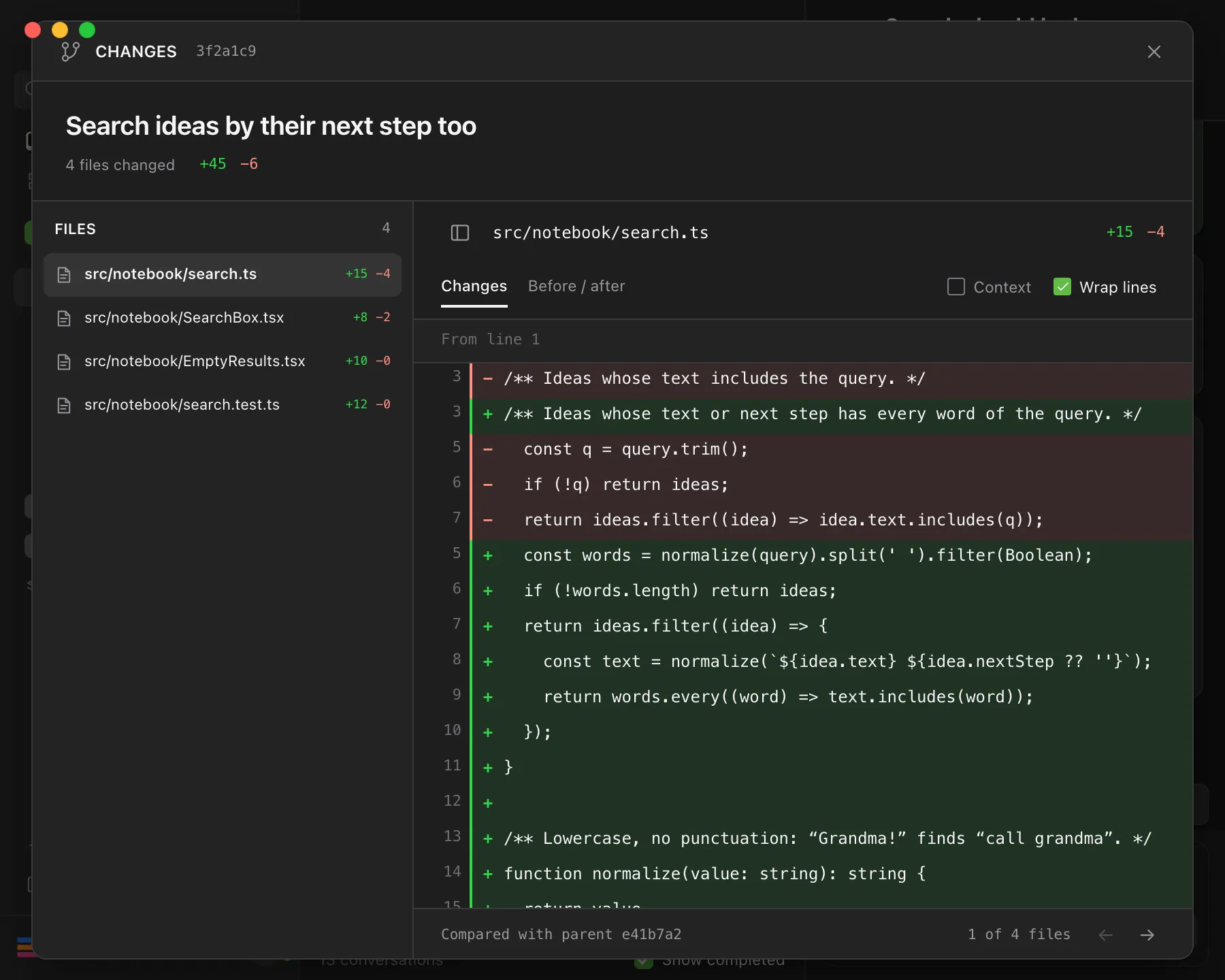
The Changes window opens. At the top are the commit’s message, how many files changed, and how many lines were added (+, in green) and removed (−, in red).
Choose a file
Select it in the Files list. To go through the files one at a time, use the arrows at the bottom.
Read the changes
Added lines are marked + and removed lines −. Select Before / after to see the old and new versions side by side, or Changes to go back. Turn on Context to also show the unchanged lines around each change. Wrap lines is on, so long lines fit on screen.
Open the file, if you want to
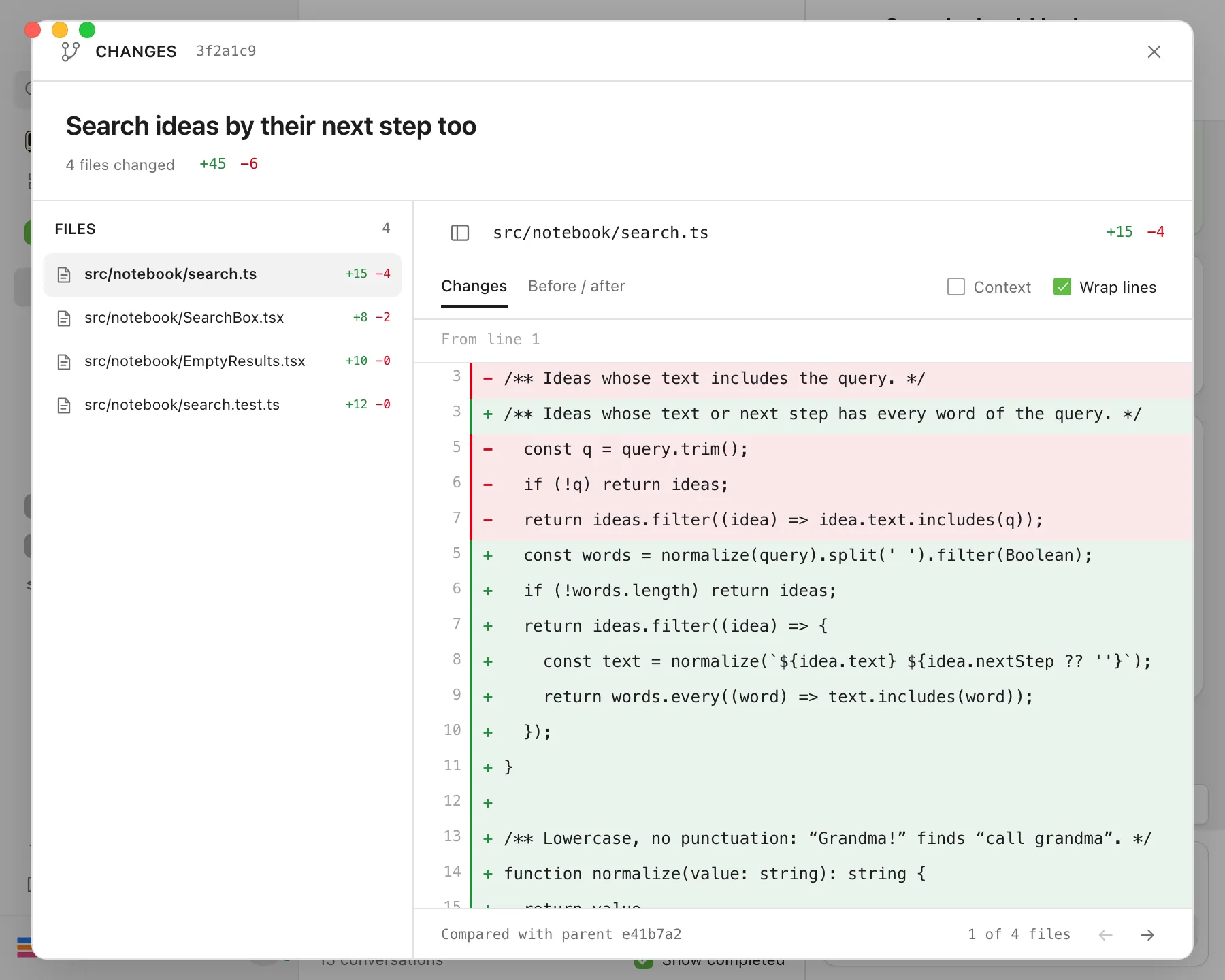
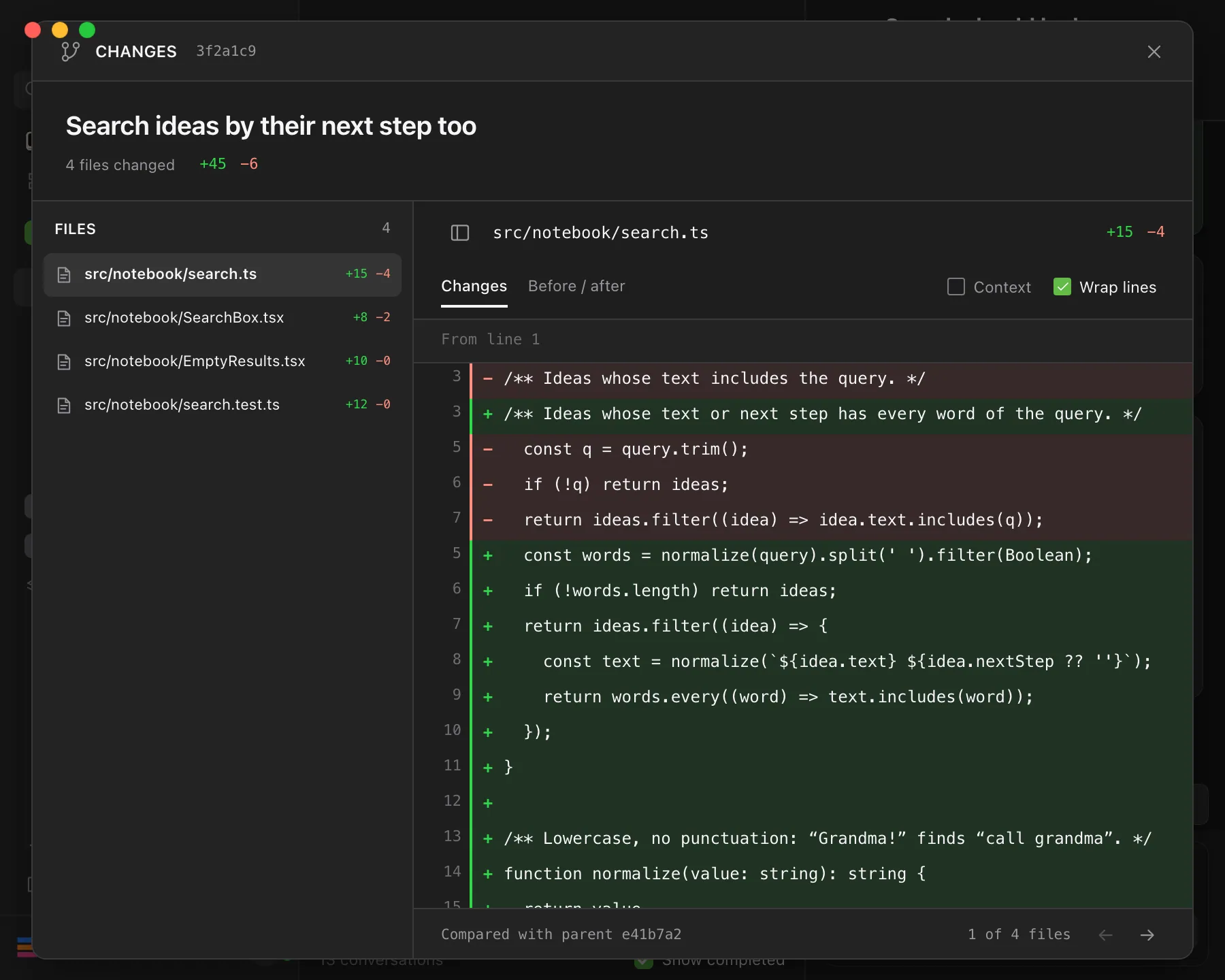
Select the file’s path above its changes. The window closes, and the file opens in Files.
Good to know
- If the reply made several commits, choose one from the menu at the top of the window. It shows the commit you’re viewing, and each commit is listed like “Commit 2 of 3 · 3f2a1c9”.
- In a narrow window, such as the web app on a phone, a menu above the changes takes the place of the Files list. The file’s path isn’t shown there, so you can’t open the file from this window.
- Each commit is compared with the one before it. The bottom of the window says “Compared with parent” and that commit’s short code, or “First commit in this repository”.
- The file you open shows how it is now, which can include changes made after this commit.
- Images and other non-text files show “Binary file changed. A text diff isn’t available.”
- For a very large file, the window shows the first 2,000 lines or 512 KB of its changes.
- To give the changes more room, select the sidebar button next to the file name to hide the list. Drag the list’s edge to resize it, and double-click the edge to reset it.
- To make the window fill the screen, select the Full screen button beside the close button. Select it again to exit full screen. The window stays full screen when you switch to another commit.
- In the iPhone app, each commit appears below the reply with its short code and message. Tap it to see the changed files, then tap a file to see its changes.
If something goes wrong
“Couldn’t load changes”
Read the message below it, then:
- For “Reading this commit took too long. Try again.” or a connection problem, select Try again.
- For “Commit previews are unavailable on this desktop. Update Enjoy and try again.”, update Enjoy on your computer. See Update Enjoy.
- For “This commit has too many files to preview in Enjoy.”, ask the agent to summarize what the commit changed.
There’s no View changes button
The agent didn’t report a commit in that reply. Ask it whether it committed its work, and to commit if it didn’t.