Push your branch
Before you start
- Your project is connected to an online copy, such as a GitHub repository, and Git on your computer can sign in to it. If it isn’t set up yet, ask your agent to set it up.
- The work you want to send is committed. Pushing sends commits, not uncommitted changes. See Save your changes with a commit.
Steps
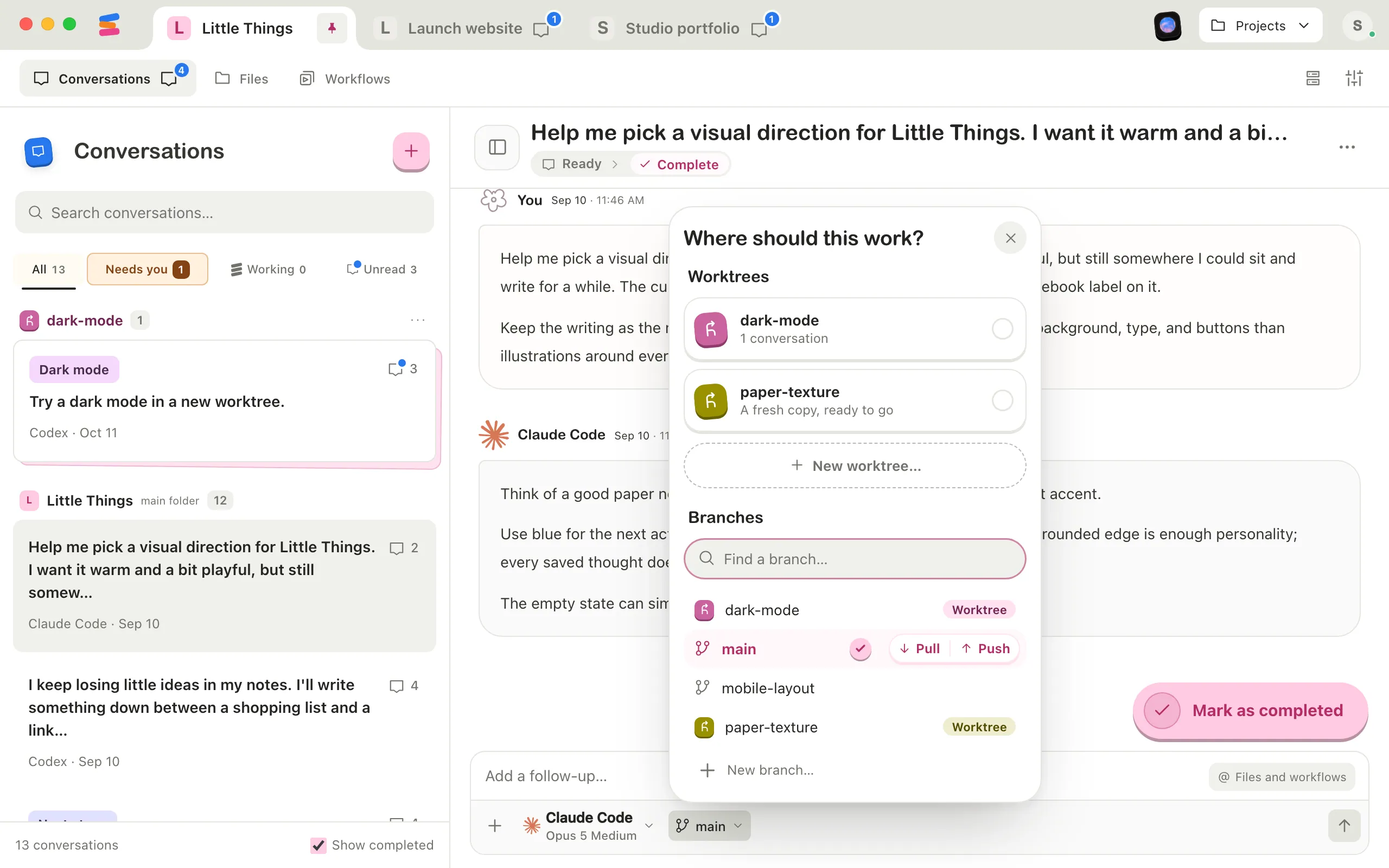
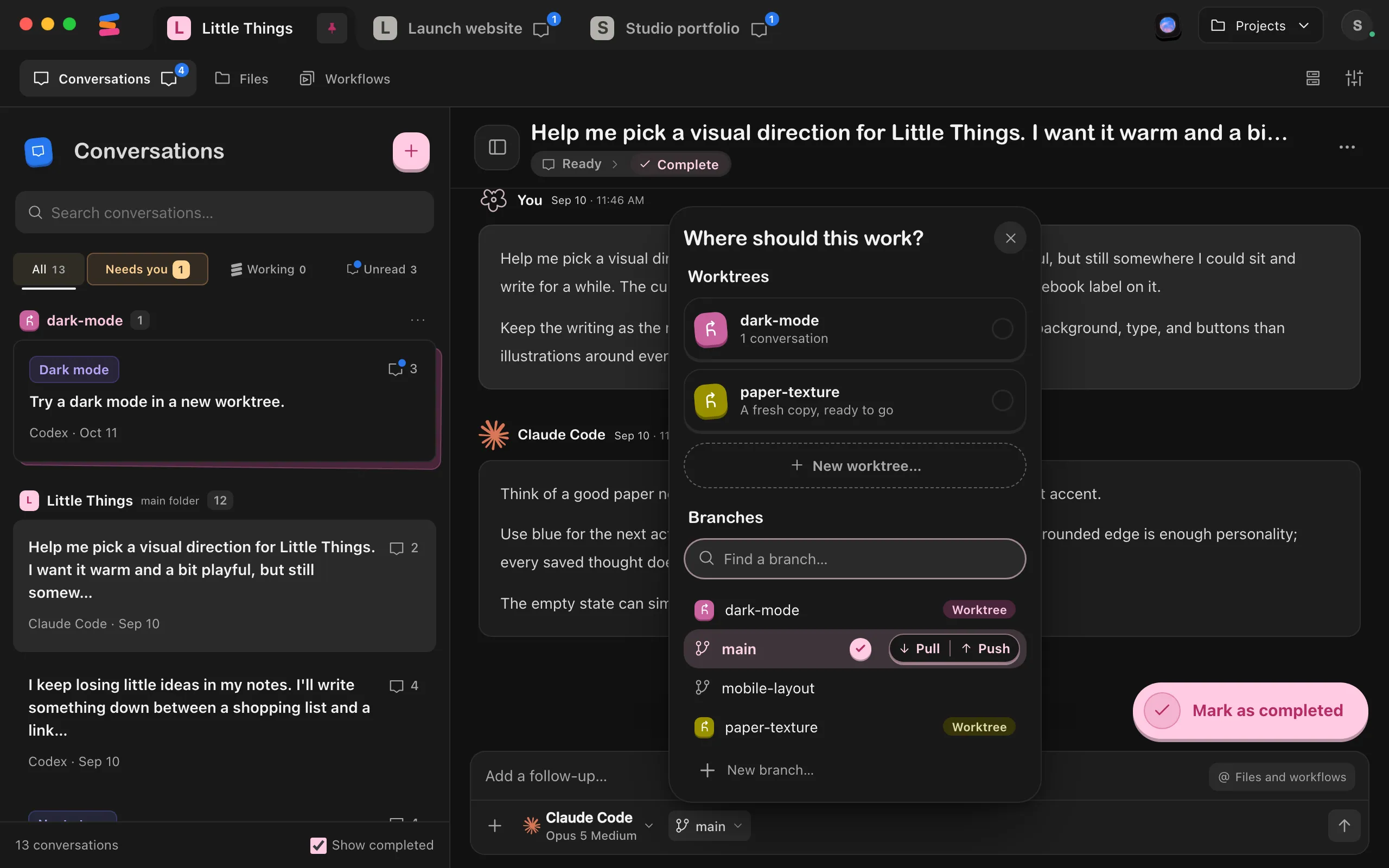
Open the branch menu
At the bottom of the message box, select the button with the branch icon.
Select Push
It’s beside the current branch, the one with the check mark, next to Pull. The button changes to Pushing….
Read the result
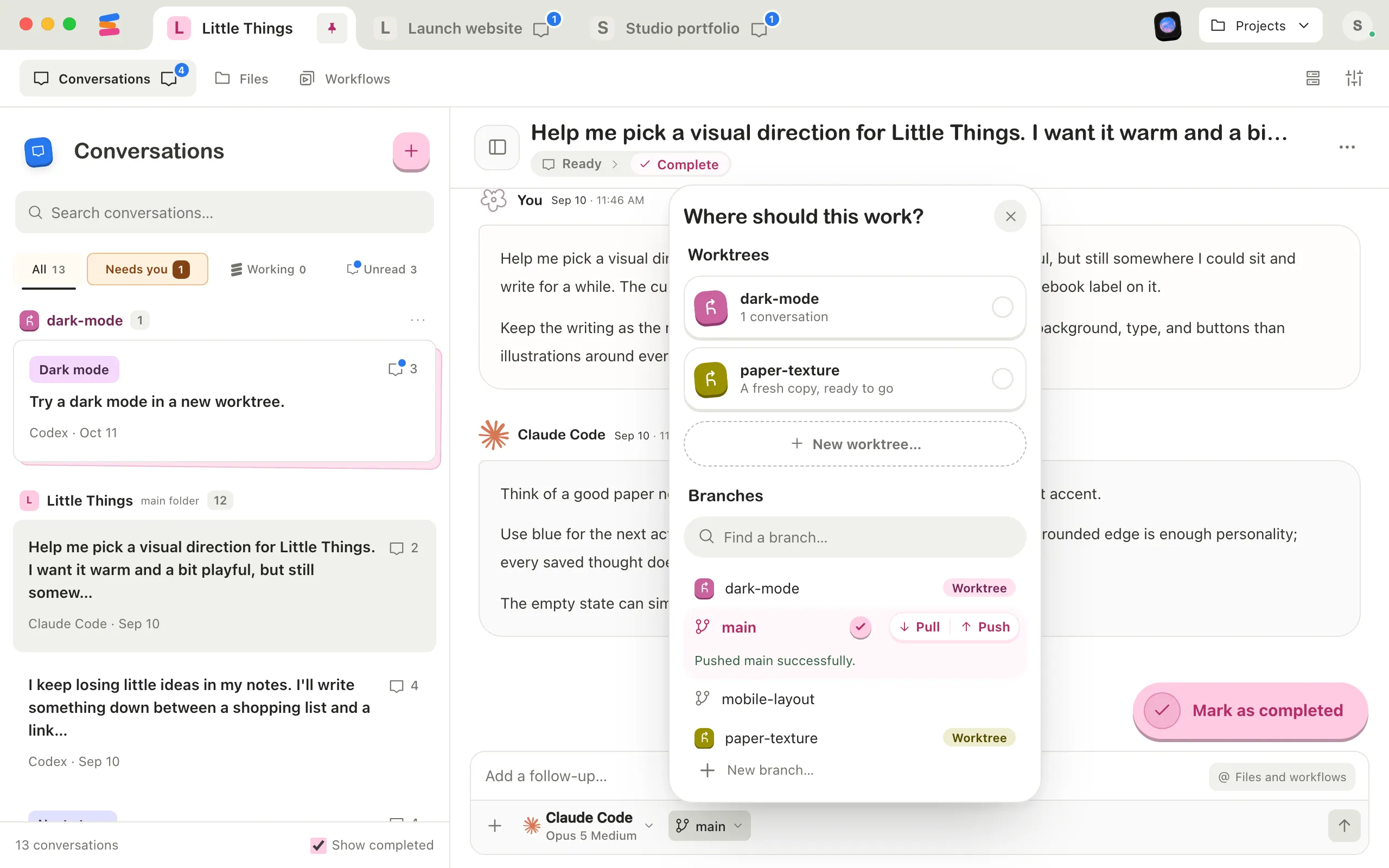
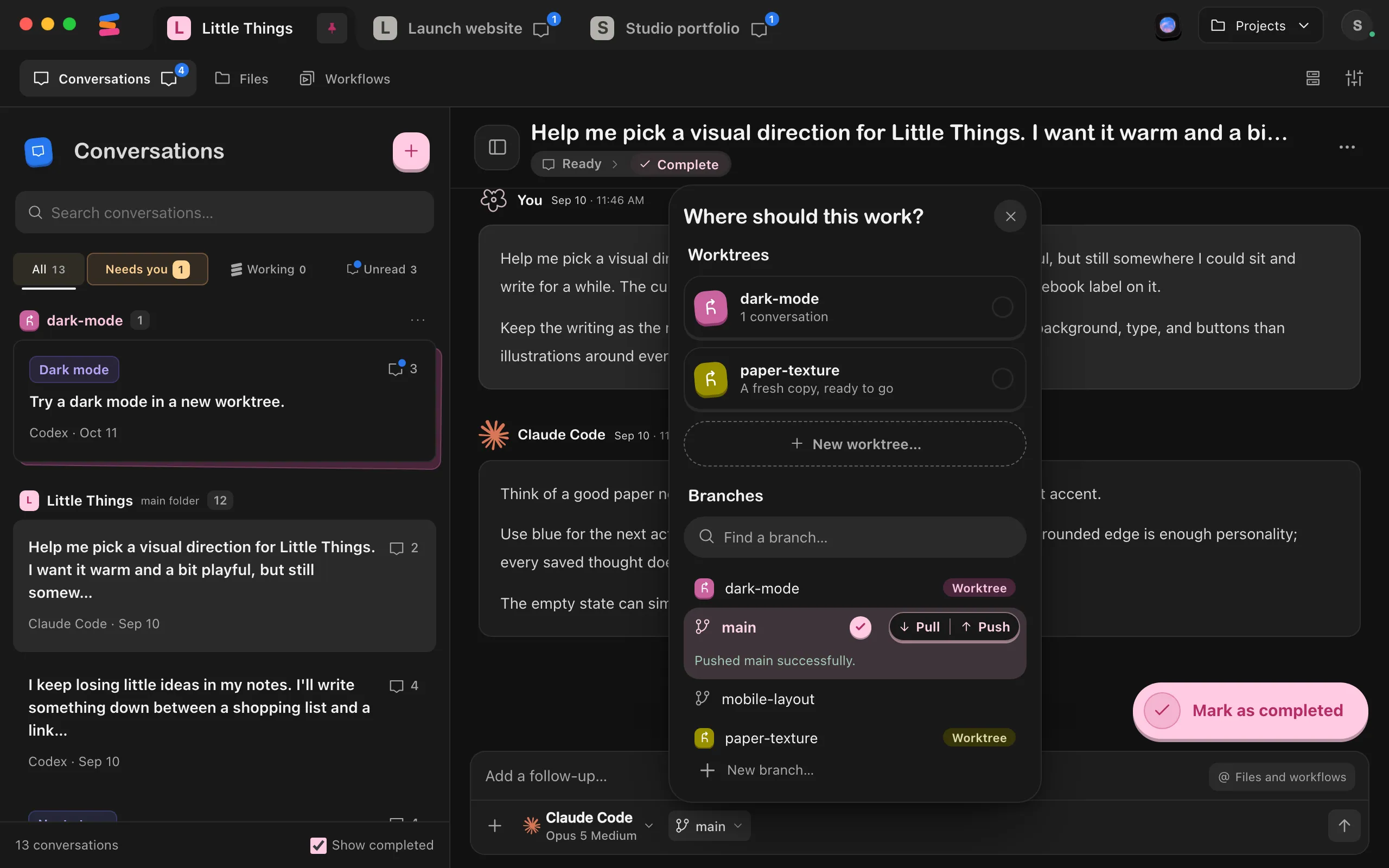
It appears under the branch, with your branch’s name:
- Pushed main successfully. Your commits are online.
- Everything is up to date. There was nothing new to send.
- Couldn’t push main. Select Git details to read Git’s own message, then see below.
Good to know
- Push is for the branch your project’s main folder is on. To push another branch, switch to it first. A worktree’s branch doesn’t have Push, so ask the worktree’s agent to push it.
- Enjoy pushes with the Git settings and sign-in already on your computer. It doesn’t force the push, and it doesn’t commit, pull, or choose where a new branch goes.
- You can push while agents are working. Push isn’t available while the branch is changing.
- The result stays until you open the menu again or switch branches.
- Push works the same in the web app. In a project someone shared with you, you need Can work access. The iPhone app can’t push.
If something goes wrong
A new branch won’t push
Enjoy doesn’t decide where a new branch goes the first time, so Git details may say the branch has no upstream branch. That means Git doesn’t know which online branch to send it to yet. Ask your agent: “Push this branch and set its upstream.” After that, Push works for this branch.
Git can’t sign in
Enjoy can’t answer Git’s password prompts. If the details mention a username, password, or permission, set up Git so it can sign in without asking, or ask your agent to help. In a project inside WSL, Enjoy runs the Linux distribution’s Git with the settings your terminal there loads, so it signs in with the SSH keys and Git credential helper set up in the distribution, not on Windows. Set them up in the distribution’s terminal.
The online copy has newer commits
If Git rejected the push because the online copy has commits that your computer doesn’t, select Pull, then Push again. See Pull your branch. If your branch has new commits of its own too, Pull can’t bring them in, so ask your agent to merge the online changes and push again.
Other messages
- “Git took too long. Try again.” Enjoy stops waiting for Git after 30 seconds. Check your internet connection, then select Push again.
- “The active branch changed. Reopen the branch menu and try again.”
- “Wait for the branch change to finish.”, “Wait for the pull to finish.”, or “Wait for the push to finish.” Wait a moment, then try again.
- “Update the desktop app to push branches.” Update Enjoy on your computer.