Create and switch branches
Before you start
- Your project folder uses Git. Without Git, there’s no branch button. See What are commits, branches, and pushing?
- No agent is working in the project’s main folder. While one is, branch switching isn’t available.
- In a project someone shared with you, you need Can work access.
Steps
Open the branch menu
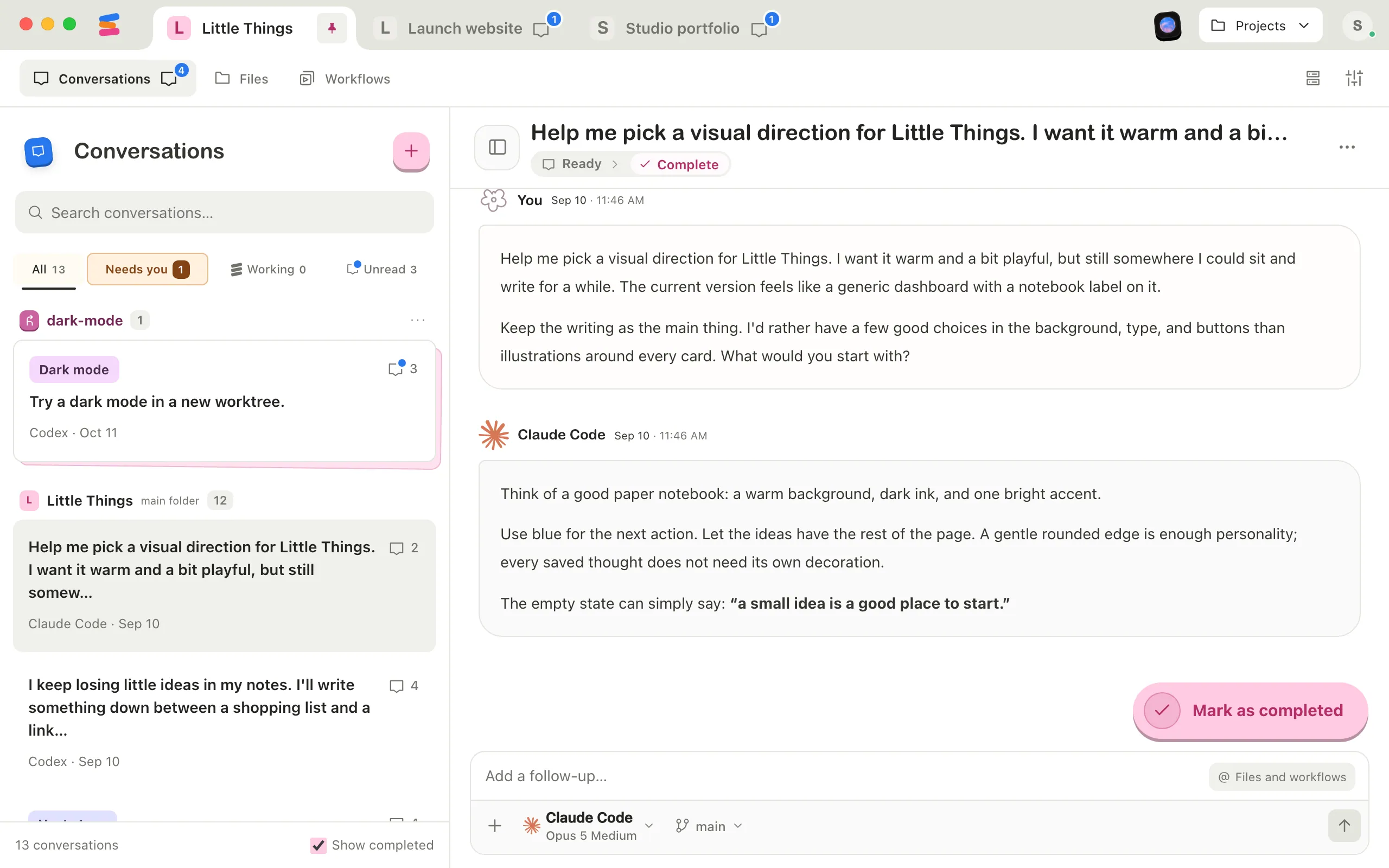
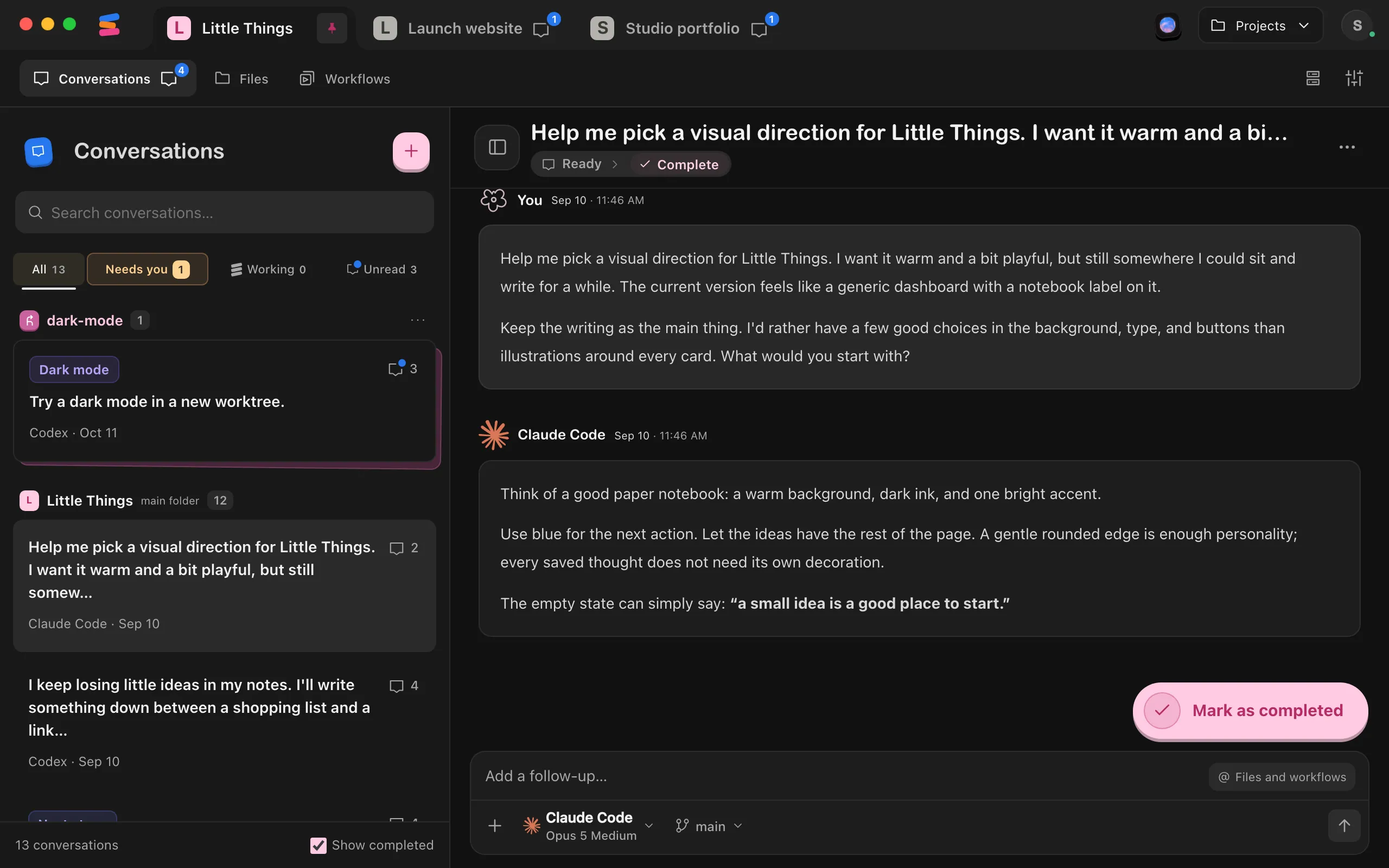
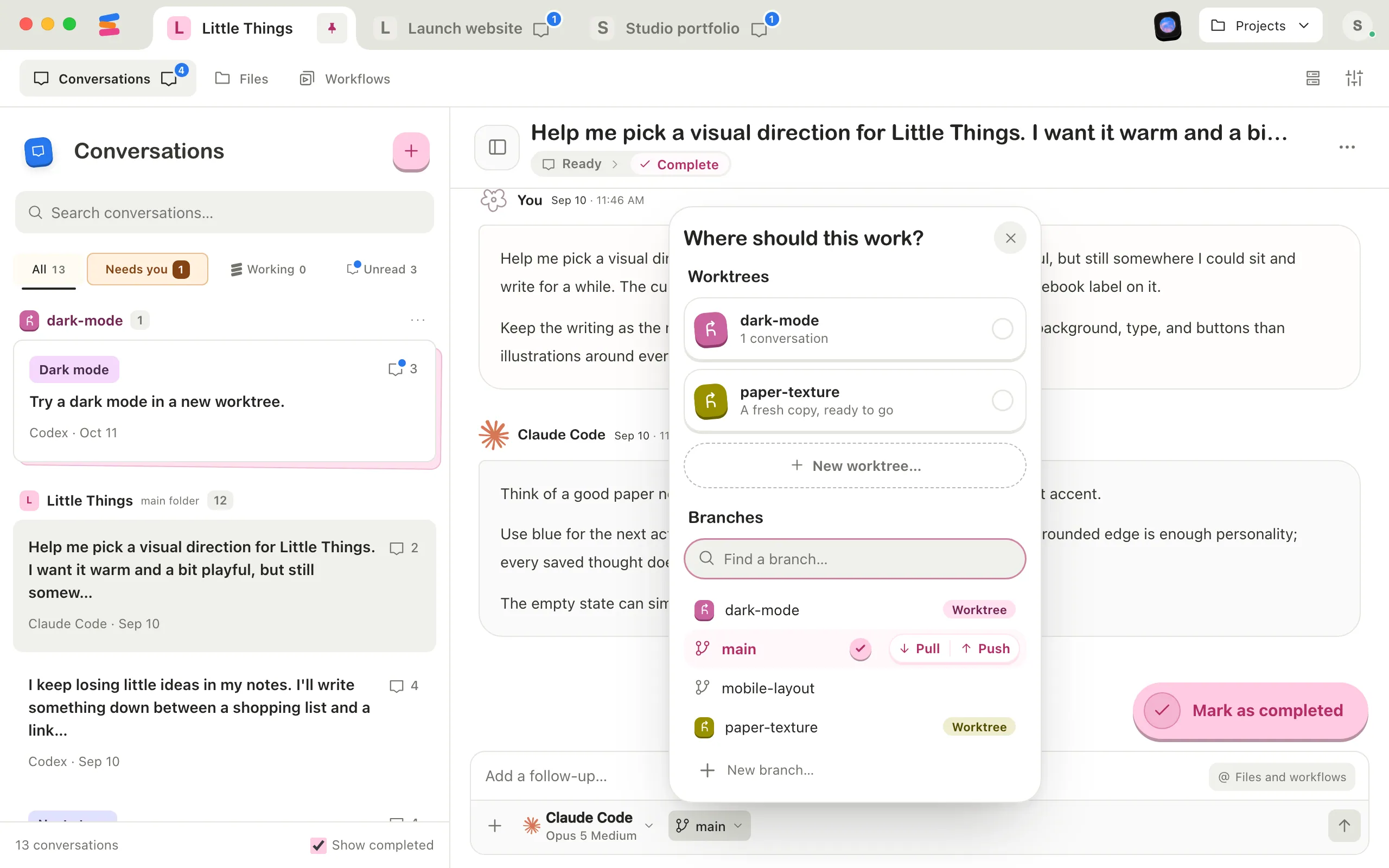
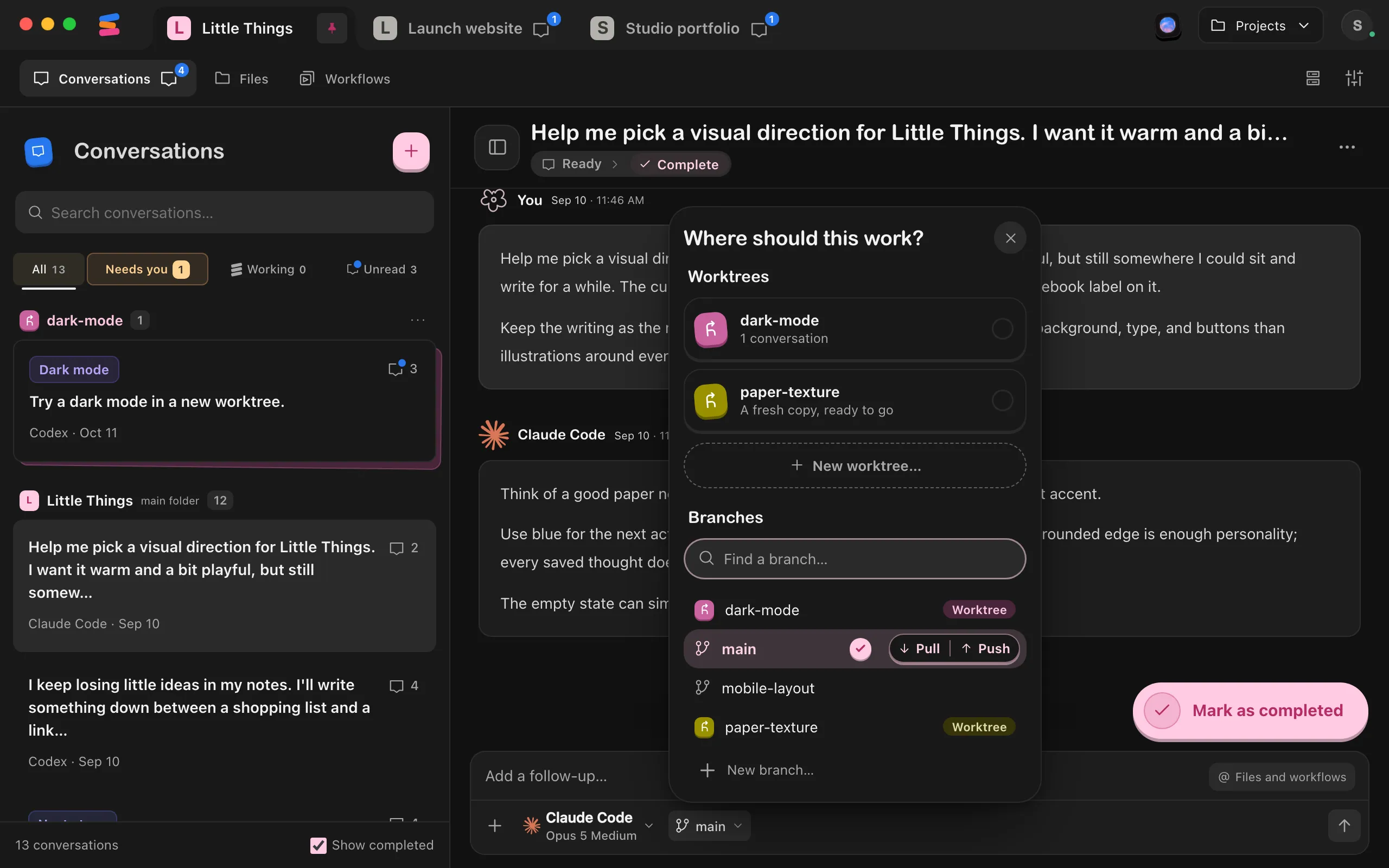
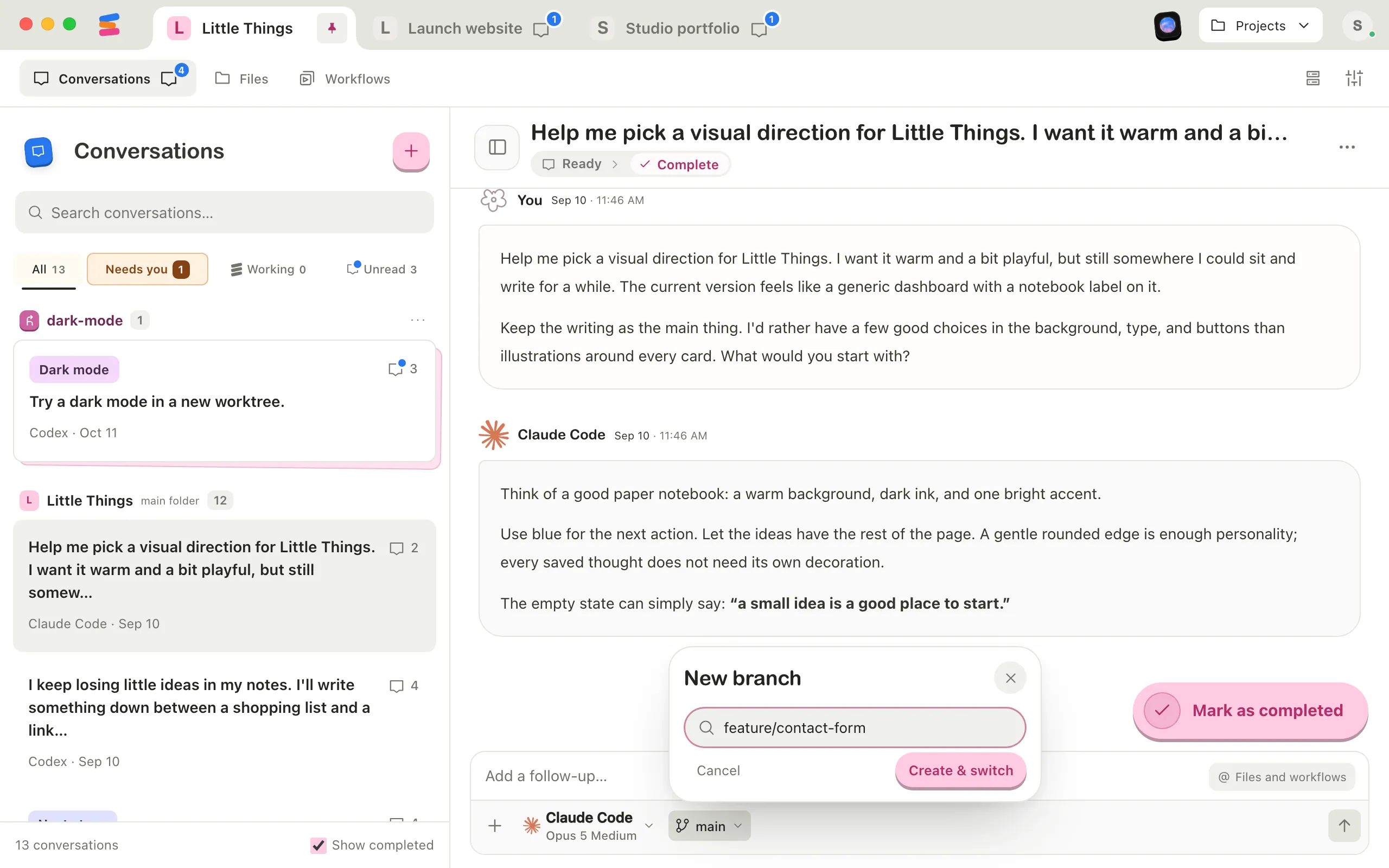
At the bottom of the message box, select the button with the branch icon. It shows the branch your project is on, such as main. The menu opens, titled Where should this work?
Choose a branch to switch to
Under Branches, select the branch. The current one has a check mark. To narrow a long list, type part of a name in Find a branch…. Enjoy shows Switching branch…. When it’s done, the menu closes and the button shows the new branch. To start a new branch instead, go on to the next step.
Start a new branch
Select New branch… at the bottom of the menu.
Type a name
Use a short name without spaces, such as feature/contact-form.
Select Create & switch
You can also press Enter. Enjoy creates the branch from your current commit and switches the project to it.
Good to know
- Switching changes the files in your project folder for every conversation working in the main folder. Conversations in a worktree keep their own copy.
- The conversation you switch from notes it, such as “Switched the project from main to feature/contact-form.” Others that last worked on the old branch show The branch changed. See When another conversation switches the branch.
- Uncommitted changes come with you, unless switching would overwrite them. Then Enjoy asks you to commit them first. See Switch branches with uncommitted changes.
- While an agent works in the main folder, the menu shows Work in progress and “Switching branches and pulling are available when work finishes.” You can still push.
- The list shows branches on this computer. For a branch that exists only online, such as on GitHub, ask your agent to switch to it.
- A branch marked Worktree is open in a worktree. Choosing it moves the conversation there instead. See Move a conversation into a worktree.
- Your conversations, docs, and workflows stay the same on every branch. If an older branch brings back a .enjoy folder from an earlier version of Enjoy with conversations or files the project doesn’t have, Enjoy offers to bring them in. See Choose where a project’s conversations are stored.
- The iPhone app has no branch menu.
If something goes wrong
“Enter a valid branch name”
Branch names can’t contain spaces or some symbols. Use letters, numbers, hyphens, and slashes. If Git says a branch with that name already exists, select Cancel and choose it from the list.
“This branch no longer exists. Refresh and choose another branch.”
Someone or an agent deleted it. Close the menu and open it again to refresh the list.
“Stop active work in this project to change branches.”
An agent started working in the main folder. Wait for it to finish, or stop it.
The button says Git unavailable
Open the menu to see why. If it says “Git is not installed or could not be found.”, install Git on your computer, then select Retry. If you installed Git in a custom folder and Enjoy still can’t find it, quit Enjoy and open it again. If it says “Git took too long. Try again.”, select Retry. In a project inside WSL, Enjoy uses the Linux distribution’s own Git, not Git for Windows. If it says “Git isn’t installed in” the distribution, or that Enjoy needs Git 2.34 or later there, install or update Git in the distribution’s terminal, then select Retry. See Fix problems with a project in WSL.