Delete a worktree
Before you start
- Use the Enjoy computer app on the computer that has the project. The web app and the iPhone app don’t delete worktrees.
- No agent is working in the worktree.
Steps
Select Delete worktree
In a conversation working in the worktree, select the trash button at the end of the band at the top of the message box. Or, in the conversation list, open the three-dot menu on the worktree’s heading and choose Delete worktree….
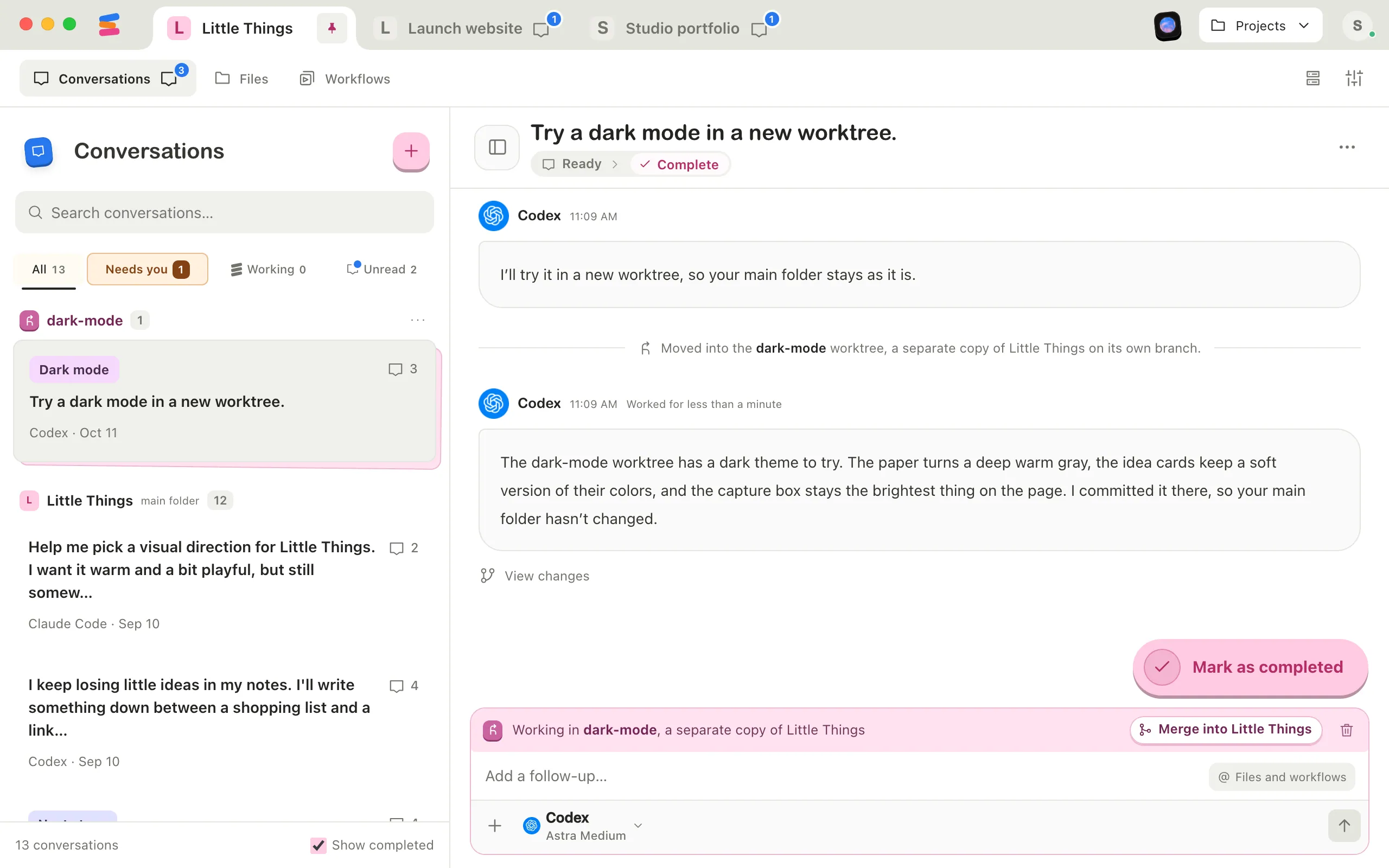
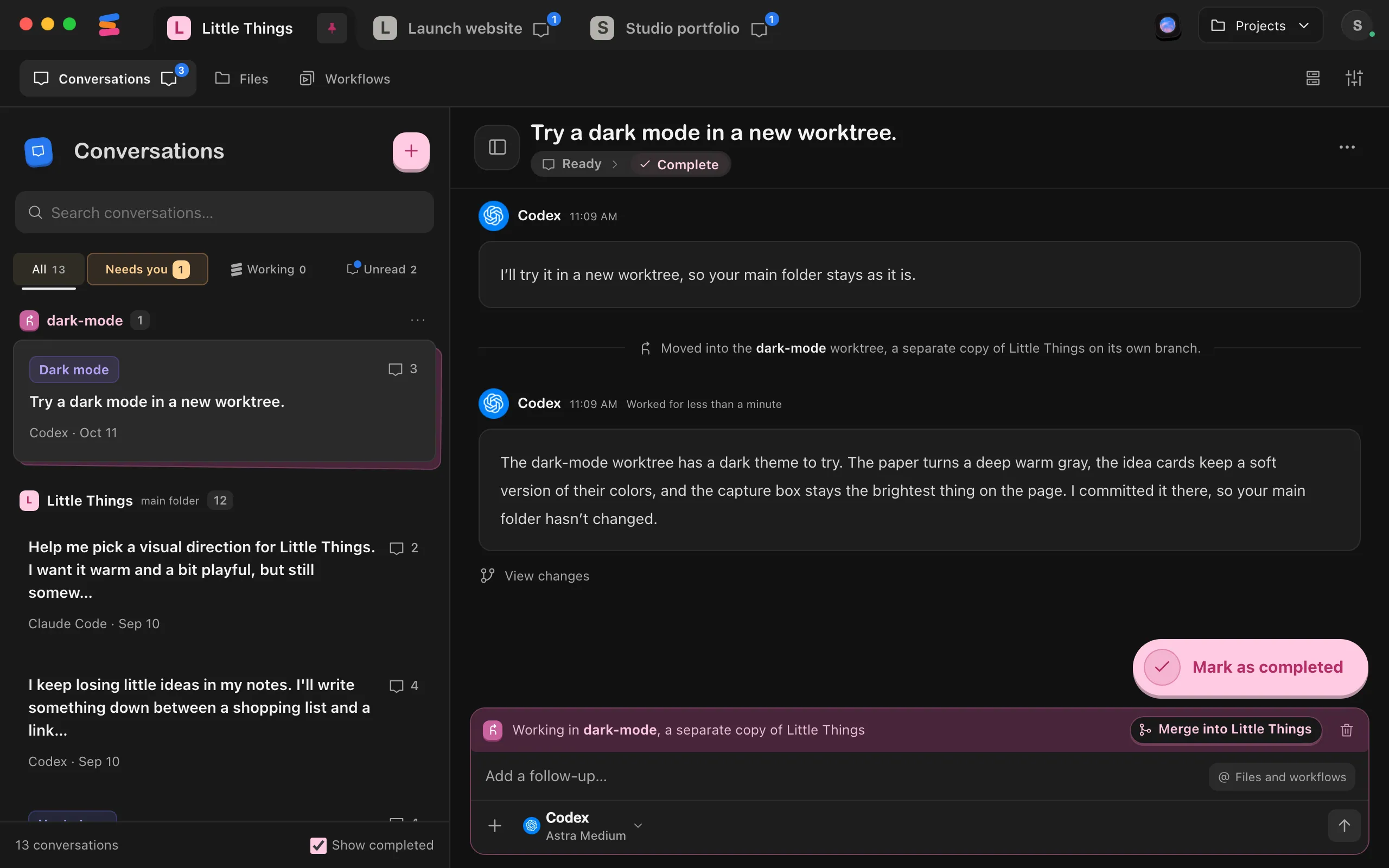
Read what will happen
The window says it “Removes this worktree’s folder from this computer. Its conversations stay, back in the main project folder.” If some files have changes that aren’t committed, a warning says deleting loses them.
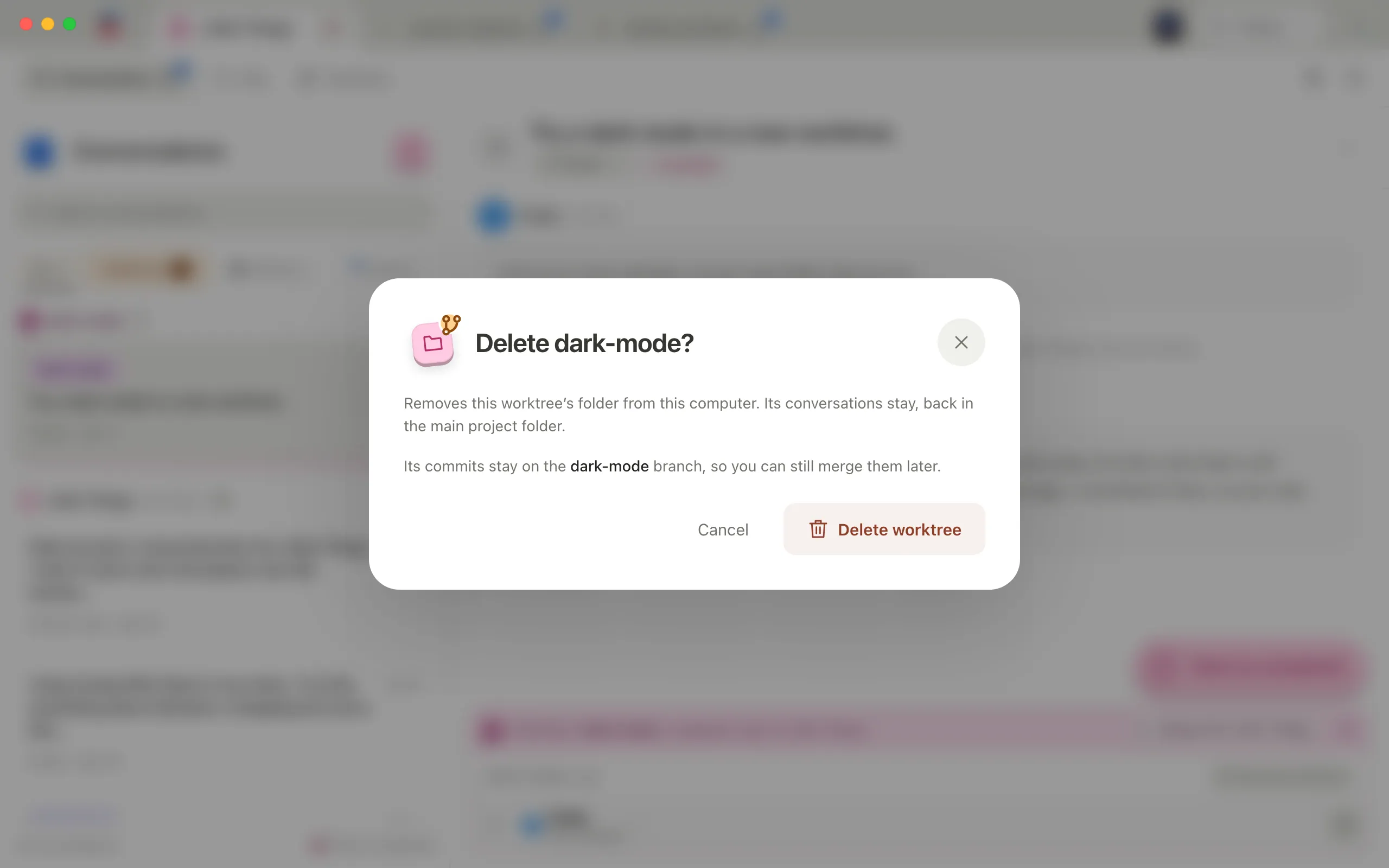
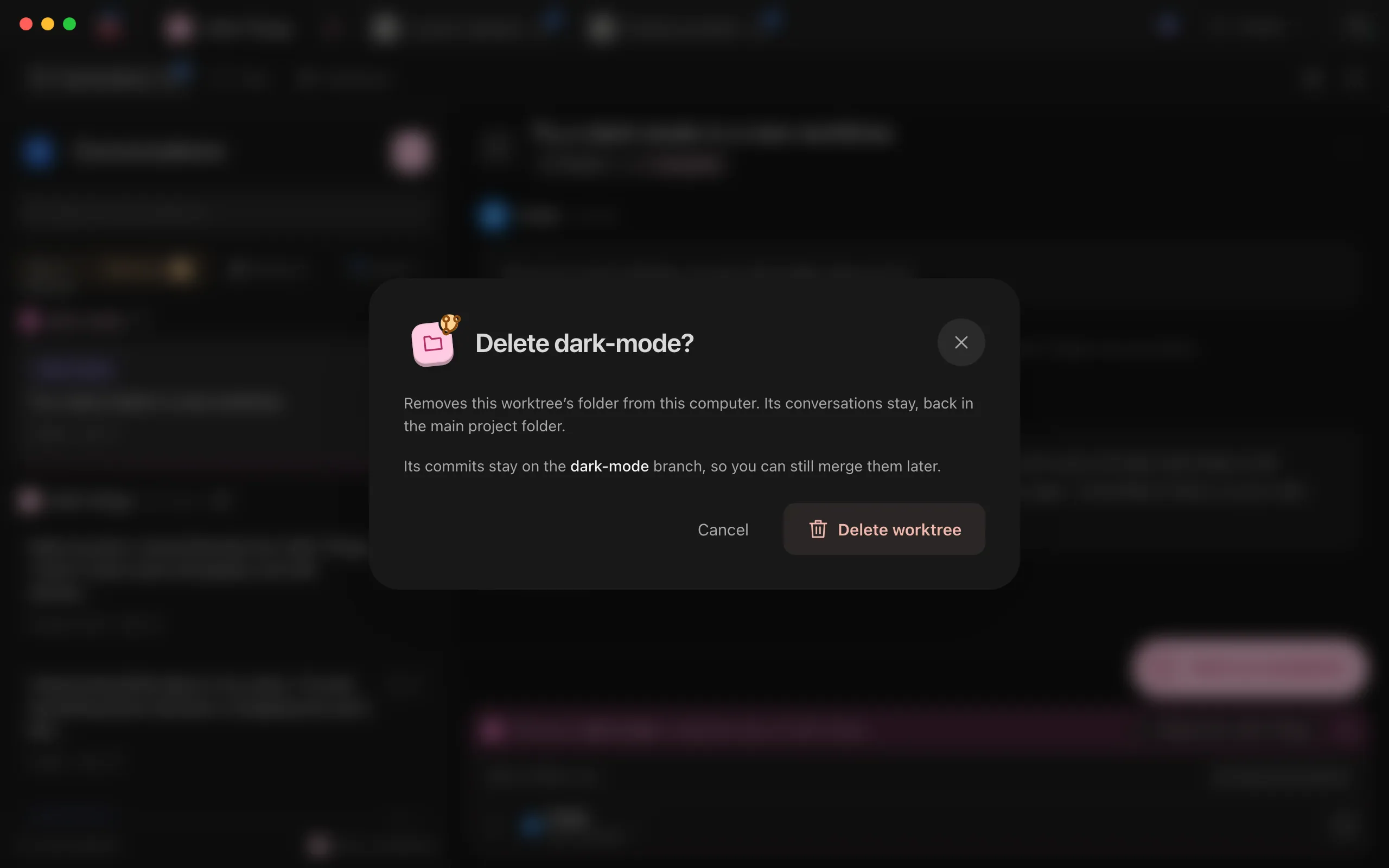
Select Delete worktree
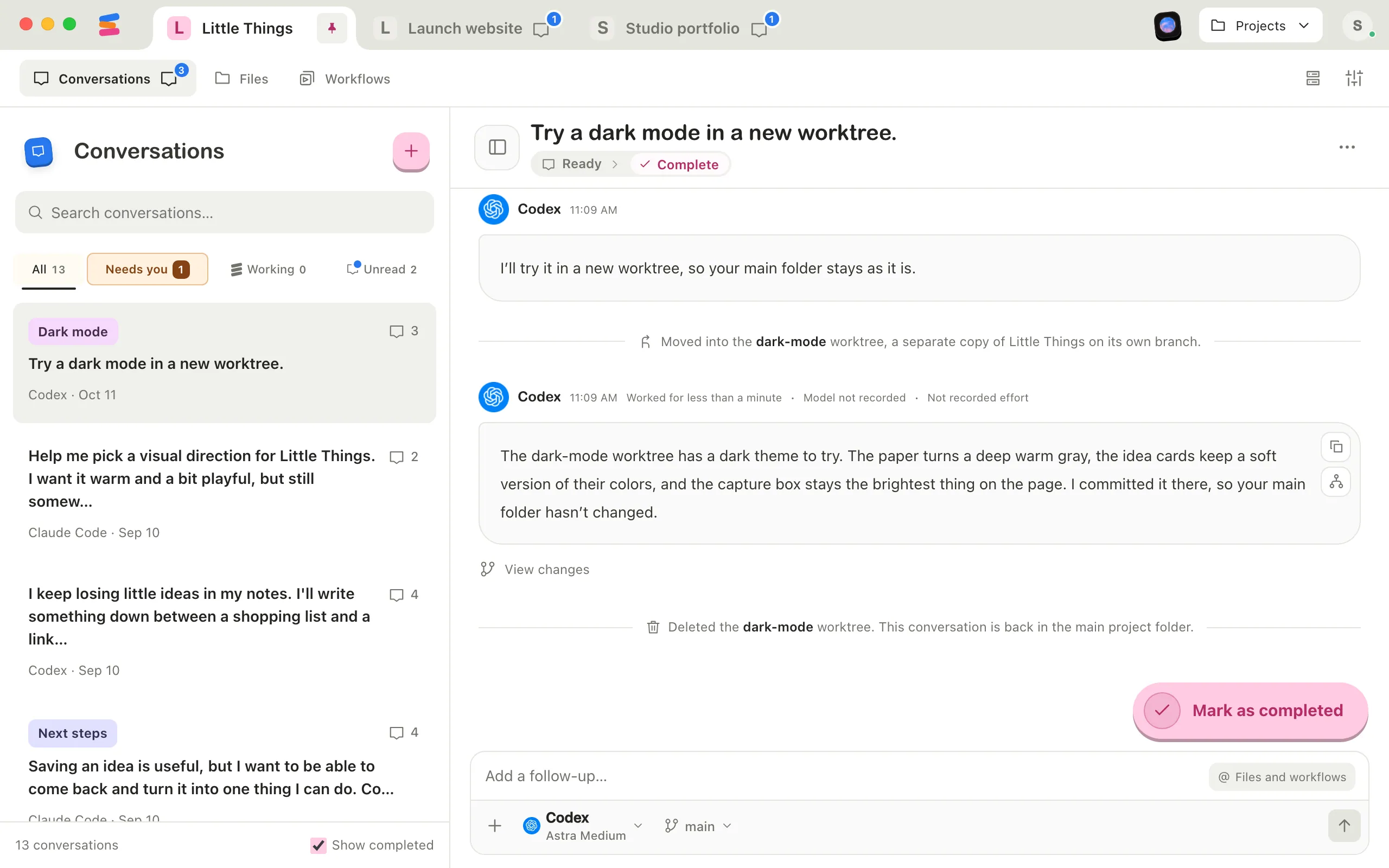
The worktree’s conversations note it, such as “Deleted the dark-mode worktree. This conversation is back in the main project folder.” Their next messages work in the main folder.
Good to know
- Changes that aren’t committed in the worktree are lost. Ask its agent to commit anything you want to keep first.
- Commits your project doesn’t have yet stay on the worktree’s branch. The window says “Its commits stay on the” branch, “so you can still merge them later.” To merge them later, ask an agent to work in that branch’s worktree again, then merge it.
- If the worktree’s branch was already merged, Enjoy deletes the branch too.
- If an agent removes a worktree itself, Enjoy notices and moves its conversations back to the main folder.
- A worktree with no conversations isn’t in the conversation list. To delete it, first move a conversation into it from the branch menu, or ask an agent to delete it. See Move a conversation into a worktree.
If something goes wrong
“Stop the work in this worktree before deleting it.”
An agent is working in the worktree. Wait for it to finish, or stop it, then delete.
“Update the desktop app to delete worktrees.”
Update Enjoy on your computer, then try again. See Update Enjoy.