Move a conversation into a worktree
Before you start
- Your project has a worktree. To make one, ask an agent to try something in a new worktree. See Try ideas side by side in worktrees.
- The conversation works in the project’s main folder, and its agent isn’t working right now.
Steps
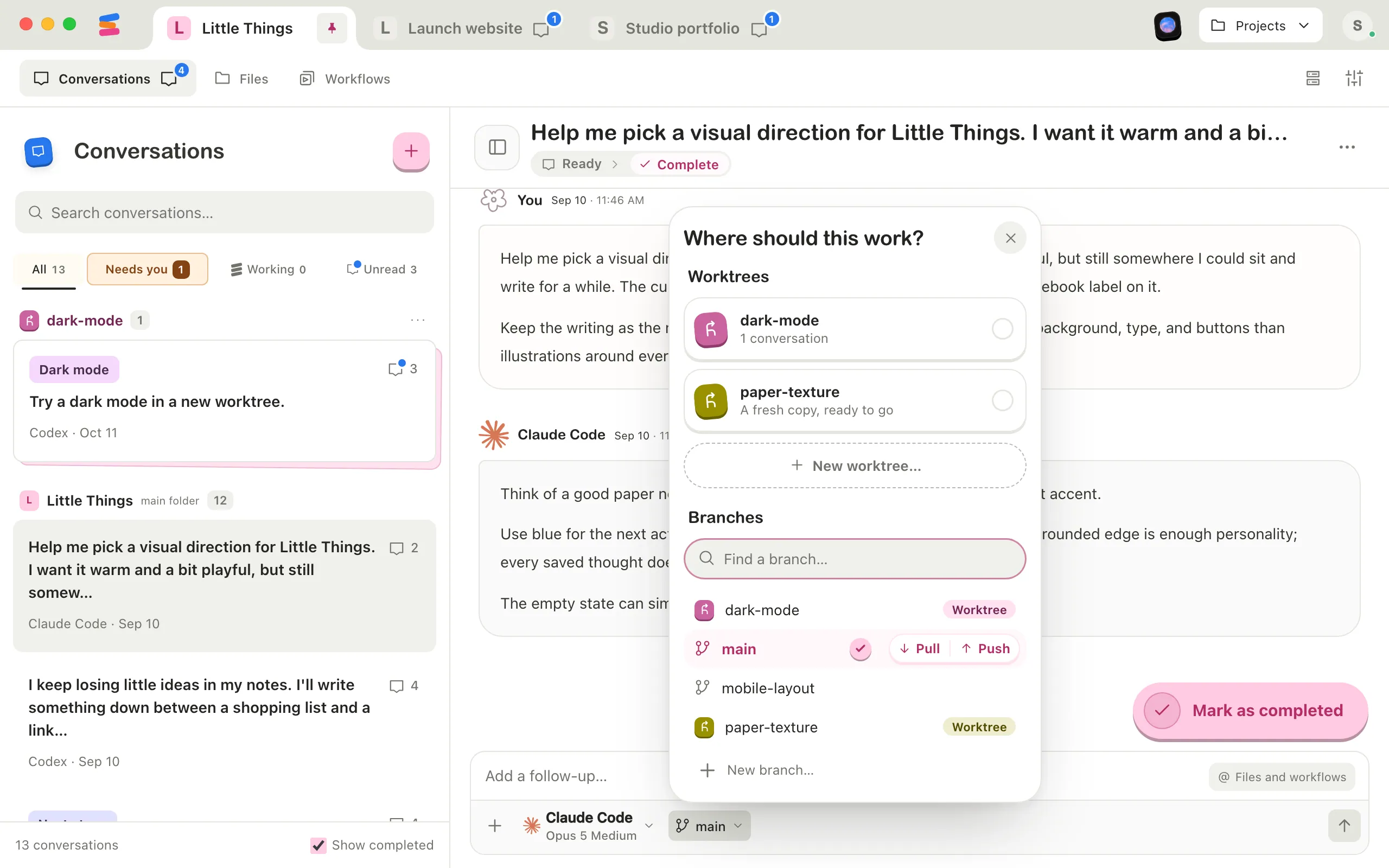
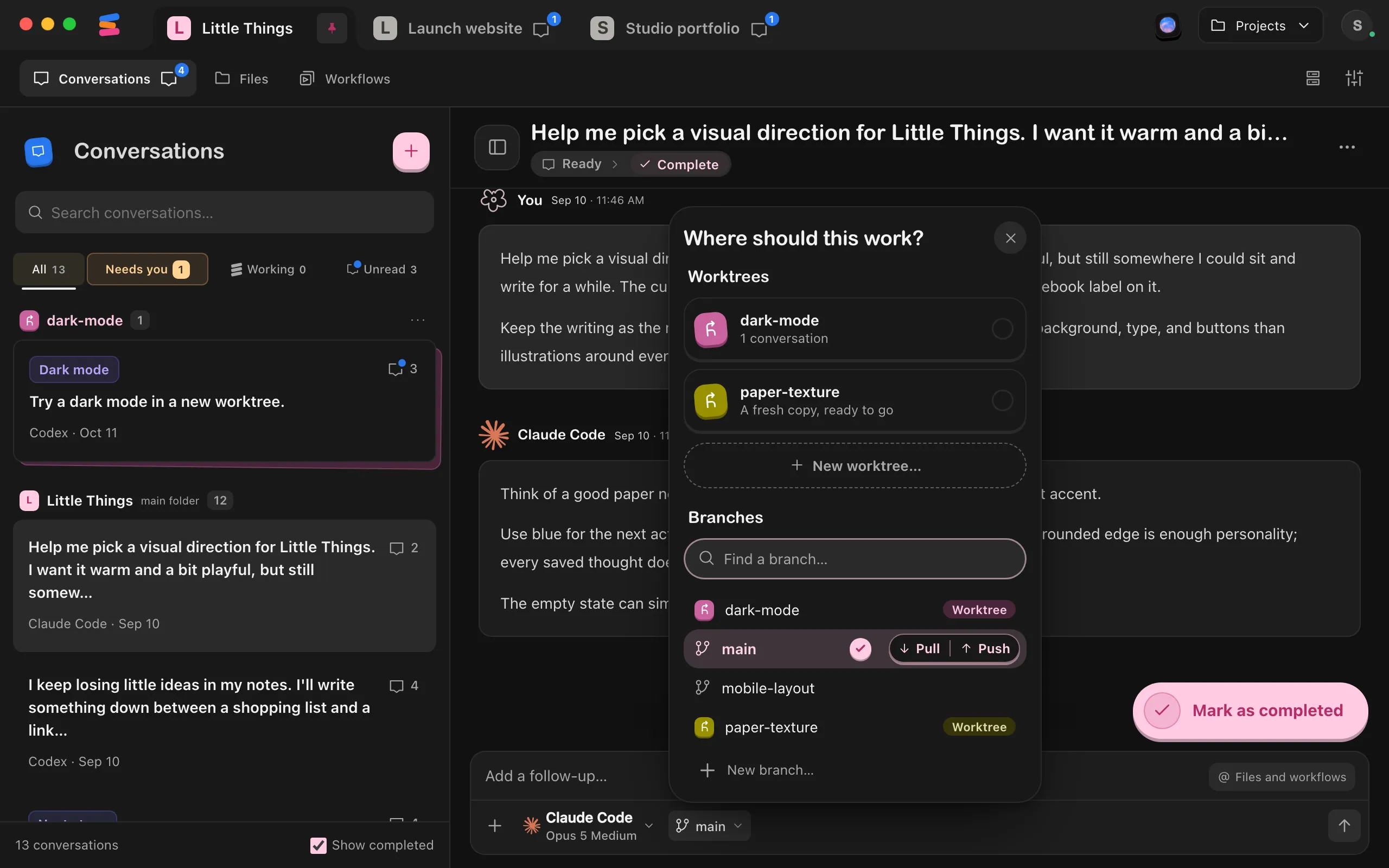
Open the branch menu
In the conversation, select the button with the branch icon at the bottom of the message box. To start a new conversation in a worktree, open the menu from a new conversation’s message box instead.
Choose a worktree
Under Worktrees, select it. Each one shows how many conversations work there, or A fresh copy, ready to go if none do.
Check the band
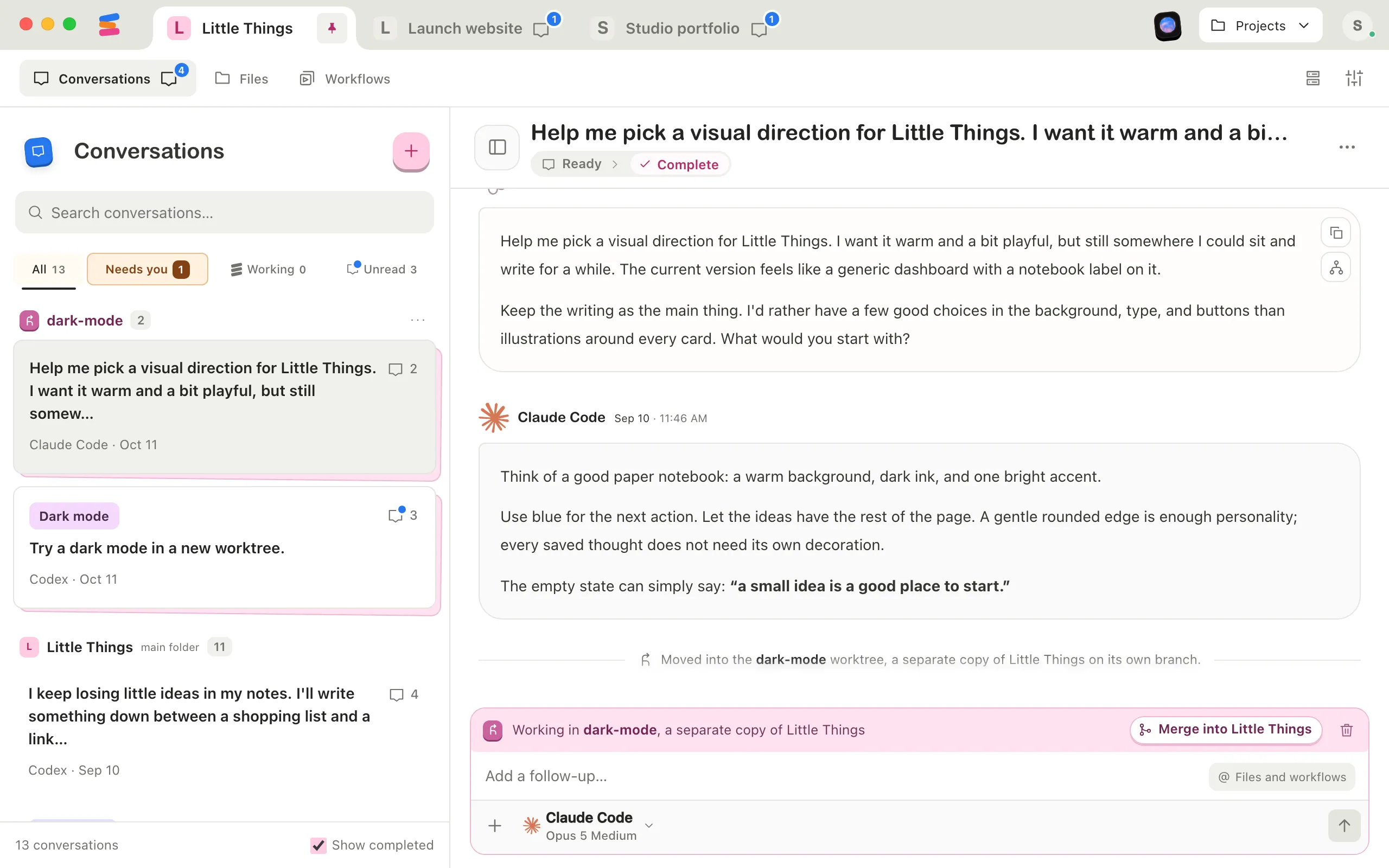
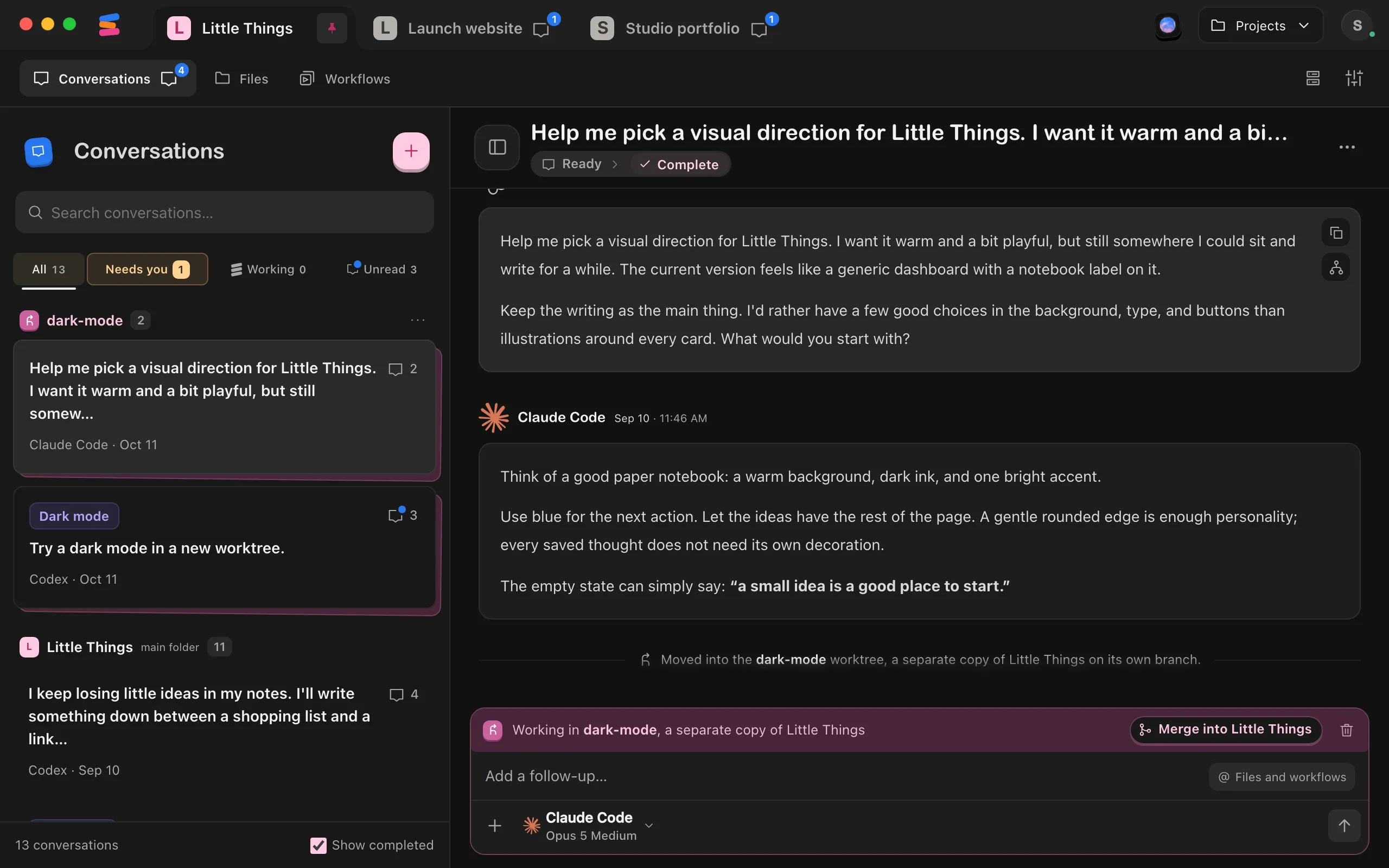
An existing conversation moves in right away. A note says it moved into the worktree, and a colored band at the top of the message box says “Working in” followed by the worktree’s name. In a new conversation, the band says “Starts in” the worktree instead, and the conversation starts there when you send your first message.
Good to know
- You can’t move a conversation while its agent is working. Wait until it finishes.
- A conversation already in a worktree shows its band instead of the branch button. To move it back, ask its agent: “Move back to the main folder.”
- To start a new conversation in the main folder after all, select the × at the end of the “Starts in” band.
- Under Branches, a branch marked Worktree is open in a worktree. Choosing it does the same as choosing the worktree. If you added a worktree’s folder as a project of its own, its menu lists no worktrees, and branches marked Worktree can’t be chosen there.
- New worktree… opens a short guide. Agents make new worktrees when you ask them to.
- This works the same in the web app. In a project someone shared with you, you need Can work access. The iPhone app has no branch menu.
If something goes wrong
“The dark-mode worktree no longer exists.”
The message names your worktree. Someone or an agent deleted it. Close the menu and open it again to see the current list.
“Wait for the work to finish.”
The conversation’s agent started working. Try again when it’s done.