Choose which computers stay active
Your Unlimited plan includes one computer, and each extra computer is a paid add-on. If the plan comes to cover fewer computers, for example after you reduce your extra computers or a payment for them doesn’t go through, Enjoy pauses the computers that don’t fit and asks you to choose.
Steps
Read what changed
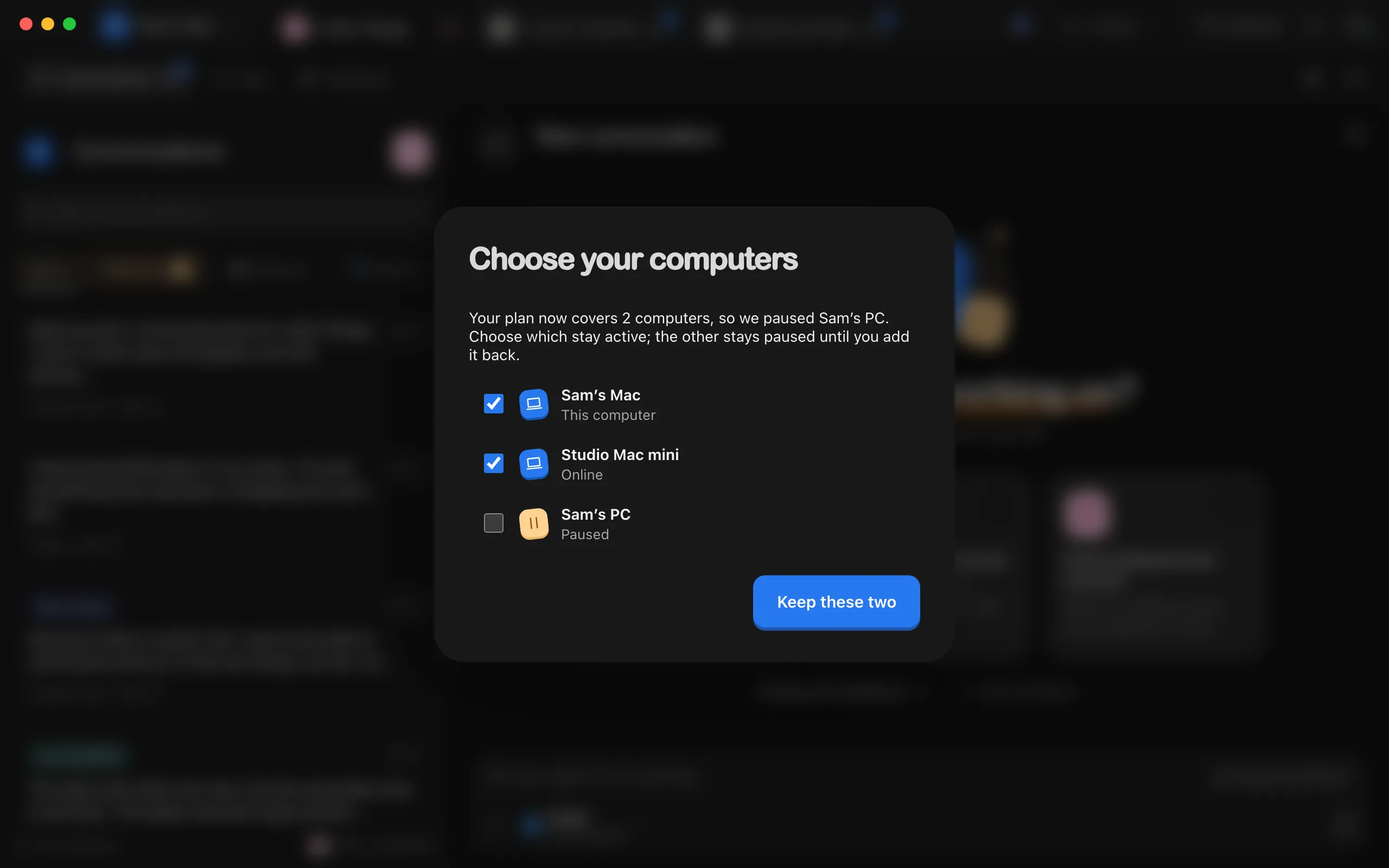
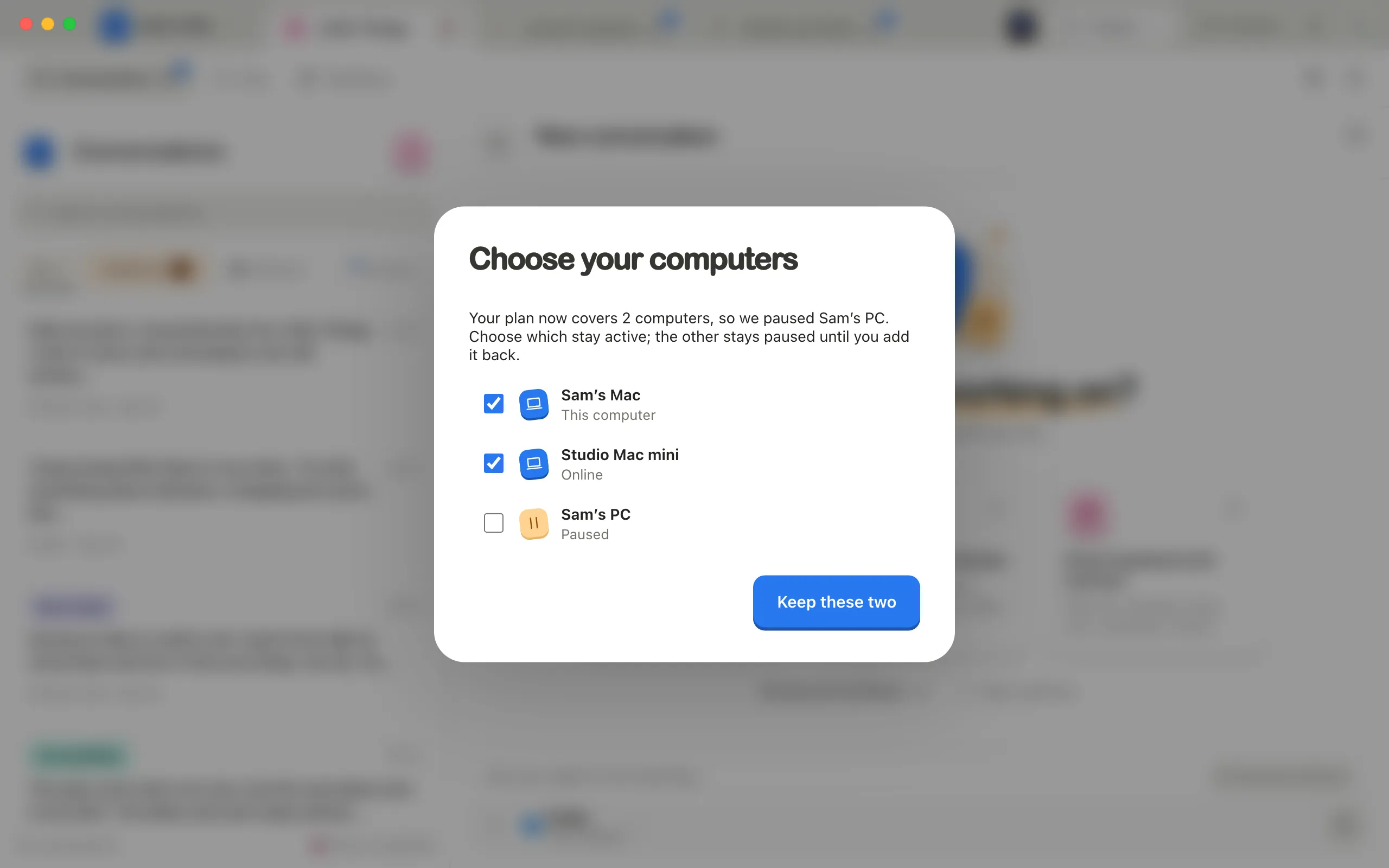
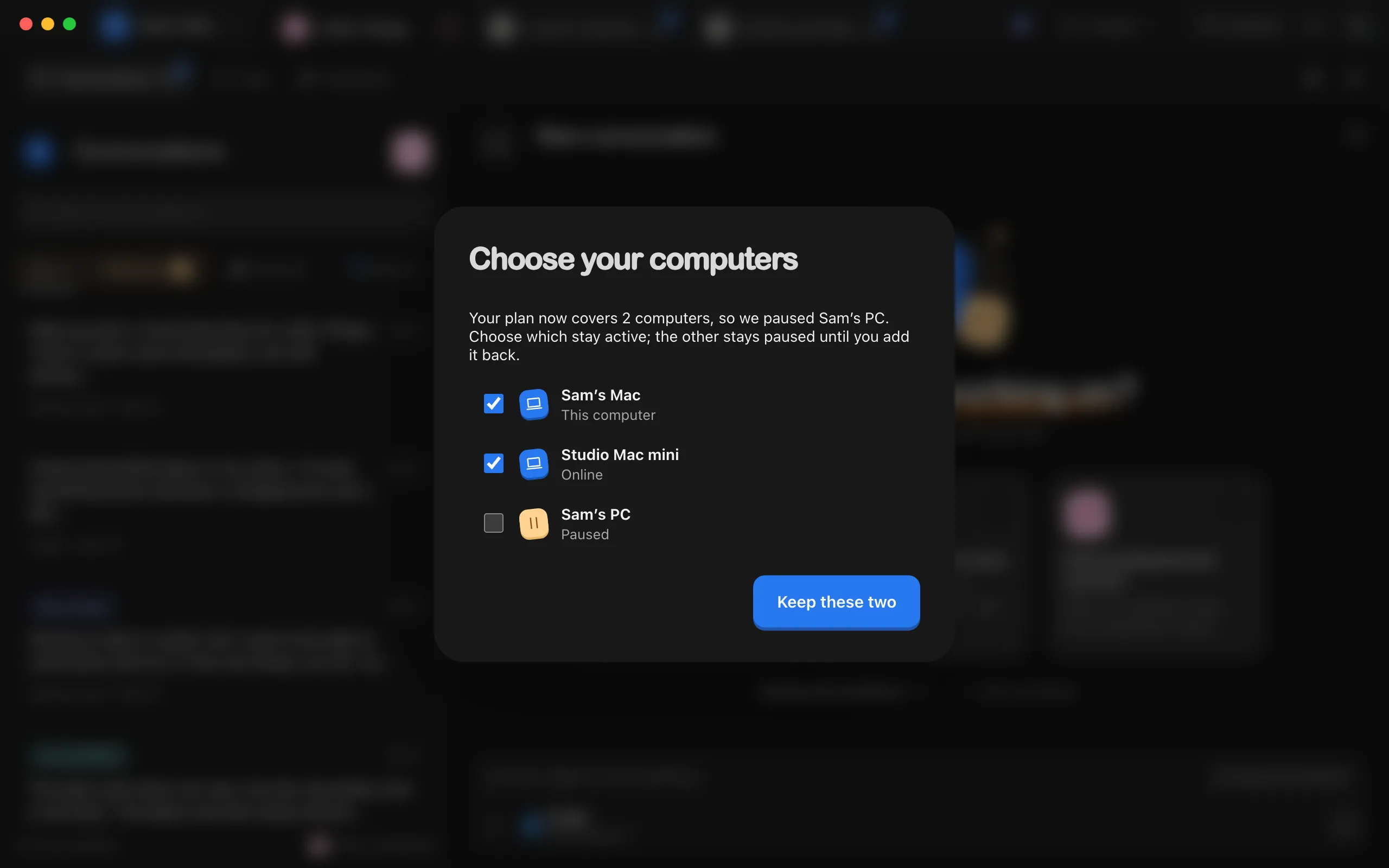
The Choose your computers window says why: your plan now covers fewer computers, or a payment for your extra computers didn’t go through. It also names the computers Enjoy paused.
Check the computers to keep
Check exactly as many as your plan covers. Each computer shows This computer, Online, Offline, or Paused.
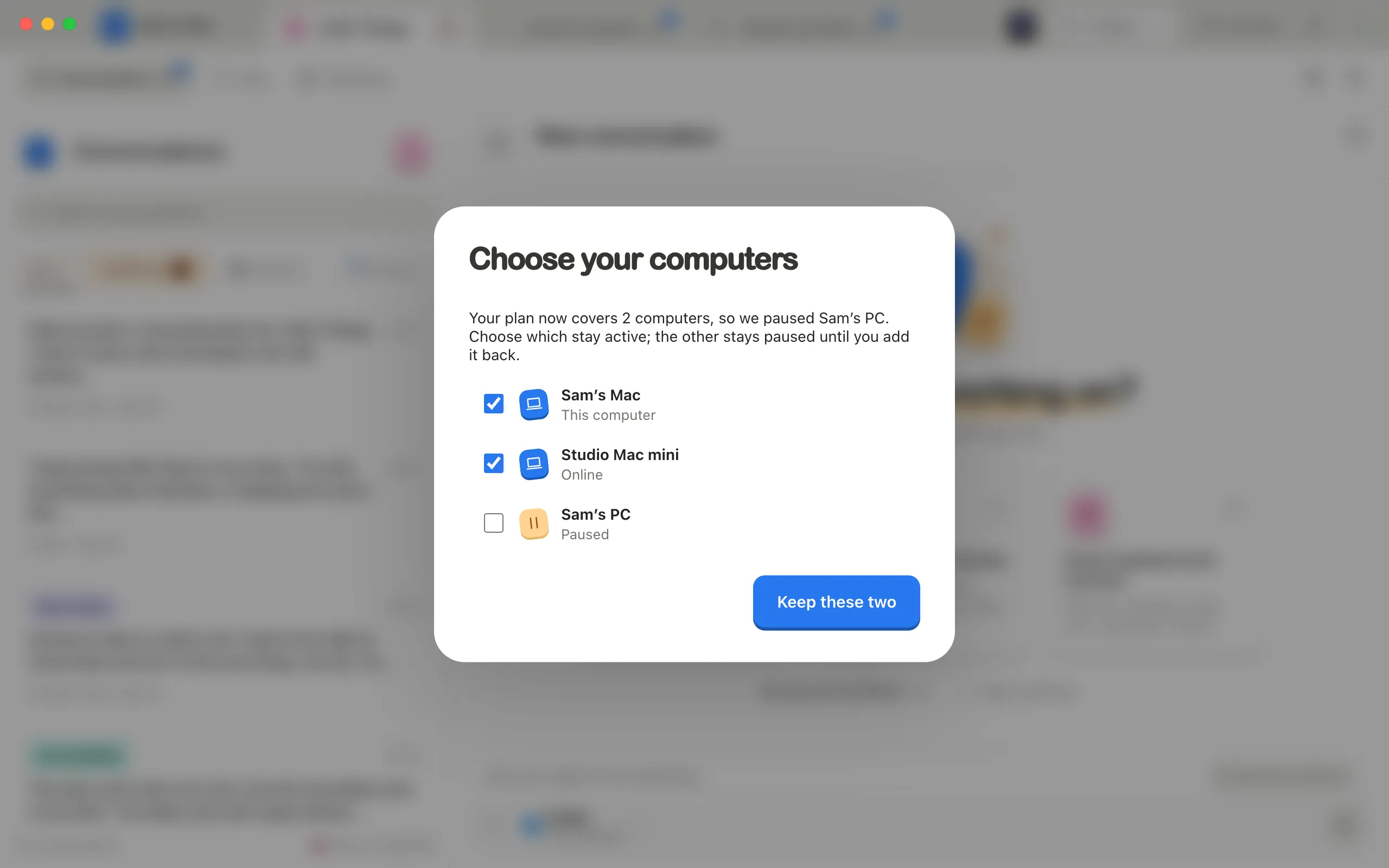
Select Keep
The button says Keep this one, or Keep these two and so on. It only works once the right number is checked.
Good to know
- The window appears on every computer and in the web app until you choose, and it can’t be closed before then. The iPhone app asks you to choose in Enjoy on a computer.
- Before asking, Enjoy pauses computers itself. It keeps the ones that are online first, then the ones used most recently.
- A paused computer keeps all its projects. Its phones, browsers, and team members can’t reach it until it’s active again. Your phones and browsers say it’s paused.
- On a paused computer, Enjoy shows that it’s paused and offers what you can do:
- Update payment, when a payment didn’t go through. It comes back once the payment goes through.
- Resume this Mac, or Resume this PC on Windows, when your plan covers fewer computers. This adds it back as an extra computer. See Add another computer to your plan.
- Choose which computers stay active, while Enjoy is still waiting for your choice.
- Connect to your other computer instead (the button names it), to use this one as a device for free.
- Remove this computer, to take it off your account.
- You can only swap which computers are active while Enjoy is asking. To bring back a paused computer later, open Enjoy on it and resume it there.
If something goes wrong
Choose as many computers as your plan covers.
The number checked doesn’t match, or the choice changed on another device meanwhile. Check the list again and choose once more.