Give agents a token or key without showing it to them
A project secret is a token, API key, or password that the project’s agents use by name, such as GITHUB_TOKEN, without its value being written into your conversation. Enjoy keeps the value on your computer.
When an agent needs a secret, it asks Enjoy to run a command with it. For example, it can run gh secret set GITHUB_TOKEN --body "$GITHUB_TOKEN" to add your token to a repository’s GitHub Actions secrets. Enjoy runs the command in the project’s folder with the secret set as an environment variable, then gives the agent the output with the value replaced by [GITHUB_TOKEN].
Agents use a project’s secrets whenever they need them. Enjoy doesn’t ask for your approval, in any permission mode. A secret keeps its value out of your conversation. It doesn’t limit what agents can do with it.
A command that takes longer than about 40 seconds keeps going on its own, and the agent picks up when it ends.
Steps
Paste the token into a message
Enjoy recognizes tokens from GitHub, OpenAI, Anthropic, Stripe, AWS and many other services, private keys, values labeled like
API_KEY=…, and long random-looking strings. Instead of adding the value to your message, it shows This looks like a GitHub token. (or another kind of secret) above the message box.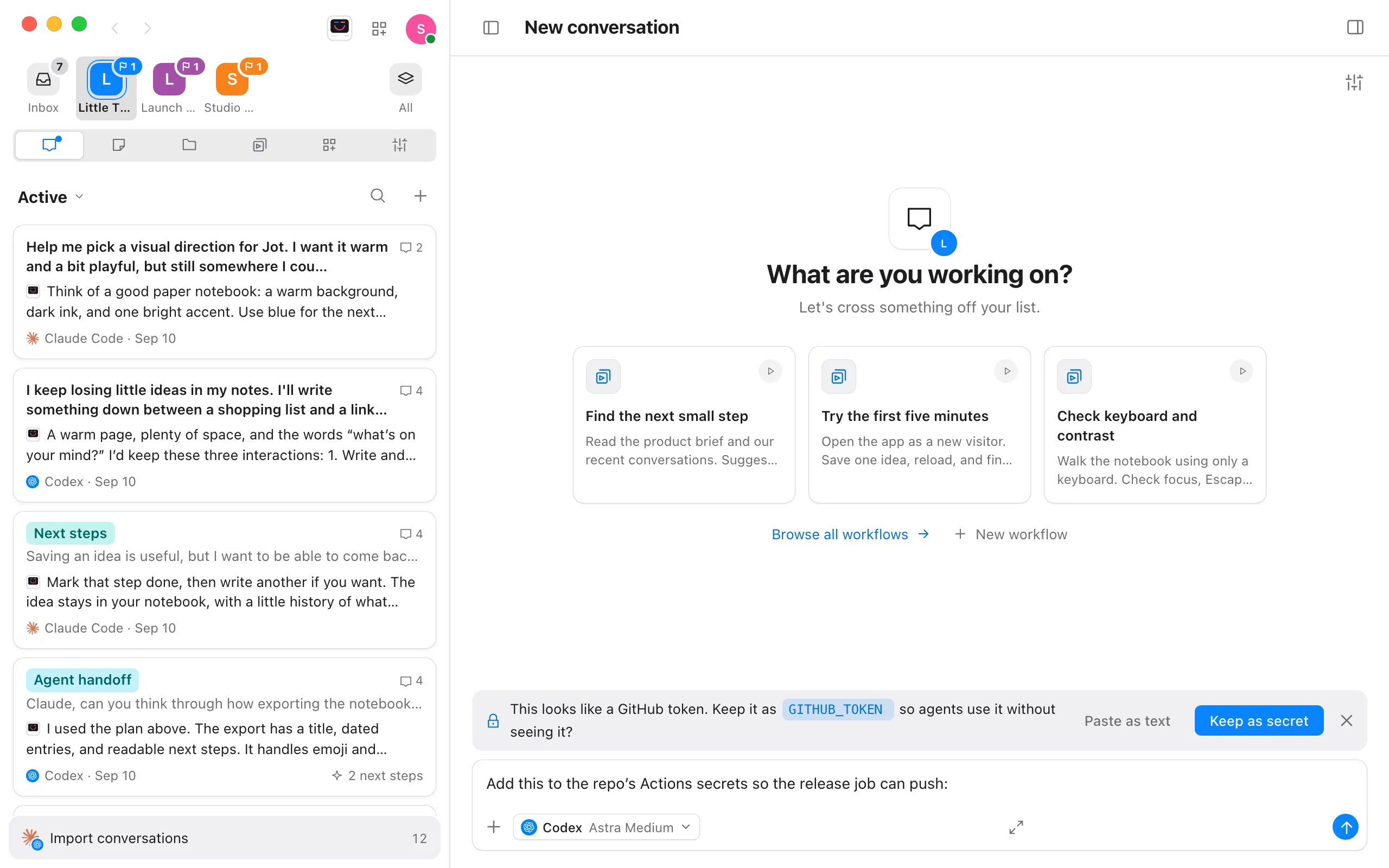
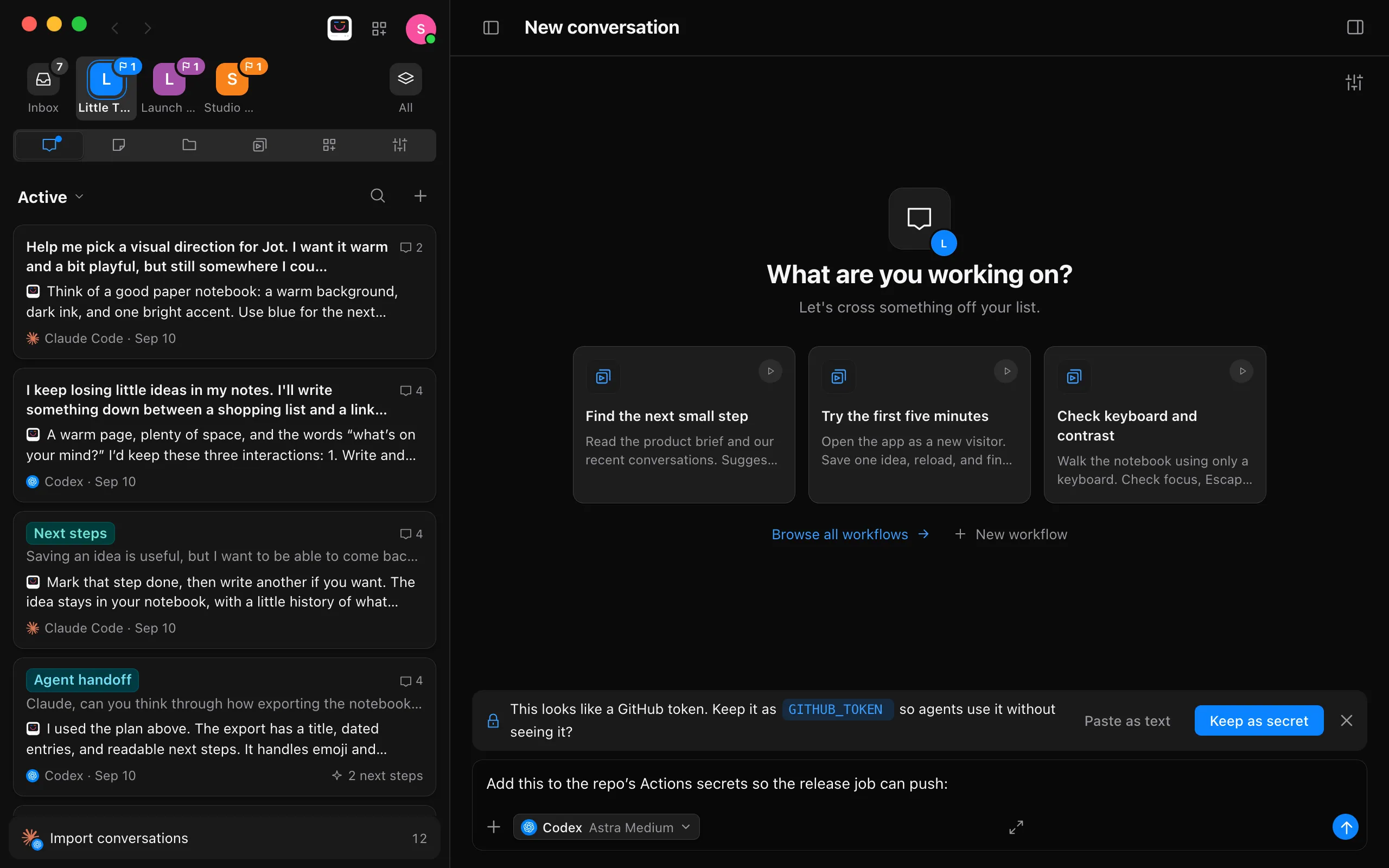
Select Keep as secret
Change the suggested name first if you want. Enjoy saves the secret and writes its name in your message, as
`GITHUB_TOKEN` (project secret). To put the value in your message after all, select Paste as text.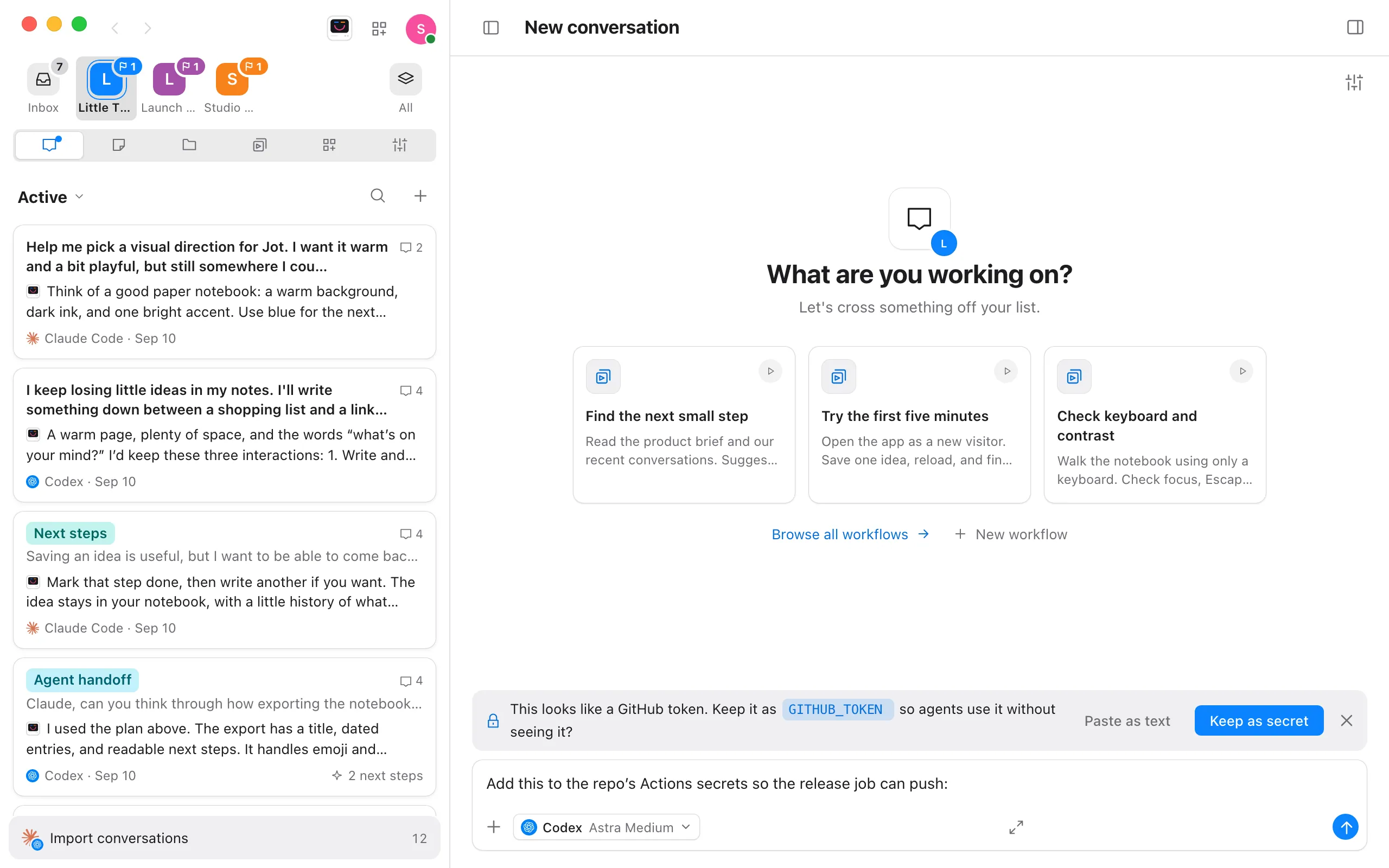
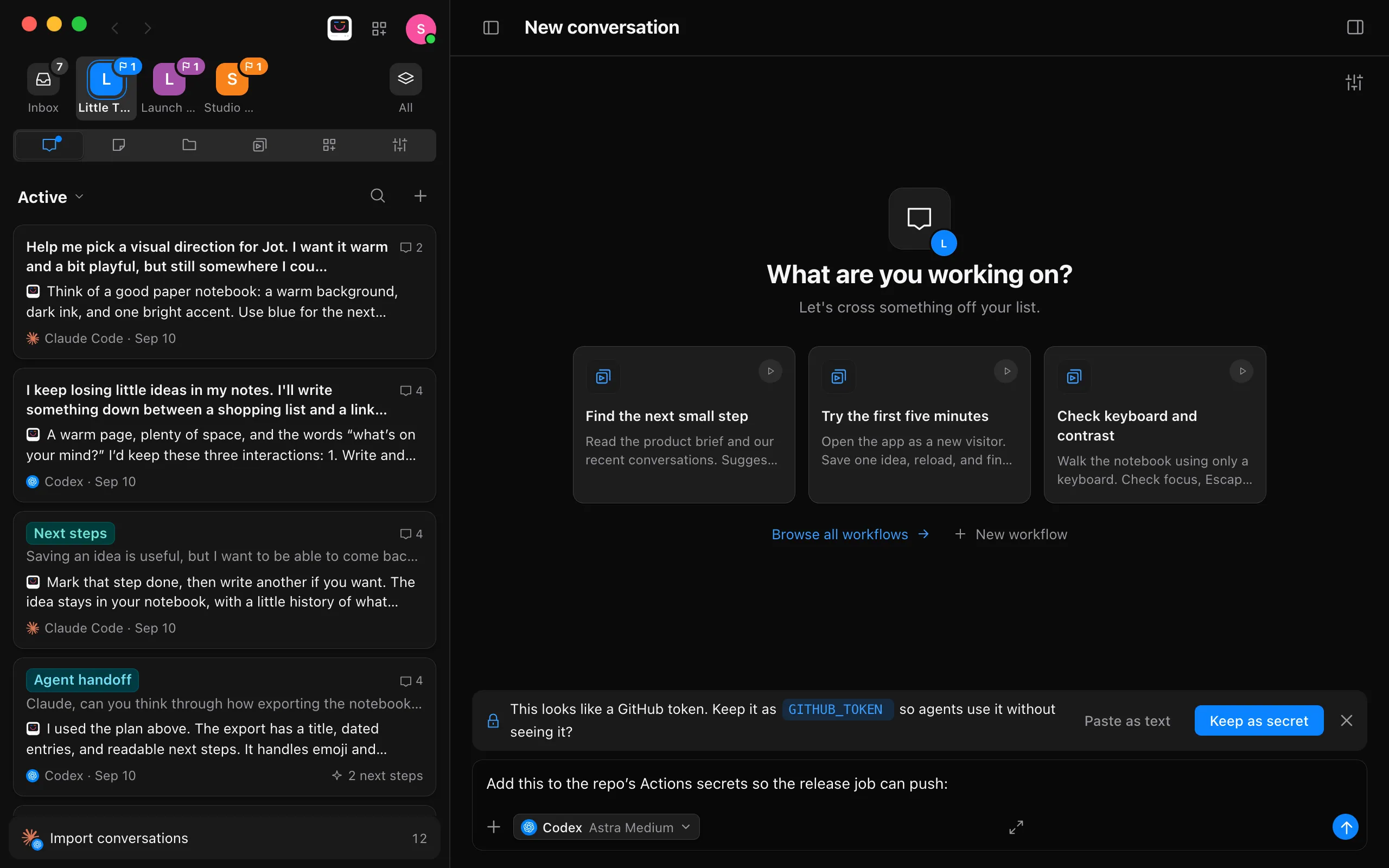
Send your message
Ask the agent to use the secret by its name, such as “Add
GITHUB_TOKENto the repo’s Actions secrets.”
See, add, and remove secrets in Project settings
You can also manage a project’s secrets in Project settings, under Secrets. It lists each secret by name, with when it was added or when an agent last used it.
- To see a secret’s value, select the secret. Its whole value opens under its name, with Copy, Replace… and Remove. Select the secret again to hide it. Folding Secrets or closing Project settings hides it too.
- To add one, type a name, paste the value, and select Add. When you paste the value first, Enjoy fills in the name. Changes apply right away. You don’t need to select Save.
- To change a value, open the secret, select Replace…, paste the new value, and select Replace. You can also add it again with the same name and select Replace.
- To remove one, open it and select Remove.
Good to know
- Names use capital letters, digits and underscores, like environment variables:
GITHUB_TOKEN,STRIPE_SECRET_KEY. - Secrets belong to one project. Agents in other projects can’t use them. Removing a project from Enjoy deletes its secrets.
- Secrets stay on this computer. They aren’t synced to your other computers or shared with your team. If you store credentials in the keychain, project secrets are kept there too. See Store your Enjoy sign-in in the system keychain.
- Renaming the project’s folder in Project settings keeps its secrets. If you move or rename the folder outside Enjoy, add them again.
- Agents get the project’s secret names, not their values. Enjoy replaces a secret’s value in a command’s output when it appears as plain text, base64, or URL-encoded.
- Only you, in the computer app, can see a secret’s value, in Project settings. Enjoy in a web browser or on a phone, and your team members, can’t see it.
- A command that uses a secret can still reveal it, for example by printing it reversed or writing it to a file the agent then reads, and it can send a secret wherever it connects. Keep secrets in projects where you trust what agents run, and remove a secret when you no longer need it.
- A secret’s value needs at least 4 characters. Shorter values would match ordinary text, so Enjoy couldn’t hide them in output.
- Agents can use a project’s secrets for any request in that project, including one from a team member or another of your devices.
- A command run with secrets stops after 30 minutes. Selecting Stop in the conversation stops it sooner.
- Pasting into JOY’s conversations, and into Enjoy in a web browser or on a phone, doesn’t offer to keep a secret. Secrets are only in the computer app.
If something goes wrong
“This project has no secret called …”
The agent asked for a name the project doesn’t have. Check the name under Secrets in Project settings, or add it.
“Unable to access Enjoy’s secure storage. Unlock your keychain and try again.”
Enjoy keeps credentials in your keychain and couldn’t open it. Unlock the keychain when your computer asks, then try again.