Turn usage statistics on or off
Steps
Open your account
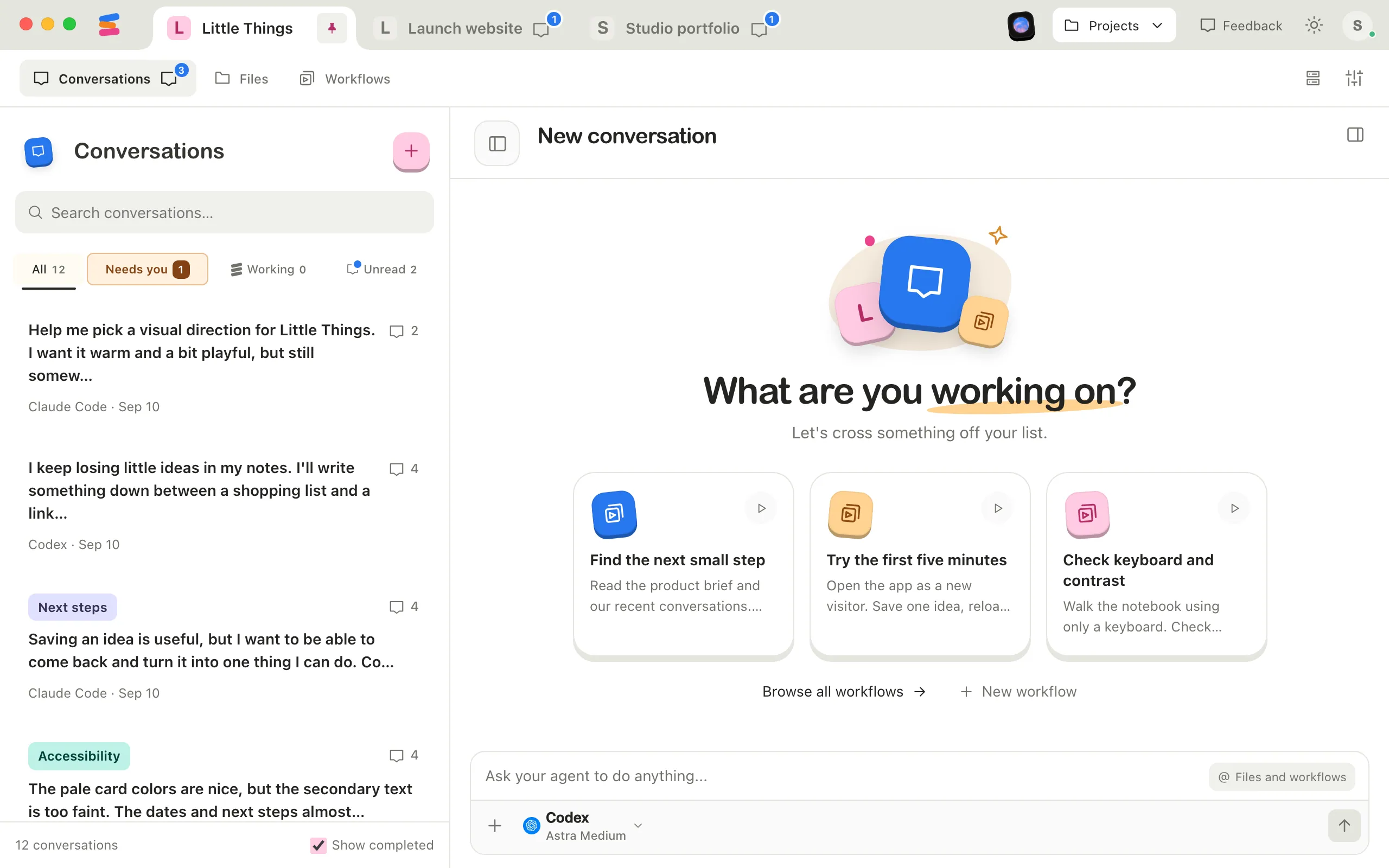
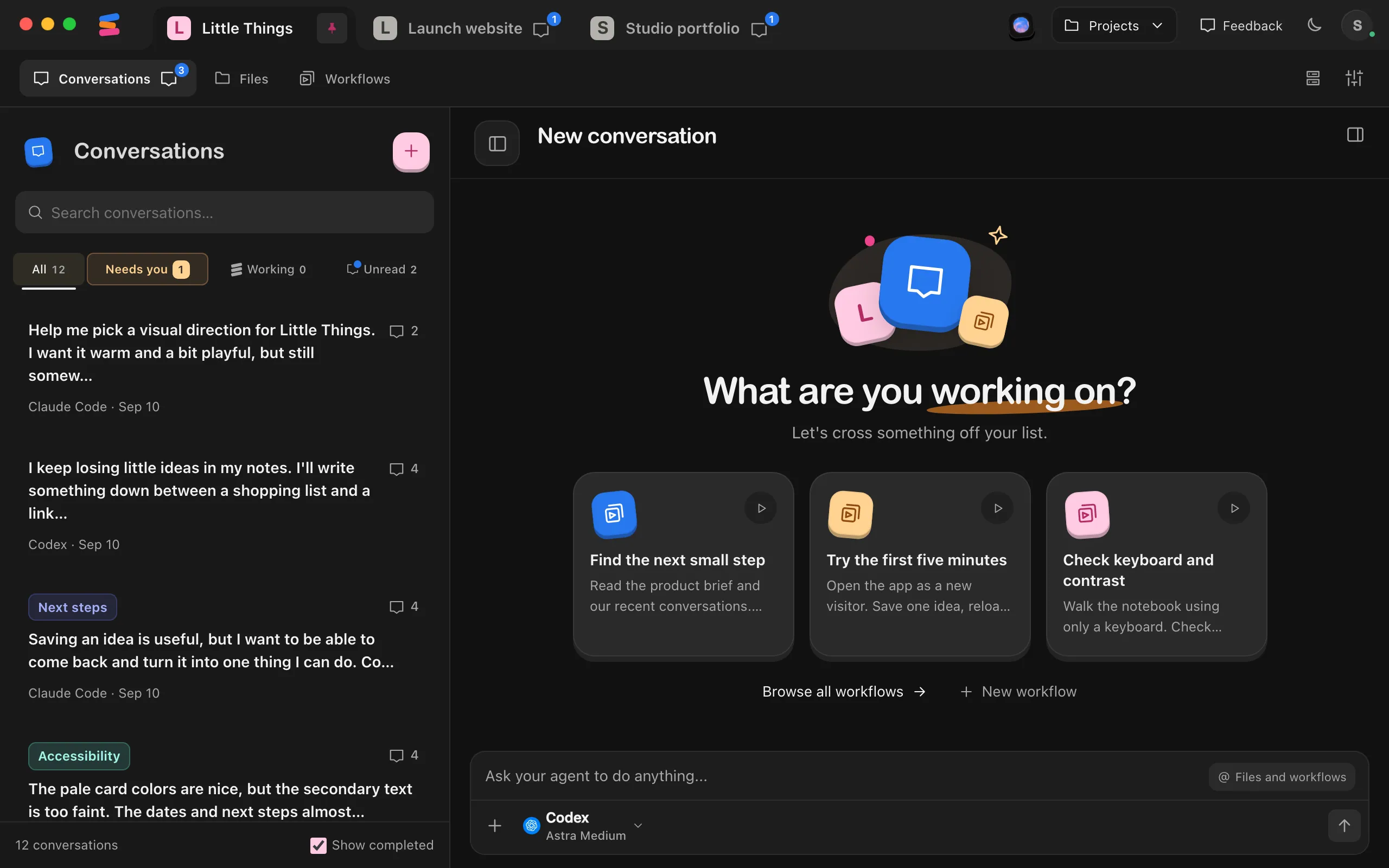
In the Enjoy computer app, select the circle with your initial in the top-right corner. If you aren’t signed in, it shows a person icon instead.
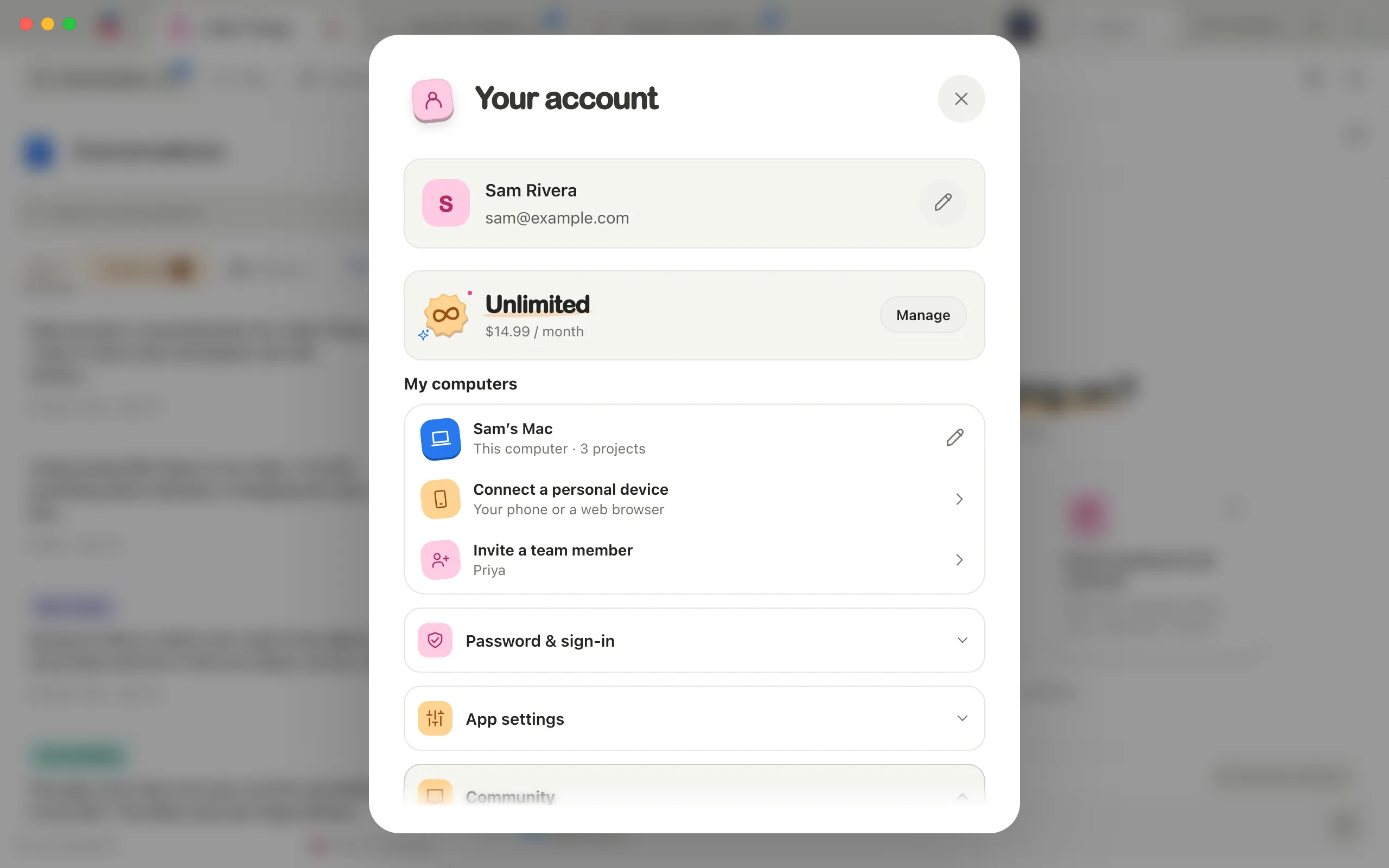
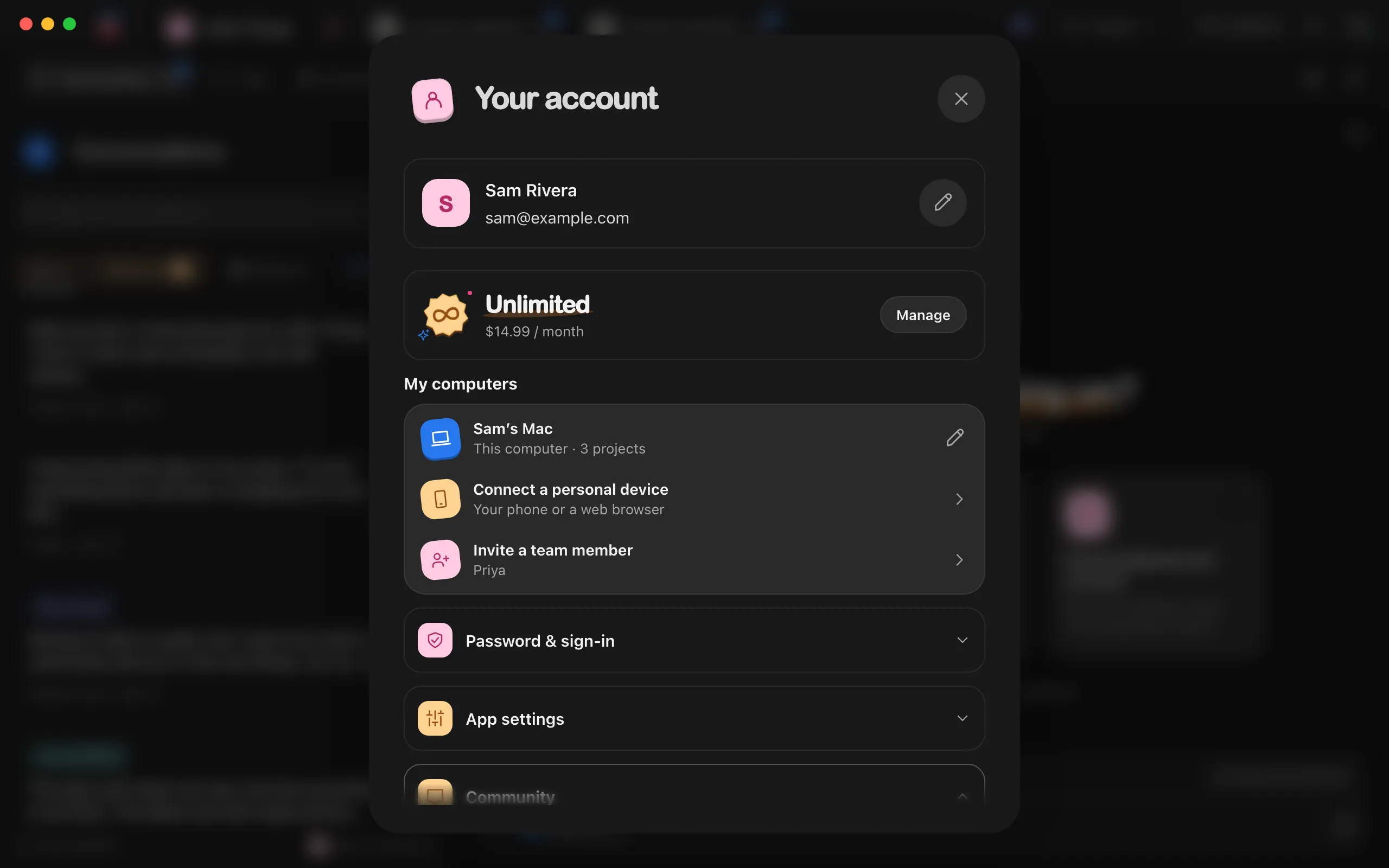
Select App settings
The section expands.
Turn off Share usage statistics
Your choice is saved right away. Turning it off also clears any reports waiting to be sent.
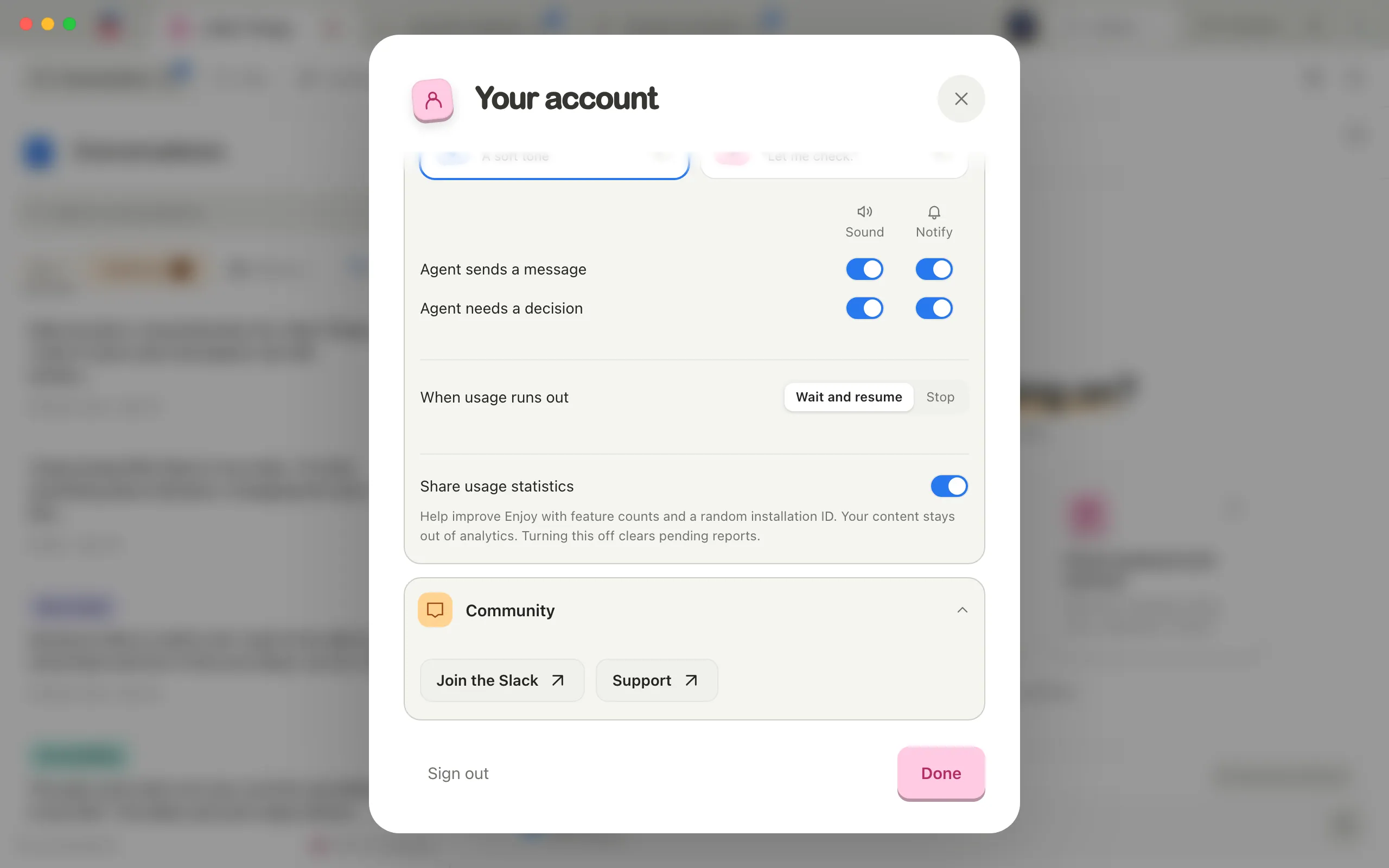
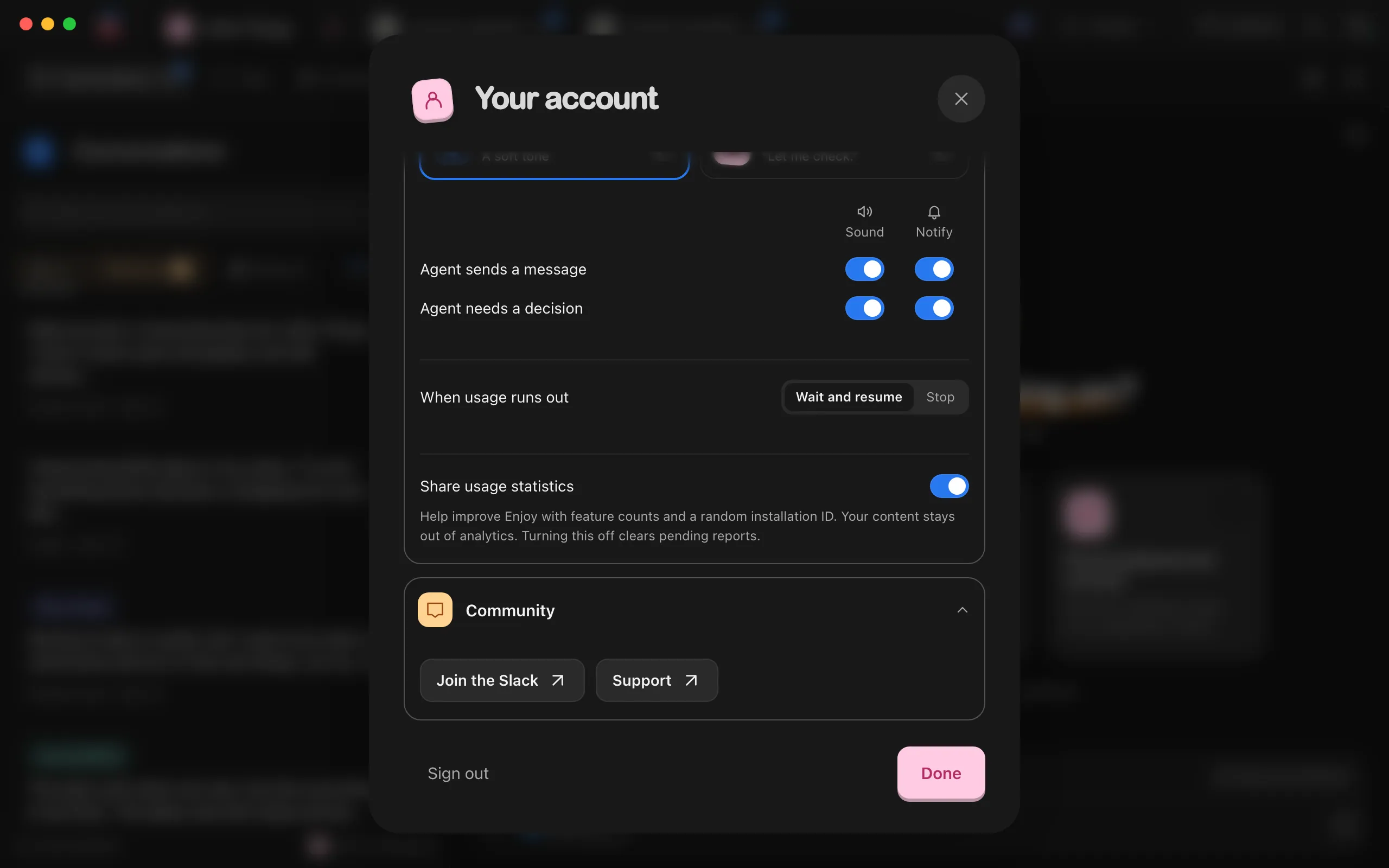
To share statistics again later, turn the switch back on.
Good to know
- What’s counted: adding or creating a project, starting a conversation, sending a message, creating a doc or a workflow, installing a workflow collection, an agent asking you a question or for approval, a workflow run starting and how it ended, a device connecting to this computer for the first time, and messages that come from other devices.
- What each report holds: what happened and when, your plan type (free or paid), your Enjoy version, and your system (macOS, Windows, or Linux), with a random ID for this installation.
- What’s never included: message text, file contents, names of projects or files, or anything else you write.
- If you turn it back on, Enjoy starts over with a new random ID.
- The setting is for the Enjoy app on this computer. Messages you send from the web app or the iPhone app are counted by your computer, if the setting is on there. The web app and the iPhone app don’t send usage reports of their own.
- Reports wait on your computer until they’re sent. Reports older than 30 days that weren’t sent are dropped.
- Visits to Enjoy’s website are covered in the privacy policy.
If something goes wrong
“Couldn’t save this setting. Try again.”
Enjoy couldn’t save your choice, and the switch shows the setting that’s still in effect. Select the switch again.