See what an agent made, in its reply
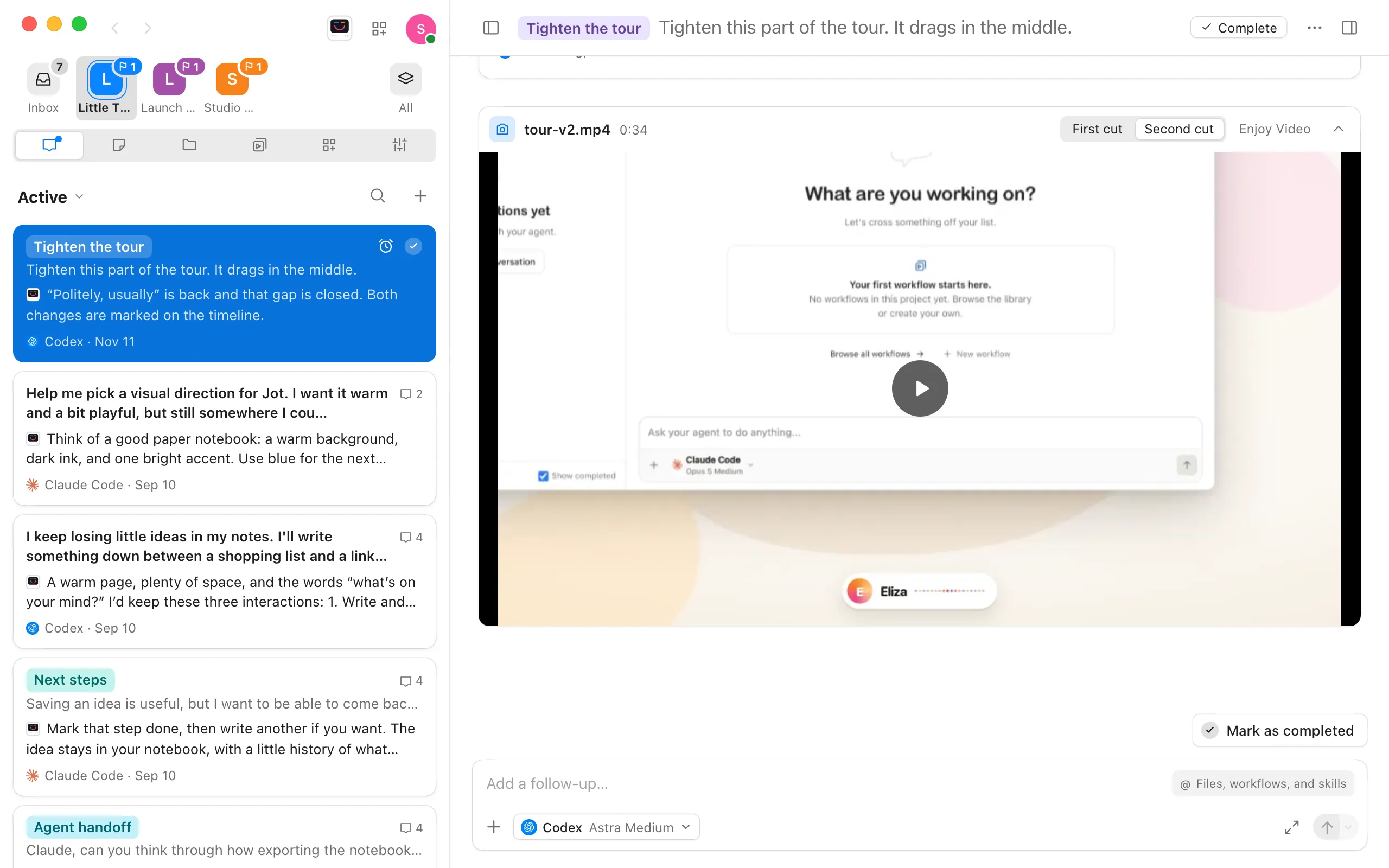
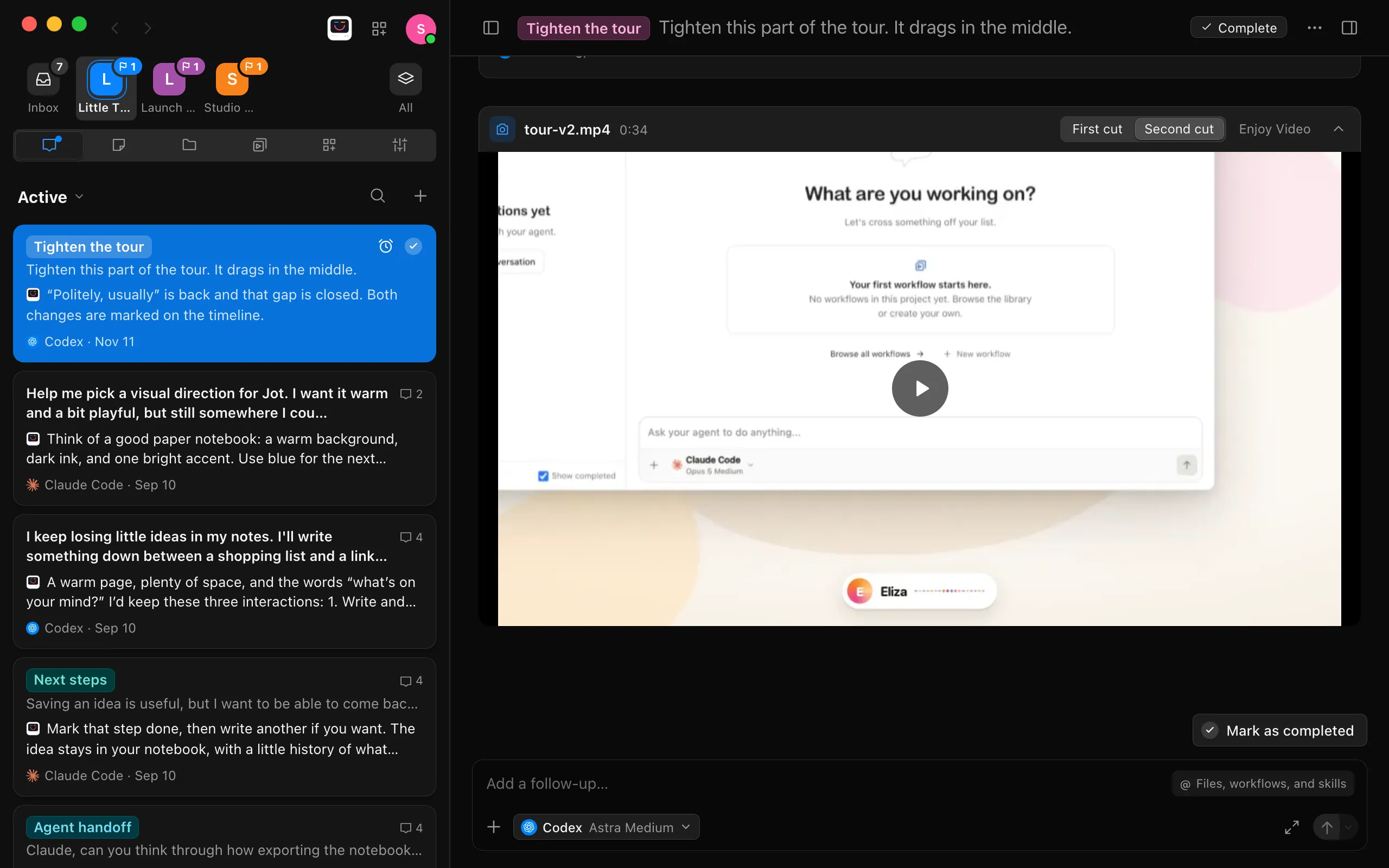
When an agent has something to show you, it can put it under its reply as a card, so you don’t need a browser or a page of its own. A tool draws the file: Enjoy comes with tools for video, sound, pictures and web pages.
Before you start
- The steps below are for the computer app. The web app shows the cards too, and opens each file full screen. See In the web app. The iPhone app doesn’t show them yet: you’ll see the agent’s words there.
- Ask for what you want to see, such as “Cut this down and show me” or “Make five takes on the homepage so I can pick one.” Agents show files on their own when it makes sense.
Steps
Press play on the card
A reply arrives with a picture of the file. Nothing runs until you press play, or Try it on a page. A Markdown draft shows its page right away; Read all opens the rest. One tool runs at a time, so starting another puts the first back to rest.
Move around in it
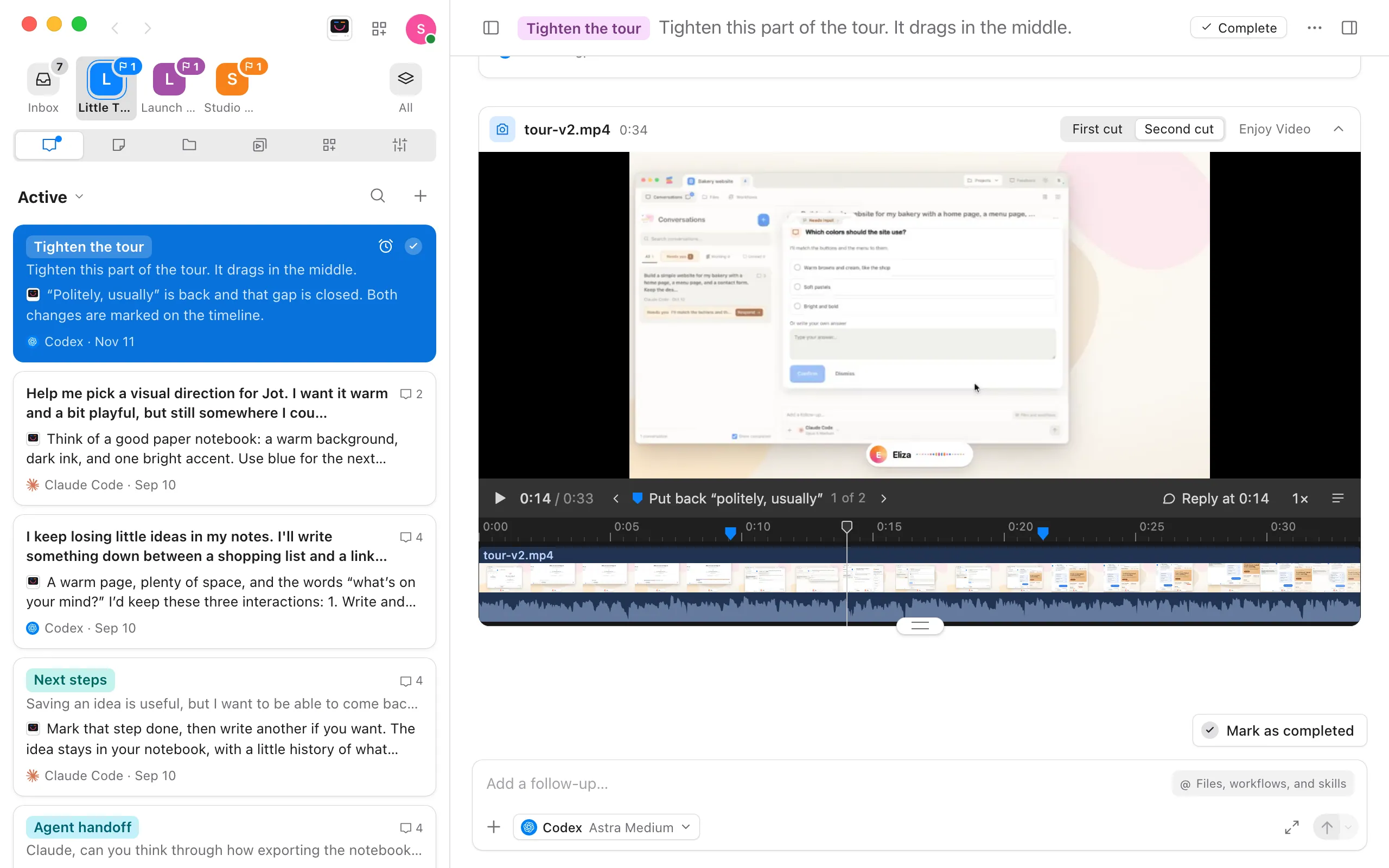
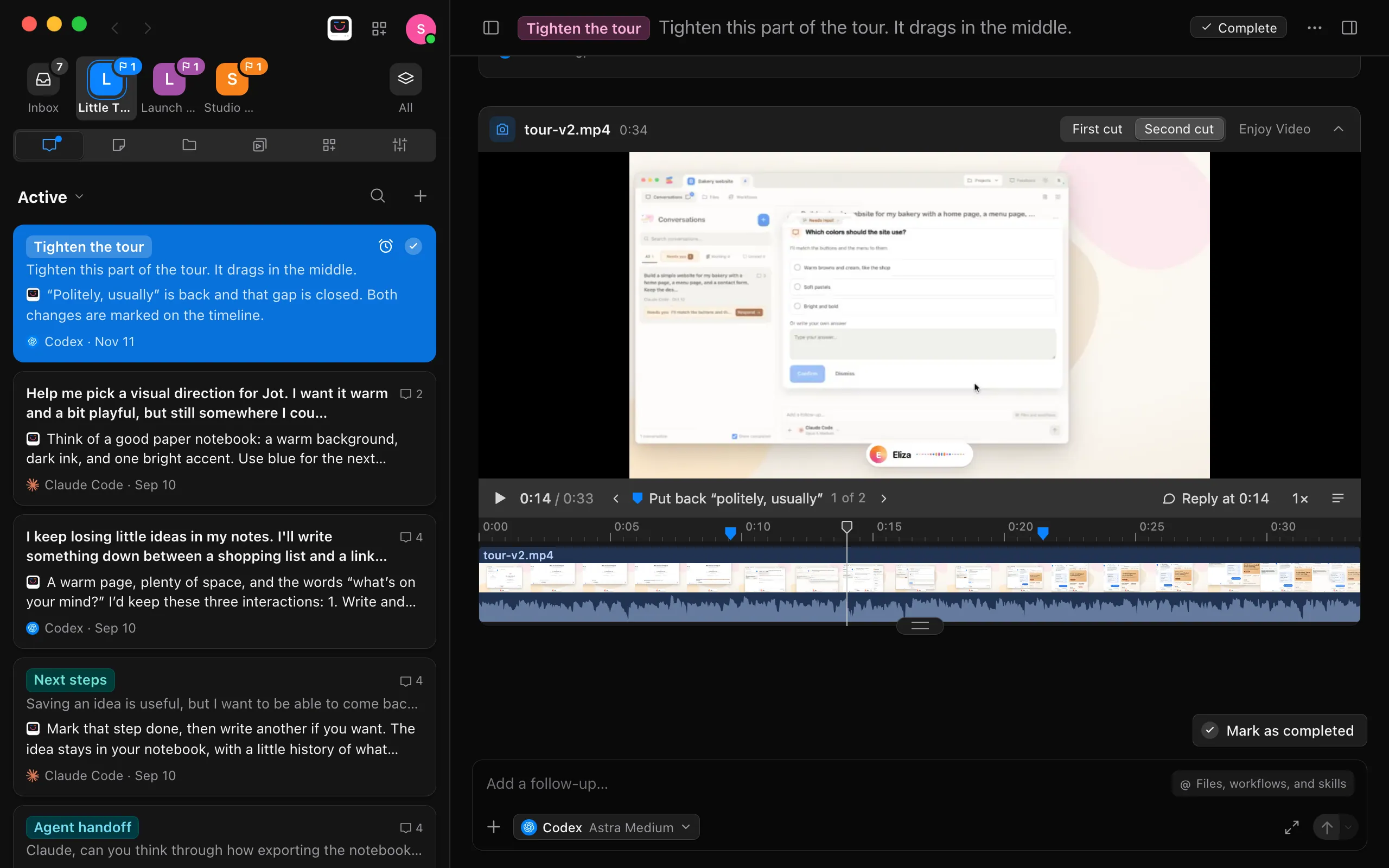
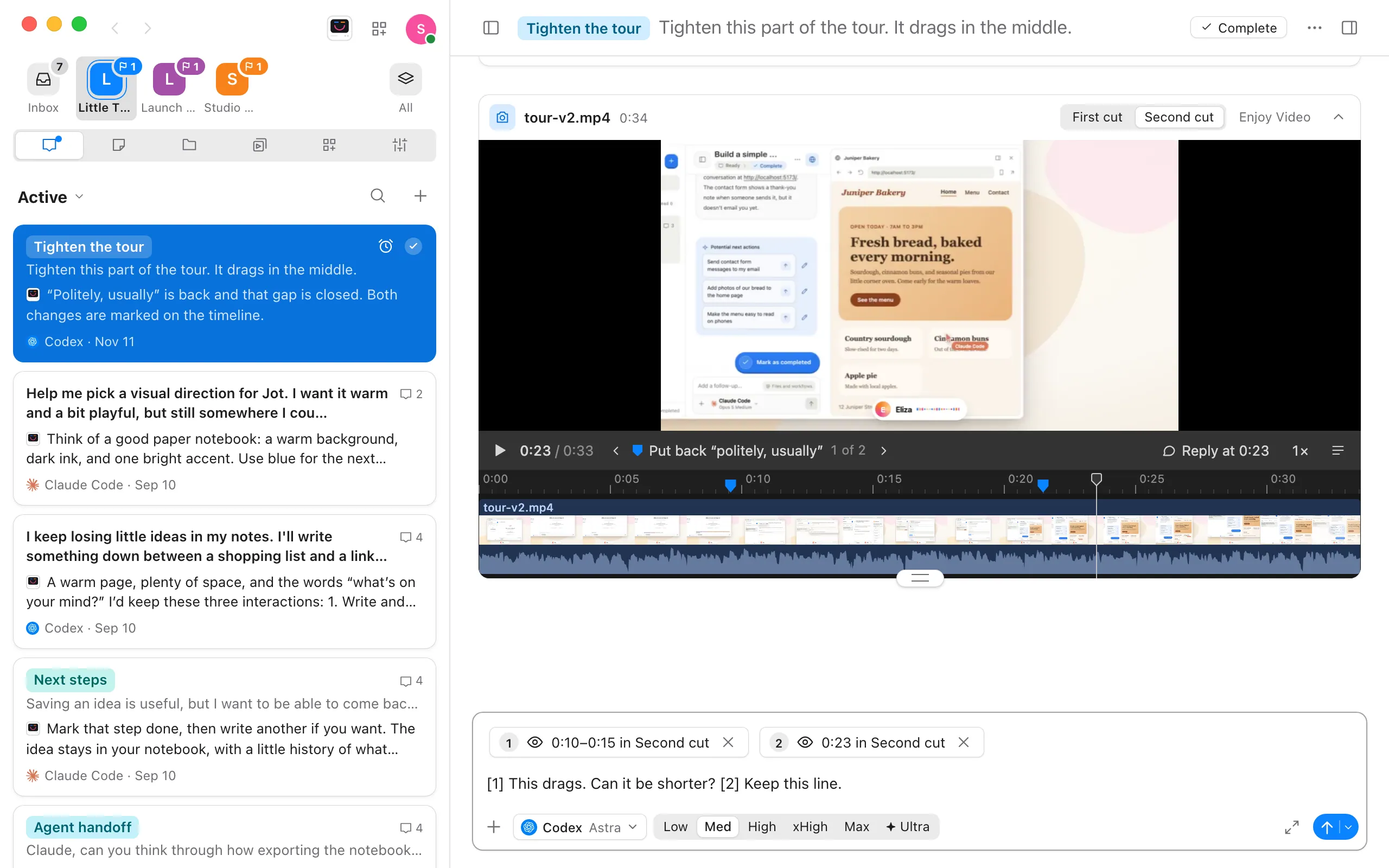
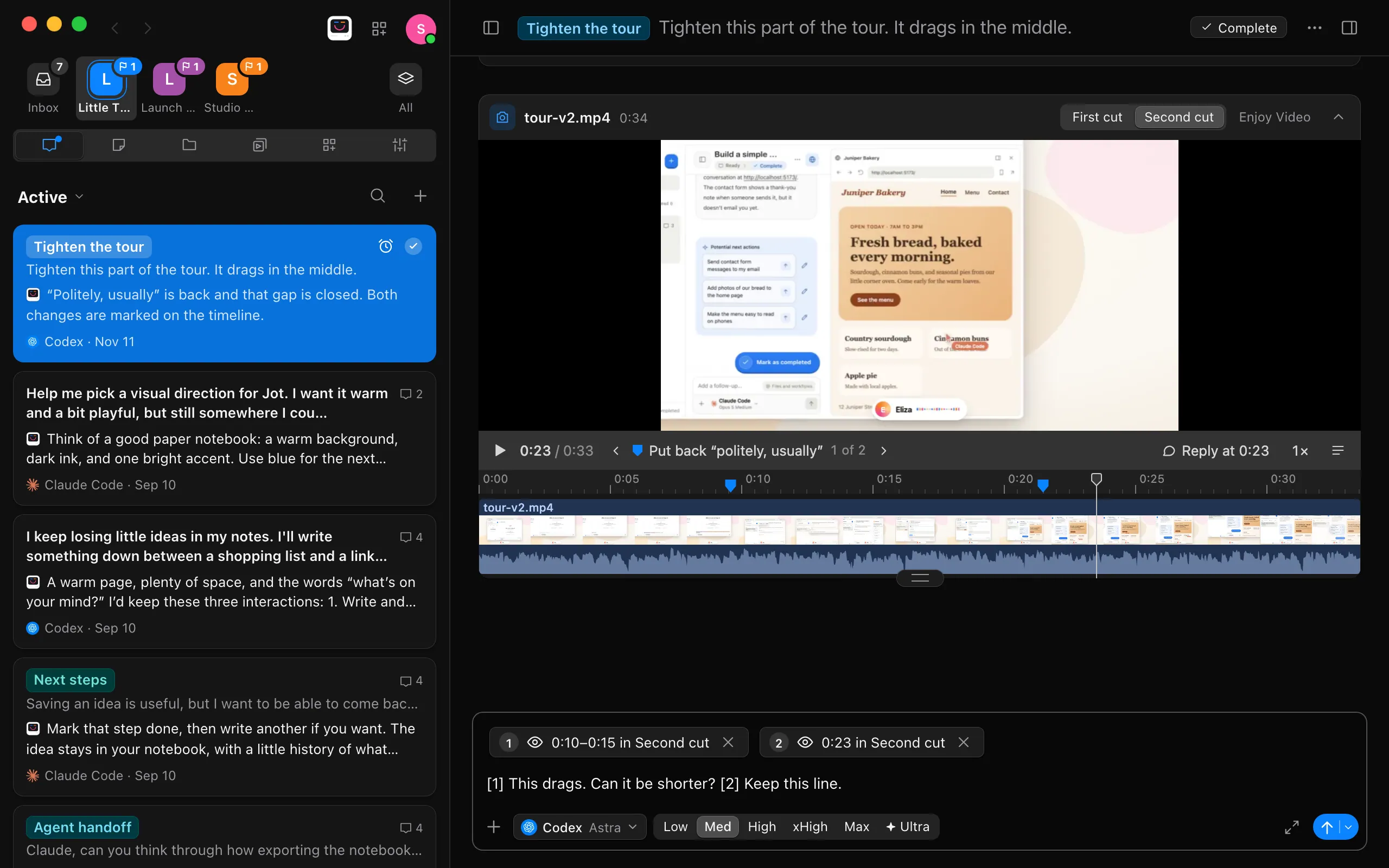
For a video or a sound, drag along the timeline to scrub. Videos, sounds, pages and pictures use all the width the conversation has. A picture fits whole in its card at first. If it’s tall, like a long screenshot, select it to fill the card’s width, and scroll down through it. Select it again to see it whole.
Flip between versions
When an agent makes a new version, the card moves to its newest reply, with the versions at the top of the card, each with the time it was shown. Each version is its own file in your project, so you can open any of them in Files. Selecting one keeps your place. Markers on the timeline show what the agent says it changed. Step through them under the picture, and each one plays from just before it.
Comment on moments
Select Reply at for the moment you’re on, or drag across a stretch of the timeline first to comment on all of it. It goes in your message with a number, like a picture does, so you can write what you want right after it. Do it again for the next one, as many times as you like. When you send it, the agent gets the file, the times and the words said there above each of your comments.
Get a transcript
Select the transcript button under the picture, then Transcribe. Select a word to go to it, or select some words and then Reply at to comment on that stretch.
Choose between takes
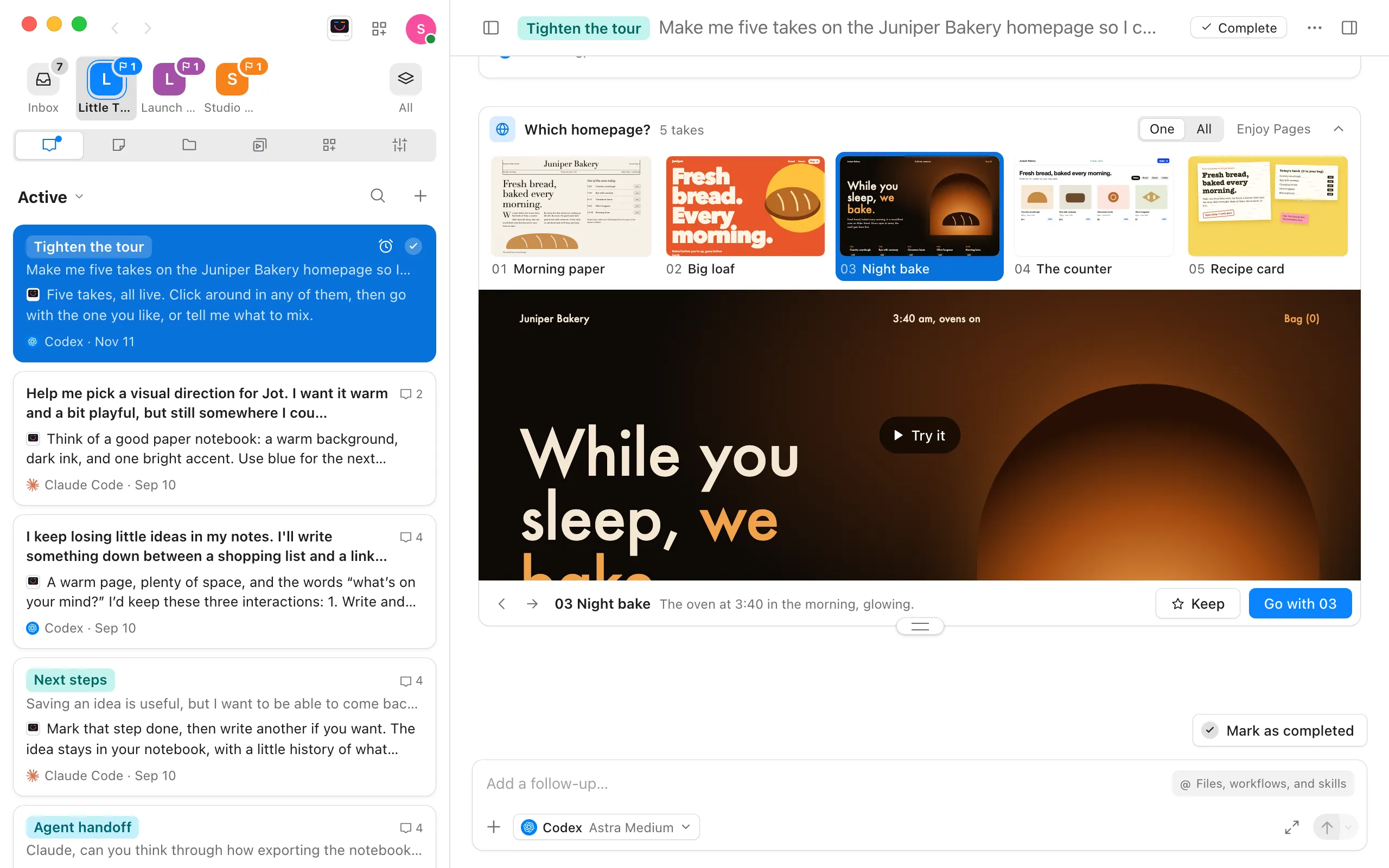
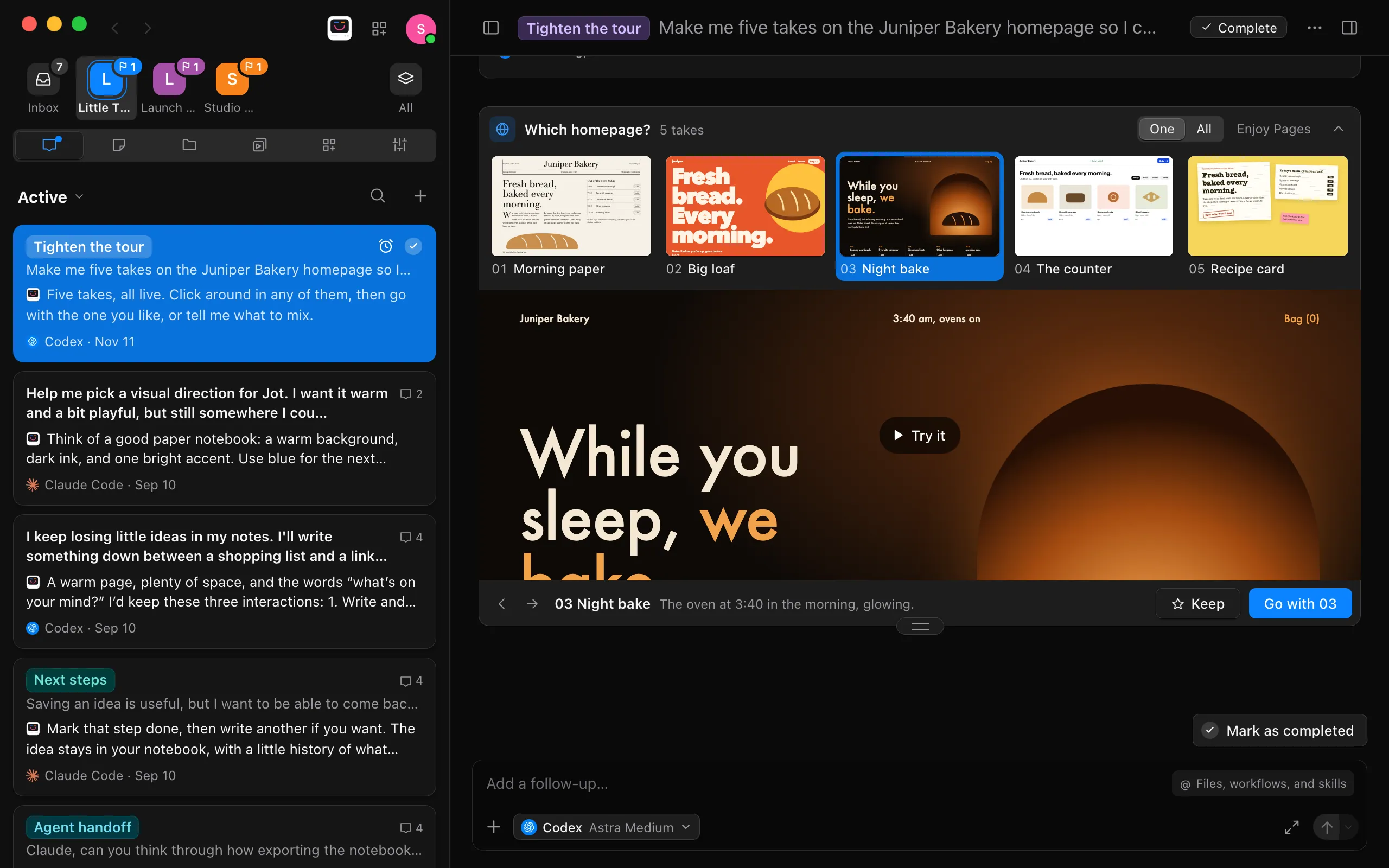
When an agent makes several takes, the card shows them as numbered options under its question. Select one, or use the arrow keys, and All shows them side by side. A video or a sound starts over from the beginning when you move to it. Try it runs the one you’re on, so you can click around. Go with sends your choice to the agent as your next message. Or select Keep on the ones you like, and each goes in your message with a number, so you can say what to take from each.
In the web app
In the web app, on your phone or in a browser, a card shows the file’s picture under the reply. Your computer sends it, so it shows while Enjoy is open there.
- Open it full screen. Select play, Try it, Read all, or the picture itself. A video or a sound plays in your browser’s own player. A web page opens in place, as it does in Files. Select Chat to go back.
- Versions. The card says which version it shows. Full screen, pick another from the top right.
- Takes. The card shows the one you’re on and how many there are. Full screen, step through them with the arrows, then select Keep or Go with, as on the computer.
- What stays on the computer. The tools that draw the files run only there, so the web app has no timeline markers, transcripts or Reply at.
Good to know
- Make a card shorter, or put it away. A card takes at most about three quarters of the conversation you can see, so you can see all of it, controls included, without scrolling. To change its height, drag the handle on its bottom edge, which shows when you point at the card. Double-click the handle to go back to the card’s own size. To put a card away, select Collapse, the arrow at the top right of the card, or drag the handle up past the smallest size. The card becomes a row under the reply, and anything playing in it stops. Select Show on the row to open the card again. Enjoy remembers each card’s size on this computer, and a new version of a file keeps the size of the one before.
- Where the card goes. Under the message the agent sends after showing the file, whether that’s an update while it works or its final reply. Until that message arrives, the card waits under the agent’s latest message.
- Another tool. When several tools can show a file, the card’s menu at the top offers them. Enjoy remembers your choice for files of that type. You can make your own.
- Transcripts stay on your Mac. Transcribing uses your Mac’s own speech recognition and needs macOS 26 or later. Nothing leaves your computer. Waveforms and transcripts are kept until the file changes.
- The files stay put. A card shows the file in your project’s folder. If the file is moved or deleted, the card says so.
If something goes wrong
“Your computer can’t share its files with other devices right now.”
The web app gets each file from your computer through the same connection that shows a site an agent opened. Check that Enjoy is open on your computer and signed in, then select Try again.
“Pages from dot folders and files, such as .scratch, don’t show.”
The agent saved the page in a folder whose name starts with a dot. Enjoy never shows pages from those folders, so files like .env and the .git folder stay private. Ask the agent to save it in another folder of your project and show it again.